What a property listing page needs to sell a home
Buyers decide on the listing page whether to call you. Here is what that page needs, part by part, with a real example and a checklist to tick.
In this guide
- Photos, the price and the key facts come first, before any text
- The description tells the story, and fields hold the facts
- A map, documents and a video answer questions before a visit
- Put the agent and a short form next to every listing
- In MyHome you design the listing page once, in Elementor
A property listing page is the page of one home on your website. It needs photos, the price, the key facts, a description, the details, a map and a way to reach the agent. Each part answers one question that a buyer has before they call.
Many buyers land on a listing page from Google or a shared link, not from your home page. So this one page has to sell the home on its own.
Below is each part in the order buyers look for it, with a real listing page example from the MyHome demo. If your website is not built yet, start with our guide on how to create a real estate website.
What a property listing page needs, from top to bottom
Buyers scan a real estate listing page for answers. Give them the answers in the order they ask the questions.
- Photos. Does this look like a home I want?
- The price and the key facts. Can I afford it, and does it fit?
- The description and the details. What makes it special?
- The map. Where is it, and what is near?
- Documents and video. Can I check more before I visit?
- The agent and the form. Who do I ask?
A property page that leaves one of these questions open sends the buyer to the next listing. The listing page on the MyHome Modern demo has all six parts, plus a mortgage calculator, reviews, the agent's other listings and similar homes. See the listing page on the demo.
Photos first, with your best one in front
Buyers look at the photos before they read a word. Open with your best photo, then show every room buyers will ask about, the outside and the view. Shoot in daylight with every light on, and hold the camera level so the walls stand straight.
MyHome gives the listing page three gallery styles, called Mosaic, Gallery and Carousel. On the demo, Mosaic shows one big photo beside smaller ones, with a Show all photos button. Each style opens from the Listing menu of the demo, so you can compare them before you pick.
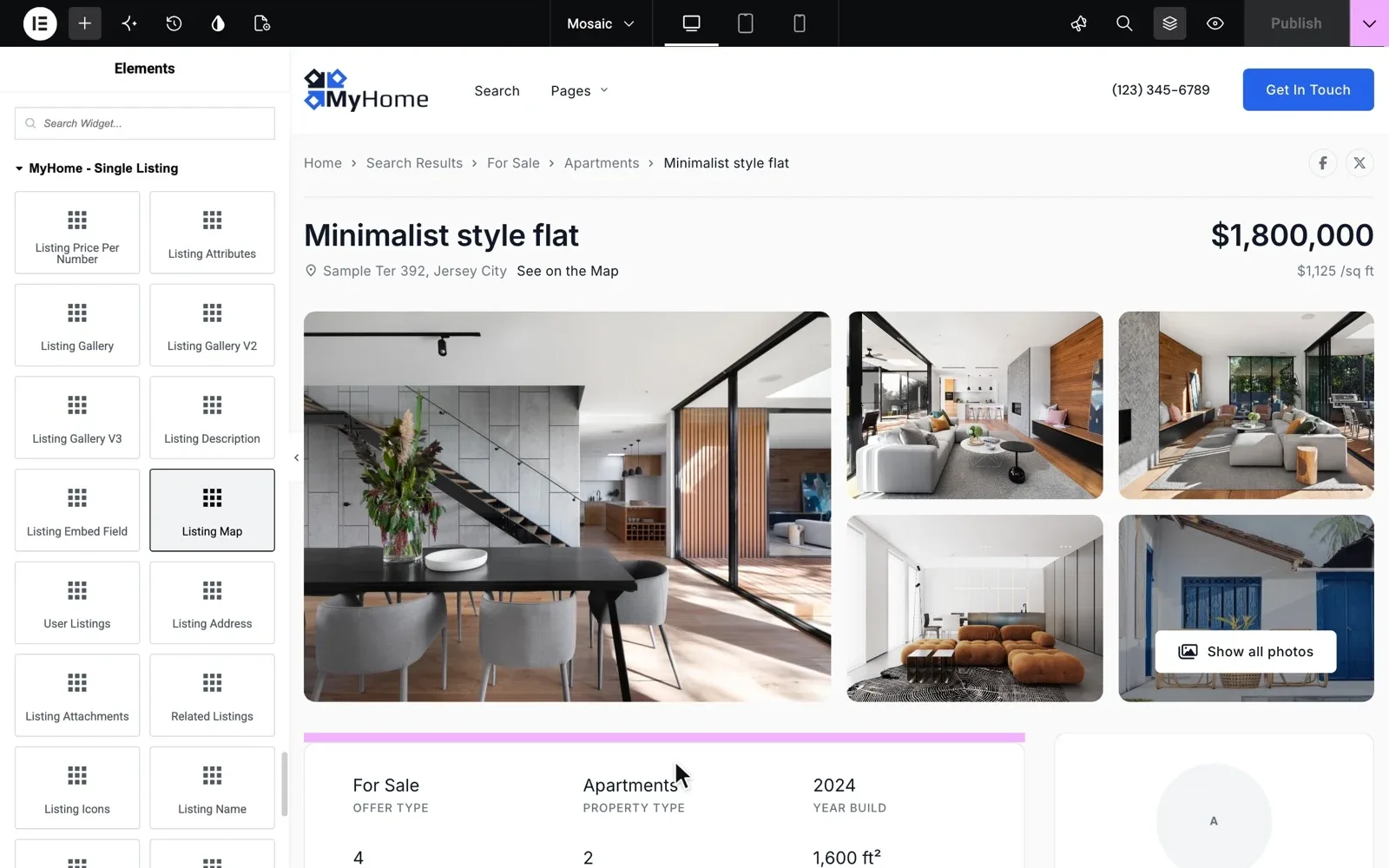
Photos go into a Gallery field, where you can limit their size and number. Large photo files slow the page down, especially on a phone. Our guide on why a listing website is slow shows how to make them smaller.
The price and the key facts at the top
Put the price in large type next to the title and the address. Right under the photos, show the facts buyers filter by, in one row they can read at a glance.
- Bedrooms
- Bathrooms
- Size, with its unit
- Property type, such as house or apartment
- Year built
On the MyHome demo, the price per square foot sits under the price, so buyers can compare homes of different sizes. The row of key facts is a block where you choose the fields it shows.
A description for the story, and fields for the facts
The description is where you sell the life in the home, such as the morning light or a quiet street. Leave the numbers to the fields. Our guide on how to write a property listing description has templates you can copy.
Details are what buyers compare, such as the floor, the lot size, parking or a pool. In MyHome each detail is a field, and you add a new one in a few clicks.
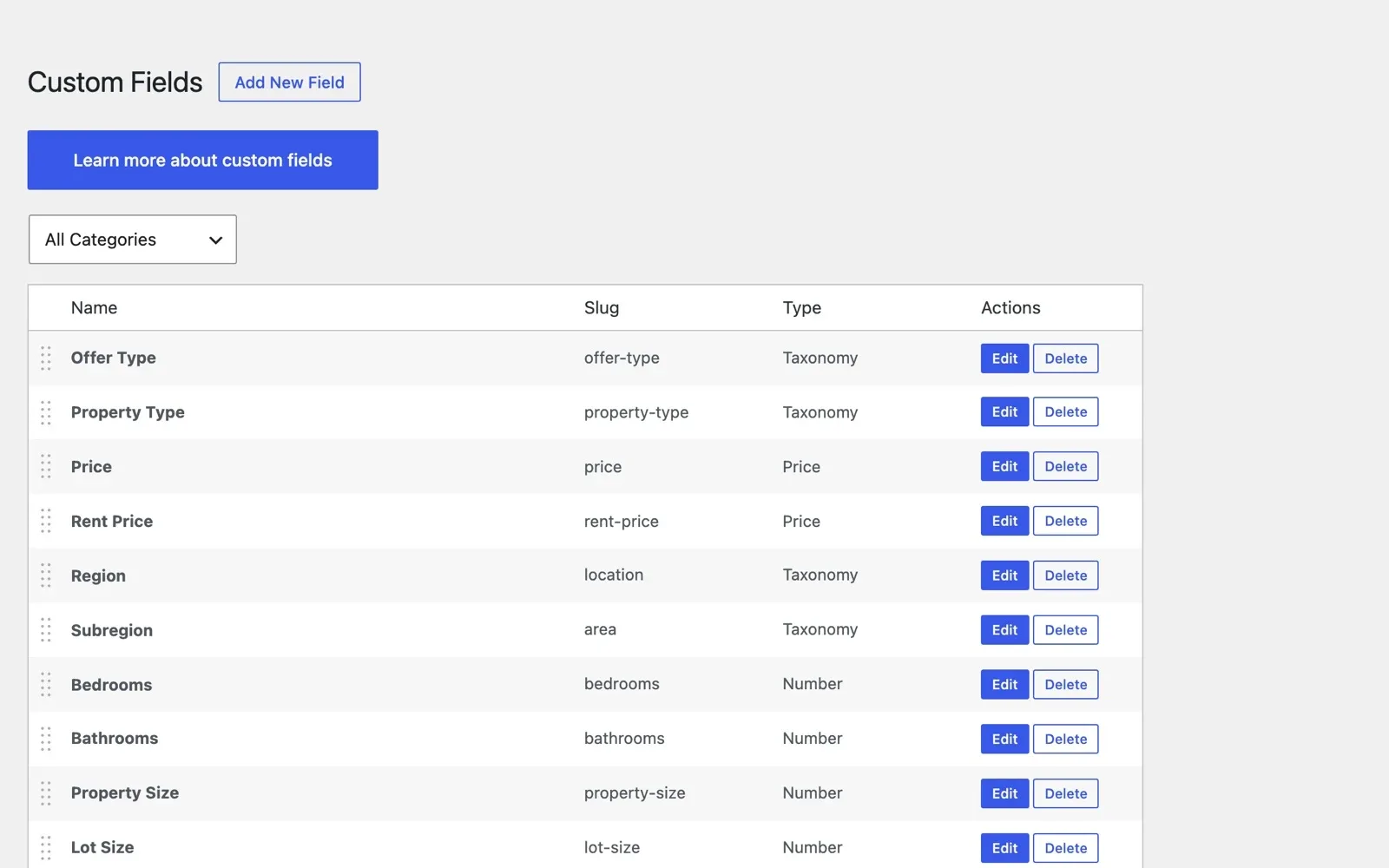
A new field does not appear on its own. Place it once in the search template and once in the listing template. The guide Adding Custom Fields to Search Results and Single Listing Pages shows both steps.
A map that shows where the home is
Location counts as much as the photos, so every listing page needs a map. Buyers use it to check the commute, the schools and the shops nearby.
In MyHome the map is a block on the listing page, and you choose a road, satellite, hybrid or terrain map. Many buyers meet your map even earlier, in a map search where they draw the area they want.
Maps run on Google Maps, which needs a Google key and may cost money on very busy websites. Our guide on how to add map search to a real estate website shows how to connect the key and set up the search.
Documents and video for buyers who check first
Some buyers want to check everything before they ask for a viewing. Give them the files they would ask you for anyway.
- A floor plan
- A leaflet with the key facts
- The building or community rules
- An energy certificate, where your market asks for one
In MyHome an Attachments field adds documents, and the demo listing shows them in a Documents box. An Embed field holds a YouTube video or the code of a virtual tour.
The agent and a short form next to every listing
A buyer who is ready to ask should not have to look for a phone number. Show the agent's photo, name and phone on the listing, with a short form beside them. Ask only for a name, an email or phone number, and a message.
MyHome puts an agent box with the photo, role and phone on every listing, with a short contact form next to it. On the demo, buyers can also call or message the agent in one tap, with phone, WhatsApp and Viber buttons.
At the bottom, show the agent's other listings and similar homes, so a buyer who does not like this one keeps looking. For more ways to turn visits into calls, read how to get more leads from your real estate website.
How the listing card brings buyers to the page
Before buyers see a listing page, they see its card in the search results. The card has one job, which is to earn the click.
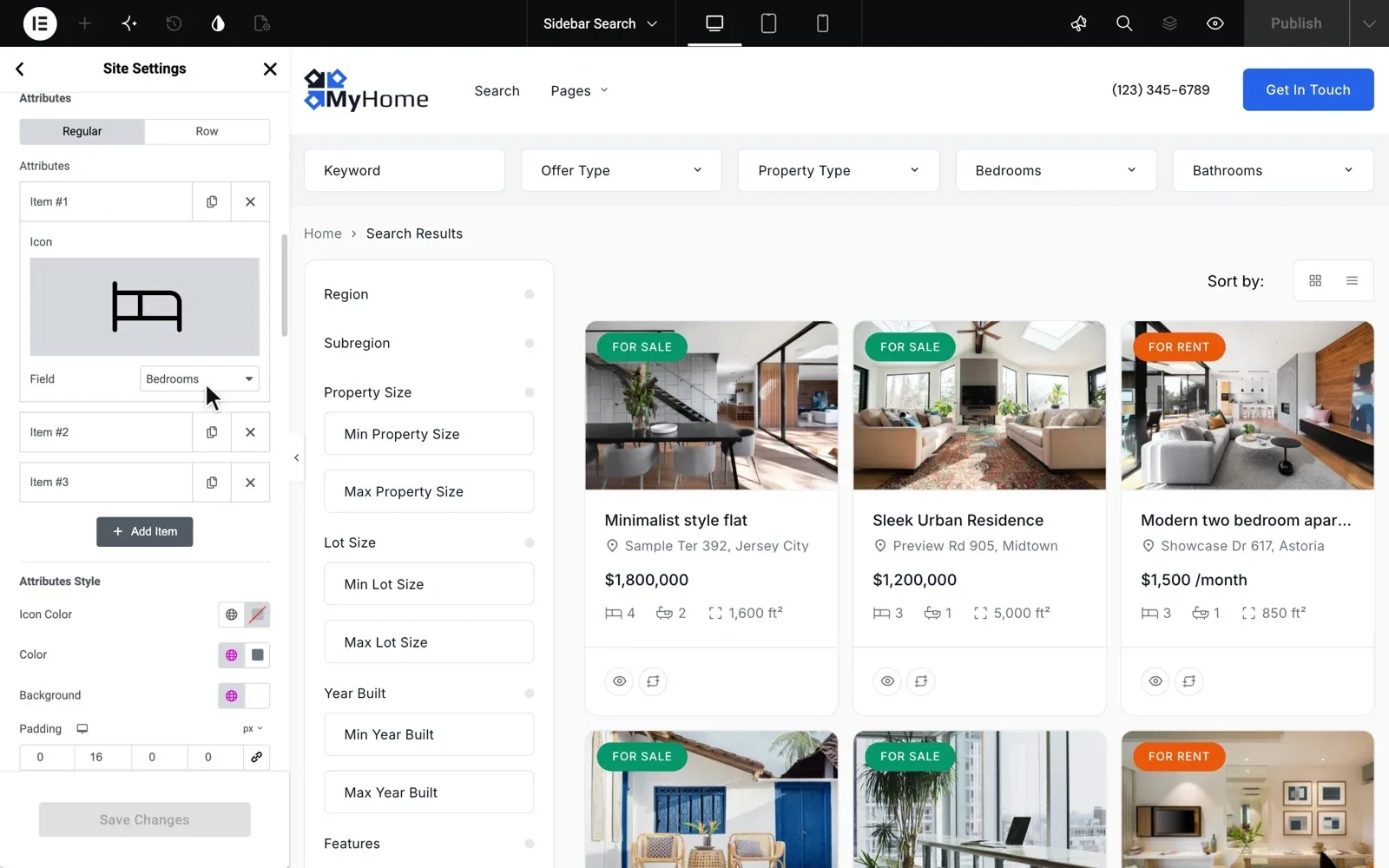
In MyHome you choose what every card shows, such as beds, baths and size with the icons you pick. Labels like For Sale or Featured sit on the photo, and all cards change at once. The guide How to customize Ad Card shows where the settings are.
Quick View lets buyers check a home without leaving the search results. An eye button on each card opens a popup with the photo, price, beds, baths and description. Add to Compare puts homes side by side, from a compare bar on every page.
Real estate listing page design in Elementor
In MyHome the listing page is a template you open in Elementor. You drag MyHome blocks onto it with no code, and move them to change their order. These are the blocks the parts above are made of.
- Listing Gallery for the photos
- Listing Attributes for the key facts
- Listing Map for the map
- Listing Attachments and Listing Embed Field for files and video
- User Listings and Related Listings for more homes at the bottom
Colors and fonts come from Elementor Site Settings, so the listing page matches the rest of your site. You change the template in one place, not on every listing. The guide How to Use Elementor with MyHome Theme shows each template.
Try the listing page on your own MyHome website
Get your own MyHome website with the demo you pick and the full WordPress admin, ready in a minute. Add a home and see its page.
Try MyHome free Free for 7 days. No card needed.Property listing page checklist
Use the first group once, when you set up the site. Use the rest for every new listing, before you share it.
Before a listing goes live
17 tasks
Set once, for the whole site
-
Mosaic, Gallery or Carousel. Open each from the Listing menu on the demo.
How to Use Elementor with MyHome Theme -
Sizes can show sq ft or m², before or after the number.
Configuring Currency Settings -
It needs the free WP Mail SMTP plugin, which you add after you buy or keep the site.
How to prevent emails go to SPAM folder? How to use SMTP?
Photos and price
-
Add the outside, the street and the view at the end.
-
Later, mark a sold home as Sold instead of deleting it.
Facts and details
-
-
MyHome can build titles from fields, such as Property Type and Location.
How to Auto-Generate Ad Titles -
Place and files
Contact
-
Their photo, role and phone show in the agent box.
-
Add a CC line if two people should get every inquiry.
Sending email to multiple recipients (CC) -
Rather have us build your listing pages?
Short on time for the template, the fields and the cards? We can build the whole MyHome website for you, listing pages included.
Custom Website
Photos, your logo and a few words are enough. We design and write the whole website, and you pay only when you approve it.