Skip to content

How to Use Elementor with MyHome Theme

Elementor is the editor behind every page in MyHome. This guide shows where to open it for a regular page, for the header and footer layout, for the single listing, search results and user templates, and where the theme's global colours and fonts live.

2 minute read

Elementor is the core plugin for the MyHome theme. It lets you modify any page on your website. If you have not used Elementor before, we recommend watching this 2-minute getting started video, then trying the editor yourself by dragging and dropping elements to create or modify your first page.

1. Editing the homepage and other pages (Contact Us, About Us, etc.)

Visit the page (for example the homepage) and click the Edit with Elementor link in the top admin bar.
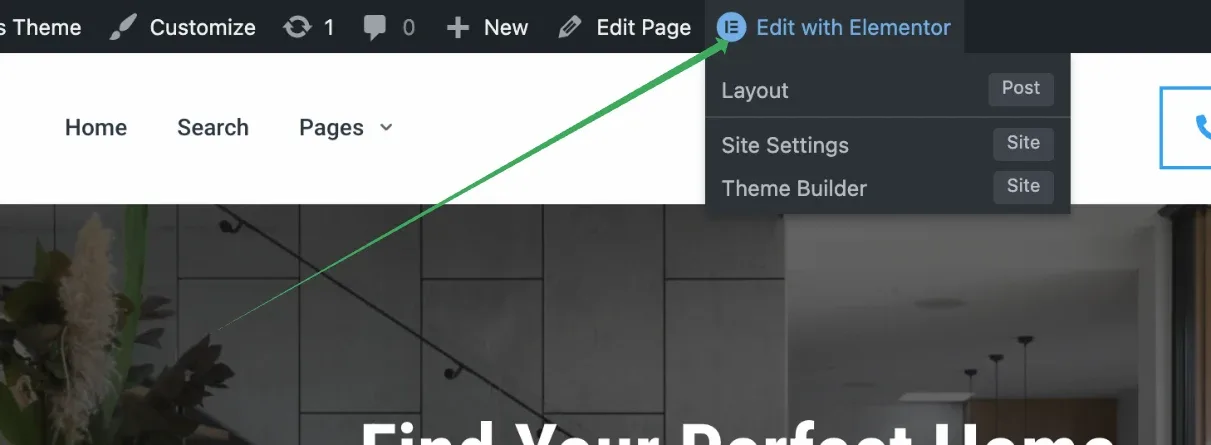
WordPress admin bar with the Edit with Elementor menu open over the homepage, showing Layout, Site Settings and Theme Builder entries.

If you cannot see the link in the top admin bar, you can also reach it from Pages in the WordPress admin: hover over the page and click Edit with Elementor in the row actions.
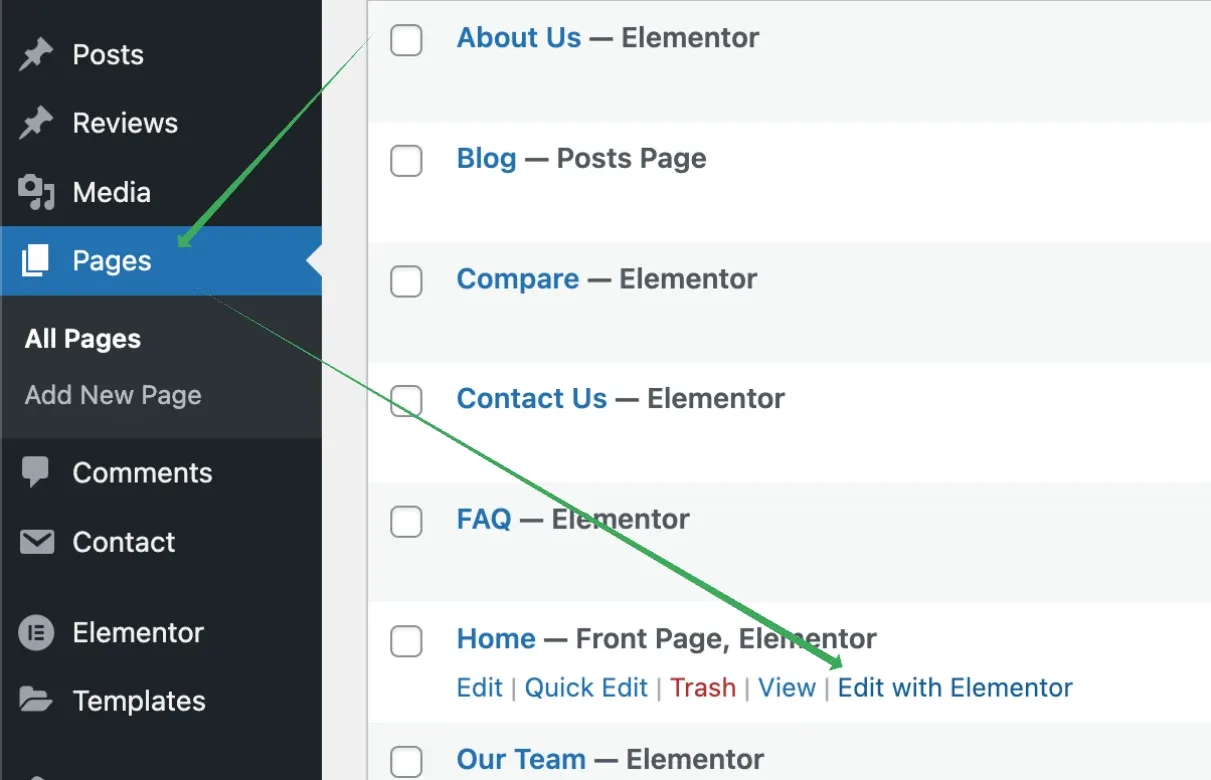
WordPress Pages list with the Pages menu highlighted and the Edit with Elementor link showing in the row actions under the Home page.

2. Editing the layout (header and footer)

With Elementor you can also edit layouts, which are header and footer combinations. Open MyHome Panel → Templates, stay on the Layout tab and click Edit next to the layout you use.
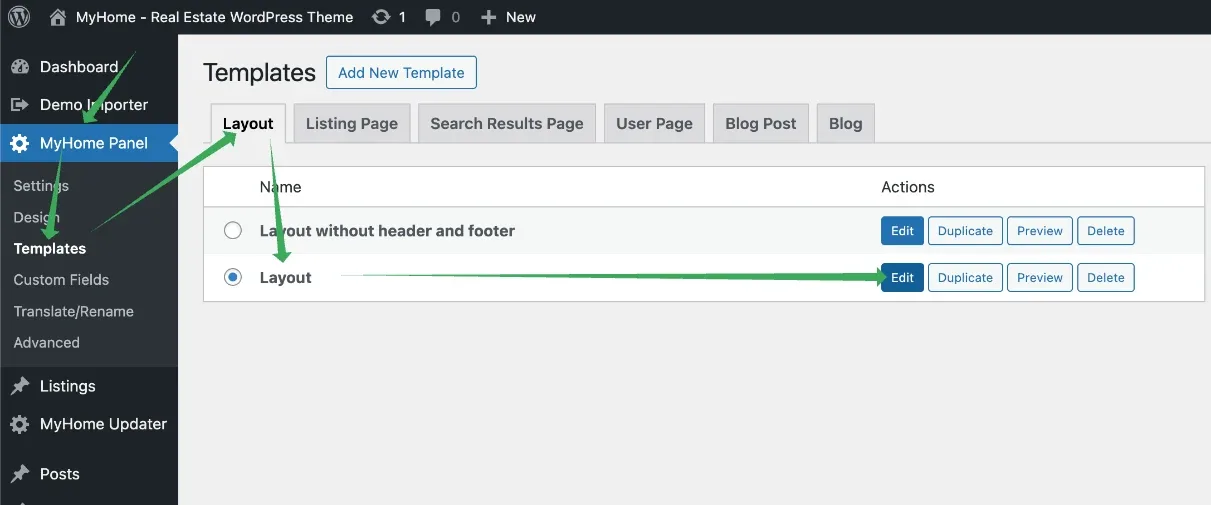
MyHome Panel Templates screen on the Layout tab, listing 'Layout without header and footer' and 'Layout', with the Edit button of the selected Layout highlighted.

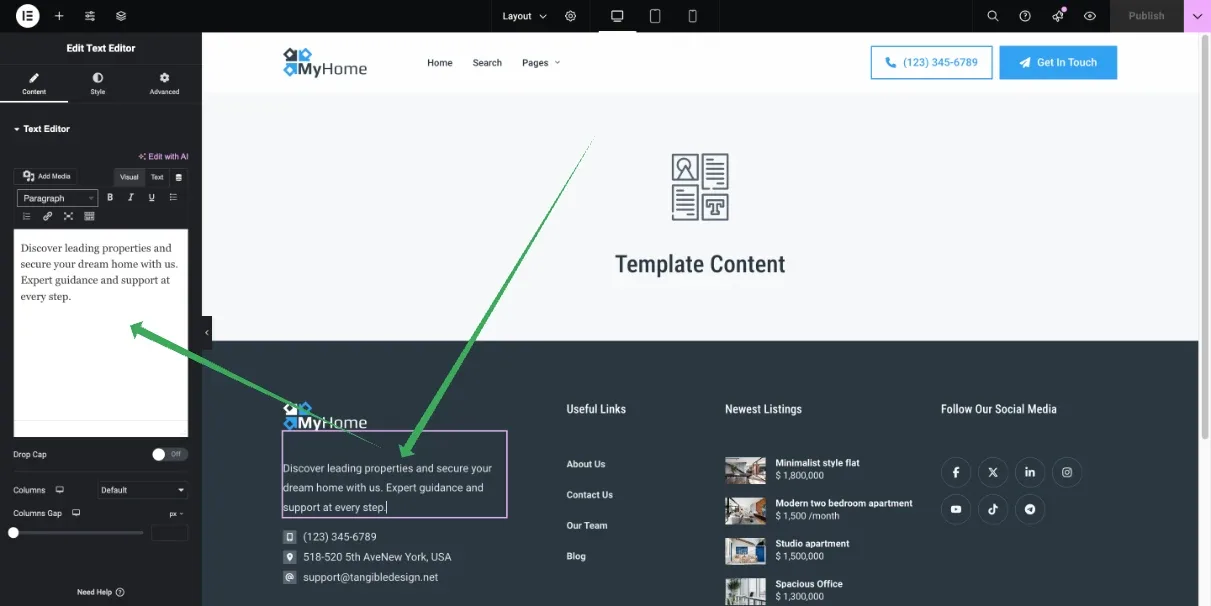
It will look like this:

Elementor editing a MyHome layout: the footer's about-us text is selected on the canvas and the text editor panel is open on the left.

3. Editing templates

In the following tabs you can also edit the single listing template.
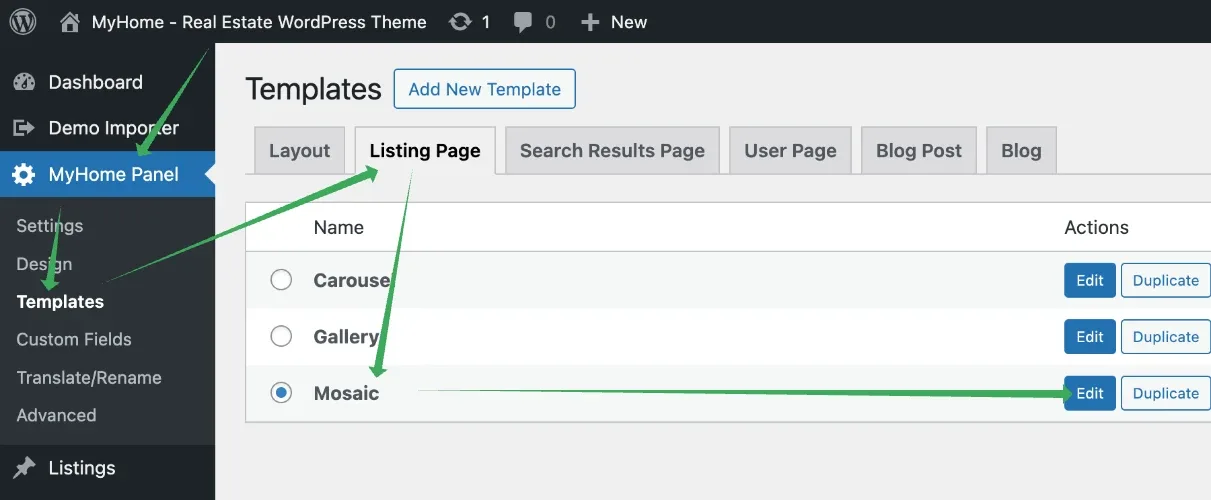
Templates screen on the Listing Page tab, listing the Carousel, Gallery and Mosaic templates with Mosaic selected and its Edit button highlighted.

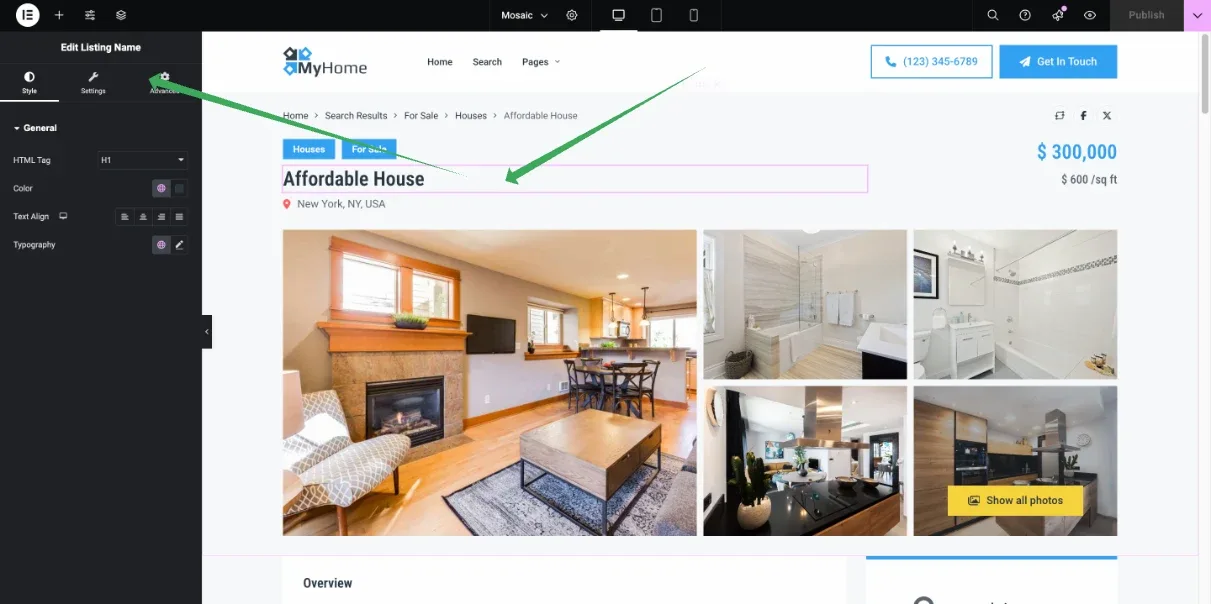
It will look like this:

Elementor editing the single listing template, showing the 'Affordable House' listing with its price, photo gallery and the start of the Overview section.

Next, you can edit the search results page.
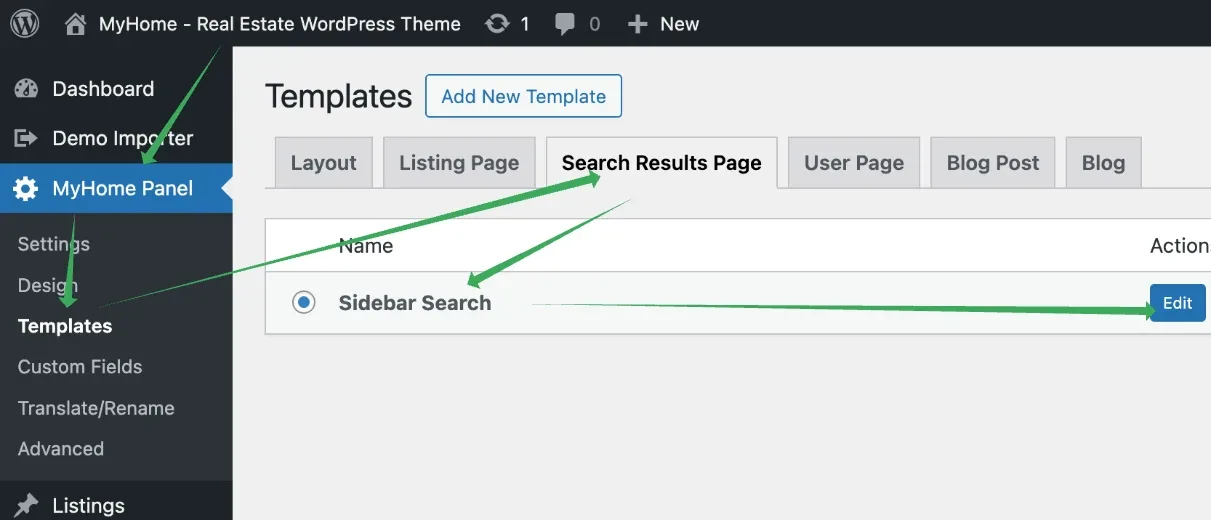
Templates screen on the Search Results Page tab, showing the Sidebar Search template with its Edit button highlighted.

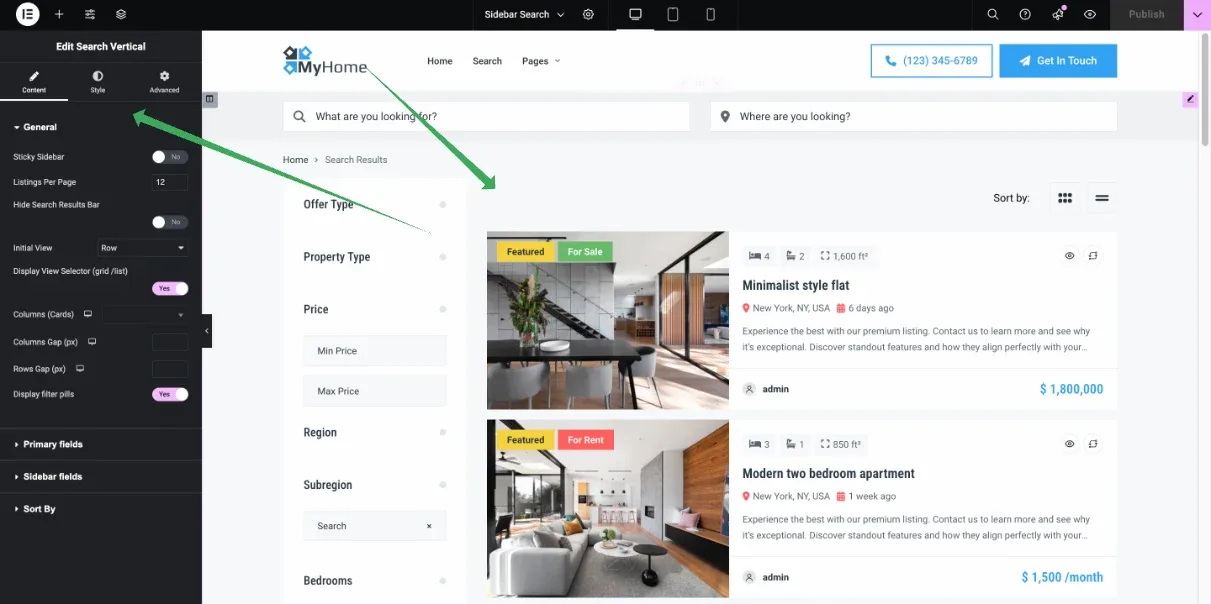
It will look like this:

Elementor editing the Sidebar Search results template: the filter sidebar with Offer Type, Property Type, Price and Region on the left, listing cards on the right.

The next three tabs work the same way and let you edit the user page, blog posts and the blog listing.
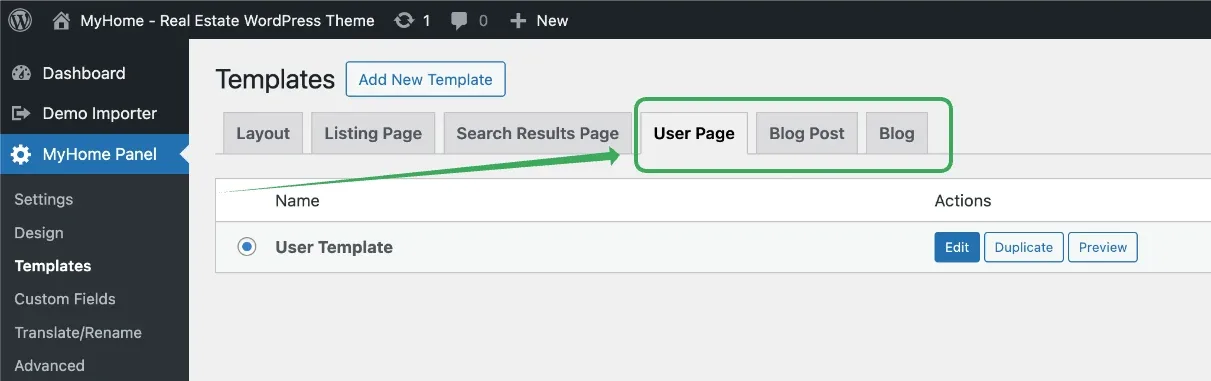
Templates screen with the User Page, Blog Post and Blog tabs outlined; the User Page tab shows a single User Template row with Edit, Duplicate and Preview buttons.

4. Global design settings

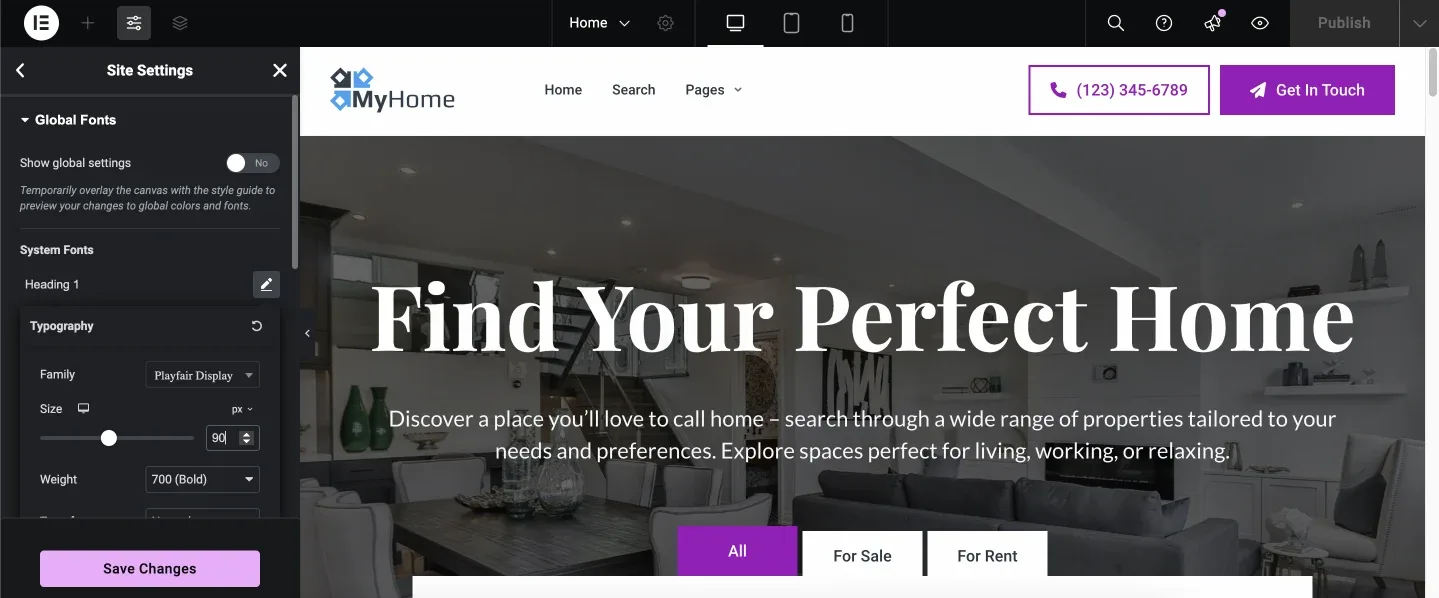
Global colours, fonts and the listing card design live in Elementor's Site Settings. Open MyHome Panel → Design and click Design Settings.
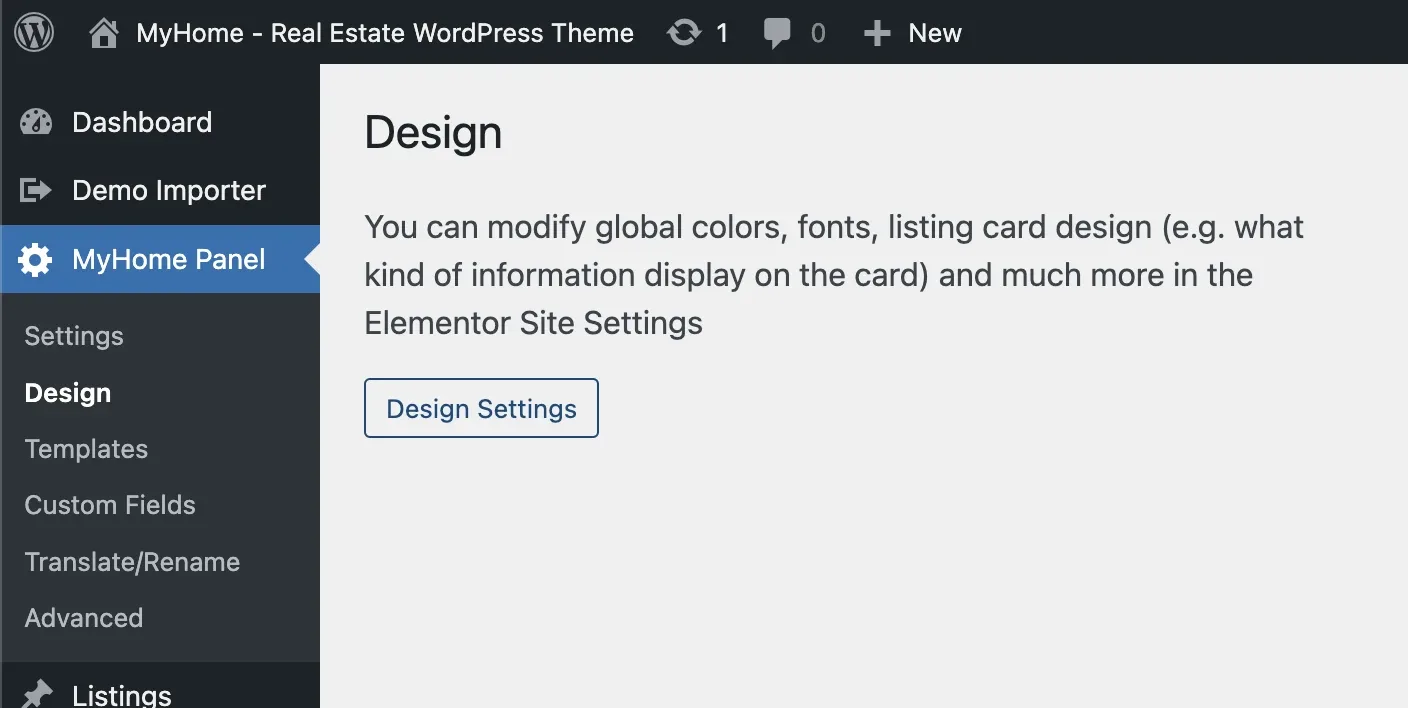
MyHome Panel Design screen explaining that global colours, fonts and listing card design are set in Elementor Site Settings, with a Design Settings button below.

You will see all the global options.
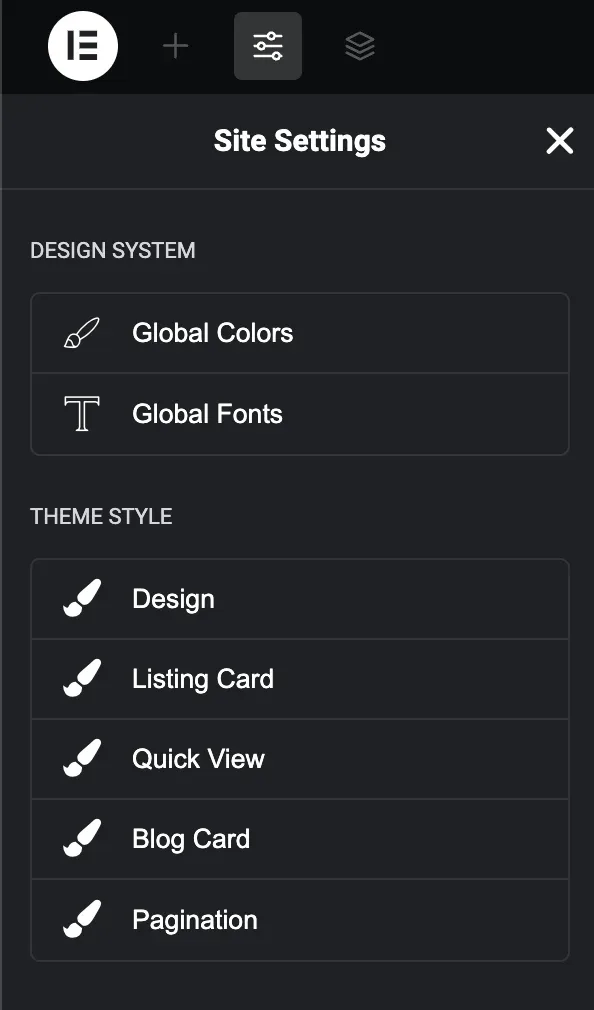
Elementor Site Settings panel: Global Colors and Global Fonts under Design System, and Design, Listing Card, Quick View, Blog Card and Pagination under Theme Style.
MyHome adds its own theme styles
Besides Elementor's own Global Colors and Global Fonts, the Theme Style section holds MyHome entries: Design, Listing Card, Quick View, Blog Card and Pagination.

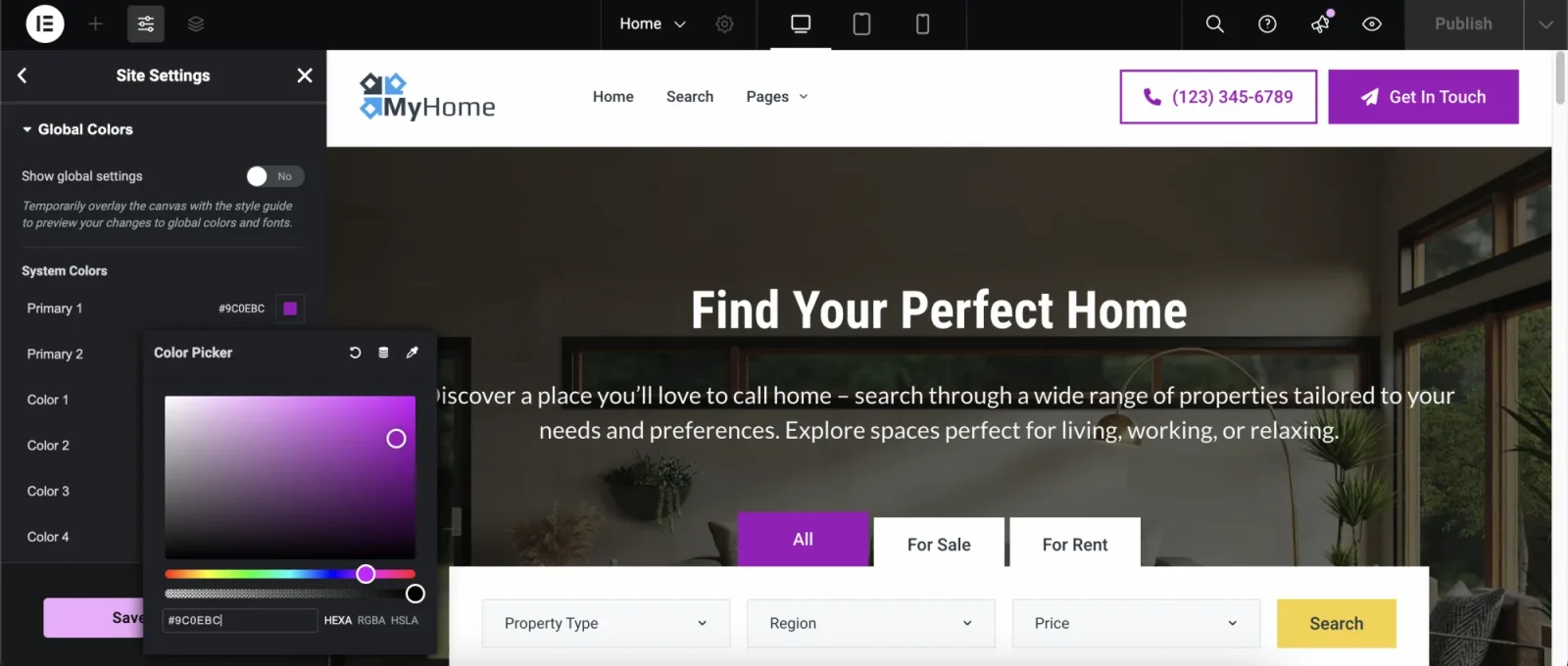
Global colours:

Elementor Global Colors panel with the colour picker open on the primary purple, previewing the MyHome homepage behind it.

Global fonts:

Elementor Global Fonts panel with the primary typography set to Playfair Display, previewing the MyHome homepage heading.

Ask the people who build MyHome

We answer by email from support@tangiblewp.com. With Premium Support, we also fix your site when something breaks.

Was this guide helpful?