How to add map search to a real estate website
Buyers look for a place before they look at a house. Here is how to add a map search where the pins follow the filters and buyers draw their own area.
In this guide
- A real estate map search shows every home as a pin that follows the filters
- Google Maps needs a key and a billing account, and very busy websites may pay for it
- Place suggestions, a radius and a drawn area let buyers search by place
- Buyers switch between photo cards, the map, or both side by side
- MyHome has all of this built in
A real estate map search shows every home as a pin, and the pins change as buyers pick filters. To add one, you need a theme with map search built in, a Google Maps key and an exact address for each listing.
On a real estate website, buyers use the map to check a school, an office or a street they know. The seven steps below start with the demo and the Google Maps key, and end with the view buyers see first.
What buyers expect from a real estate map search
Map search is the first item on our real estate website features checklist. Buyers know a property search with a map from big portals, and they look for five things.
- Pins and a result count that follow every filter, with no page reload
- Place suggestions as buyers type a town or a street
- A way to draw an area, or to search near an address
- A choice of photo cards, the map, or both side by side
- A link that opens the same search on another phone
1. Start from a demo with the map search built in
The pins, the filters and the list of results must work together, or buyers see homes that do not match. Every MyHome demo imports in one click, with its search pages, menus and sample listings.
MyHome is made for agencies that show their own listings. For a portal where agents and owners post, see how to create a website like Zillow.
2. Connect Google Maps with a key and a billing account
MyHome's map runs on Google Maps. In the Google Cloud console, create a key and switch on Maps JavaScript, Geocoding and Places, the three services MyHome uses. Then add the key in the MyHome Panel.
Restrict the key to your own domain, so no other website can use it. Then set a budget alert in the Google Cloud console, so a busy month does not surprise you.
3. Give every listing an exact location
A pin on the wrong street hurts trust more than no pin at all. Before a listing goes live, check three things.
- The address follows the same format as your other listings
- The pin lands on the right street when you open the map
- The listing has its region and area, so area filters find it
MyHome keeps the address in a Location field, and the listing page shows the same pin on its own map. On the demos, Region and Subregion are linked, so buyers pick a region first, then an area inside it. Our guide to what a property listing page needs covers the rest of that page.
4. Put the main property search filters next to the map
In the search bar, keep only the filters most buyers use, such as offer type, price, property type, and beds and baths. The MyHome demos keep region, size, year built and features under More.
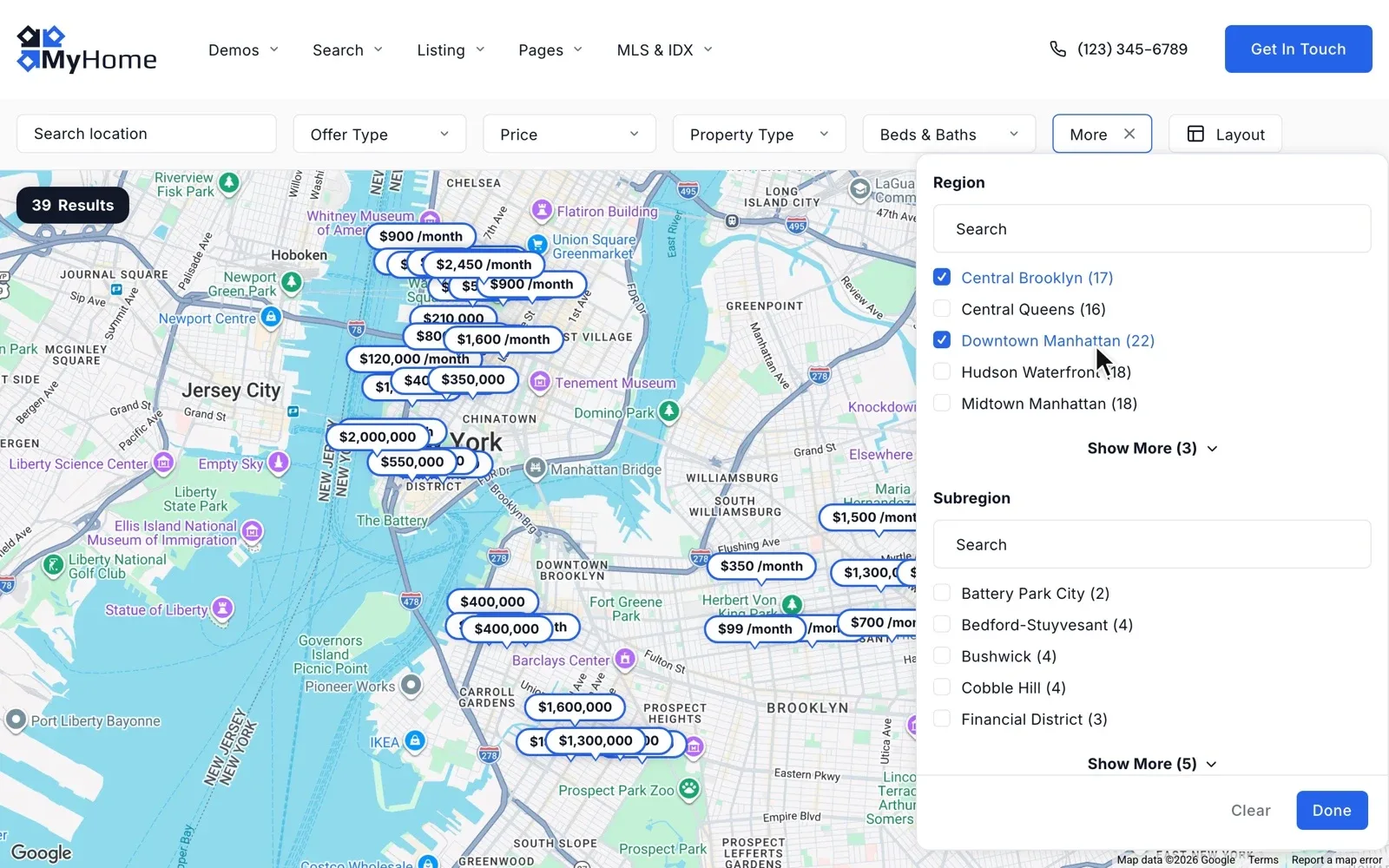
A new field, such as a pool, does not appear in the search on its own. Place it in the search template, as Adding Custom Fields to Search Results and Single Listing Pages shows.
5. Suggest places as soon as buyers type
Buyers type a few letters and pick a town, a street or an area from the list. The map then moves to that place at once.
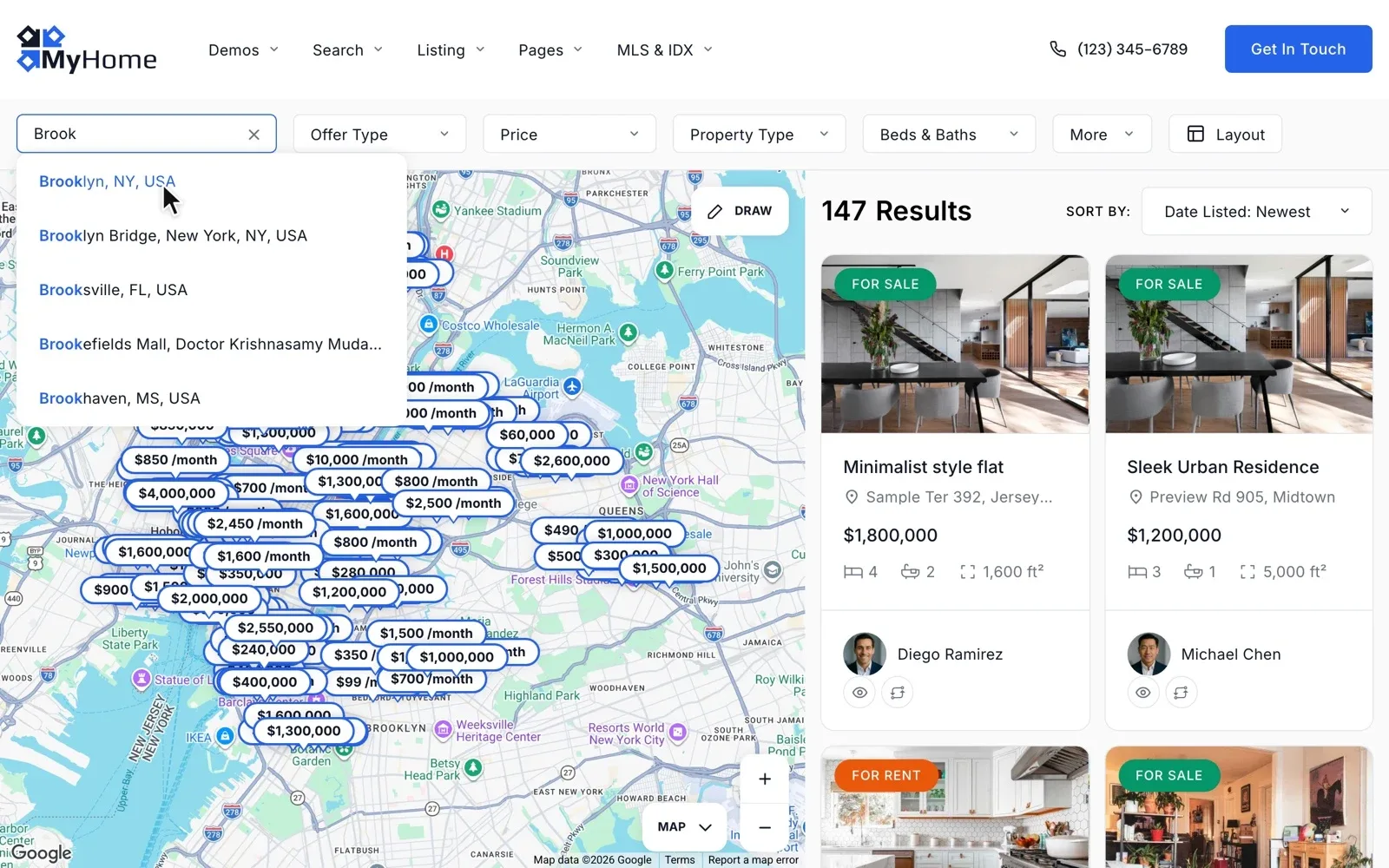
You choose whether the field suggests cities, regions or full addresses. By default, suggestions come from every country, so limit them to the countries you serve, up to five. Limiting Google Maps Autocomplete to Specific Countries on Your Website shows how.
6. Let buyers draw an area or search near a place
Some buyers know exactly which streets they want. With a draw-on-map search, they click Draw in MyHome, outline the area, and only the homes inside it stay.
Other buyers search around one address, such as a new office or a school. A place suggestion is a single point on the map, so a search radius turns it into an area.
On the demo, buyers pick a distance from 10 to 100 miles, and you can switch the unit to kilometers. Understanding the Search Radius Feature shows how to set the default.
Follow these steps on a MyHome website of your own
Your own MyHome website with the demo you pick and the full WordPress admin, ready in a minute.
Try MyHome free Free for 7 days. No card needed.7. Choose the grid, split or map view buyers see first
MyHome shows results in three views, and buyers switch between them with one click. You choose which one opens first.
Each view suits a different buyer.
- A grid of photo cards, for buyers who browse
- The split view, for buyers who weigh place and photos together
- The full map with prices on the pins, for buyers who know the area
Whatever the view, any search can be shared as a link that opens the same homes, so a couple sees the same results.
Check your map search before launch
From the demo to a shared search link
10 tasks
Tick each item as you set it up, or as you test it on the demo.
Before you start
-
All four MyHome demos have the same map search and import in one click.
See it on the demo -
-
Listings
-
-
Area filters find only the listings that have them.
Types of Custom Fields for Property Listings
Search and filters
-
Offer type, price, property type, and beds and baths come first.
Place and distance
-
MyHome allows up to five countries.
-
The demo offers 10, 20, 30, 50, 75 and 100 miles.
Understanding the Search Radius Feature
Before launch
Want help setting up your map search?
MyHome bought from us comes with 12 months of Premium Support. We help with the Google Maps key, the search filters and how listings show on the map.
Premium Support
The people who wrote your theme fix errors, plugin conflicts and slow pages on your own site, for 12 months.