How to update a WordPress theme without losing your changes
A theme update replaces the theme's files, not your pages or settings. See where your changes are safe, and the order that keeps an update calm.
In this guide
- An update replaces the theme's folder, so edits to its files are lost
- Pages, listings and settings live in the database and stay
- Code goes in a child theme, and small style changes in Additional CSS
- Back up, then update WordPress, the plugins one at a time, and the theme last
- Check search, a listing page and every form after the update
To update a WordPress theme without losing changes, keep your changes out of the theme's own files. An update deletes the theme folder and puts a new copy in its place. Anything edited inside that folder is gone, while your pages, listings and settings stay.
So the real work happens before you click Update. Updating is one task on the WordPress maintenance checklist, and this guide covers it in detail. The advice fits any theme.
Starting a new site? See which theme fits
All three get lifetime updates and a child theme guide.
A real estate agency or agent that shows its own listings
Classifieds or a directory where users post their own listings
A car dealer, or a car portal where dealers post their cars
Why changes disappear after a theme update
A WordPress theme is a folder of files on your server, such as /wp-content/themes/listivo/ for Listivo. An update removes that folder and installs the new version in its place.
If a developer changed a file in that folder, or someone used the Theme File Editor, the update removes that change. On Listivo and Vehica, the same goes for edits to the theme's core plugin.
Your content lives somewhere else. Pages, listings, users and saved settings are in the database, which a theme update does not replace. Listivo's update guide confirms this.
| Where the change lives | After a theme update |
|---|---|
| Pages, headers and footers in Elementor | Kept |
| Colors and fonts in Site Settings | Kept |
| Options and renamed texts in the theme's panel | Kept |
| Listings, users and messages | Kept |
| CSS in Additional CSS | Kept |
| Code in a child theme or a snippets plugin | Kept |
| Files edited inside the theme folder | Lost |
| Edits to Listivo's or Vehica's core plugin | Lost |
Where your changes are safe
Put each change where an update cannot reach it. If you never touch code, the first two places are all you need.
Pages and layouts in Elementor
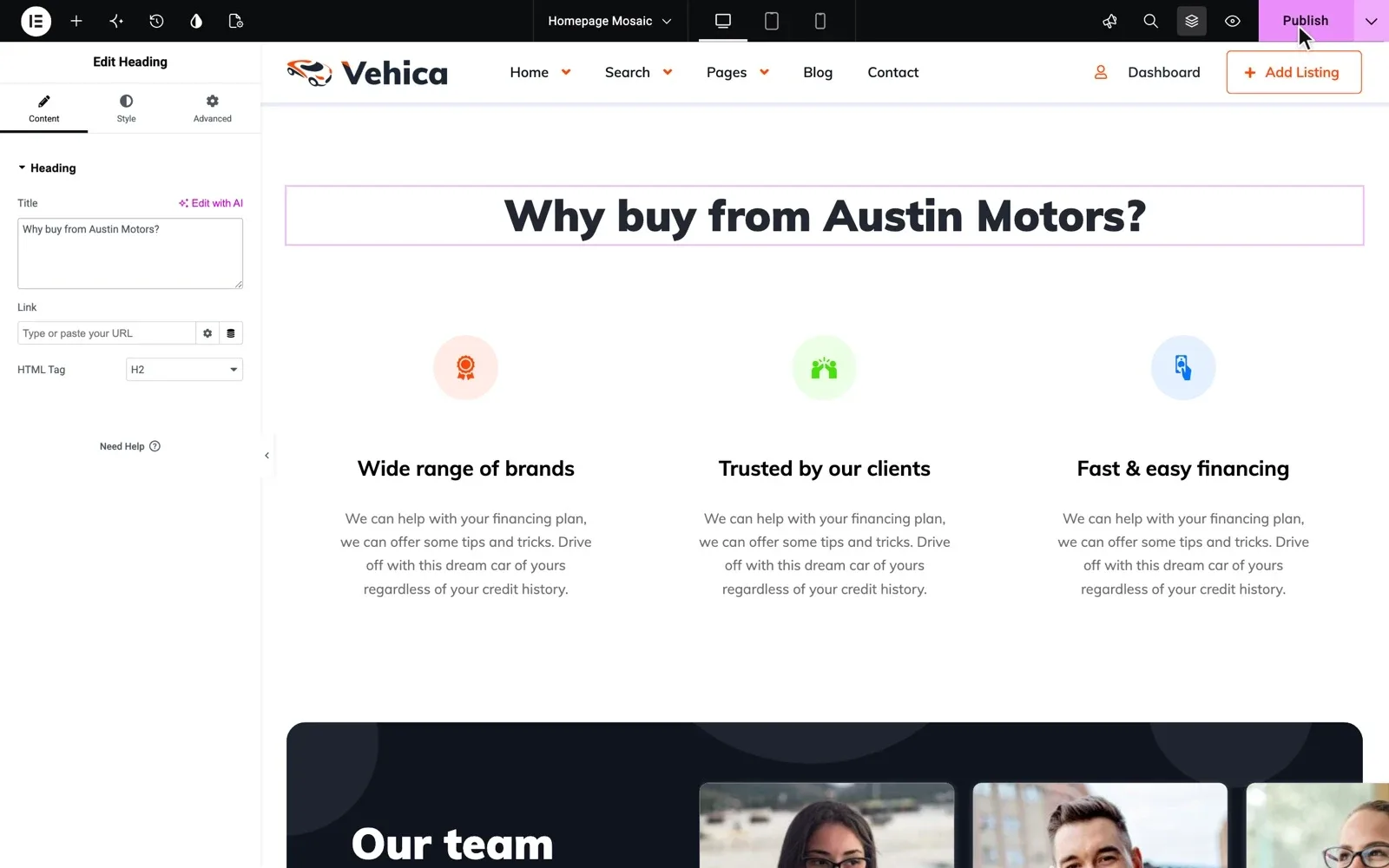
On MyHome, Listivo and Vehica, every page, header and footer opens in Elementor. You change a text or move a block, then click Publish. The listing page and the search results page are Elementor templates too.
Elementor saves all of this in the database, so updates leave it alone.
Colors, fonts and texts in the theme settings
Brand colors and fonts are set once, and every page follows them. MyHome and Listivo keep them in Elementor Site Settings, and Vehica keeps its main color in the Vehica Panel.
Each theme also has one screen where you translate or rename its own texts. Renaming a text there is safer than editing it in a file.
Small style changes in Additional CSS
Some changes need a line of CSS, such as a larger button. Add it in Appearance > Customize > Additional CSS, where WordPress keeps it apart from the theme files. Vehica's guide How to add CSS code that is future update compatible shows each click.
Code changes in a child theme
A child theme is the standard way to update a theme without losing customization in its files. It is a small extra theme on top of the main one. Your developer copies a file into it and edits the copy, and WordPress loads that copy instead.
Theme updates never touch the child theme, and MyHome comes with a ready one. If nobody edits theme files, you do not need one. For small bits of code, our guide How to work with AI on MyHome suggests a code snippets plugin, with one named change per snippet.
Try a theme where design changes need no code
Get your own website with MyHome, Listivo or Vehica and the full WordPress admin, ready in a minute.
Try a theme free Free for 7 days. No card needed.The safe way to update a WordPress theme without losing changes
Follow the same order every time to run a WordPress theme update safely.
Your theme update checklist
14 tasks
Before you update
-
Ask your developer, and look for a child theme under Appearance > Themes.
-
Skip this if nobody edits theme files. After you switch to it, paste your Additional CSS again, as WordPress keeps it per theme.
Utilizing a child theme: modifying PHP, CSS, JS files while maintaining future update compatibility -
Keep the copy off your server.
How to create Backup? -
The changelog shows what to check after the update.
-
The update
-
Look at the site after each one.
-
On Listivo and Vehica, the update replaces the core plugin too.
Updating Listivo: what to expect and how to do it -
After the update
-
If one is gone, it was most likely made inside the theme's files. Your backup still has it.
-
-
-
Check that the email arrives, not only the thank-you message.
-
Delete it when you have checked the form.
-
1. Back up right before you update
A backup is your way back if the update goes wrong. On a listing site, anything users added after the backup is lost when you restore it. Read how to back up a listing website for a full plan.
2. Update WordPress and the plugins first, the theme last
Update WordPress first, then your plugins one at a time, and look at the site after each. If something breaks, you know which update caused it.
Update the theme last. On Listivo and Vehica, the update replaces the theme and its core plugin together. Clear the cache right after, so old and new files do not mix.
3. Check the pages that bring you leads
An update can break a page without showing any error. So first check your search, a listing page and every form, because they bring you buyers, users and leads.
When the theme's authors can do it for you
On Site Care, we update the theme and WordPress for you. We take a backup first and check your site after the update, and if something is wrong, we restore it. Plugins you add yourself, you update yourself.
Site Care fits an owner who makes changes in Elementor and the settings, not in code. If you run MyHome, Listivo or Vehica yourself, Premium Support fixes a failed update on your site, also for a theme bought on ThemeForest. See what to do when your ThemeForest support expires.
Update failed, or a page broke?
Running MyHome, Listivo or Vehica? Tell us what you updated last, and we find the cause and fix it on your site.
Premium Support
The people who wrote your theme fix errors, plugin conflicts and slow pages on your own site, for 12 months.