How to use Child Theme? How to change files (php / css / js) and keep theme future update compatibility?
Install and activate the child theme that comes with your ThemeForest package, and learn where CSS rules, PHP templates and scripts belong so your changes survive the next theme update.
2 minute read
Using a child theme is the recommended way to modify the files of any free or premium WordPress theme. It allows you to keep future update compatibility. It is highly not recommended to modify the original theme files, e.g. in /wp-content/themes/listivo/, because you will lose your customized files when you update the theme. Please keep all changes in the Listivo Child Theme, so you can benefit from future updates and fixes.
How to download the Listivo Child Theme
-
1
Open your Themeforest downloads
Please visit your downloads page at Themeforest: https://themeforest.net/downloads
-
2
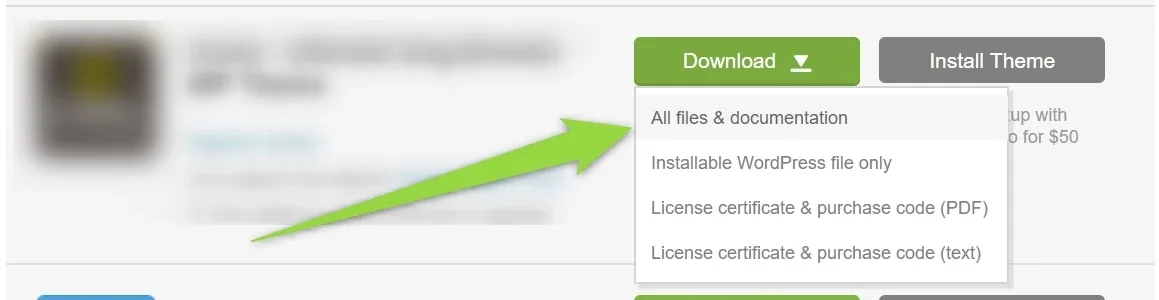
Choose All files & documentation
-
3
Unzip the package
Unzip it and you will see the
listivo-child.zipfile.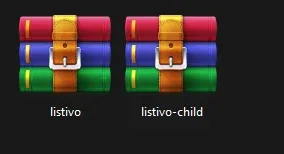
-
4
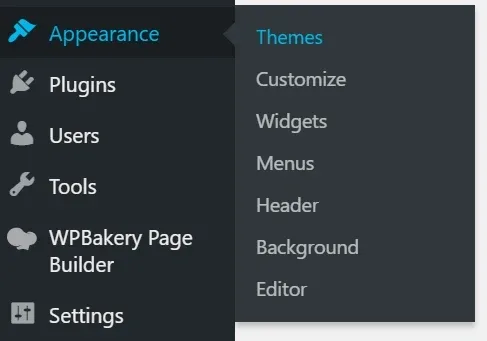
Go to Appearance > Themes
-
5
Click Add New

-
6
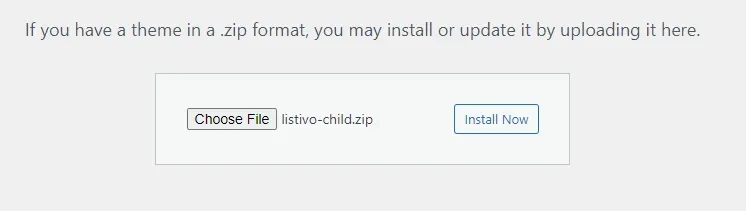
Upload the file and click Install Now
Choose your child theme zip and click Install Now.
-
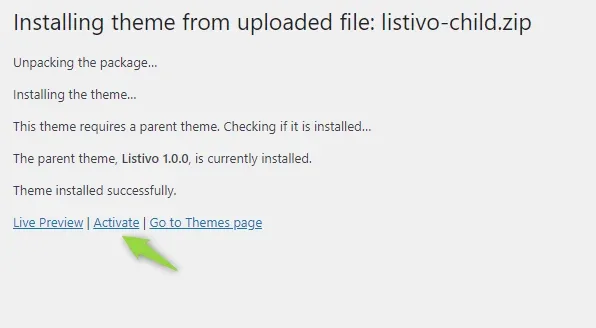
7
Activate the child theme
How to use it for file modification
CSS
Add any new CSS rule to your wp-content/themes/listivo-child/style.css file. It will overwrite the old rules in listivo/style.css.
PHP
You need to copy the original file, e.g. /wp-content/themes/listivo/templates/widgets/model/listing_address.php, and paste it into /wp-content/themes/listivo-child/templates/widgets/model/listing_address.php.
This way the new file will be loaded instead of the original one. This example changes the single listing “Address”.
JS files
JS files need to be dequeued and enqueued — you can read more about it in the WordPress child theme handbook.
Ask the people who build Vehica
We answer by email from support@tangiblewp.com. With Premium Support, we also fix your site when something breaks.
We can also run your site for you, or build a new one.
Was this guide helpful?