How to create Backup?
Install UpdraftPlus, take a full backup of your site by hand, and then let the plugin repeat it every week and send the copy to Dropbox or Google Drive.
2 minute read
A backup is an important matter for our website. It is worth being prepared for various scenarios, and not having to remember to make a backup every day or every few days.
Below I show how to perform a backup and how to set up automatic backups using the UpdraftPlus plugin.
Install the plugin
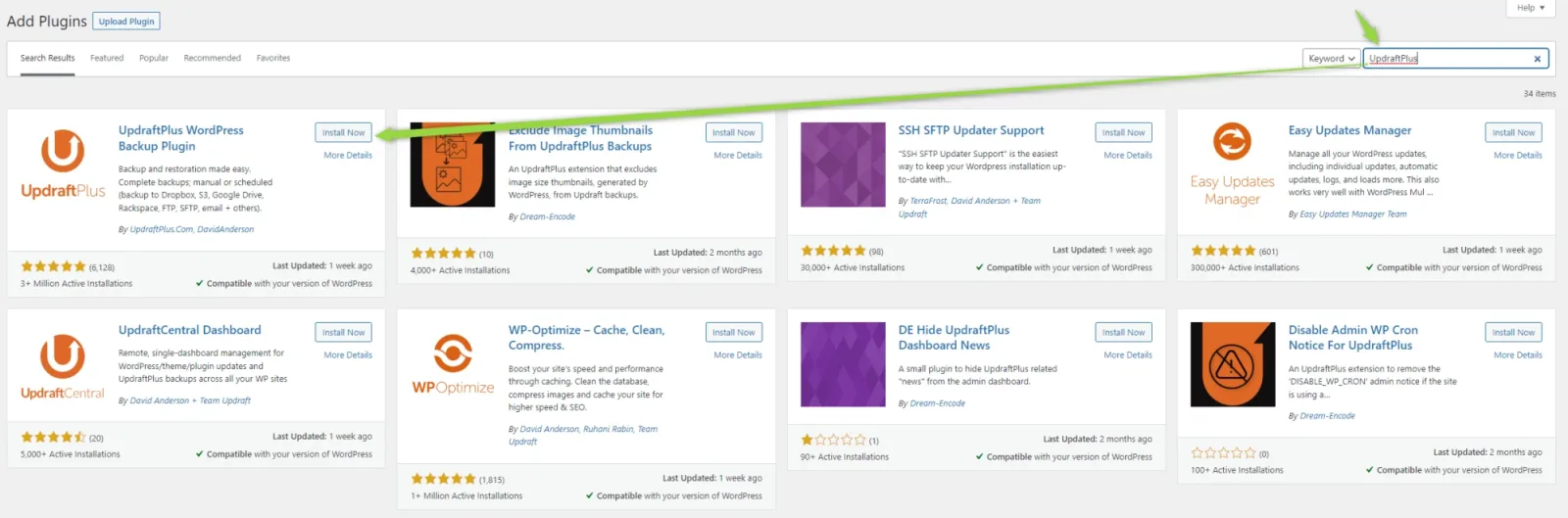
Go to Wp-admin > Plugins > Add New and search for UpdraftPlus:
Back up now, by hand
Once the plugin is activated we see this dashboard (you will find a link to it at Settings > UpdraftPlus Backups).
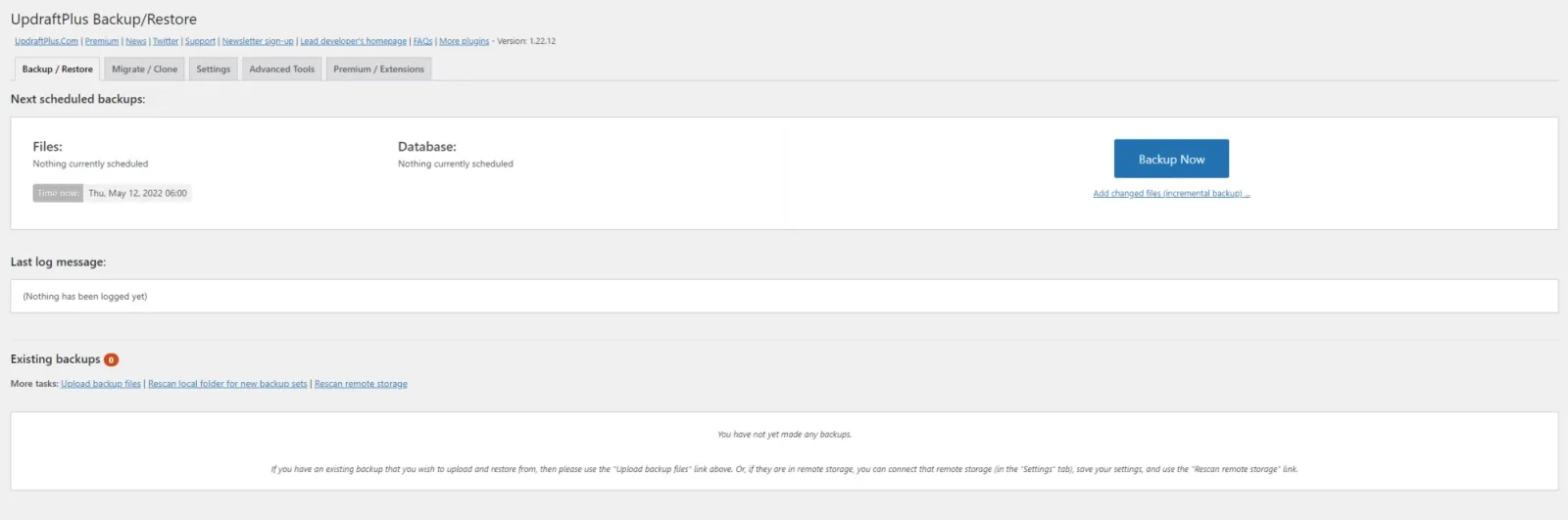
To perform a backup, just click the "Backup Now" button. After a moment or a few minutes — it all depends on the size of our website — we get a ready backup that can be downloaded to your computer or uploaded directly using this plugin.
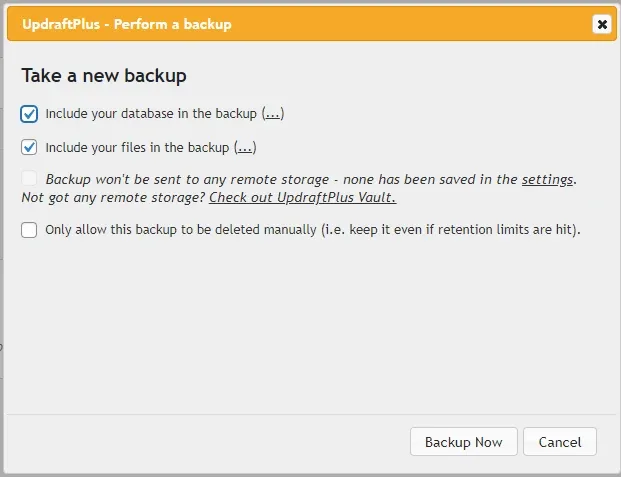

After the process finishes you will see:

Automatic backup
Go to the Settings section:
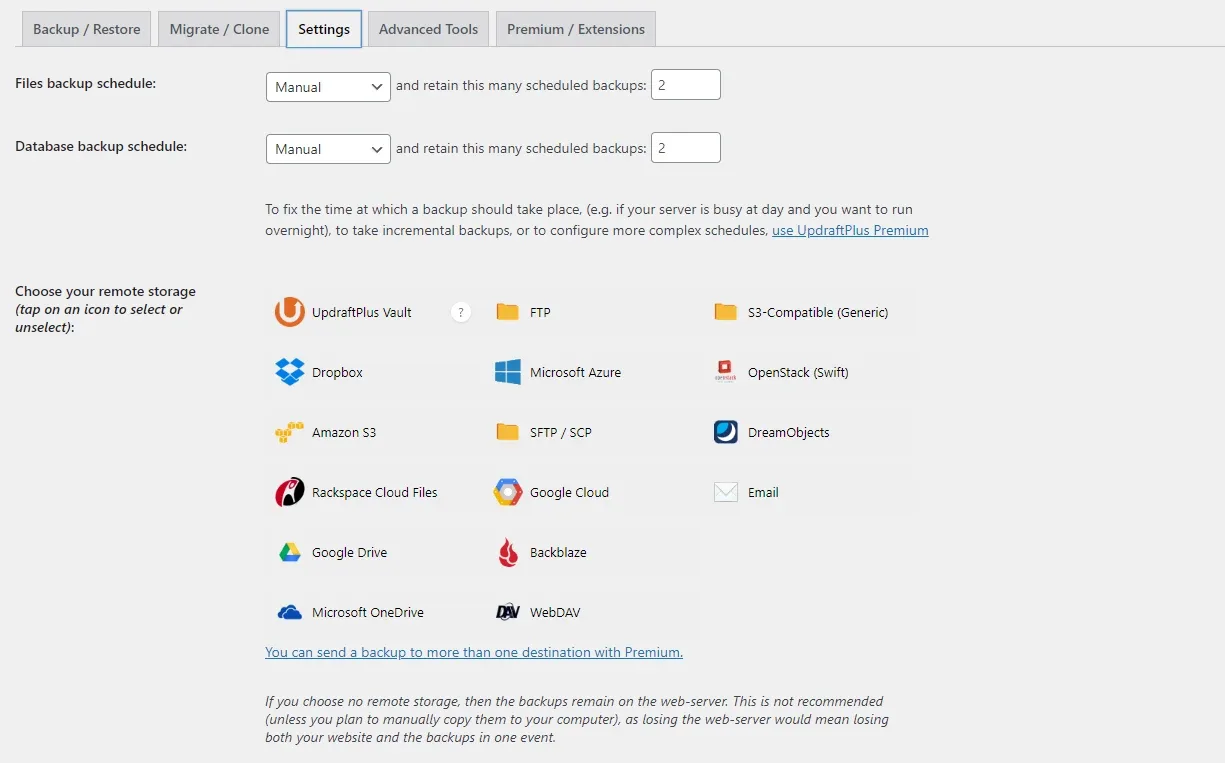
I like to store my backup on another service, such as Dropbox or Google Drive. We change the files and database backup schedule to weekly:
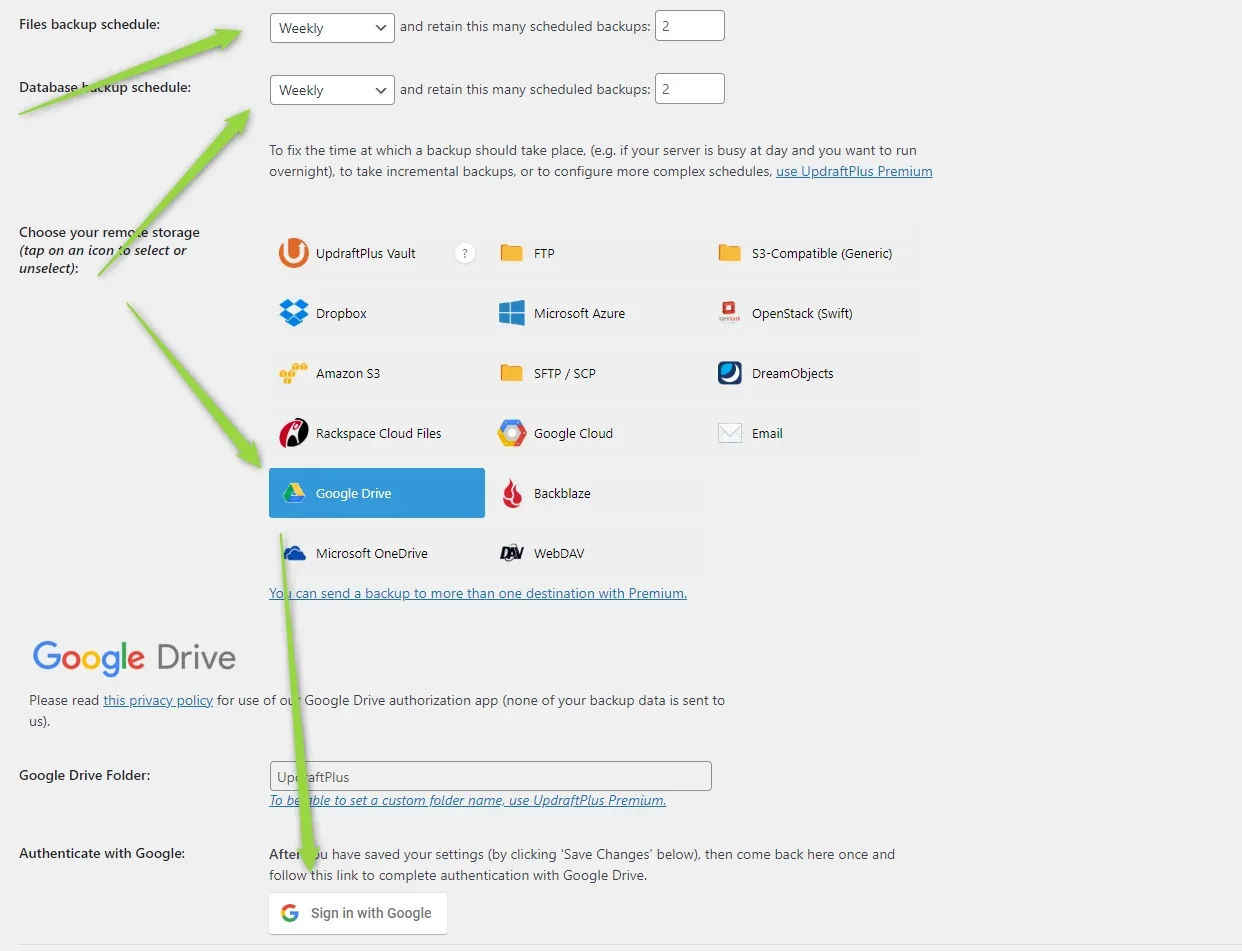
And that's it — from now on, every 7 days the system will automatically make a backup and send it to Google Drive or another drive of your choice. You can also choose how many backups the system should keep.
Ask the people who build Listivo
We answer by email from support@tangiblewp.com. With Premium Support, we also fix your site when something breaks.
We can also run your site for you, or build a new one.
Was this guide helpful?