Updating Listivo: what to expect and how to do it
Listivo updates itself from the Listivo Updater screen in wp-admin. This article walks through checking for a new version, what the update replaces on your server, and the cache step that is easy to forget afterwards.
2 minute read
Introduction
Updating Listivo is a straightforward process. Simply go to the Listivo Updater, enter your purchase code, save it, and click on "Check for new updates."
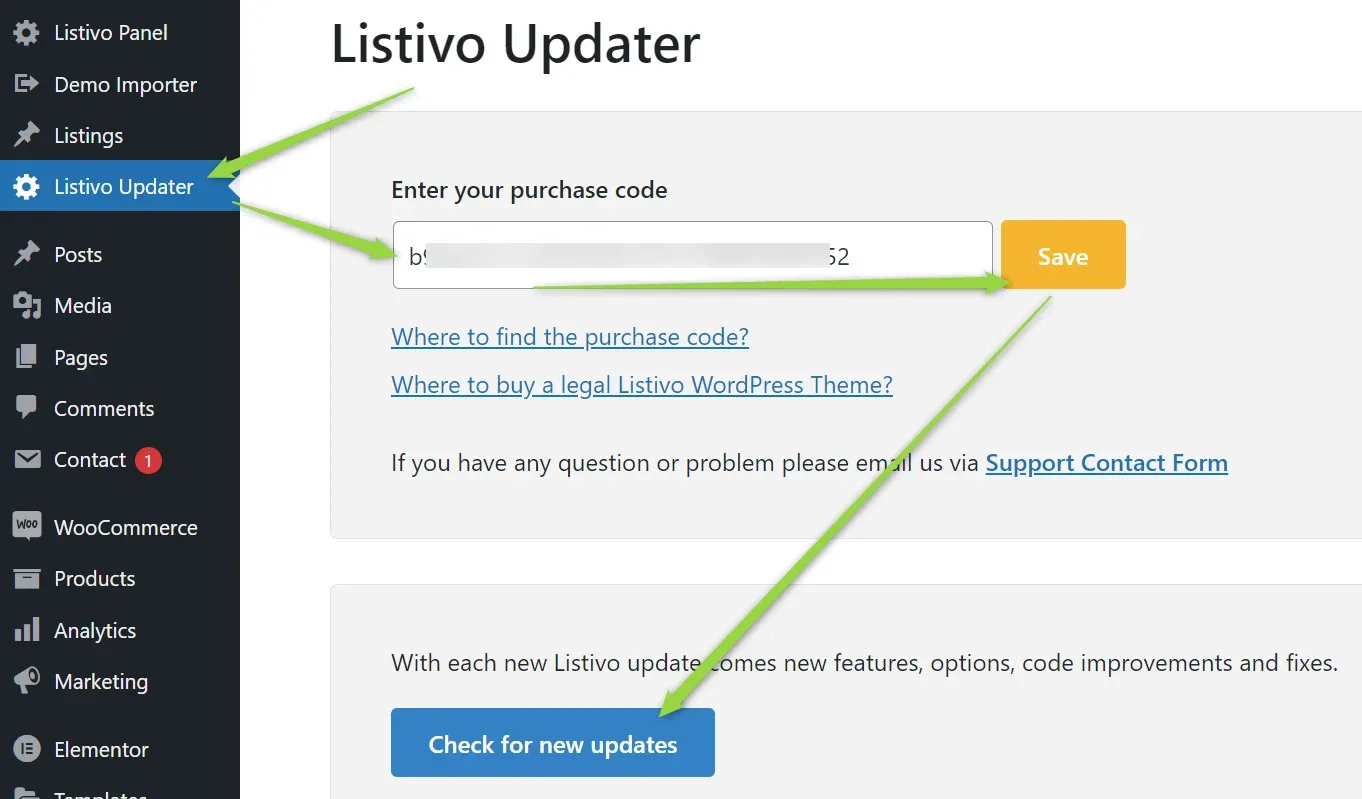
Checking for Updates
If a new version is available, you will see the following section:
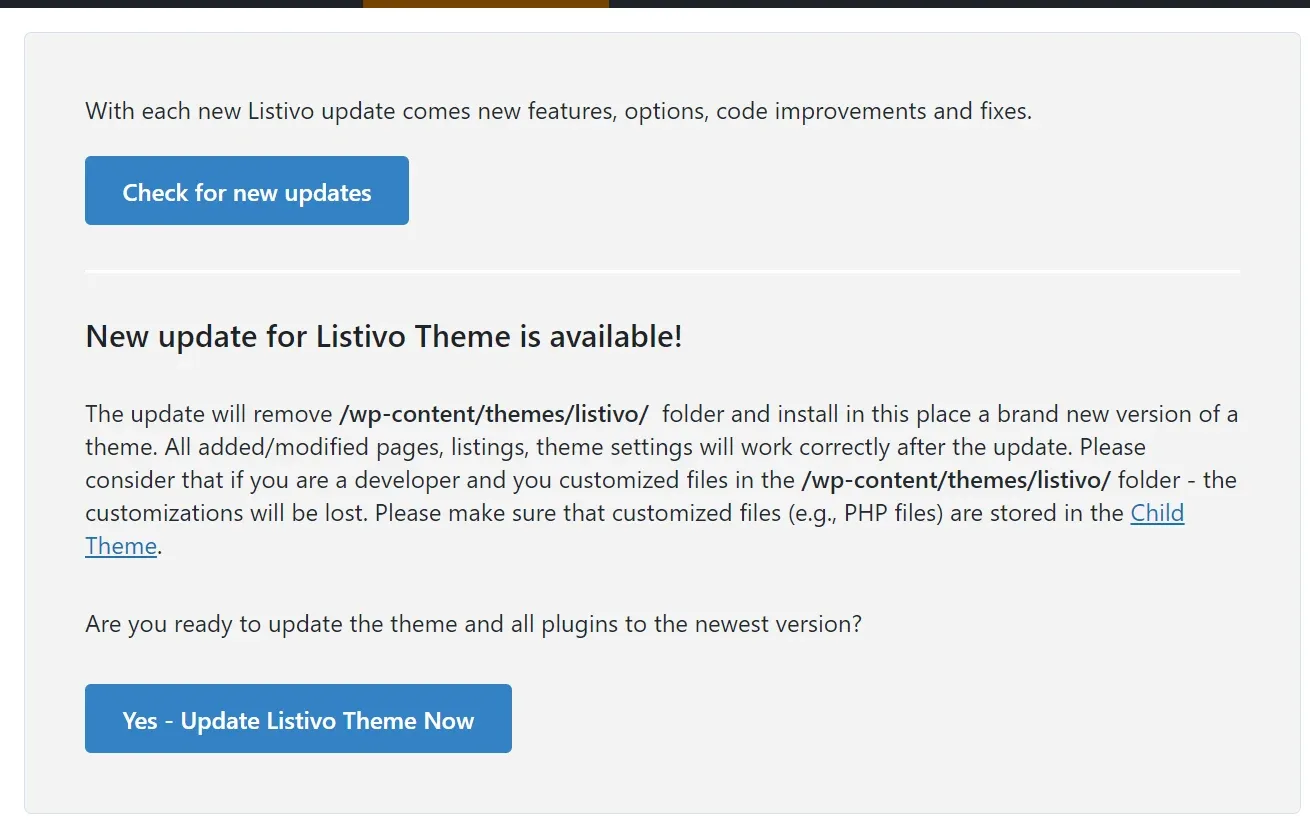
You can find the changelog about new features and fixes at the following address: Changelog
Important Notice Before Updating
Please be aware that updating Listivo will remove the following directories:
- /wp-content/themes/listivo/
- /wp-content/plugins/listivo-code/
In their place, a new version of the theme will be installed. You can be confident that all existing pages, listings, and theme settings will continue to work properly after the update.
Maintaining File Customizations
/wp-content/themes/listivo/ or /wp-content/plugins/listivo-core/ folders, these customizations will be lost during the update process.To prevent losing your customizations, ensure that all customized files, such as PHP files, are stored in a Child Theme. By doing this, you can maintain your modifications while benefiting from the latest version of Listivo. If you're unfamiliar with Child Themes, we recommend reading this helpful article for guidance: How to use Child Theme? How to change files (php / css / js) and keep theme future update compatibility?
Updating the Theme
If you're confident that your files haven't been modified, simply click on "Yes - Update Listivo Theme Now."

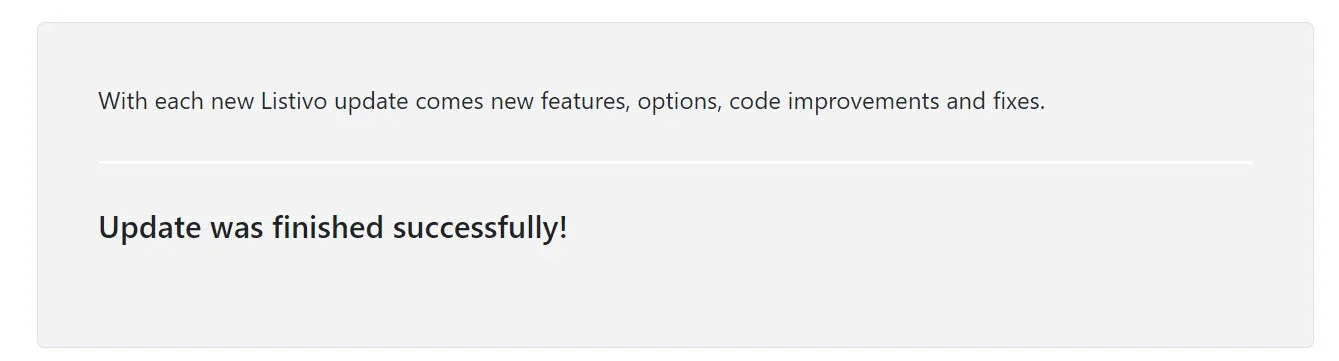
After a brief moment, you will see a confirmation message.
Clearing Cache
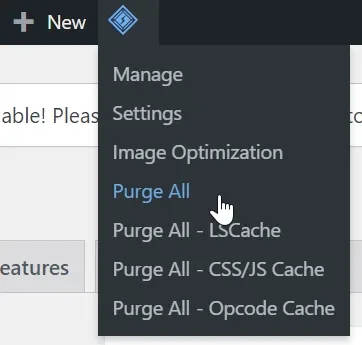
Please note that if you're using a cache plugin or CDN not included with Listivo, you'll need to click the "Clear Cache" or "Purge All Cache" button to prevent old and new files from getting mixed up. For example, if you're using LiteSpeed Cache, the button appears as follows:
The latest update is now seamlessly integrated into your website.
Keep reading
Ask the people who build Listivo
We answer by email from support@tangiblewp.com. With Premium Support, we also fix your site when something breaks.
We can also run your site for you, or build a new one.
Was this guide helpful?