Utilizing a child theme: modifying PHP, CSS, JS files while maintaining future update compatibility
Set up the MyHome child theme so your own CSS, PHP and JS changes survive every theme update. This guide shows where to download the child theme, how to install it, and where each type of file belongs.
2 minute read
If you do not plan to modify theme files (e.g., CSS, PHP, or JS files), there is no need to use a Child Theme.
If you do, a Child Theme is the recommended way to modify any free or premium WordPress theme. It keeps your customizations intact after future updates.
/wp-content/themes/myhome/ is highly discouraged — your changes are lost the next time the theme is updated. Always make them in the MyHome Child Theme instead, so you can keep benefiting from future updates and fixes.How to download the MyHome Child Theme
-
1
Open your ThemeForest downloads
Visit your downloads page on ThemeForest: https://themeforest.net/downloads
-
2
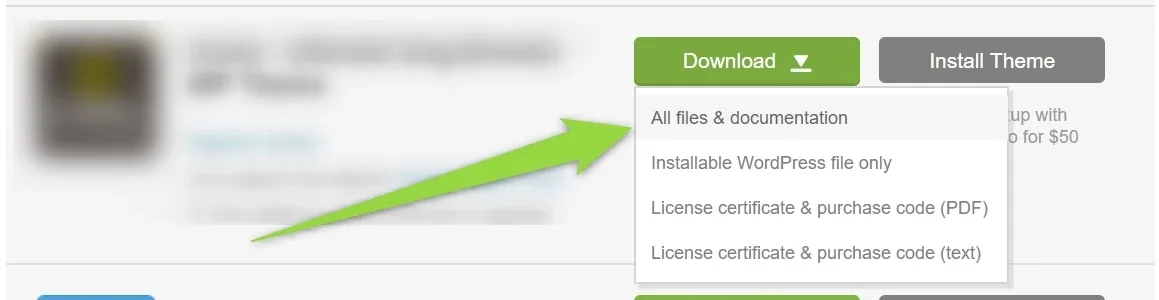
Choose "All files & documentation"
Open the green Download menu next to the theme and pick the first option — not "Installable WordPress file only", which contains the parent theme alone.
-
3
Unzip the package
Unzip the downloaded file, and you will find
myhome-child.zipinside. -
4
Install and activate the child theme
Go to Appearance > Themes, upload
myhome-child.zip, install it, and activate it.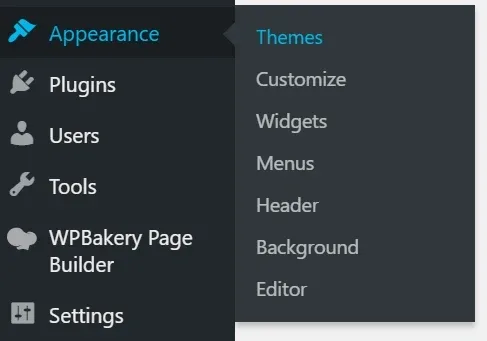
How to use the Child Theme for file modifications
1. CSS files
Add any new CSS rules to the wp-content/themes/myhome-child/style.css file. They override the matching rules in the parent theme's style.css.
2. PHP files
Copy the original file (e.g., /wp-content/themes/myhome/folder-name/file-name.php) and paste it into the corresponding folder in the Child Theme (e.g., /wp-content/themes/myhome-child/folder-name/file-name.php). This ensures the modified file is loaded instead of the original one.
3. JS files
JS files cannot simply be copied over: the original file has to be dequeued and your own version enqueued in its place.
Ask the people who build MyHome
We answer by email from support@tangiblewp.com. With Premium Support, we also fix your site when something breaks.
We can also run your site for you, or build a new one.
Was this guide helpful?