How to start customizing Vehica Theme?
A guided tour of the first thirteen things to do after installing Vehica: import the demo, work through the Vehica Panel section by section, then edit your pages in Elementor and clear out the demo content you do not need.
4 minute read
Vehica WordPress Theme ( vehica.com ) allows creating an amazing automotive website. This article is for people who have already installed Vehica: it walks through the parts of the theme worth setting up first, in the order we recommend.
If you plan to use Vehica to build a website that is not related to automotive, you can do it, but we also encourage you to try our other product Listivo, which is more general - https://listivotheme.com/
1. Import demo content
It is always important to import the demo content first. It includes a lot of ready-to-use pages, sample custom fields and settings that speed up the development process. The demo content is ultra-light and very easy to remove before launching if there is some part of it you do not need.
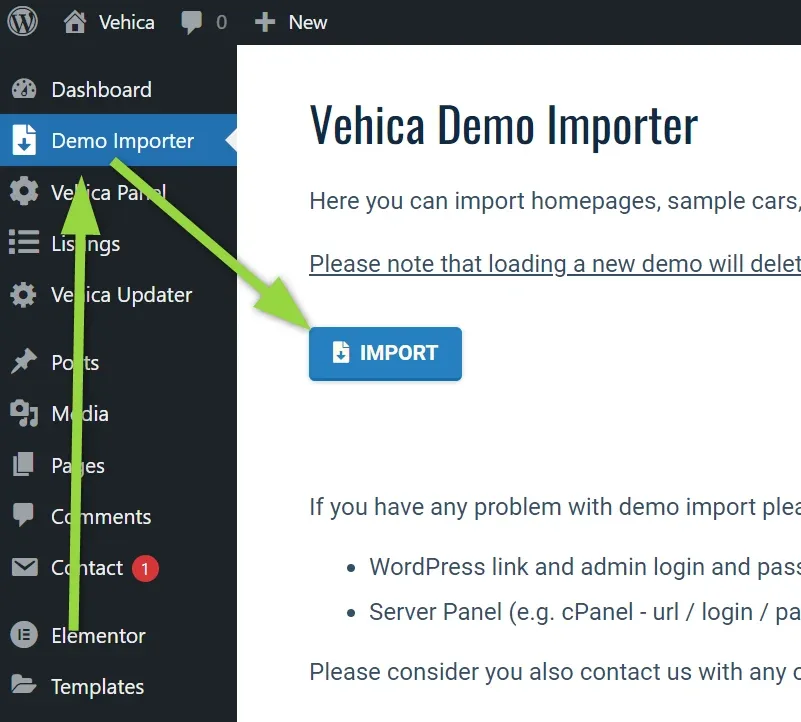
2. Discover Vehica Panel
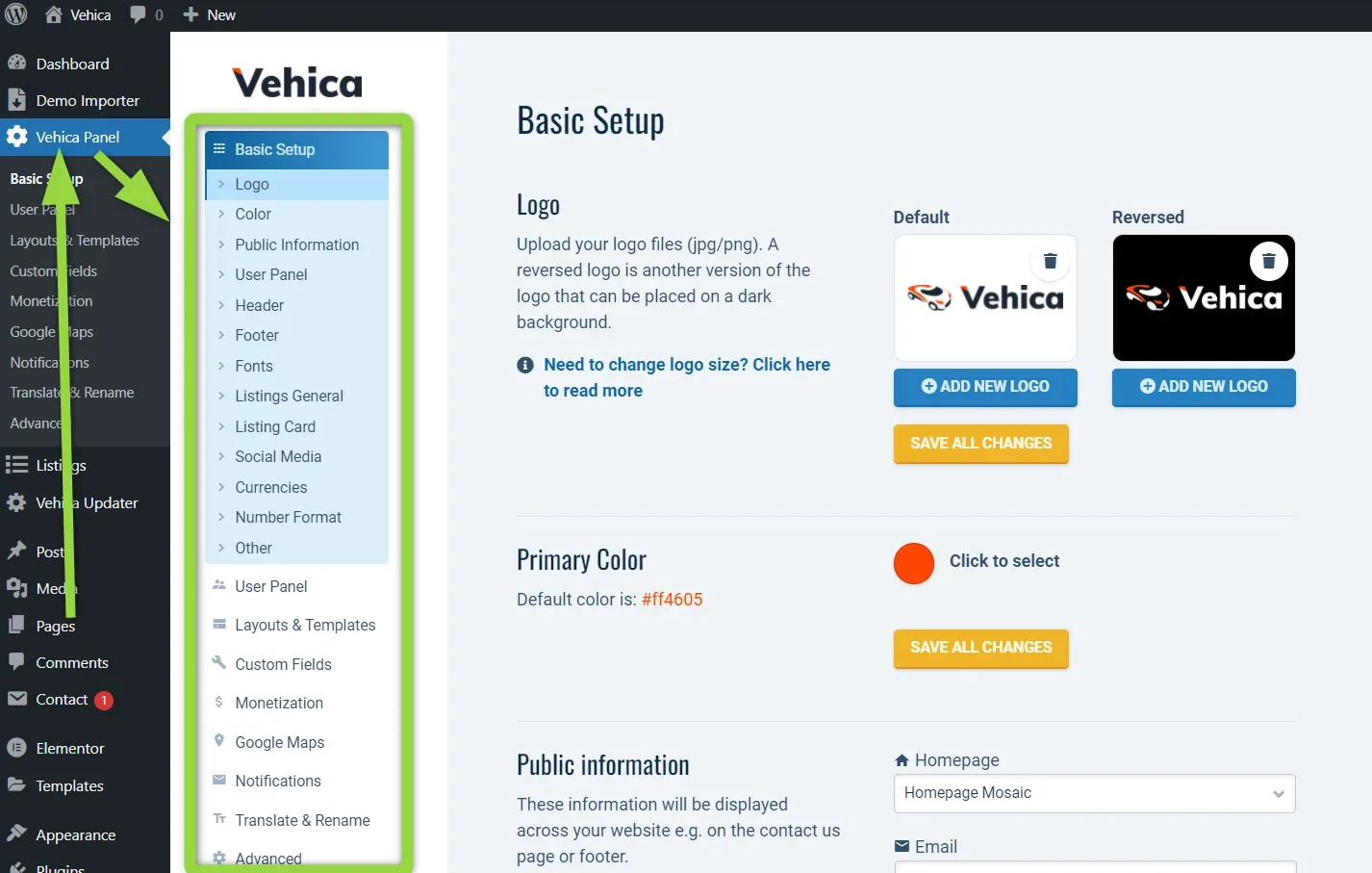
Each of the sections below is a page inside Vehica Panel.
3. Basic Setup
Here you will find the most important and global options, including:
- Your logo
- Your phone number
- Your currency and number format
- and many other options
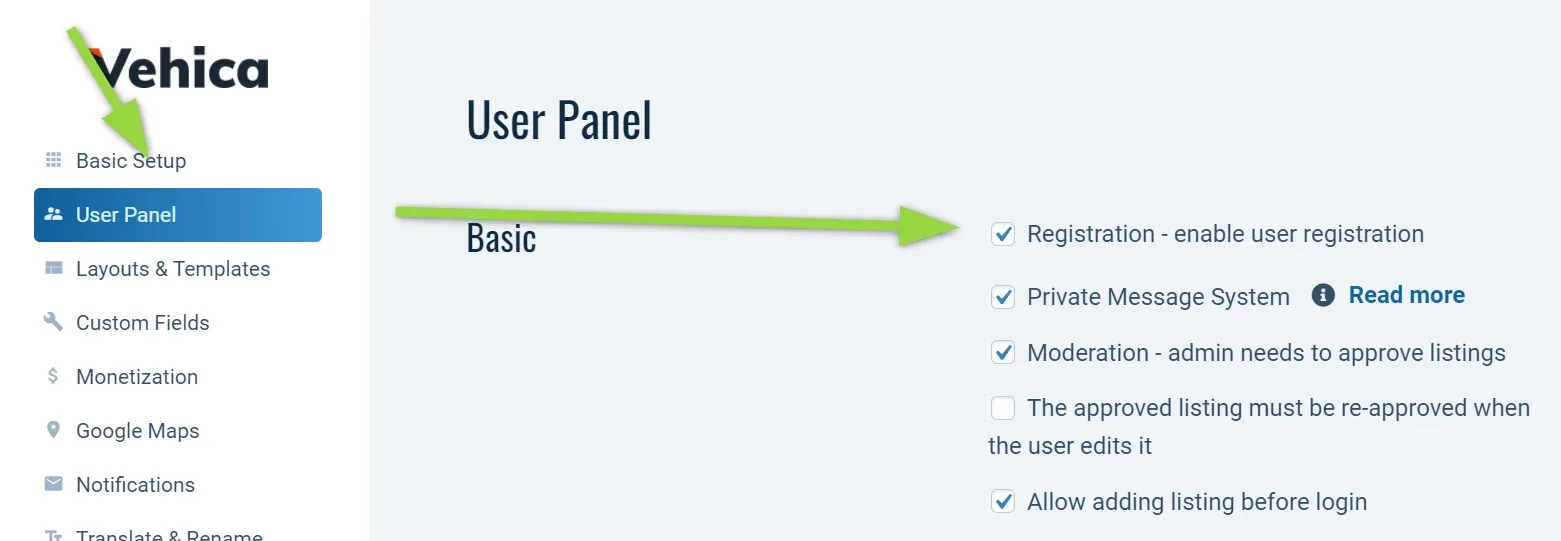
4. User Panel
Do you plan to open your website to the public? If so, please turn on Registration and customize the other options you need. Even if you use it only for yourself (for example, you are a car dealer) there are some options you may like to configure:
5. Layouts & Templates
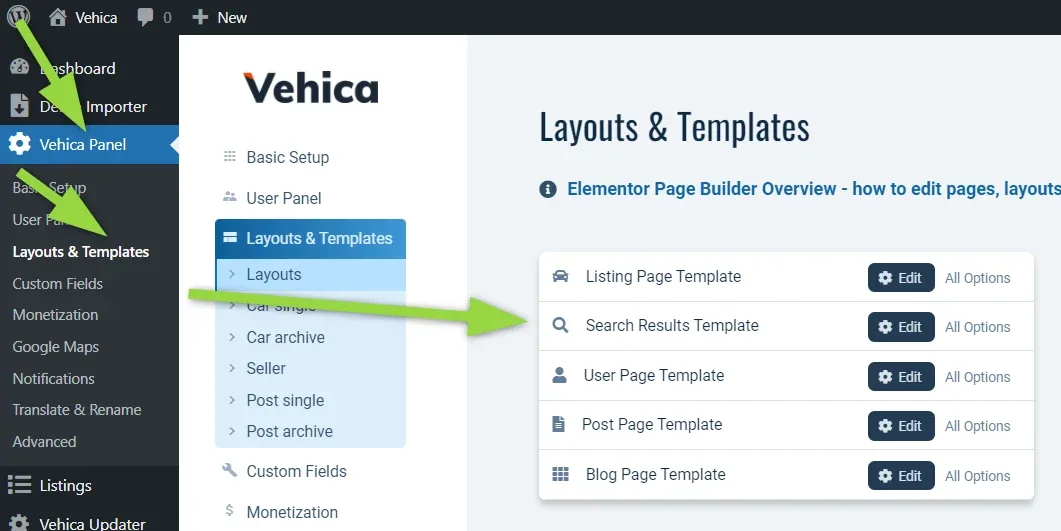
Vehica has a Layout System, where a layout = header + page content + footer.
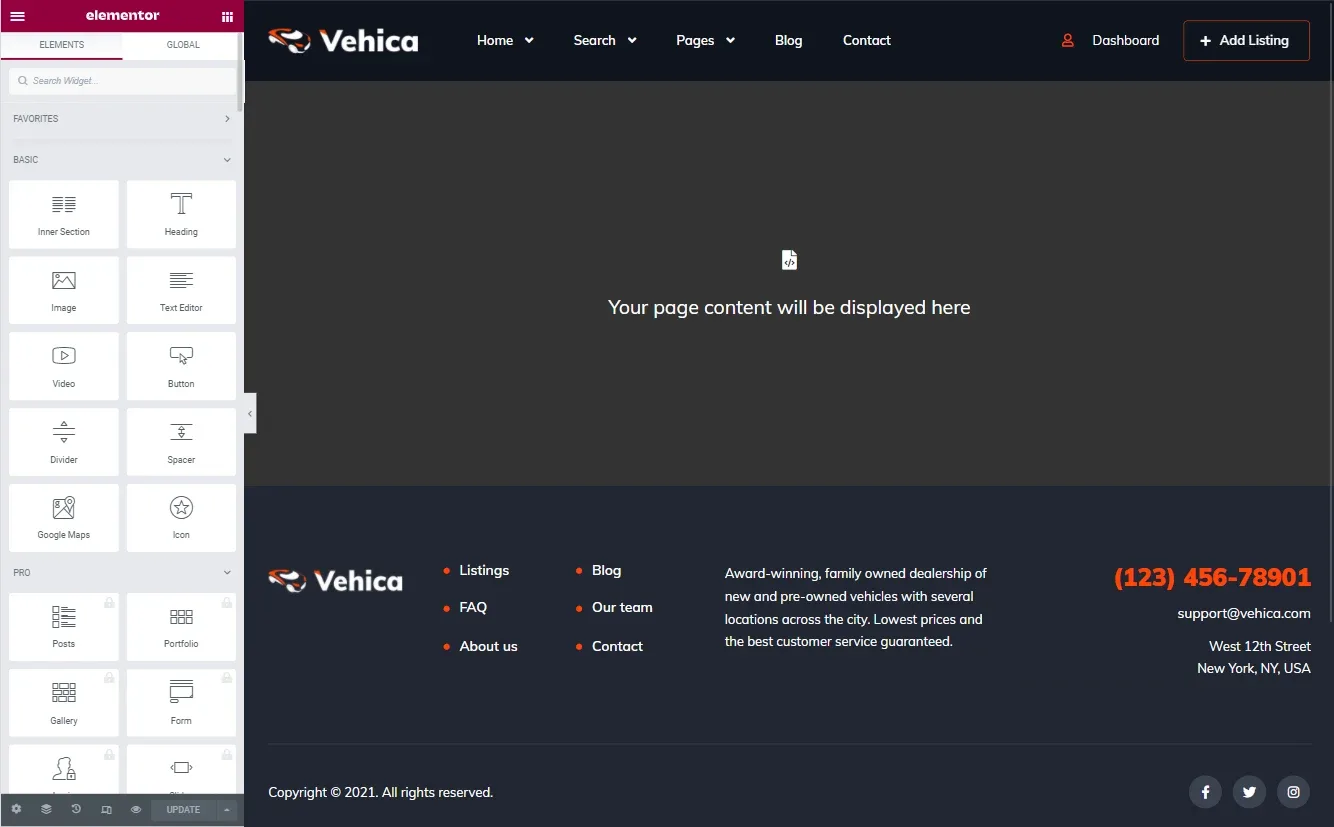
Templates are dynamic page contents:
- Listing template - example
- Search form - classic example / map example
- User template - example
- Blog archive - example
- Blog single - example
Here is how you can customize a single listing template: How to Edit a Single Listing Page?
6. Custom Fields
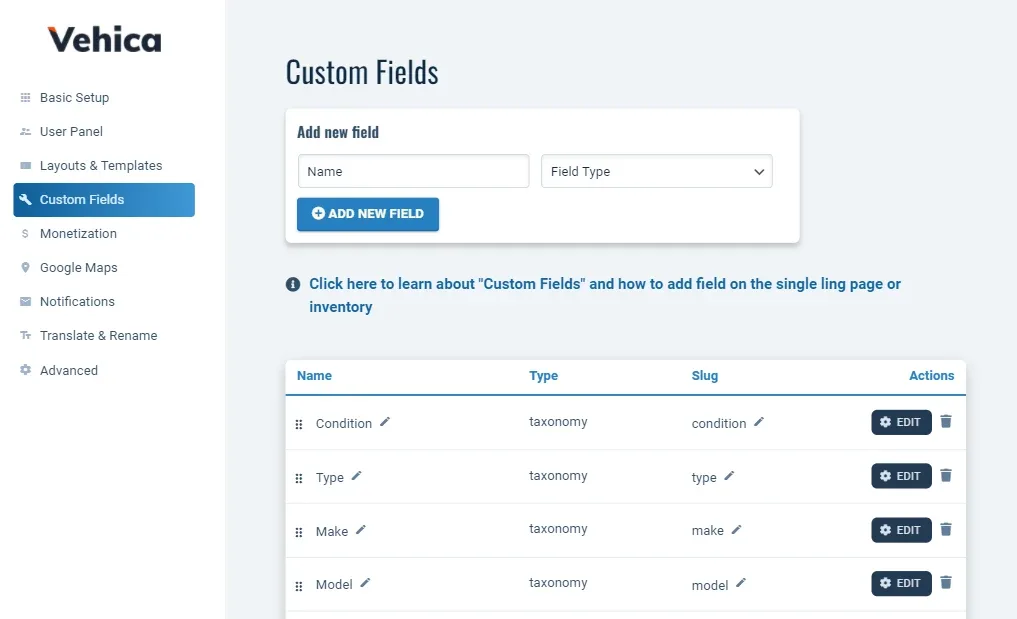
7. Monetization
Do you want to earn when users submit listings? If so, please enable this module: users who submit a listing will then have the chance to purchase a package.
More information about monetization - Monetization Systems – PayPal, Stripe and WooCommerce Payments Gateways
8. Google Maps
Vehica is fully integrated with Google Maps. Get your Google API Key to display listings on the map and allow searching via the Location field.
9. Notifications
Vehica can send emails to you or your users when something important happens. Configure the emails you need and use the special variables to make them more effective.
If you do not receive emails please check this article: How to prevent emails go to the SPAM folder? How to use SMTP?
10. Translate & Rename
You can translate and rename all the text here that is not a part of Elementor Page Builder. Here is more information on how to translate and rename Vehica - How to translate Vehica theme?
11. Advanced
Here you will find options that are more advanced, for example importing any XML or CSV file.
12. Edit your pages with Elementor
You can edit the homepage, or any other page such as Contact Us or About Us, this way:
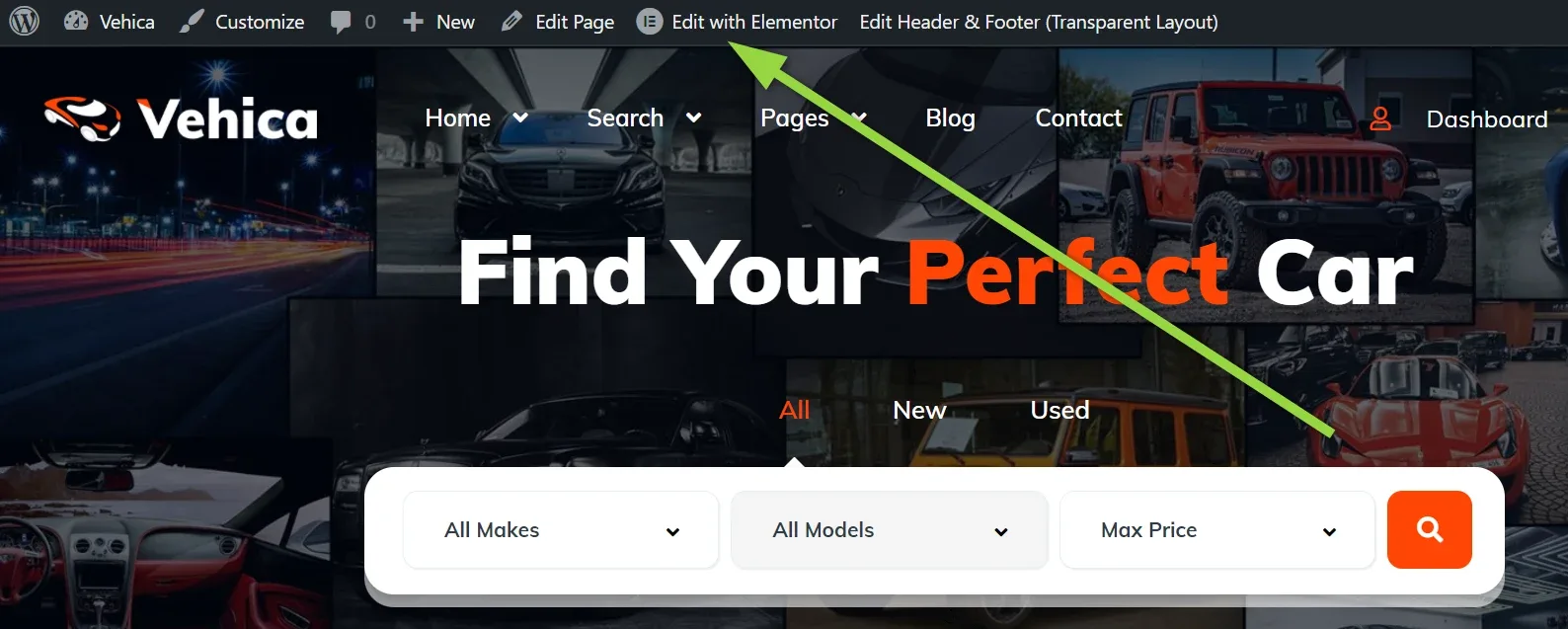
Elementor is the page builder the theme is built around, and it allows you to modify any page on your website. If you haven’t used Elementor before we recommend you watch this 2-minute getting started video, and then try the editor yourself by dragging and dropping elements to create or modify your first page.
13. Remove content you do not use
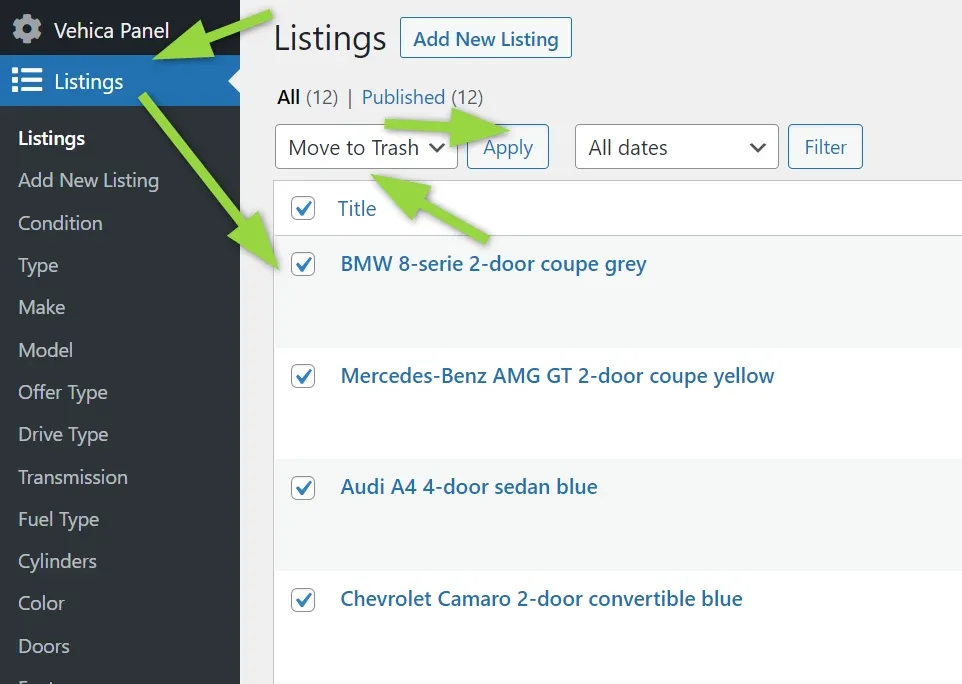
You can quickly remove demo listings and any pages you do not need this way:
In short
- Import the demo content before you build anything - it is the fastest way to a working site.
- Vehica Panel is where the theme is configured: basic setup, user panel, layouts and templates, custom fields, monetization, maps, notifications, translations and the advanced tools.
- The pages themselves are edited with Elementor.
- Delete the demo listings and pages you do not need before you launch.
Ask the people who build Vehica
We answer by email from support@tangiblewp.com. With Premium Support, we also fix your site when something breaks.
We can also run your site for you, or build a new one.
Was this guide helpful?