How to install Vehica Theme and import demo content?
Take Vehica from a ThemeForest download to a working site: upload and activate the theme, install the plugins it ships with, and import the demo content so you start with ready-made pages instead of a blank WordPress install.
1 minute read
Install the theme
-
1
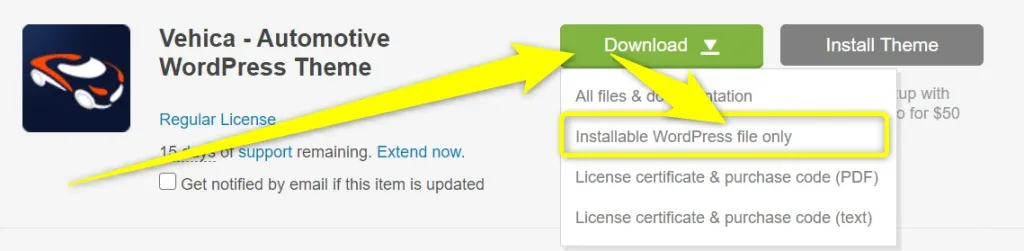
Download the theme file
Download Vehica's Installable WordPress file only package from https://themeforest.net/downloads.
-
2
Log in to WordPress
Sign in to the admin panel of the site you are installing Vehica on (
wp-admin). -
3
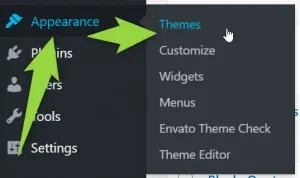
Open Appearance → Themes
Hover over the Appearance tab in the left sidebar and click Themes.
-
4
Click Add New

-
5
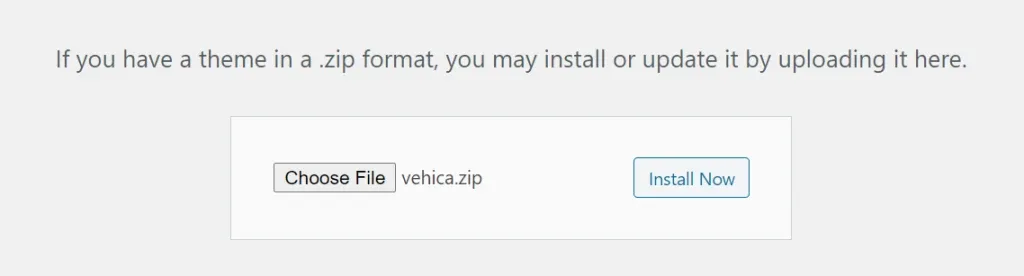
Upload the zip and install it
Click Upload Theme, then Choose File, pick the zip you downloaded, and click Install Now.
-
6
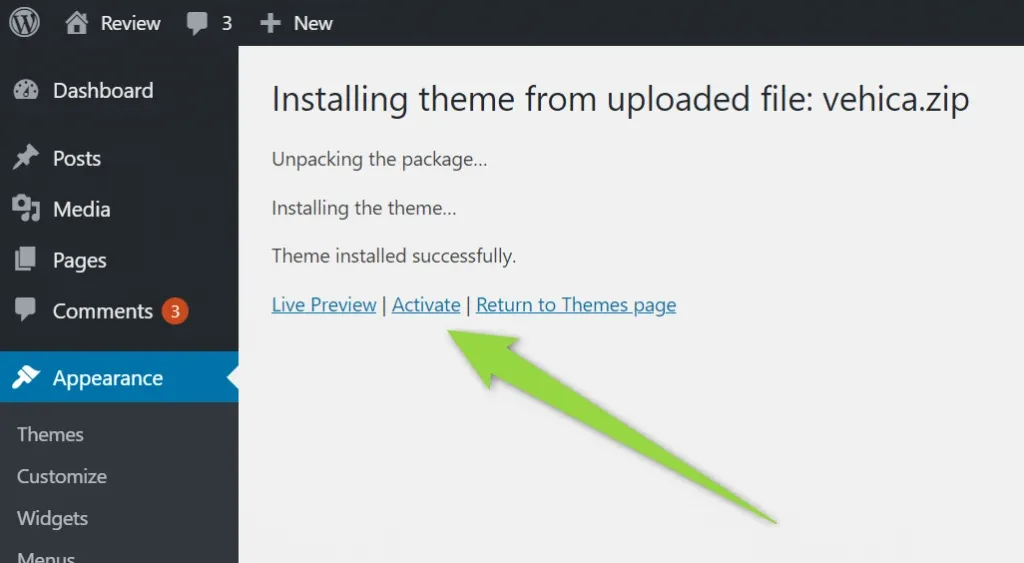
Activate the theme
When the installation finishes, click the Activate link.
-
7
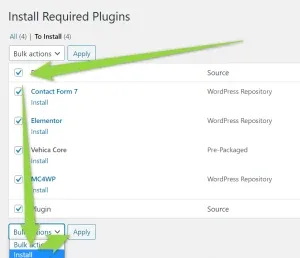
Begin installing the required plugins
Vehica adds a notification to your administration panel. Click Begin installing plugins.

Activate the plugins and import the demo
-
1
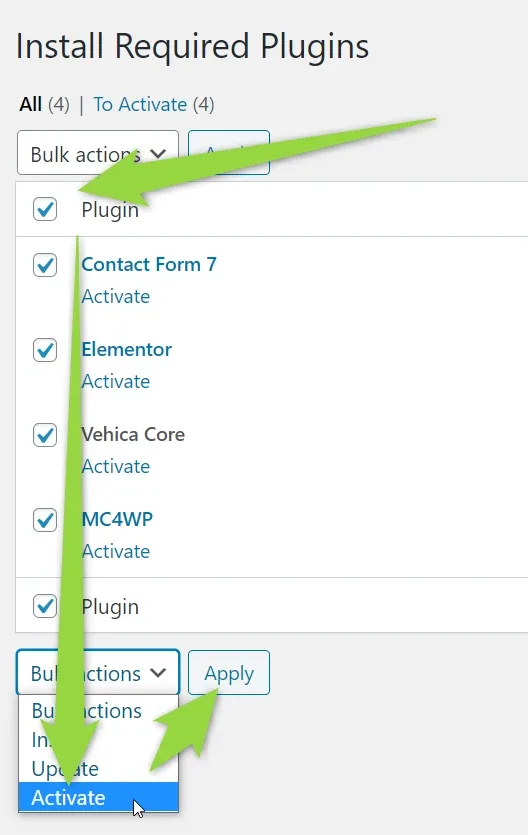
Activate all plugins
-
2
Run the demo importer
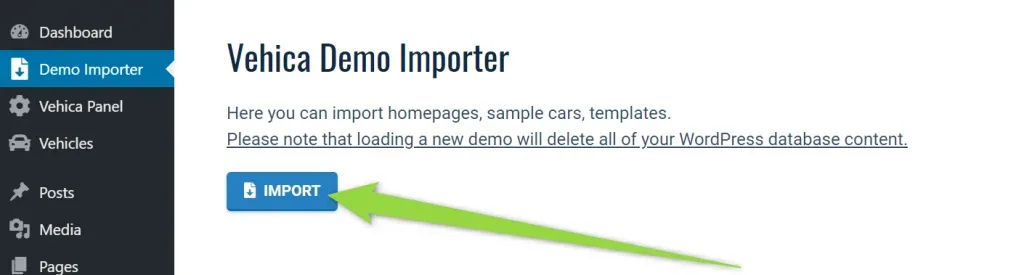
You are redirected to the demo importer. Import the Vehica demo content — homepages, pages, car fields and so on — before you start developing the website: it will get you there much faster. Click the Demo Importer link and then the Import button.
Loading the demo will start, please wait.

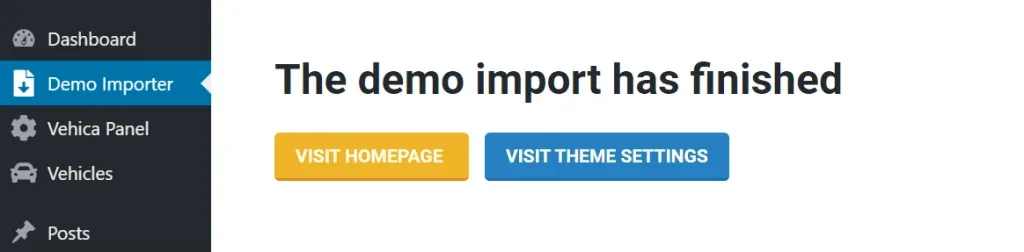
When the import finishes you will see this notification:
Ask the people who build Vehica
We answer by email from support@tangiblewp.com. With Premium Support, we also fix your site when something breaks.
We can also run your site for you, or build a new one.
Was this guide helpful?