How to prevent emails go to SPAM folder? How to use SMTP ?
Send your site's emails through a real mail server instead of PHP's mail() function, so notifications land in the inbox rather than the spam folder.
1 minute read
By default, WordPress uses the PHP mail() function, which is often why emails go to the Spam folder. To avoid this, you can make a bit more advanced mail setup.
Set up WP Mail SMTP
-
1
Install the WP Mail SMTP plugin
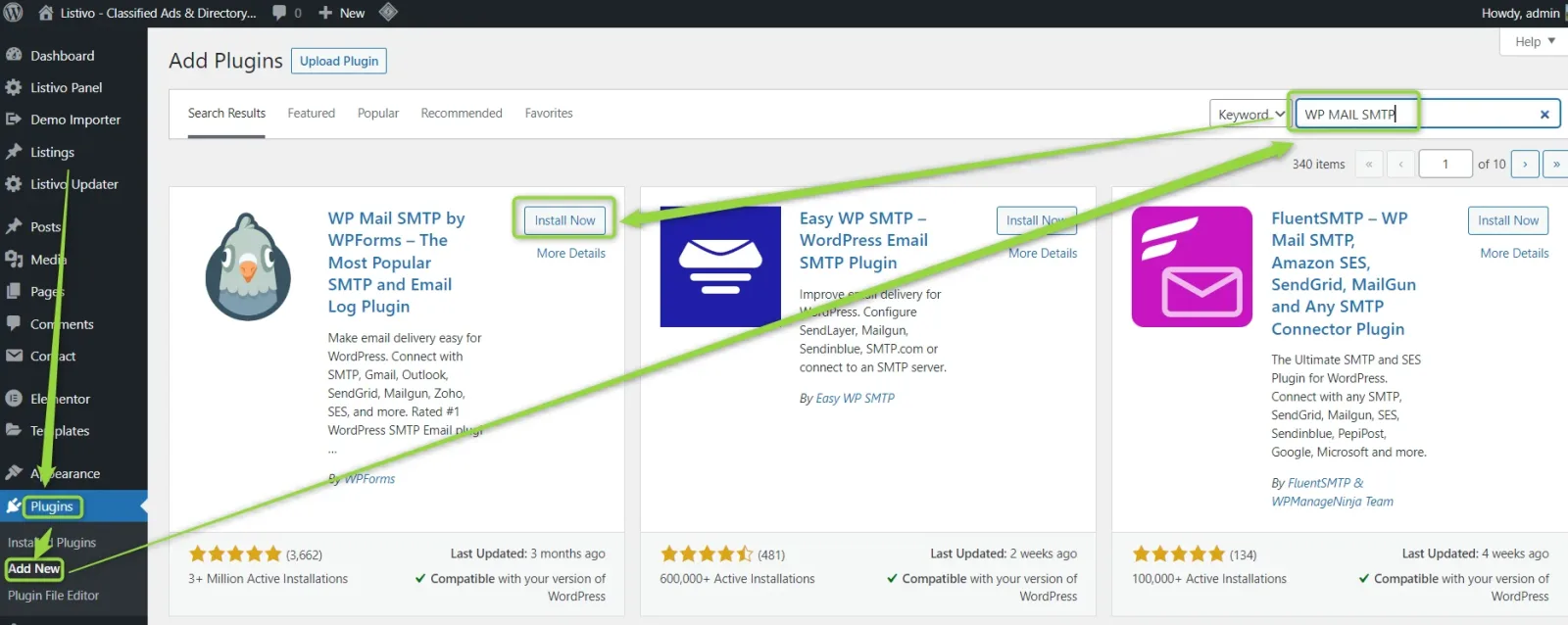
Visit the Plugins » Add New page inside your WordPress admin area, search for WP Mail SMTP and click Install Now.
-
2
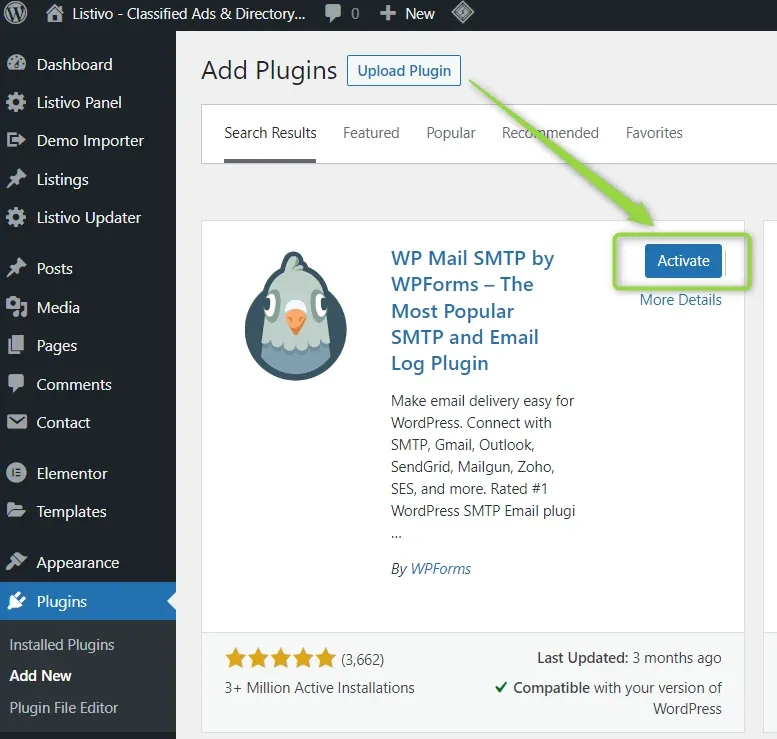
Activate the plugin
-
3
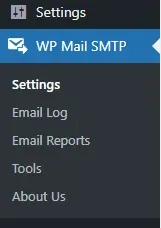
Open the plugin settings
Hover over the "Settings" tab in the left sidebar and click "Email".
-
4
Configure the SMTP options
We recommend enabling SMTP via a Gmail account because it is the most stable and always works. Please check this article on how to configure it: Setting up the Gmail mailer in WP Mail SMTP.
Ask the people who build Vehica
We answer by email from support@tangiblewp.com. With Premium Support, we also fix your site when something breaks.
We can also run your site for you, or build a new one.
Was this guide helpful?