How to change order of the option on the Search Form Checkbox Popup
Control which options a search-form checkbox popup offers and in what order, using one filter in your child theme instead of the full alphabetical list of terms.
1 minute read
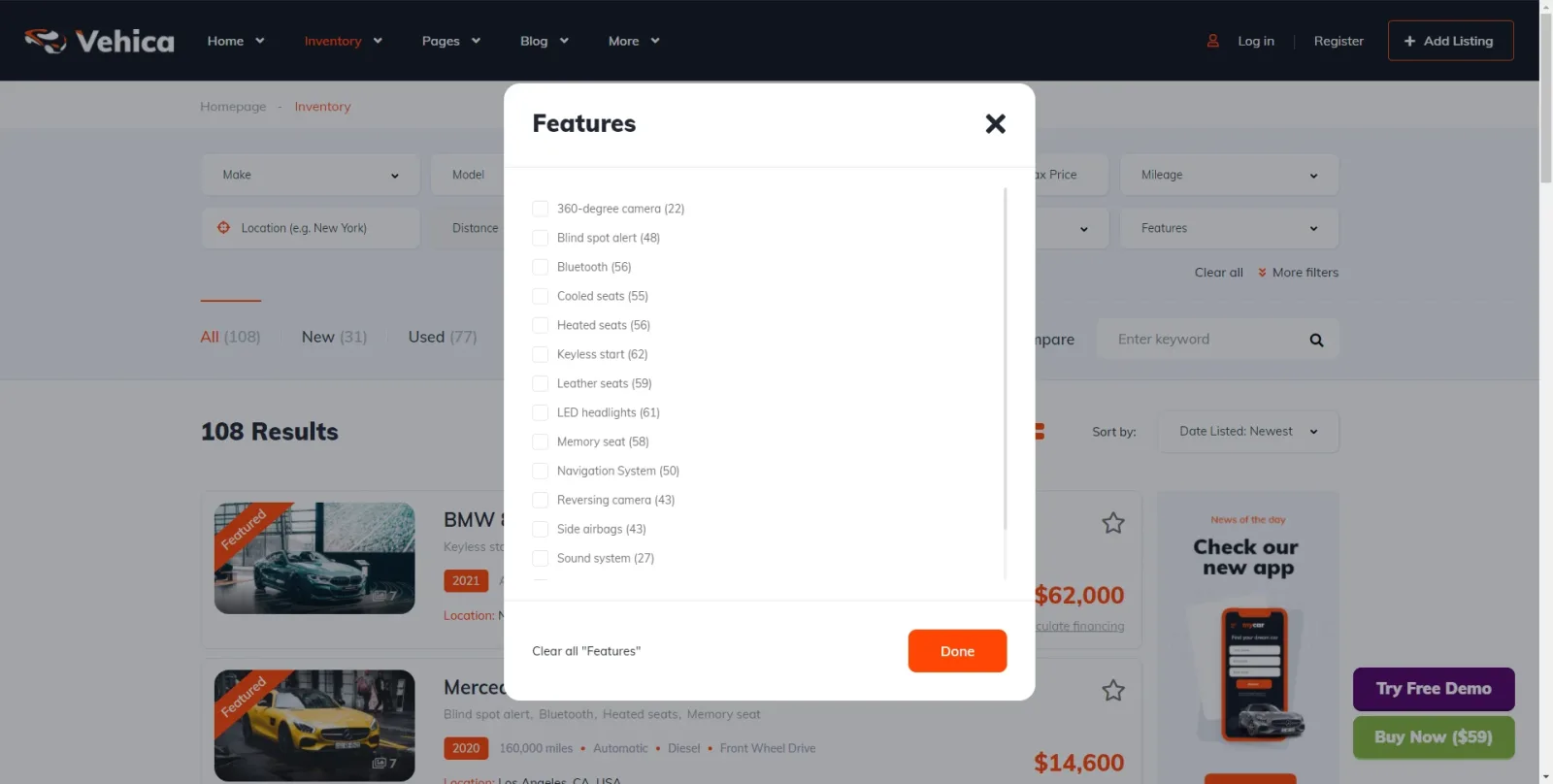
By default a checkbox field in the search form lists every term of its taxonomy. This article shows how to reorder those options, or narrow the popup down to just the ones you want.
functions.php file of your child theme — see how to use a child theme and how to add code that survives theme updates.add_filter('vehica/search/field/TAXONOMYID/terms', function() {
return [
\Vehica\Model\Term\Term::getById(TAGID1),
\Vehica\Model\Term\Term::getById(TAGID2),
];
});There are two things to fill in:
- TAXONOMYID — the id of the field whose popup you are changing
- TAGID — the id of each term you want to keep, listed in the order you want them shown
Filled in, it looks like this:
add_filter('vehica/search/field/6670/terms', function() {
    return [
        \Vehica\Model\Term\Term::getById(2096),
        \Vehica\Model\Term\Term::getById(2106),
    ];
});
Find the TAXONOMYID
Go to Vehica Panel > Custom Fields, open the field for editing, and read the number from the page address.
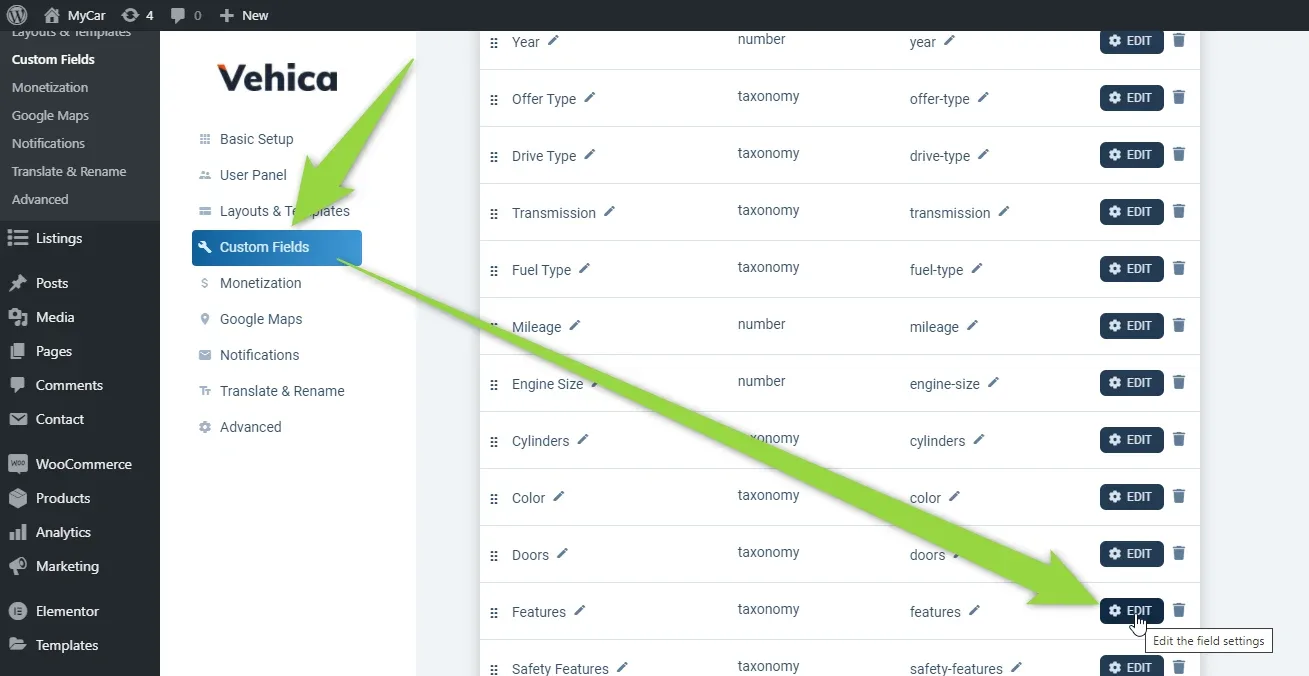
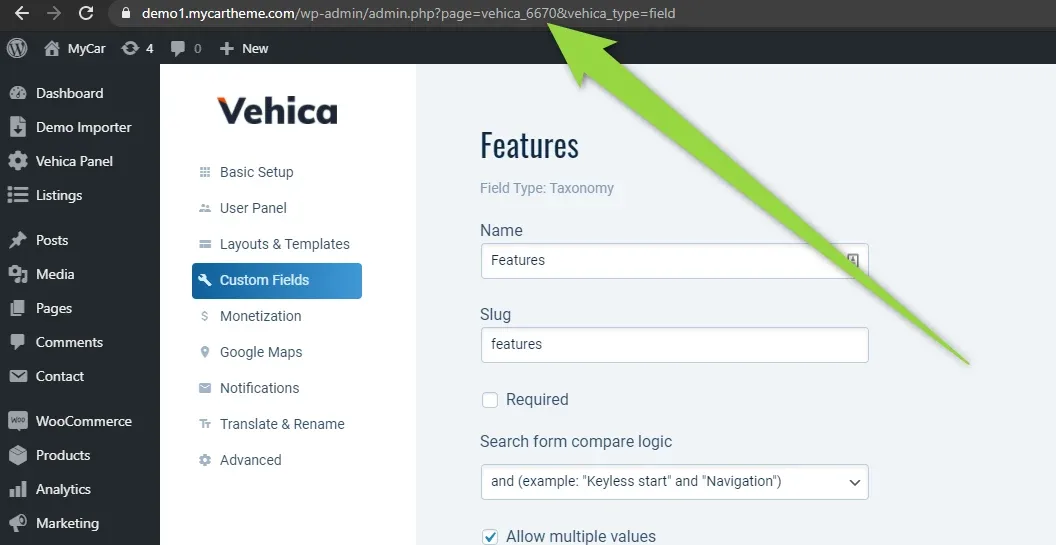
Here the taxonomy id is 6670.
Find the TAGID
Open the term itself in the WordPress admin and read the tag_ID value from the page address.
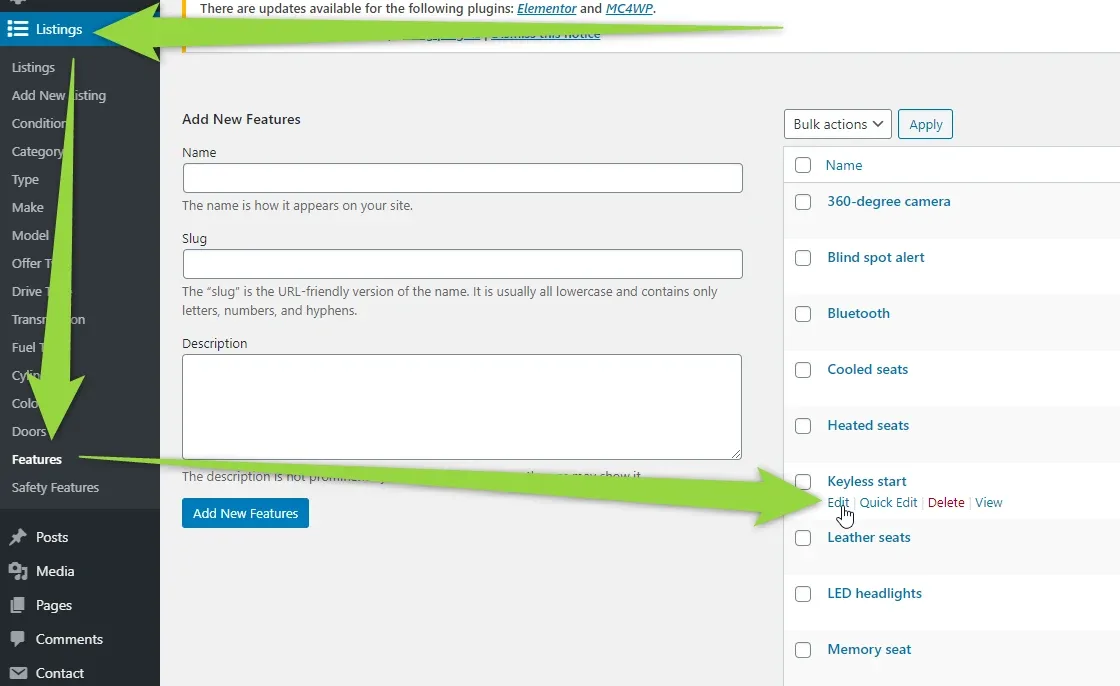
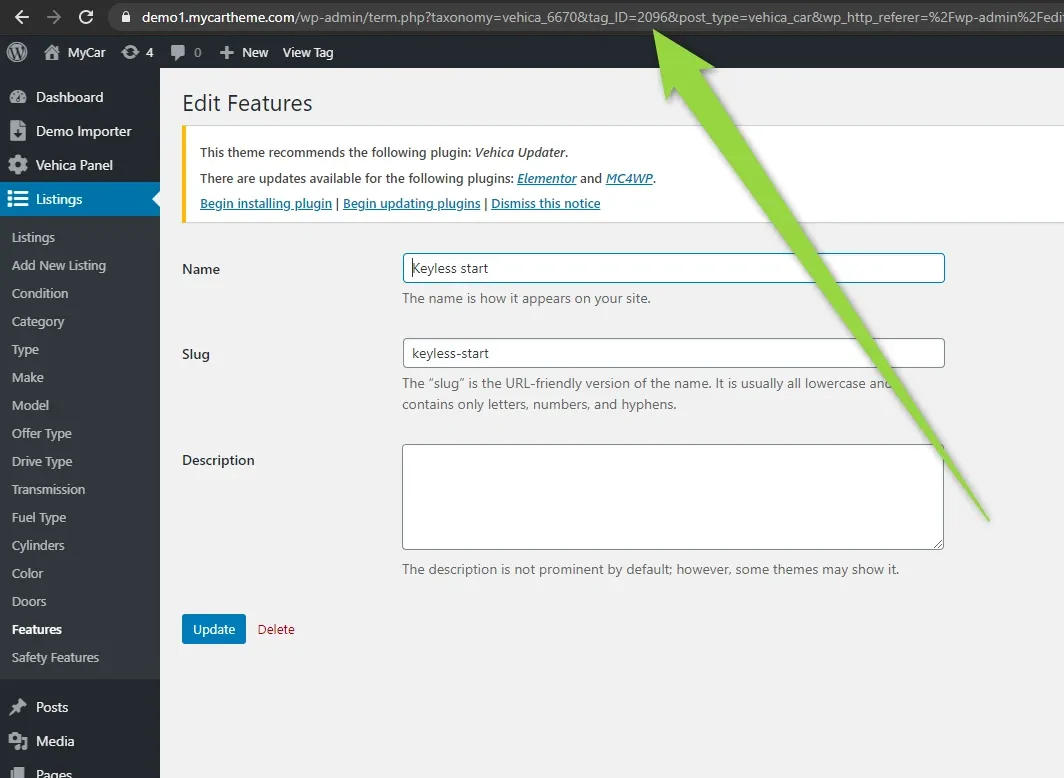
Here the term id is 2096.
The result
With those two ids in place, the snippet becomes:
add_filter('vehica/search/field/6670/terms', function() {
    return [
        \Vehica\Model\Term\Term::getById(2096),
        \Vehica\Model\Term\Term::getById(2106),
    ];
});
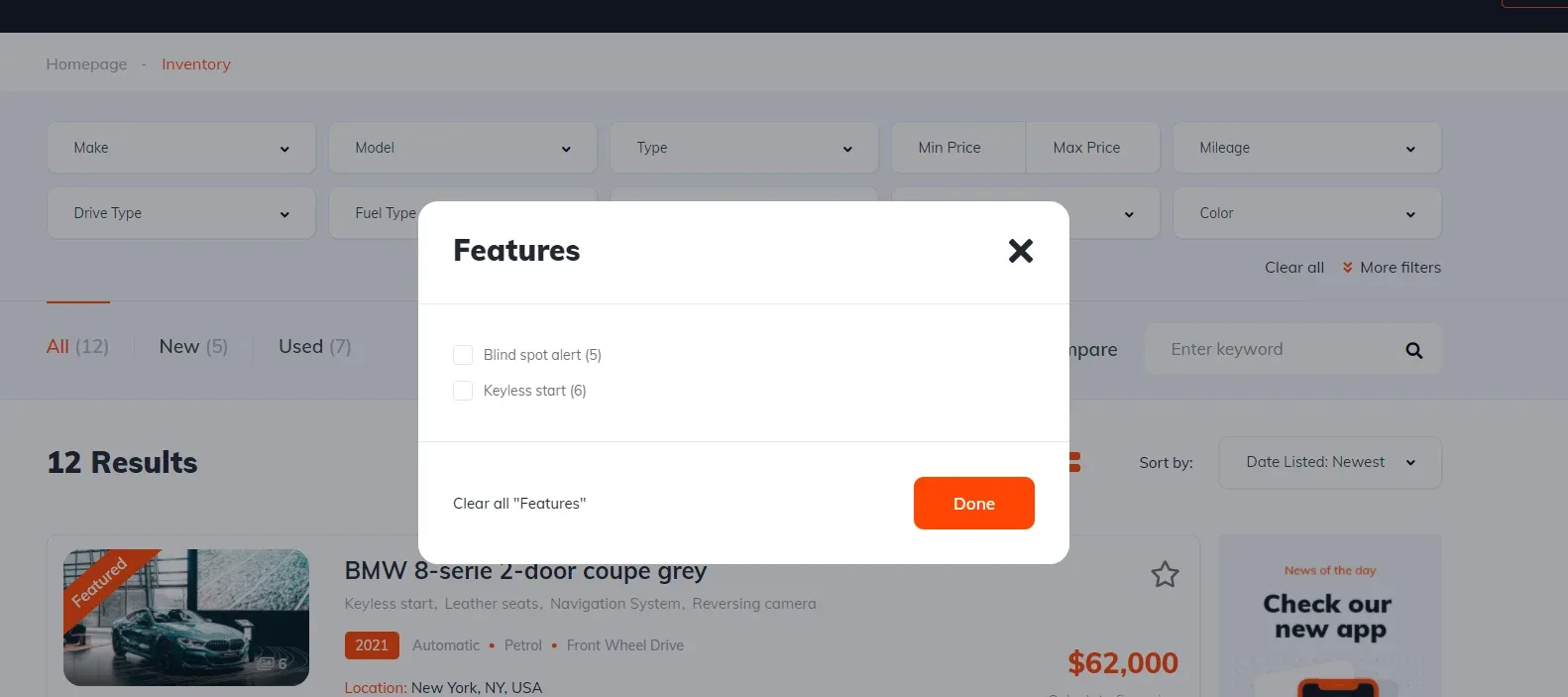
The popup is now limited to the terms you listed:
Ask the people who build Vehica
We answer by email from support@tangiblewp.com. With Premium Support, we also fix your site when something breaks.
We can also run your site for you, or build a new one.
Was this guide helpful?