How to switch (1) search bar + main field and (2) Fields order
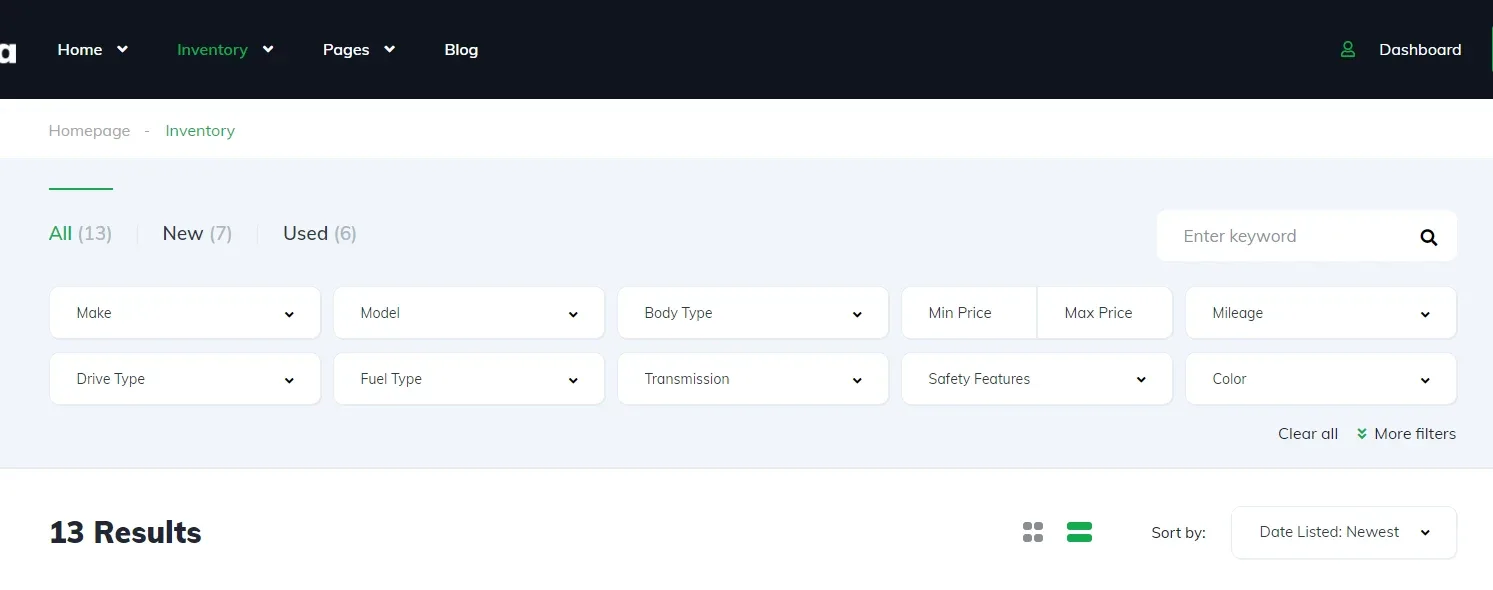
On the Vehica inventory page the filter fields sit above the search bar that holds the All / New / Used tabs and the keyword box. This article gives you the CSS that swaps those two rows on desktop screens.
1 minute read
This article explains how to change the order of these two sections on desktop.
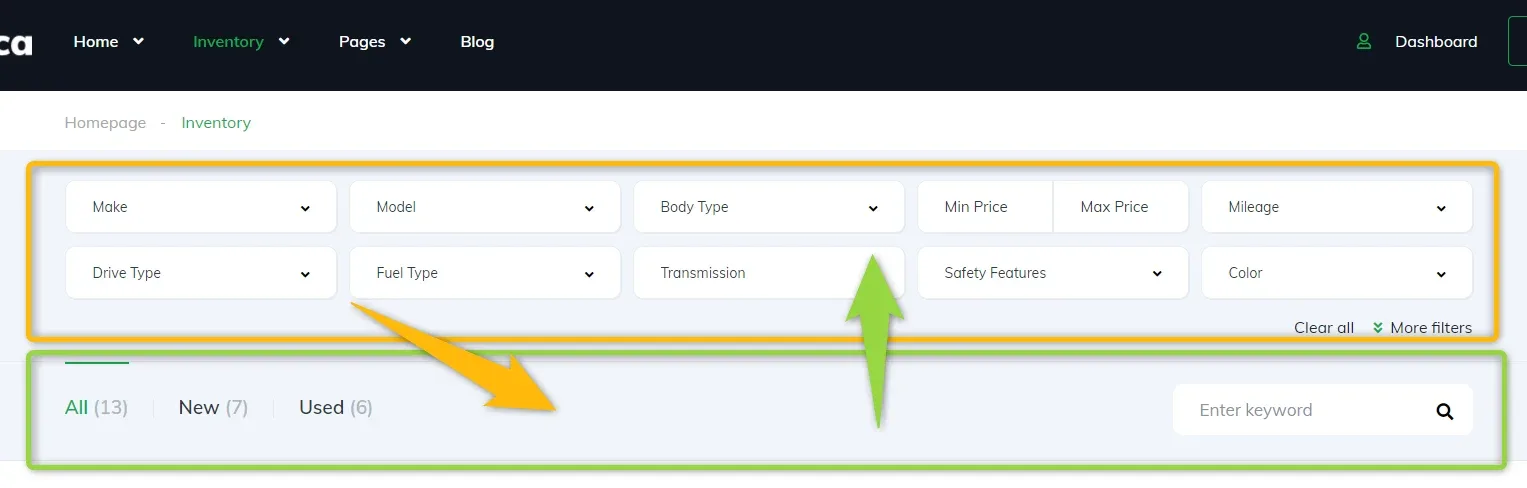
Add the CSS code below to your website. This article explains how to add custom CSS to any WordPress theme: How to use Child Theme? How to change files (php / css / js) and keep theme future update compatibility?
@media (min-width:1024px) {
.vehica-inventory-v1__top__inner {
display:flex!important;
width:100%!important;
flex-direction:column!important;
}
.vehica-results__fields {
order:2!important;
}

.vehica-inventory-v1__bar {
order:1!important;
}
}@media (min-width:1024px) query, so the order changes on screens 1024px and wider only. Narrower screens keep the original order.It will look like this:
Keep reading
Ask the people who build Vehica
We answer by email from support@tangiblewp.com. With Premium Support, we also fix your site when something breaks.
We can also run your site for you, or build a new one.
Was this guide helpful?