How to style Google Maps (snazzy maps)
Replace the default look of the maps on your site with any ready-made style from Snazzy Maps by copying its style array into the Vehica Panel or into a single Google Map element.
1 minute read
-
1
Find a map style you like
Browse the gallery at https://snazzymaps.com/explore?sort=popular.
-
2
Open the style page
For example https://snazzymaps.com/style/25/blue-water.
-
3
Click “Extend Code”
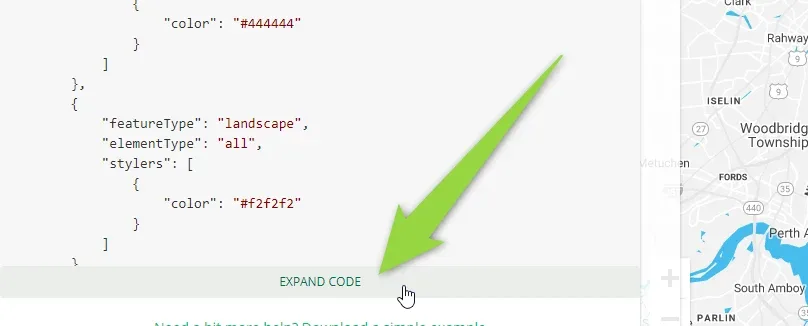
-
4
Copy the code
Copy everything except the
JAVASCRIPT STYLE ARRAY:line.
js
[
    {
        "featureType": "administrative",
        "elementType": "labels.text.fill",
        "stylers": [
            {
                "color": "#444444"
            }
        ]
    },
    {
        "featureType": "landscape",
        "elementType": "all",
        "stylers": [
            {
                "color": "#f2f2f2"
            }
        ]
    },
    {
        "featureType": "poi",
        "elementType": "all",
        "stylers": [
            {
                "visibility": "off"
            }
        ]
    },
    {
        "featureType": "road",
        "elementType": "all",
        "stylers": [
            {
                "saturation": -100
            },
            {
                "lightness": 45
            }
        ]
    },
    {
        "featureType": "road.highway",
        "elementType": "all",
        "stylers": [
            {
                "visibility": "simplified"
            }
        ]
    },
    {
        "featureType": "road.arterial",
        "elementType": "labels.icon",
        "stylers": [
            {
                "visibility": "off"
            }
        ]
    },
    {
        "featureType": "transit",
        "elementType": "all",
        "stylers": [
            {
                "visibility": "off"
            }
        ]
    },
    {
        "featureType": "water",
        "elementType": "all",
        "stylers": [
            {
                "color": "#46bcec"
            },
            {
                "visibility": "on"
            }
        ]
    }
]
Finally, paste the copied array into a Google Map element or into the Vehica Panel.
Ask the people who build Vehica
We answer by email from support@tangiblewp.com. With Premium Support, we also fix your site when something breaks.
We can also run your site for you, or build a new one.
Was this guide helpful?