Display avatar and username on card only for Business Seller role
Show the seller's avatar and name on your Vehica listing cards, but only when the listing belongs to a user with the Business Seller role and an uploaded profile picture.
1 minute read
Our final result is almost the same as here: How to display User Name and User Image on the Listing Card (e.g. row)
But we add some options to show the avatar only if the user has the Business Seller role on your website:
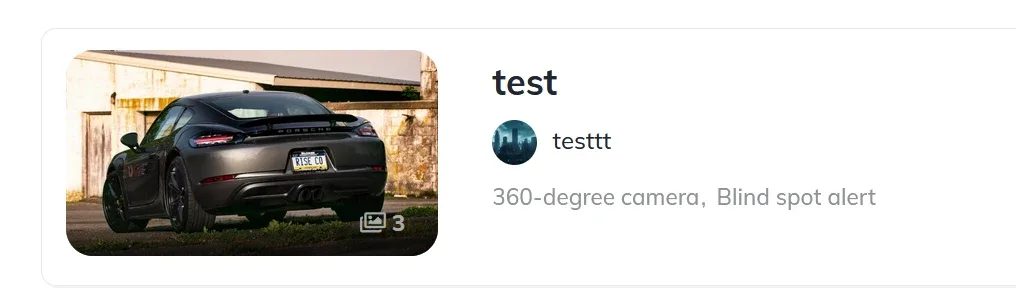
Add the PHP code to the card template
You can use the code below to add a user name and user image to the listing card PHP files
e.g. \wp-content\themes\vehica\templates\card\car\card_v3.php
<?php

$vehicaUser = $vehicaCurrentCar->getUser();
$vehicaUserName = $vehicaUser->getName();
$vehicaUserUrl = $vehicaUser->getUrl();
$vehicaUserImageUrl = $vehicaUser->getImageUrl();

if ($vehicaUser && $vehicaUser->isBusinessRole() && $vehicaUser->hasImageUrl()) {
 ?>
    <div class="vehica-avatar-card" style="margin: 10px 0">
   <a href="<?php echo esc_url($vehicaUserUrl); ?>"><img style=" z-index: 999; position: relative; width:30px; height: 30px; border-radius:50%; margin-right:6px" src="<?php echo wp_get_attachment_image_url($vehicaUser->getImageId()); ?>" alt=""> </a>
   <a href="<?php echo esc_url($vehicaUserUrl); ?>"><?php echo esc_html($vehicaUserName); ?></a>
    </div>
 <?php
} ?>
Add the PHP code below this line in card_v3.php:
<?php echo esc_html($vehicaCurrentCar->getName()); ?>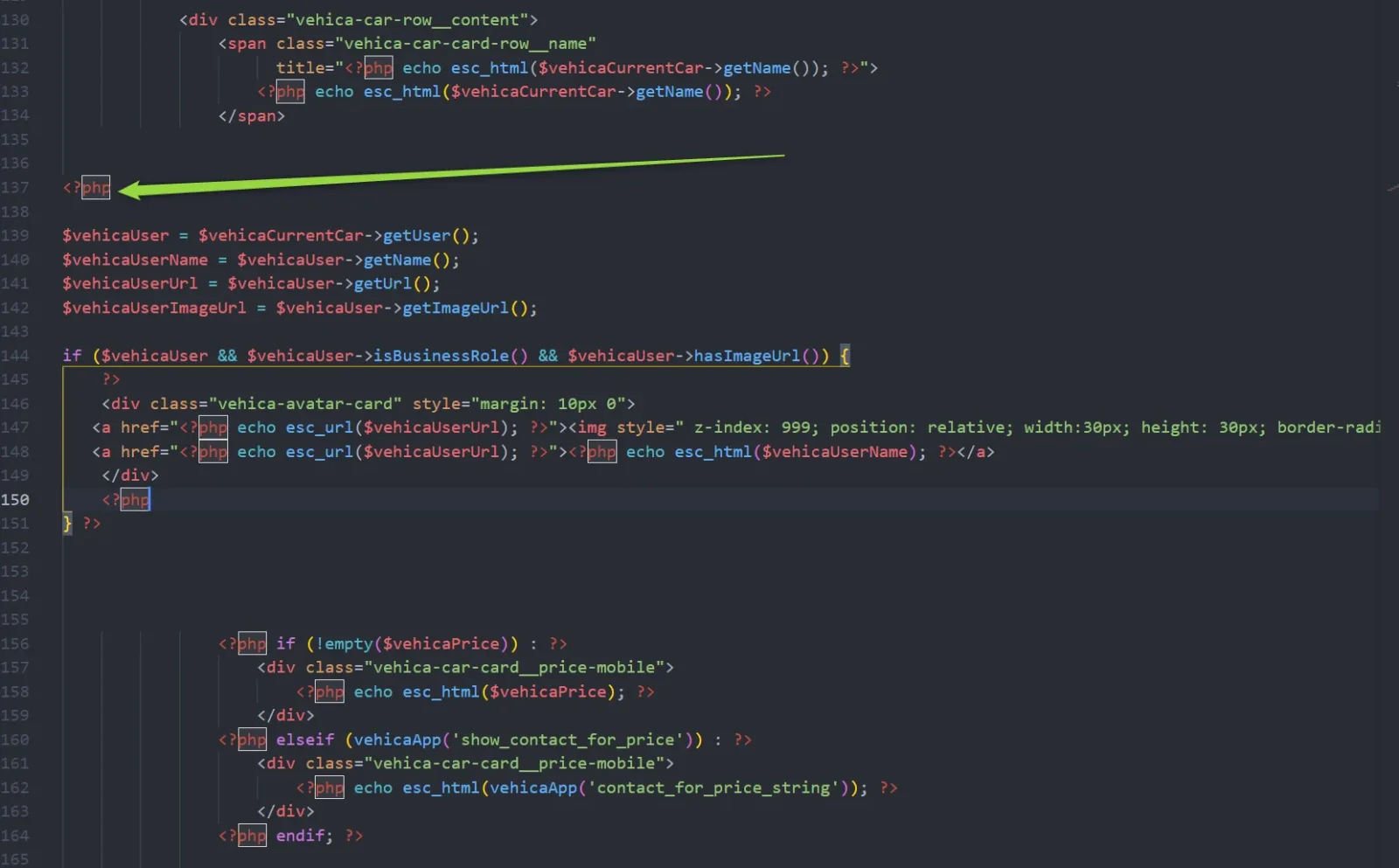
Add the CSS
We also need custom CSS to change the position and z-index of our element:
.vehica-avatar-card{
 position: relative;
 z-index: 999!important;
}
Please add it via Child Theme. You can learn more about how to use it here: How to use Child Theme? How to change files (php / css / js) and keep theme future update compatibility?
Ask the people who build Vehica
We answer by email from support@tangiblewp.com. With Premium Support, we also fix your site when something breaks.
We can also run your site for you, or build a new one.
Was this guide helpful?