Customization - How to display Text field e.g. Vin Number via PHP
Print the value of a Vehica text field — a VIN number, for example — inside a listing card, by looking up the field id and adding a few lines of PHP to the card template.
1 minute read
Check the field ID
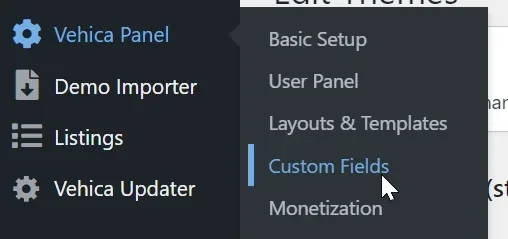
Go to Vehica Panel > Custom Fields.
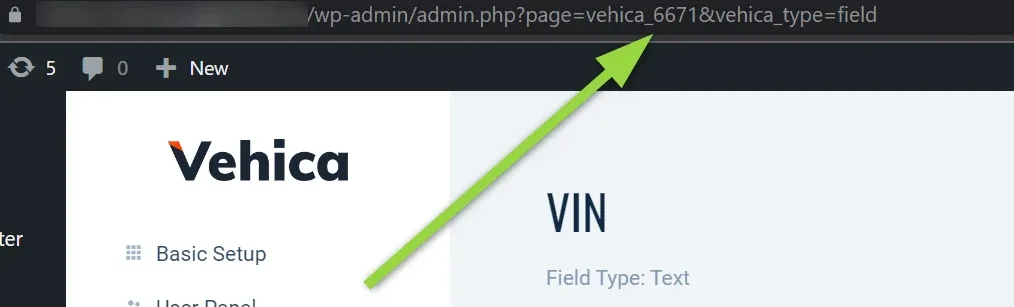
Edit the text field you want to show — in this example the VIN field.

The id is the number in the page address. Here it is 6671.
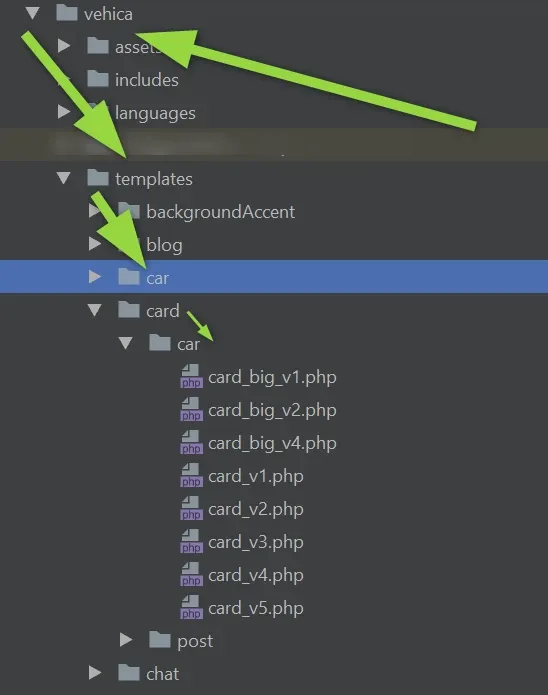
Find the card files
The listing card templates sit in the theme folder, under templates/card/car/. Open the card version your site uses.
Add the code
Paste the snippet below where you want the value to appear, and replace 6671 with the id of your own field.
<?php
$value = get_post_meta($vehicaCurrentCar->getId(), 'vehica_6671', true);
if (!empty($value)) :?>
<div>
<?php echo esc_html($value); ?>
</div>
<?php endif; ?>Ask the people who build Vehica
We answer by email from support@tangiblewp.com. With Premium Support, we also fix your site when something breaks.
We can also run your site for you, or build a new one.
Was this guide helpful?