Skip to content

Custom Fields overview + how to add new field on single / inventory page

Vehica has nine types of custom field. See where to add them, how to reorder them, and how to place a new field on the inventory page and on the single vehicle page — it will not appear there by itself.

1 minute read

There are 9 types of custom field:

  1. Text
  2. Number
  3. Taxonomy
  4. Price
  5. Gallery
  6. Embed
  7. Date/Time (in progress – currently available only on the backend edit listing/display on the single listing page)
  8. Heading
  9. Location

Add and arrange fields

You add fields in the Vehica Panel, under Custom Fields: give the field a name, pick its type and click Add New Field.
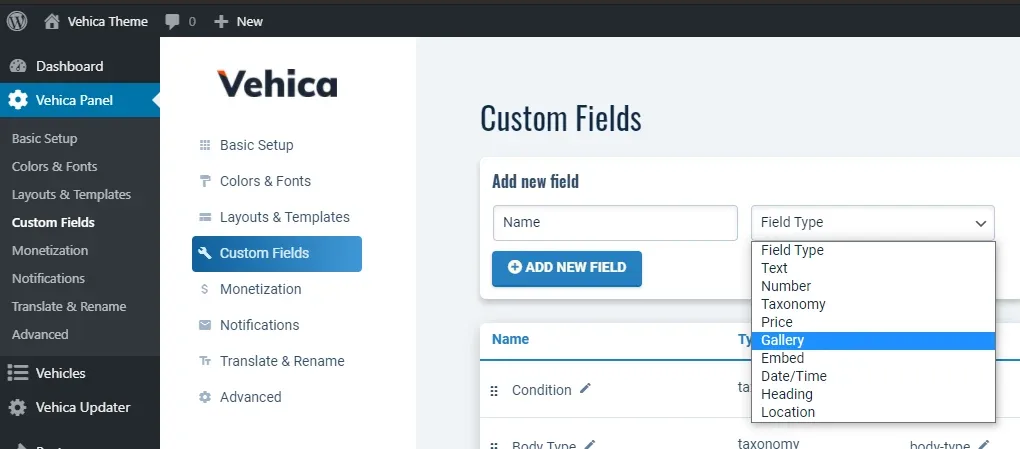
The Custom Fields page in the Vehica Panel with an empty Name box and the Field Type dropdown open, listing Text, Number, Taxonomy, Price, Gallery, Embed, Date/Time, Heading and Location.

You can change the order of the fields by dragging a row by its handle:
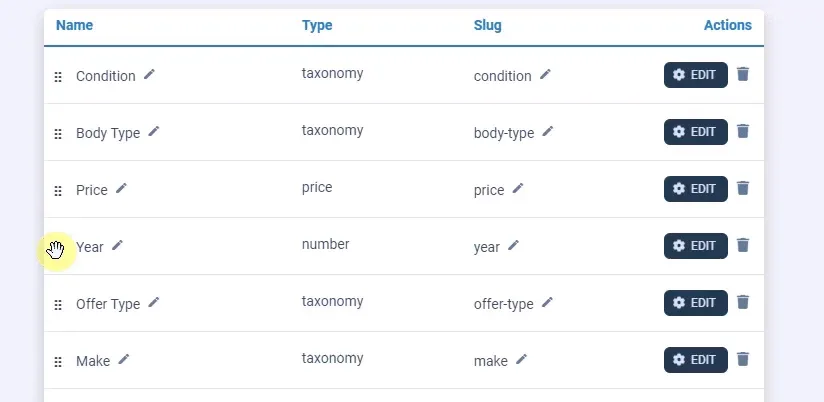
The field table — Condition, Body Type, Price, Year, Offer Type, Make — with the drag handle on the Year row grabbed to move it up or down.

You will find more options for a field behind its Edit button.
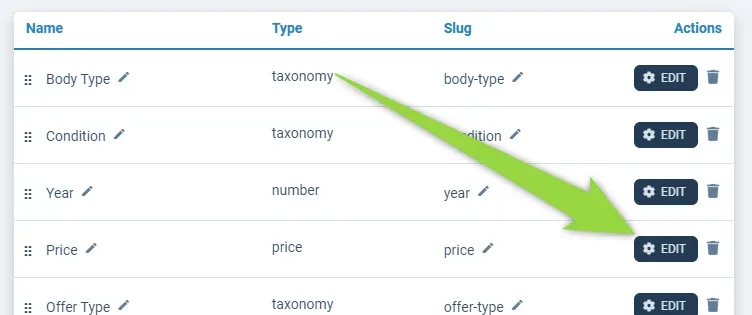
The same field table with an arrow pointing at the Edit button at the end of the Price row.
New fields are not shown automatically
A field you have just added does not appear on your Search Form or Single Vehicle Page on its own. You have to place it there yourself, as shown below.

Inventory page

Open Vehica Panel > Layouts & Templates and edit the Vehicle Search Results Template.
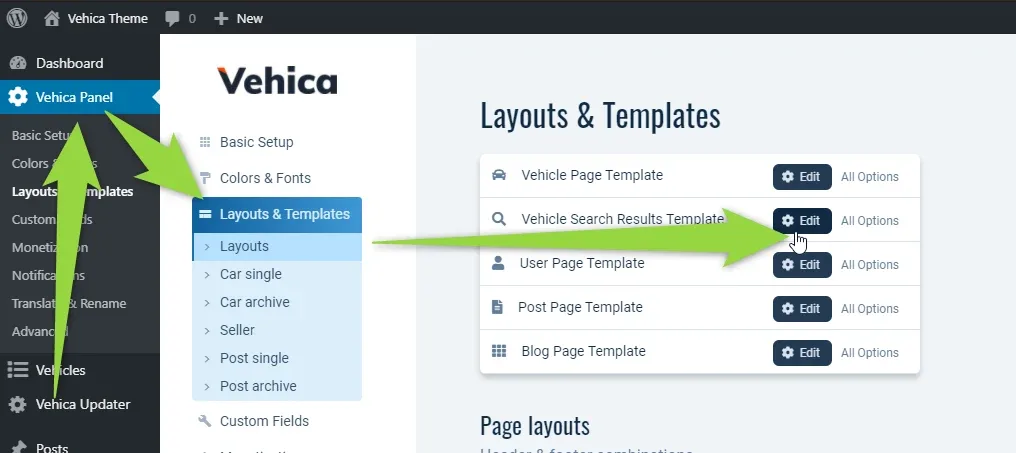
The Layouts & Templates page with an arrow pointing at the Edit button of the Vehicle Search Results Template, among the Vehicle Page, User Page, Post Page and Blog Page templates.
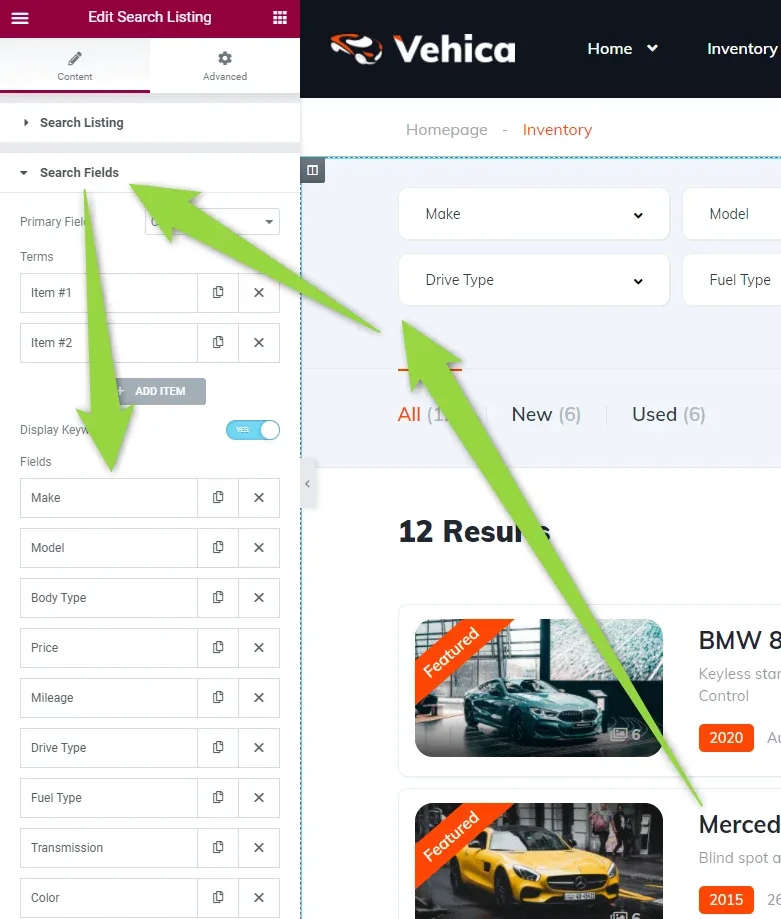
The Elementor "Edit Search Listing" panel open on Search Fields, with the list of fields — Make, Model, Body Type, Price, Mileage, Drive Type, Fuel Type, Transmission, Color — beside a preview of the inventory page.
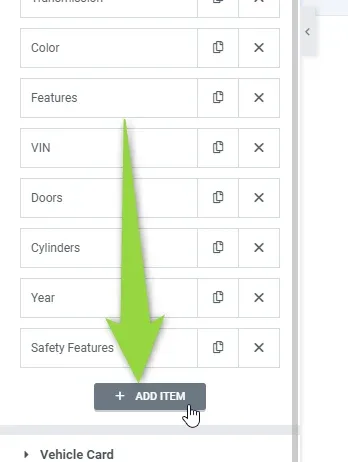
The bottom of the same field list, with an arrow pointing at the Add Item button below the last entry.

Then configure how you want the field displayed:
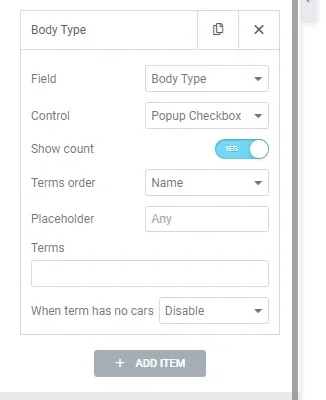
The settings of a single search field: Field set to Body Type, Control set to Popup Checkbox, Show count on, Terms order by Name, and a Placeholder and Terms box.

Single vehicle page

To add the field on the single page, edit the Vehicle Page Template the same way:
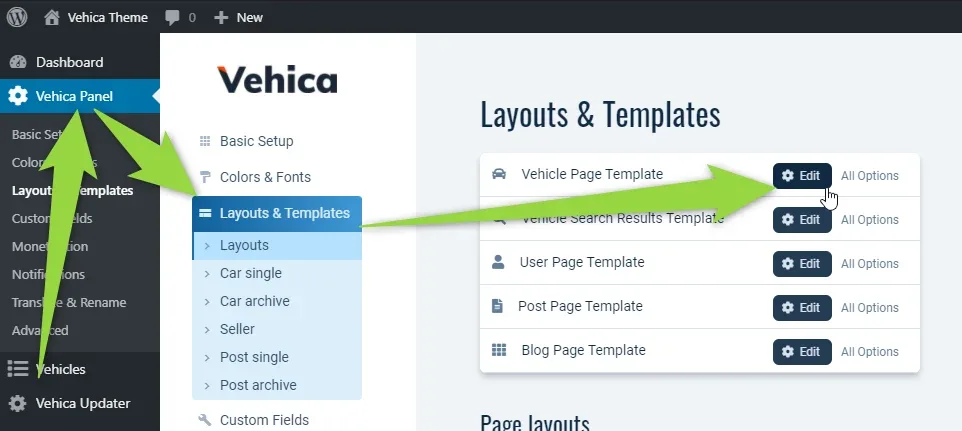
The Layouts & Templates page again, this time with the arrow pointing at the Edit button of the Vehicle Page Template.
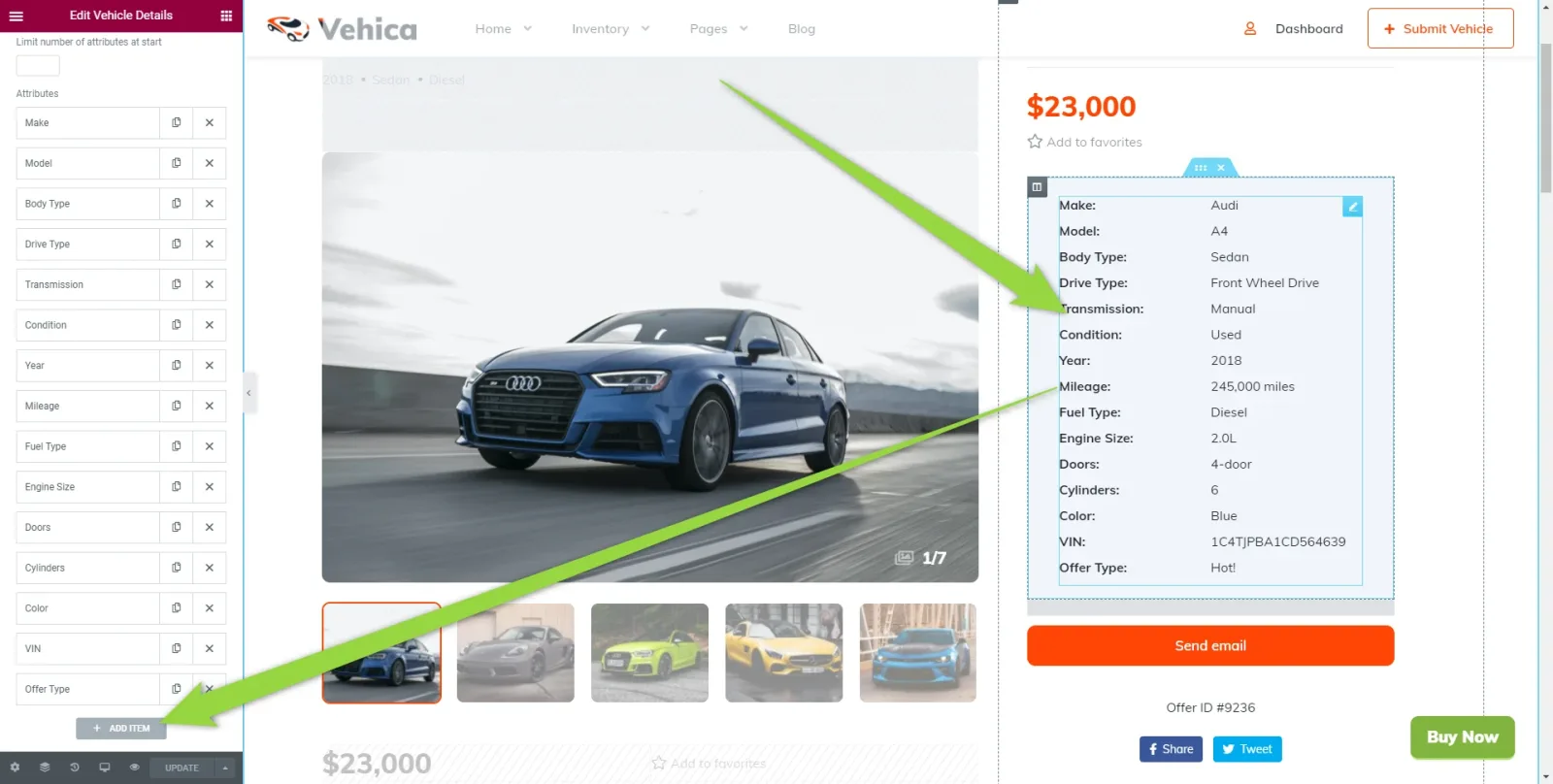
The vehicle page template in Elementor: an "Edit Vehicle Details" panel listing the fields on the left, and a preview of a single listing for a blue Audi at $23,000 whose details table shows make, model, body type, mileage, VIN and the rest.

Ask the people who build Vehica

We answer by email from support@tangiblewp.com. With Premium Support, we also fix your site when something breaks.

Was this guide helpful?