Thumbnails and Adaptive Sizing Explained
Understand how Listivo serves scaled thumbnails instead of full-size photos, where to choose the thumbnail each card and widget uses, and what to do when the built-in sizes do not suit your images.
4 minute read
The Listivo WordPress theme features an advanced thumbnail system, a crucial component for enhancing website speed and SEO. Our theme also supports adaptive sizing, which adjusts image sizes based on the user's device, enhancing the browsing experience — for example by providing better quality images for Retina screens. Additionally, lazy loading ensures images load only as they come into view, further speeding up your site.
This system replaces the use of heavy, original images with efficiently scaled versions, adhering to a practice that's become a standard in modern web design. Components like Listing Cards, User Avatars, and similar items will load thumbnails, not original images.
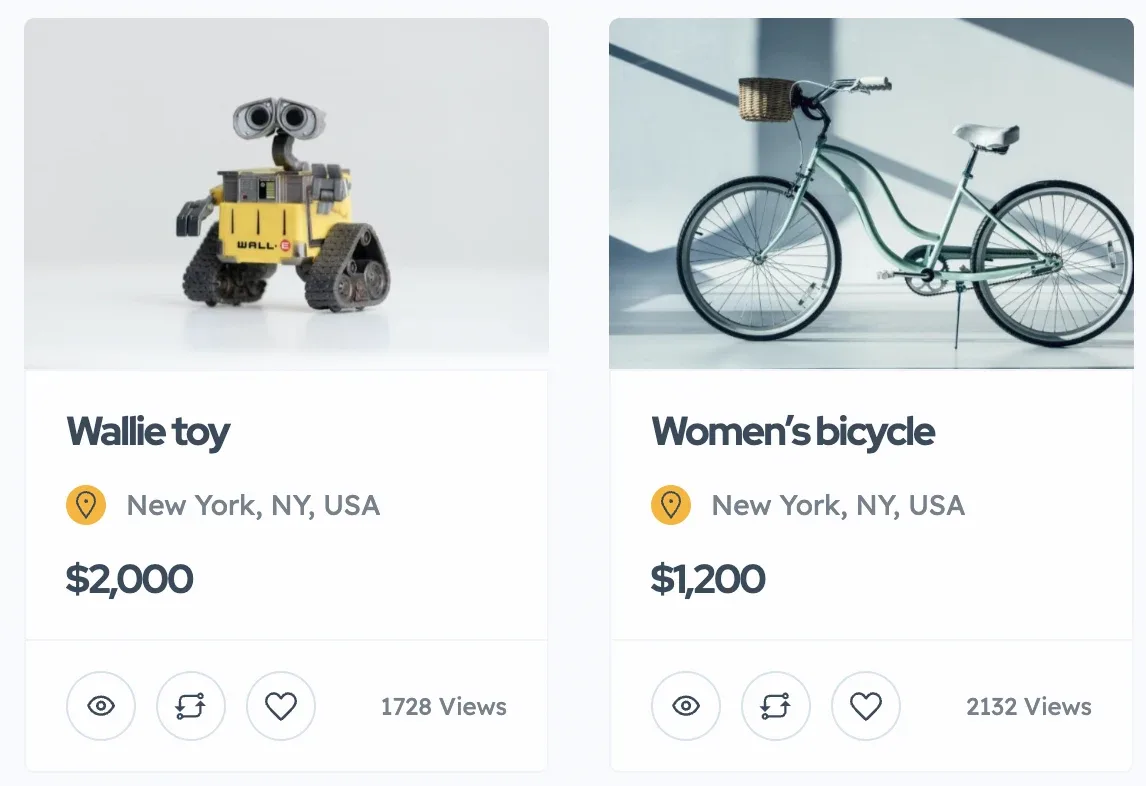
Configuring thumbnail selection for ad cards
In Elementor Site Settings > Ad Card you have the option to select which thumbnail is loaded for both the regular card and the row card.
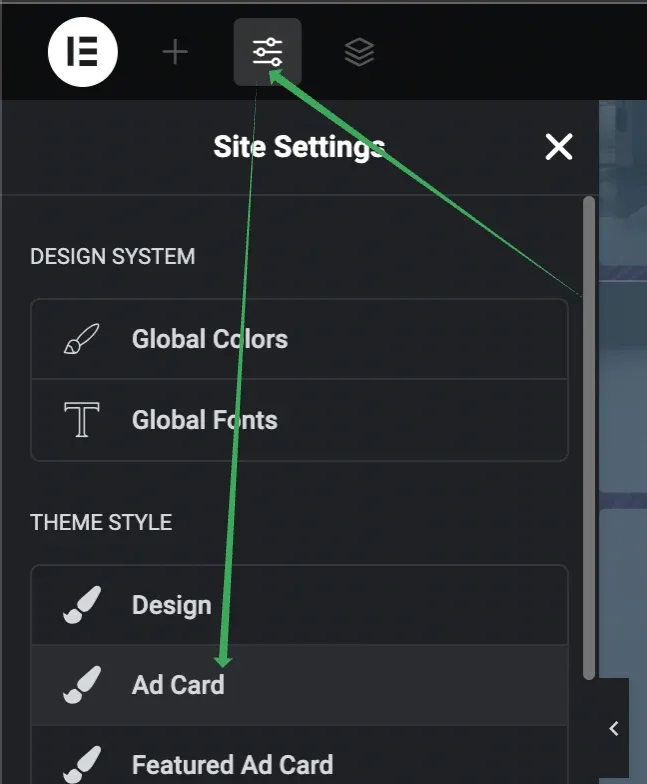
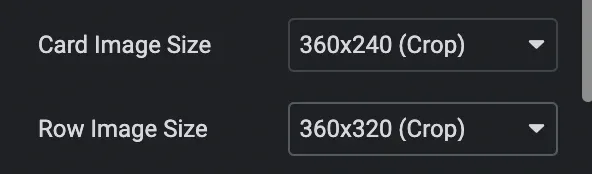
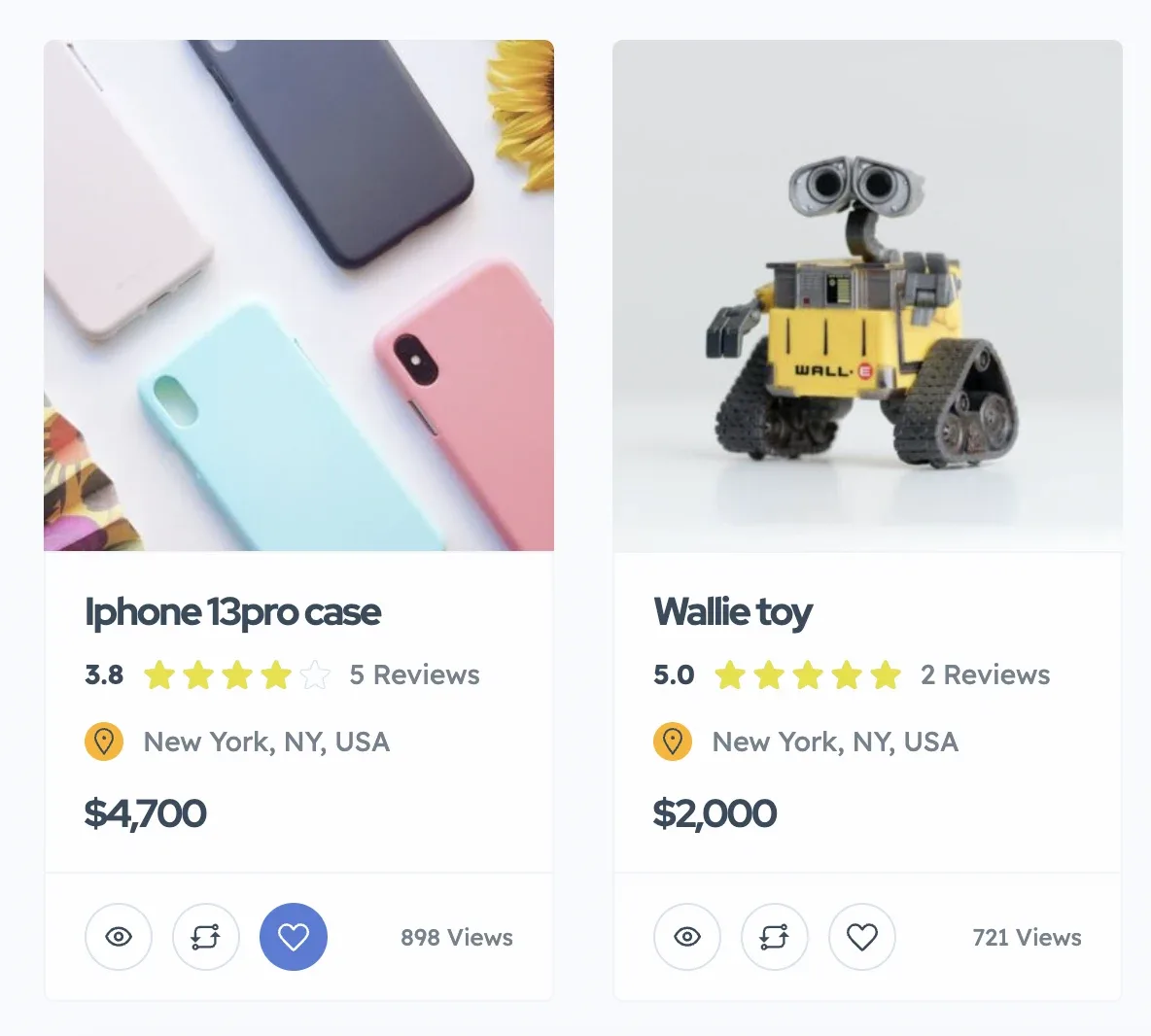
Please note that the theme automatically adapts to the image ratio. Whether you choose a square thumbnail of 150x150 or 600x600, it will always use an image of the specified ratio (in this case, square), regardless of whether it's bigger or smaller. The user's browser then selects the image that best fits the available space, whether it's 150x150, 600x600, etc.
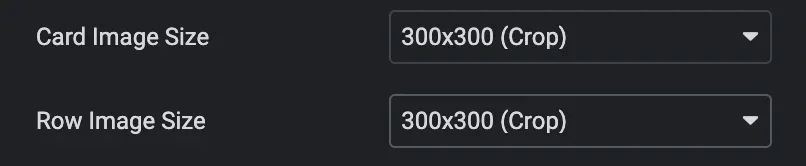
Will result in ratio 1:1
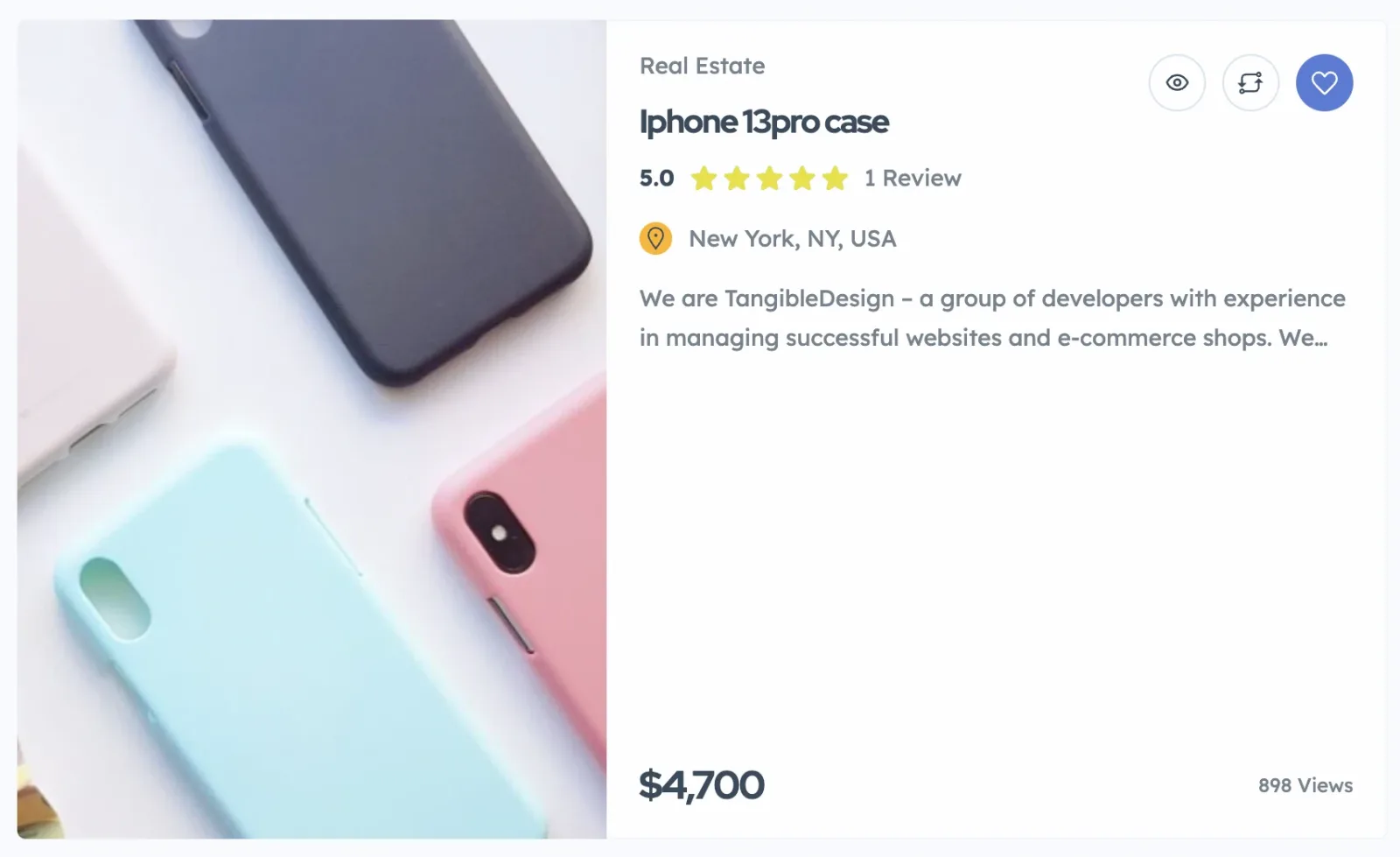
It's important to remember that the row card image height is determined by the row's height and does not adapt to the image's ratio, in order to maintain a uniform appearance. You have the option to adjust the row card settings to find the ideal fit for your images.
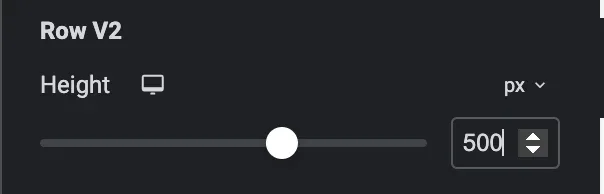
Will result as follows: the height will not be limited by the image ratio.
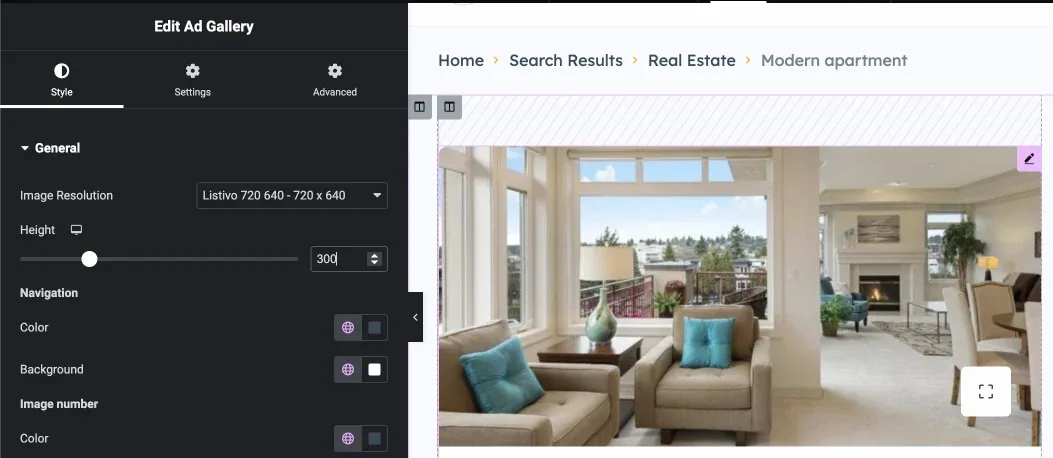
For different modules, you can choose the thumbnail that is used in the widget settings. Some widgets, like Ad Gallery, can handle height by a responsive control, so they will not use the thumbnail ratio but the height that is determined in the widget option. Example:
Customizing thumbnail sizes
By default, Listivo comes with the most popular ratios to choose from. We do not register more sizes as it would slow down the upload process and take up more server space. However, you have the flexibility to modify these recommended sizes and add new ones for your specific requirements. For instance, if you have very specific images, like parrots, which are usually tall, standard sizes may cut off the top and bottom of the photo. In this case, you may register a new size that better suits your niche content — see How to create custom size for thumbnails via plugin.
Image resizing tools
For bulk resizing, software like IrfanView for Windows is quite handy. It's user-friendly and effective for managing large batches of images. This is particularly useful if you are the only person uploading photos and have many large images, such as those around 9MB and of a huge size. IrfanView allows you to scale all images to web resolution, for example 1920x1080, and set a maximum space limit, such as 200KB, to create a suitable source for WordPress to generate thumbnails from. Learn more about IrfanView and its features on their website: https://www.irfanview.com
Regenerating thumbnails
If you need to apply new sizes to previously uploaded images, use a popular plugin for regenerating thumbnails. This plugin updates all existing images to the new sizes, ensuring a consistent look across your site. A helpful resource for this is the Regenerate Thumbnails plugin — https://wordpress.org/plugins/regenerate-thumbnails/
More options
If you need more options, you will need to rebuild the theme's PHP files and its CSS code. This requires custom work that goes beyond the default functionality and is not covered by support. The solution we have created is the golden standard, and usually making changes to it will have a negative impact on your website's speed. If you require additional options, you will need to take responsibility for the customization, as it goes beyond the theme's scope.
Ask the people who build Listivo
We answer by email from support@tangiblewp.com. With Premium Support, we also fix your site when something breaks.
We can also run your site for you, or build a new one.
Was this guide helpful?