Skip to content

Regenerate thumbnails on your website

Rebuild the thumbnail files for images that are already in your media library, so pictures uploaded before you changed a thumbnail size are created in the new sizes too.

1 minute read

Regenerate Thumbnails generates new sizes of previously uploaded images by creating images in the newly defined sizes.

Old thumbnail files are removed
The setup below deletes thumbnail files for old, unregistered sizes in order to free up server space. This may result in broken images in your posts and pages.
  1. 1 Go to Plugins > Add New

    Start from /wp-admin/.
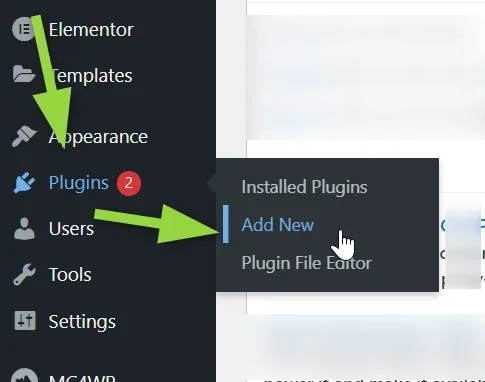
    The WordPress admin sidebar with green arrows pointing at Plugins and at Add New in its submenu, beside Installed Plugins and Plugin File Editor.
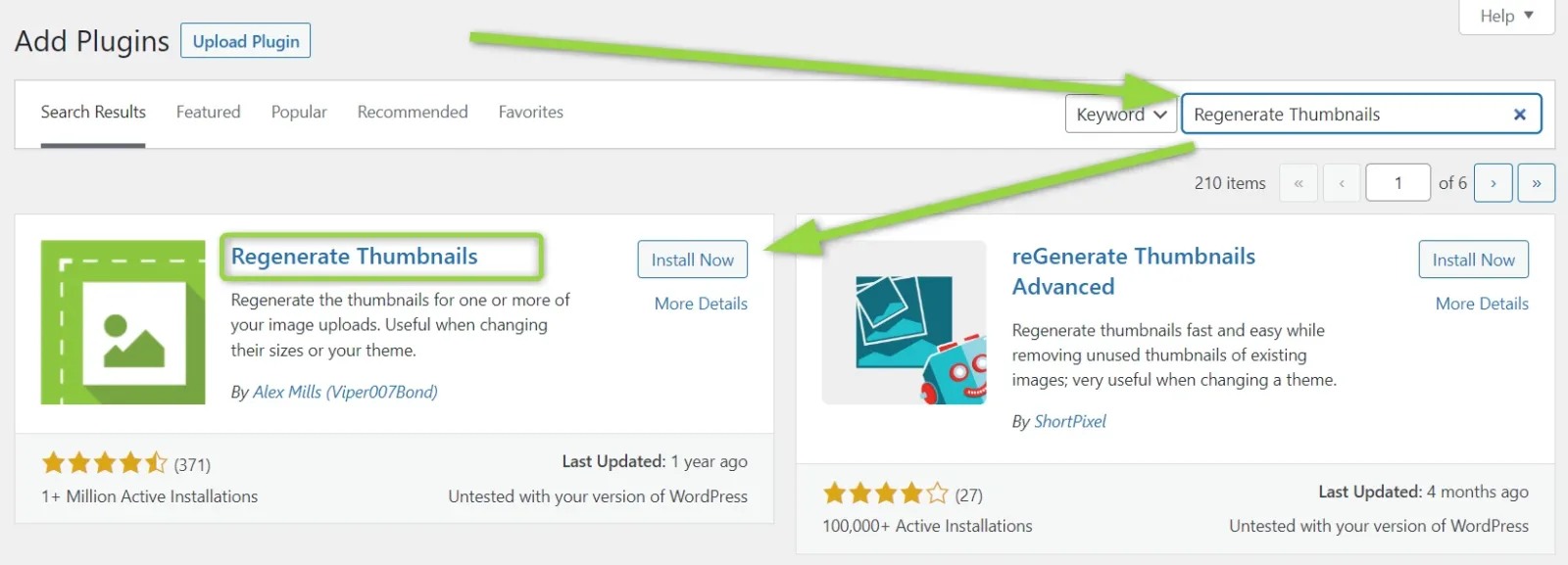
  2. 2 Search for Regenerate Thumbnails and click Install Now The Add Plugins screen with "Regenerate Thumbnails" in the search box and green arrows pointing at the search field and at the Install Now button on the Regenerate Thumbnails card.
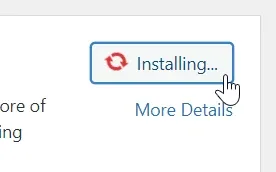
  3. 3 Wait while the plugin installs The plugin card button reading "Installing..." with the mouse cursor over it.
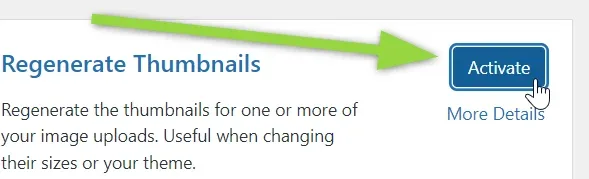
  4. 4 Click Activate The Regenerate Thumbnails plugin card after installation, with a green arrow pointing at the blue Activate button.
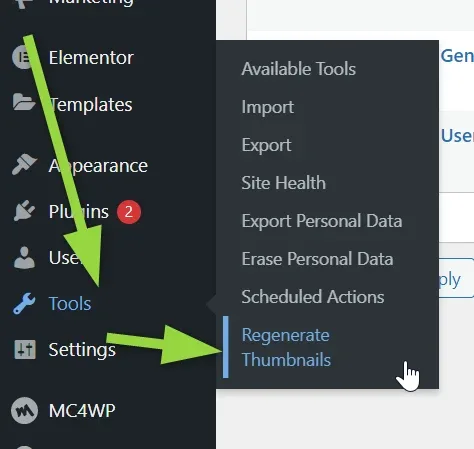
  5. 5 Open Tools > Regenerate Thumbnails The WordPress admin sidebar with green arrows pointing at Tools and at the Regenerate Thumbnails entry in its submenu, below Available Tools, Import, Export, Site Health and Scheduled Actions.
  6. 6 Set the two checkboxes

    Deselect "Skip regenerating existing correctly sized thumbnails (faster)" and select "Delete thumbnail files for old unregistered sizes in order to free up server space".
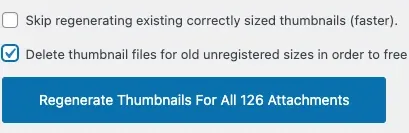
    The two options on the Regenerate Thumbnails screen: the "Skip regenerating existing correctly sized thumbnails" box unticked and the "Delete thumbnail files for old unregistered sizes" box ticked, above the regenerate button.
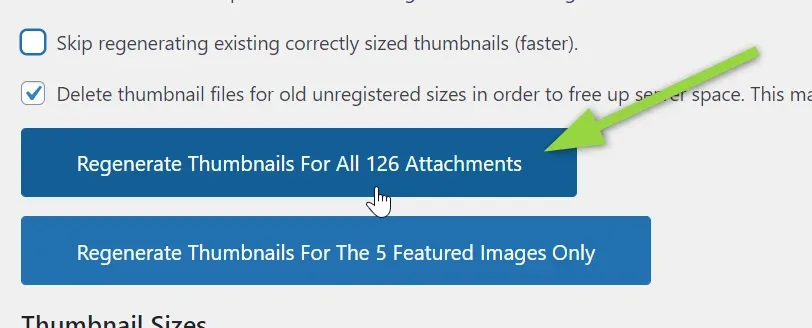
  7. 7 Click "Regenerate Thumbnails For All XX Attachments" A green arrow pointing at the "Regenerate Thumbnails For All 126 Attachments" button, with a second button below it for the 5 featured images only.
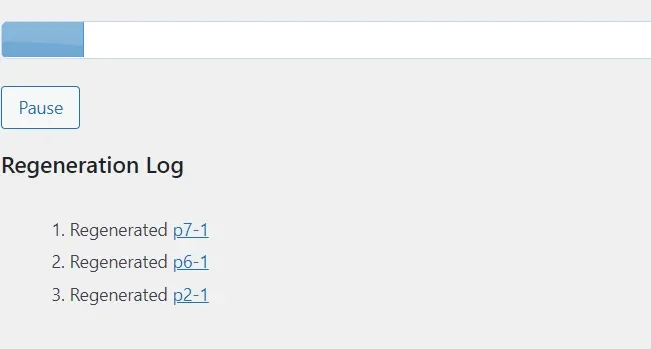
  8. 8 Wait for the regeneration to finish The regeneration running: a progress bar, a Pause button and a Regeneration Log listing the first images that were regenerated.
  9. 9 Done A browser tab titled "100% | Regenerate Thumbnails", showing the job has completed.

Ask the people who build Listivo

We answer by email from support@tangiblewp.com. With Premium Support, we also fix your site when something breaks.

Was this guide helpful?