The field dependency on the custom field
Field dependency ties your other custom fields to the terms of one taxonomy, so a car listing can ask for mileage and a VIN while a trailer never sees those fields. This guide sets it up and explains how to read the relations table.
2 minute read
This article will teach you how to establish the field dependency for your taxonomy-type fields.
The field dependency allows you to show and hide specific fields on the search form and the form for adding an ad, depending on the selected terms of this taxonomy.
Turn on field dependency
-
1
Add a new custom field
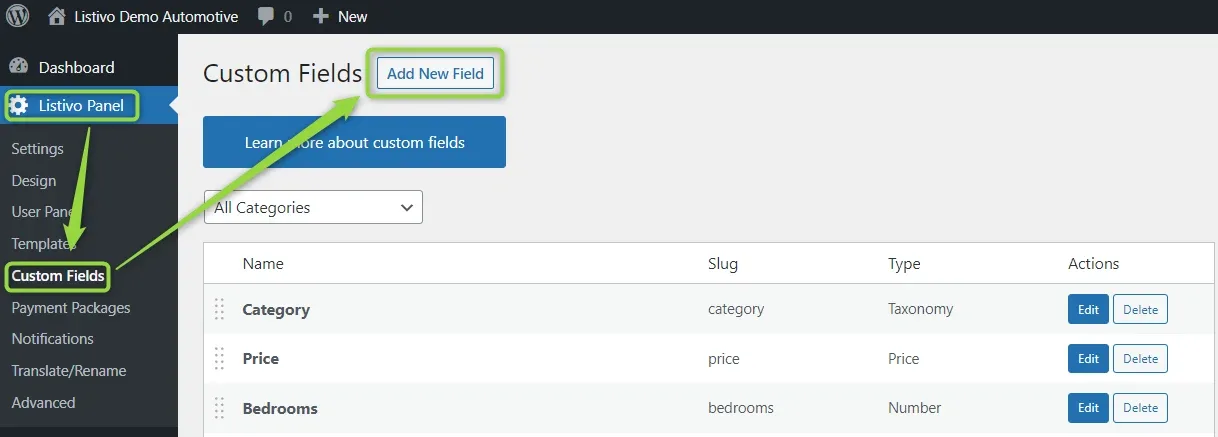
Go to Listivo Panel -> Custom Fields -> Add New Field. If you want to set the field dependency for an existing field, skip these adding steps.
-
2
Set the type to Taxonomy
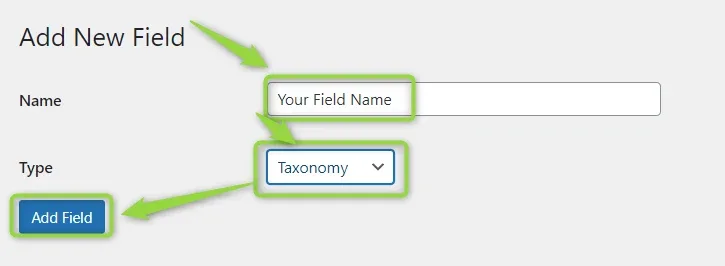
Write down your field name and set the type as Taxonomy. Only this field type allows selecting the dependency option.
-
3
Edit the field
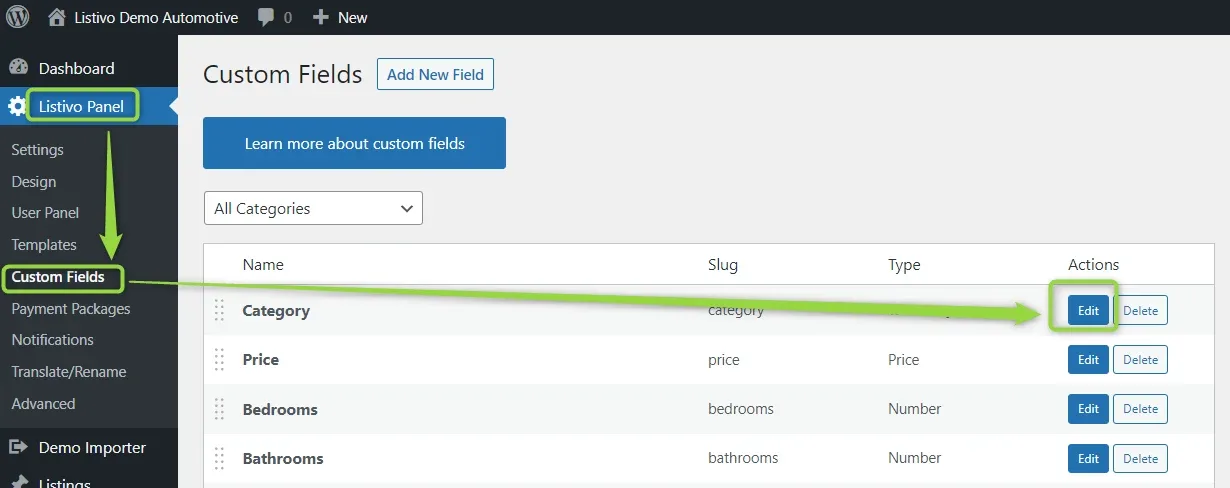
Find your new field on the custom fields list and edit it.
-
4
Tick Field dependency
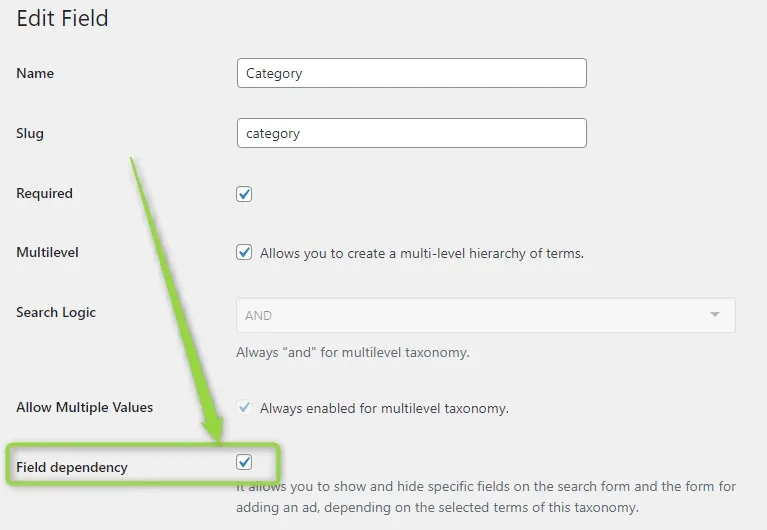
Mark the checkbox next to the Field dependency and save changes. Then edit your field and you will see the relations table.
Reading the relations table
The relations table looks like this: along the top (1) you will find category names, and the first column (2) shows all fields you can set relations with.
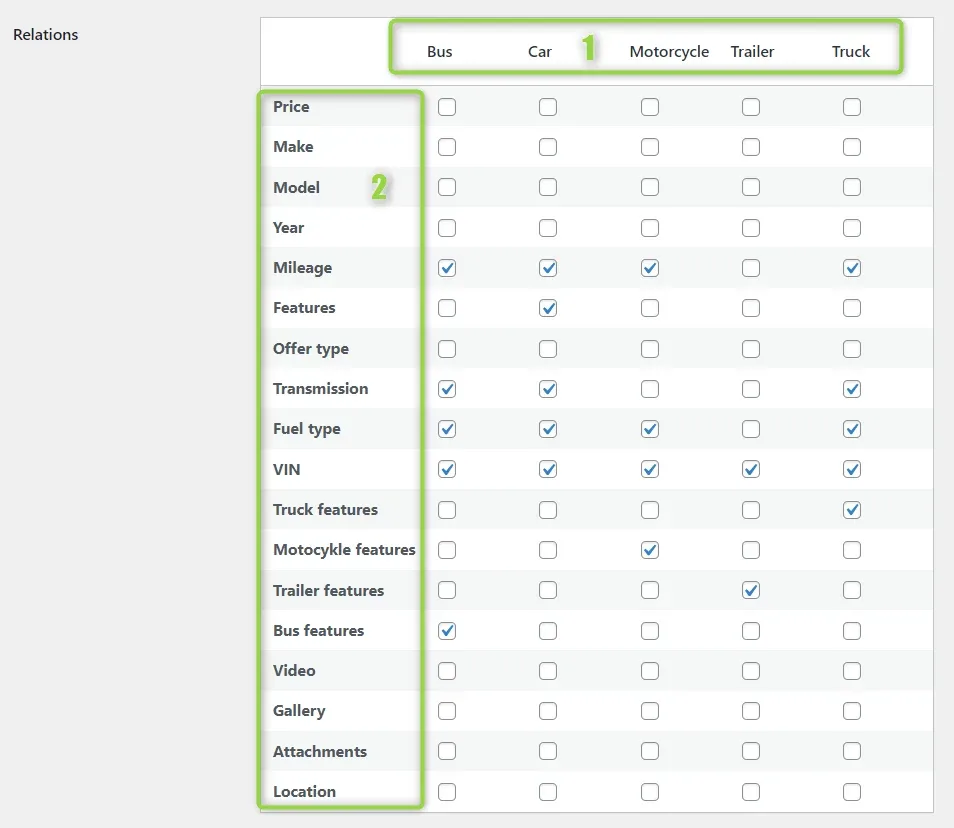
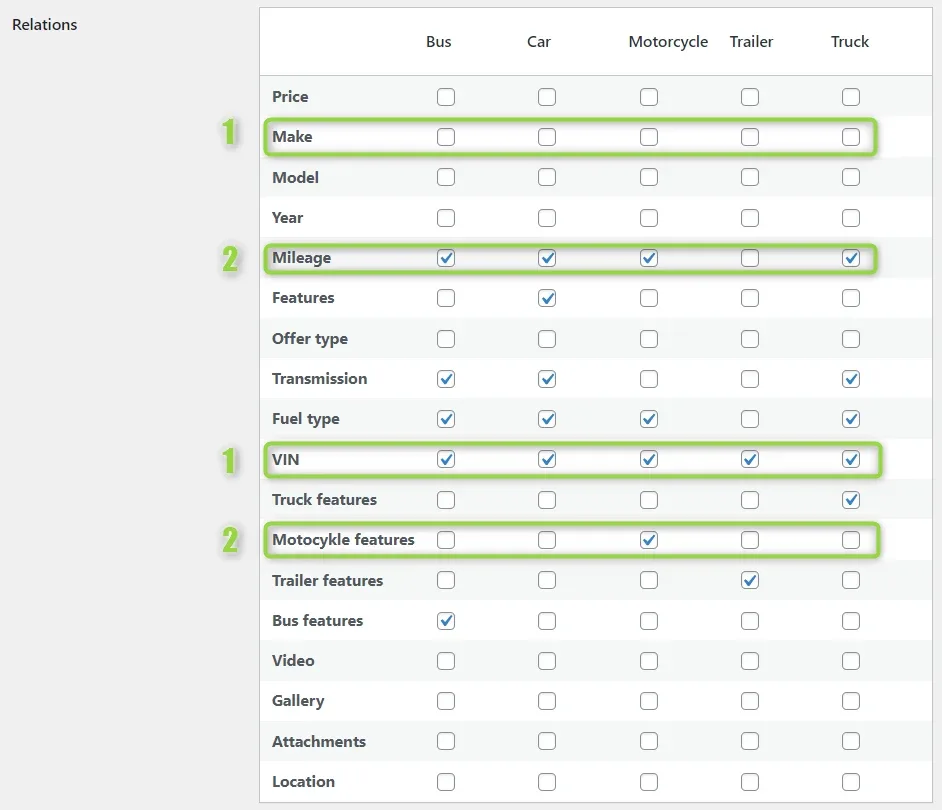
By default, the entire table has empty checkboxes. If all checkboxes are empty, it means that all fields are visible for each category (ex 1). Similarly, if all checkboxes are checked, it means that all fields are visible for each category (ex 1).
In the second example (ex 2), the fields are only visible in some categories as selected. The Mileage is not visible for trailers, and Motorcycle features are visible only for motorcycles.
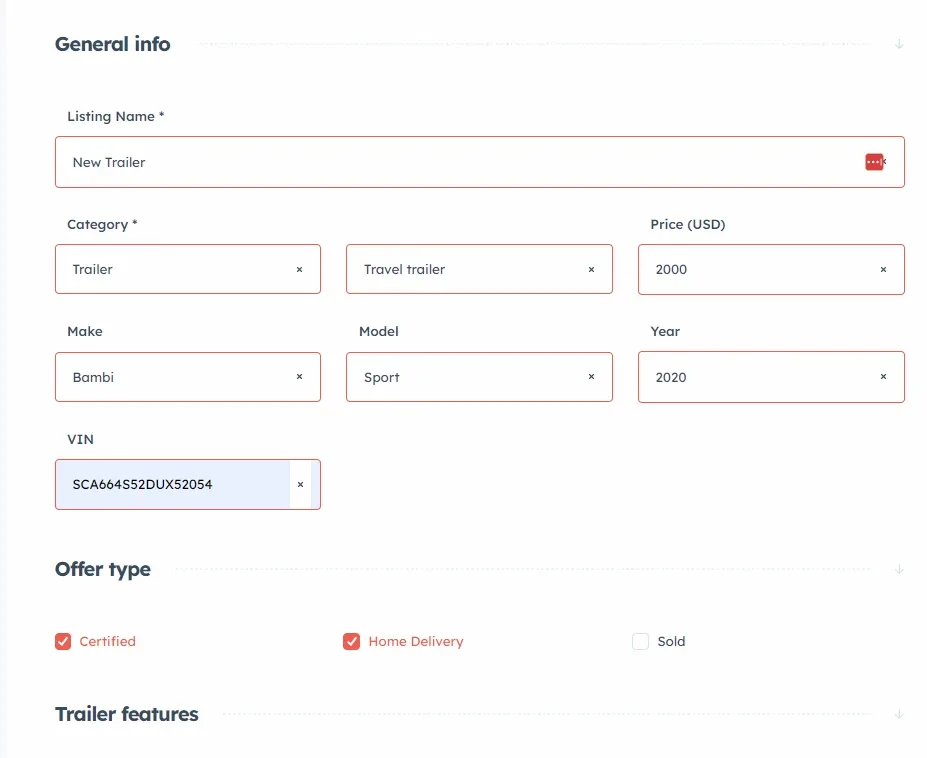
Below, you can see how the form looks for trailers. As you can see, mileage and transmission are not visible.
Empty and ticked boxes on the search form
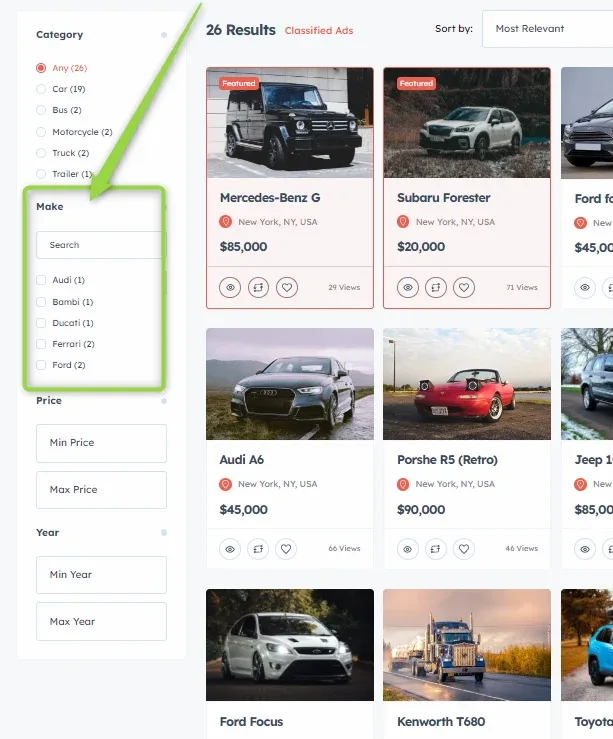
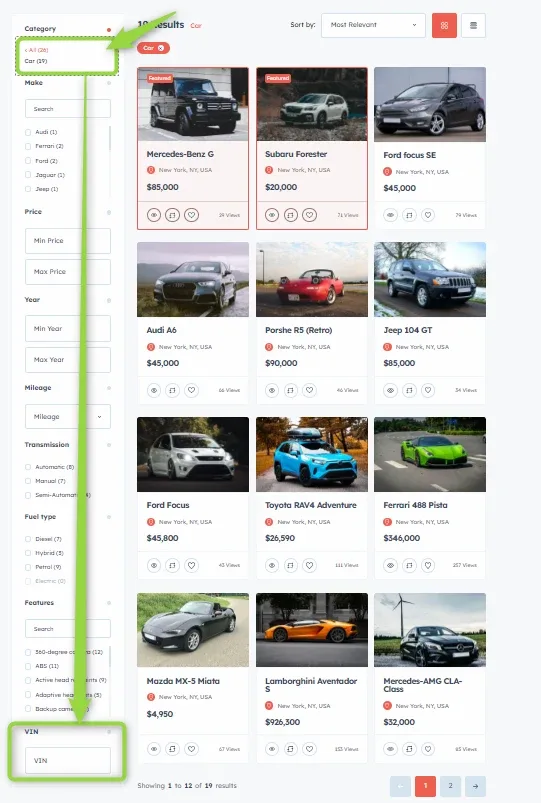
What is the difference between all checkboxes empty and marked? If the field has any checkbox mark, it is immediately visible on the search form. If the field has all checkbox marks, it is visible on the search after you pick a category.
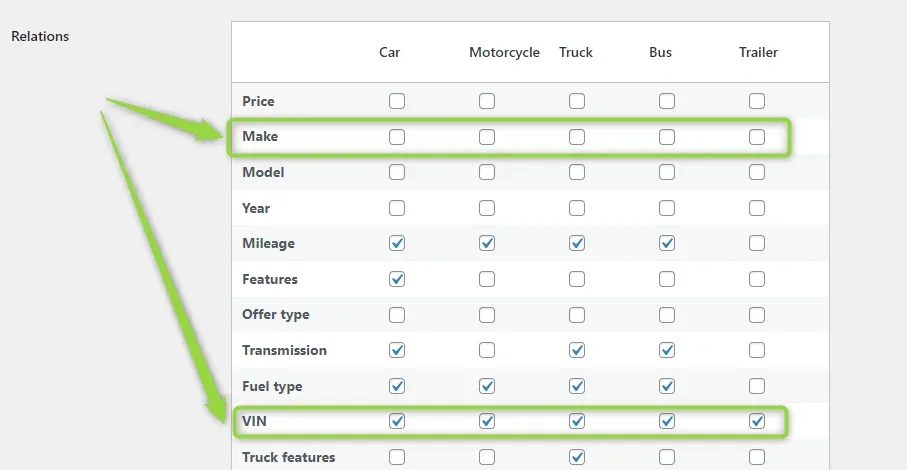
The Make field is visible on the search form. The VIN field is not visible.
The VIN field is visible after you choose one of the categories — in the example below, the car category.
Ask the people who build Listivo
We answer by email from support@tangiblewp.com. With Premium Support, we also fix your site when something breaks.
We can also run your site for you, or build a new one.
Was this guide helpful?