Multilevel custom field
A multilevel taxonomy field lets a listing sit under a category and one of its subcategories — Electronics, then Computers. This guide switches the option on and shows what changes for visitors browsing your site.
1 minute read
This article will teach you how to establish a new custom field with a multilevel option.
-
1
Add a new custom field
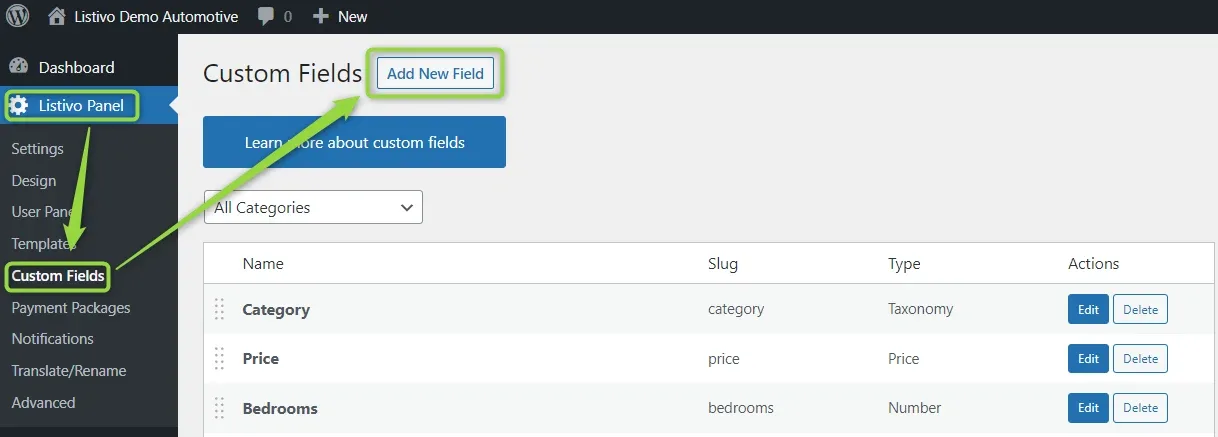
The first step is to add a new custom field. Go to Listivo Panel -> Custom Fields -> Add New Field.
-
2
Set the type to Taxonomy
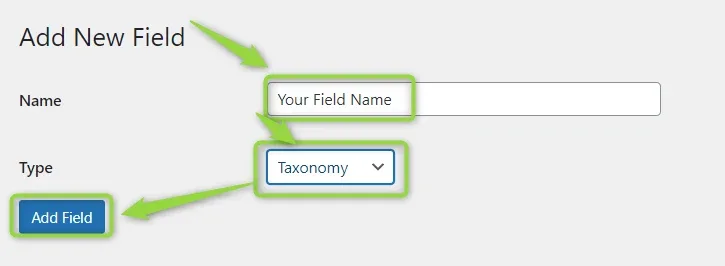
Write down your field name and set the type as Taxonomy. Only this field type allows selecting the multilevel option.
-
3
Edit the field
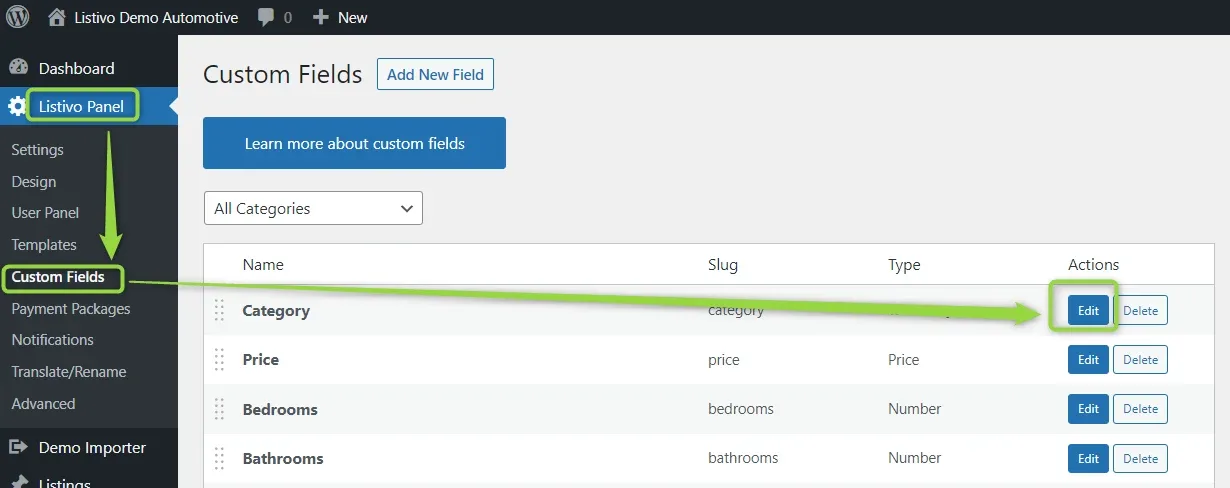
Find your new field on the custom fields list and edit it.
-
4
Tick Multilevel
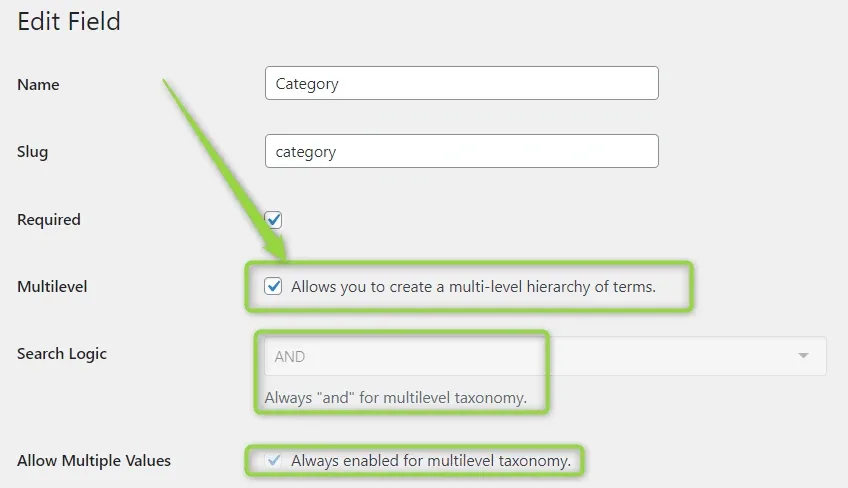
Set the check-box Multilevel. Search Logic will be permanently set to "and" and Allow Multiple Values will be checked — those options are required and are set automatically.
Example
The category field is set as Multilevel. Users can choose the category Electronics and then select a subcategory, like Computers.
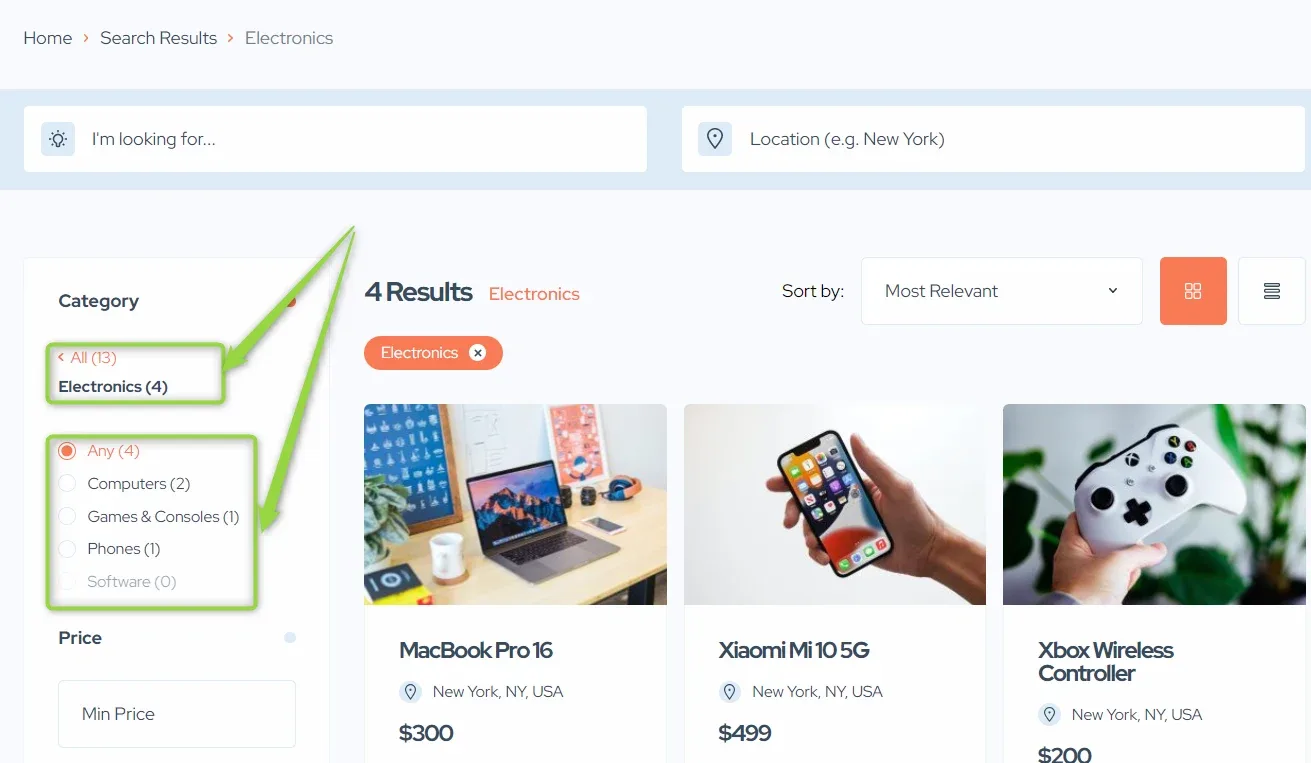
The category field isn't set as Multilevel. Users can choose the category Electronics and then there are no further options.
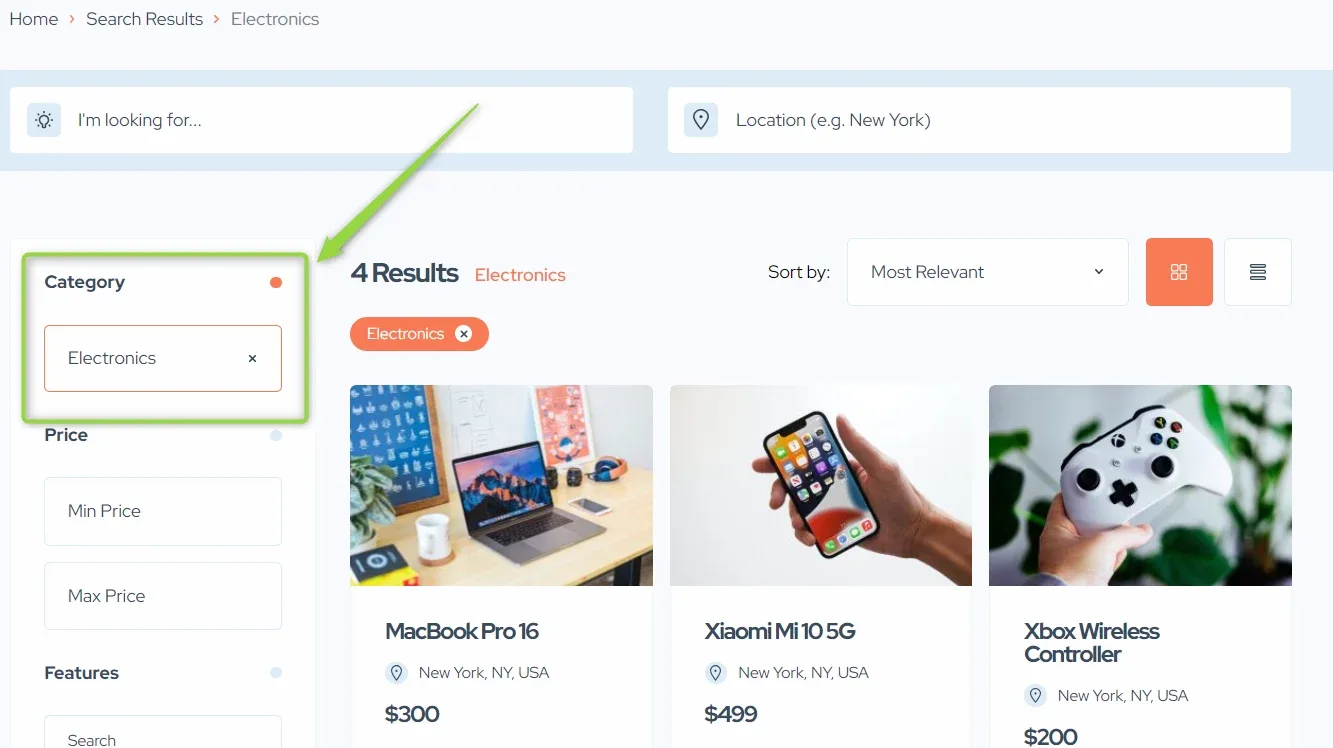
Ask the people who build Listivo
We answer by email from support@tangiblewp.com. With Premium Support, we also fix your site when something breaks.
We can also run your site for you, or build a new one.
Was this guide helpful?