Troubleshooting Missing Fields e.g. Location Field Not Showing on Search Form
A field you added can still be missing from the search form because a field dependency is hiding it. This article shows how to check a field's visibility and how to clear the dependency so it shows for every category.
2 minute read
If you notice that a field is missing from the search form even though you correctly added it, it may be hidden due to field dependency settings.
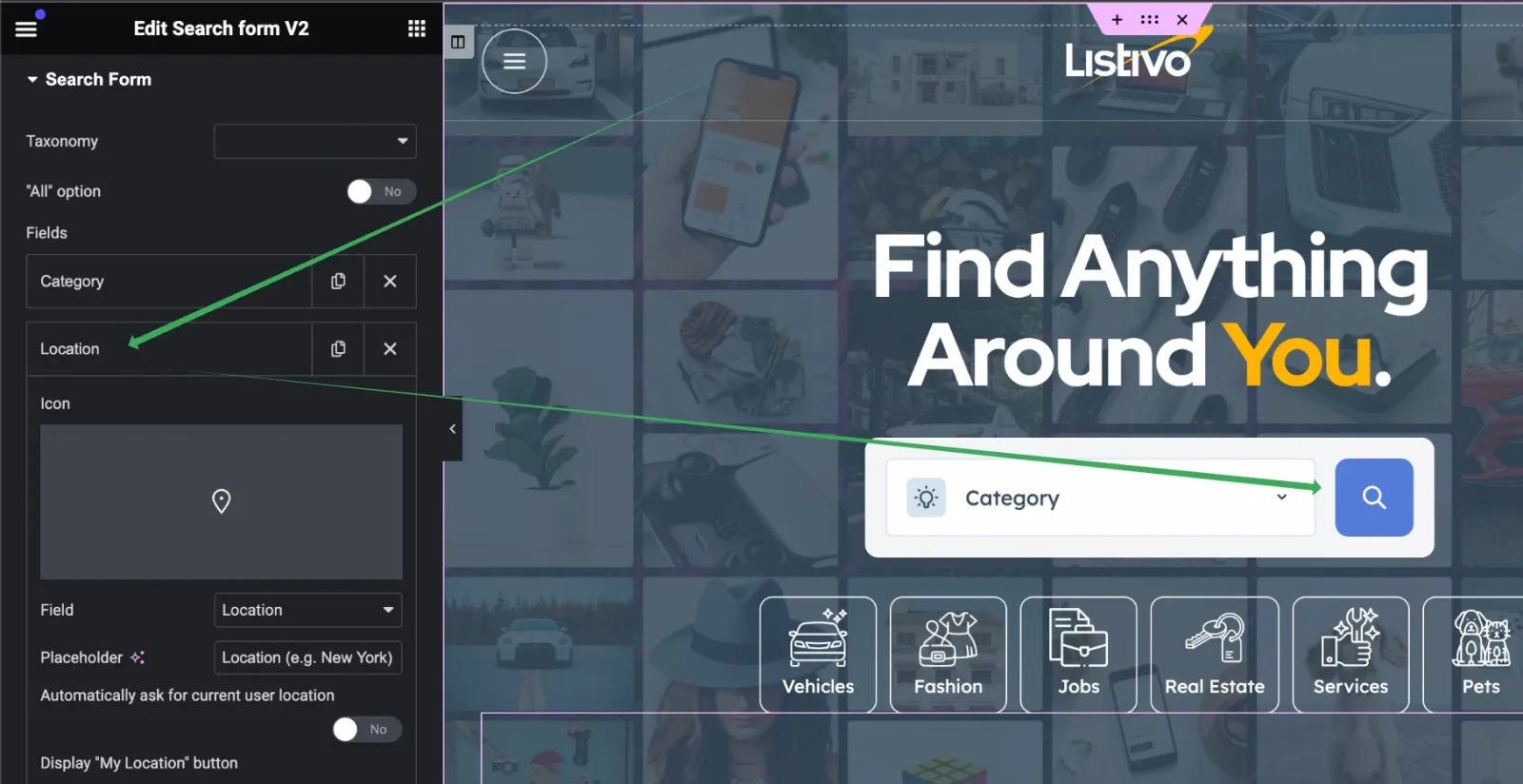
Check whether the field is hidden
Here's how to check:
-
1
Open Custom Fields
In wp-admin, go to
Listivo Panel > Custom Fields. -
2
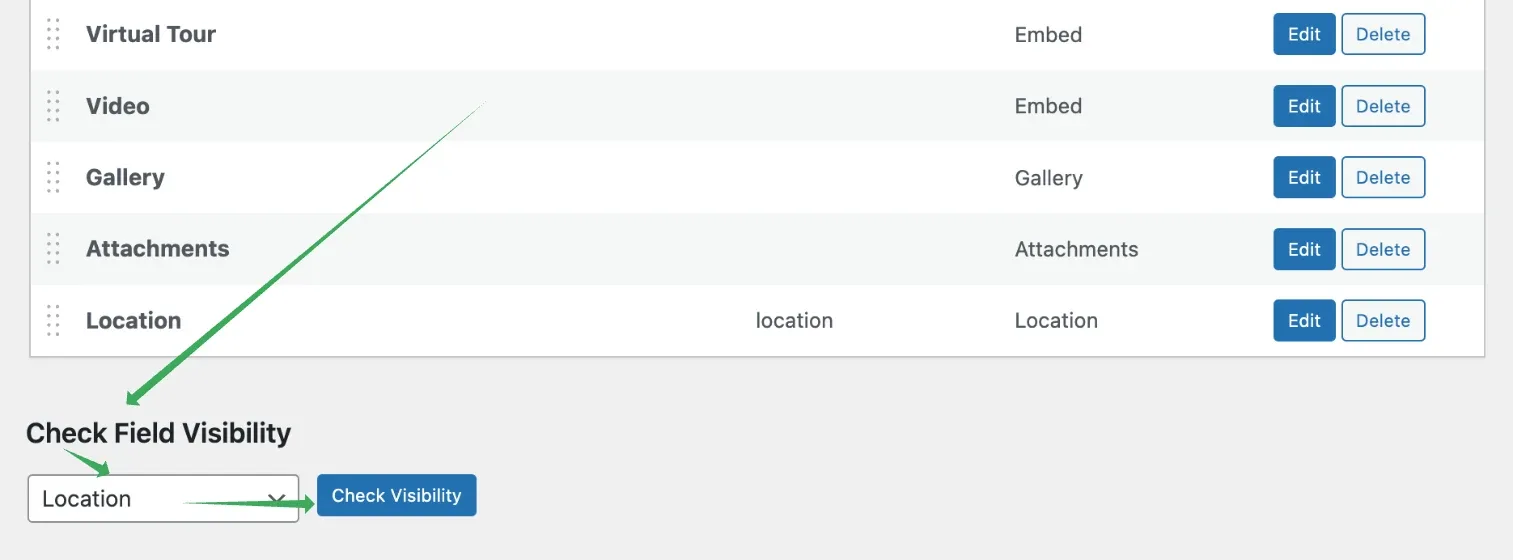
Check the field's visibility
Scroll down to "Check Field Visibility", select the field you need to check and click "Check Visibility", as shown below:
-
3
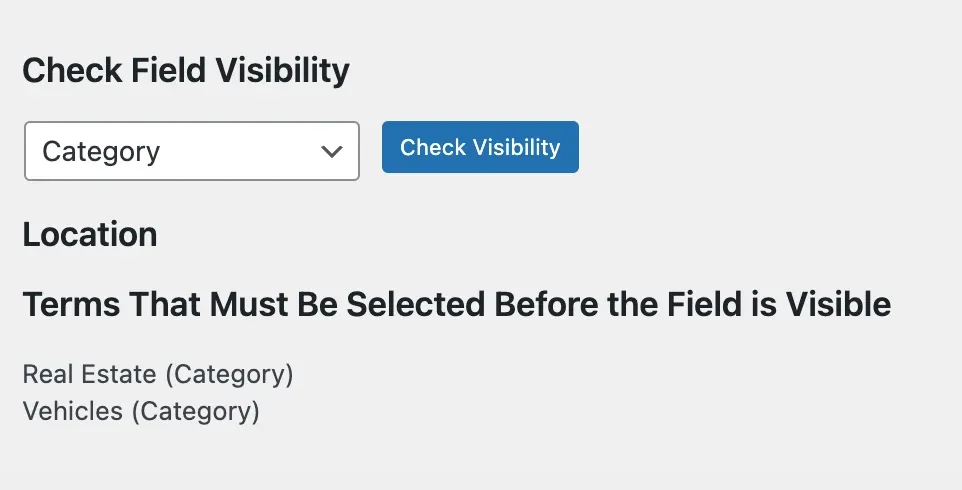
Review the terms listed
After clicking, review the terms listed. For example, if it states "Terms that must be selected before the field is visible" with a list of terms, ensure the appropriate fields are selected. If the Location field does not appear, it might be because the right category was not selected in the form.
Understanding Field Dependency: How It Affects Your Search Form
To learn more about this option, you can refer to the following article: The field dependency on the custom field
Modifying the Field Dependency: Making the Location Field Visible by Default
If you want the field to be visible by default, you need to make sure that the Field Dependency row is empty. Here's an example to help you understand better:
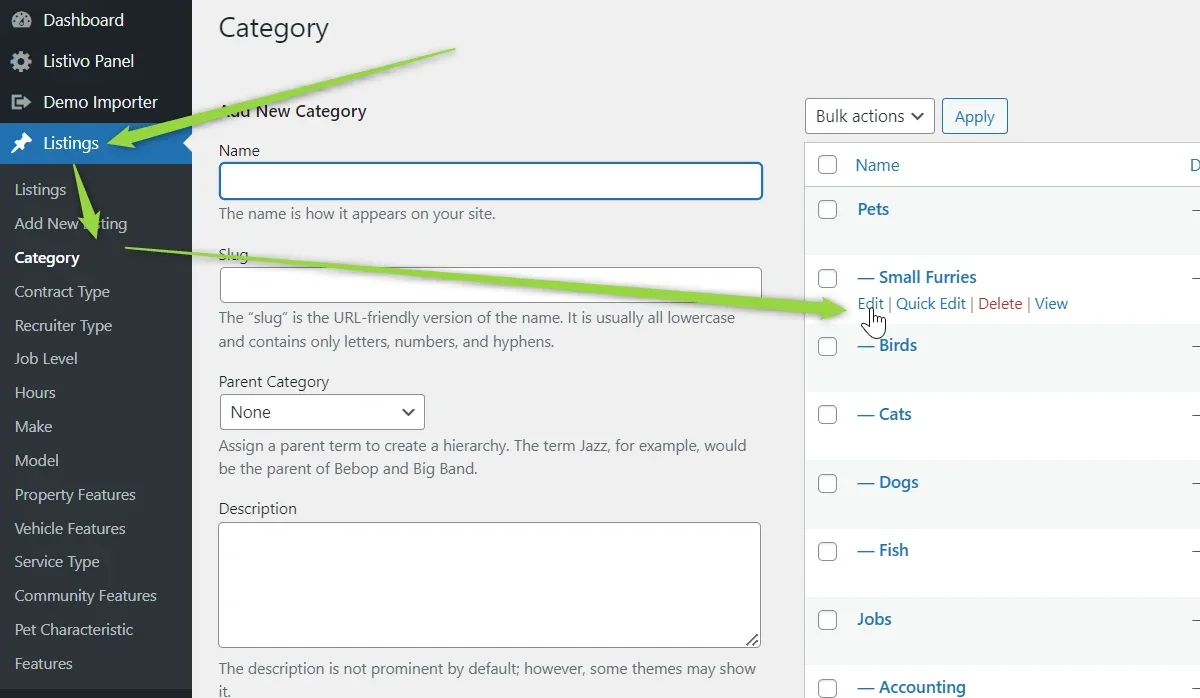
Go to Listivo Panel > Custom Fields > Category (edit)
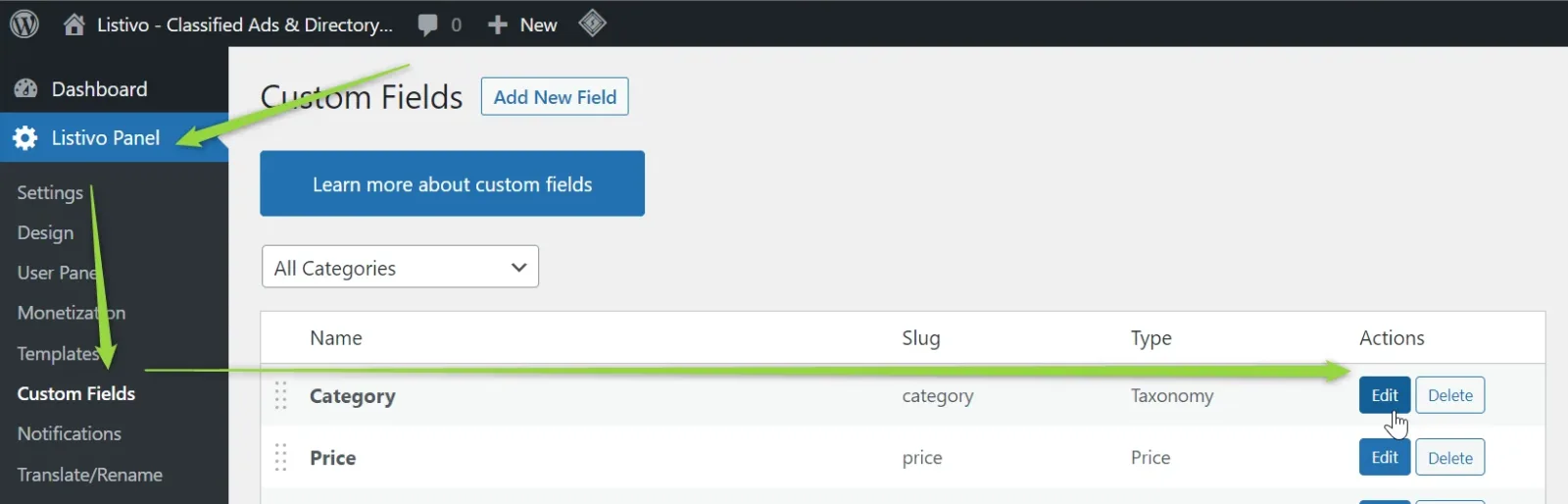
You will see a list of fields that should be displayed for each category.
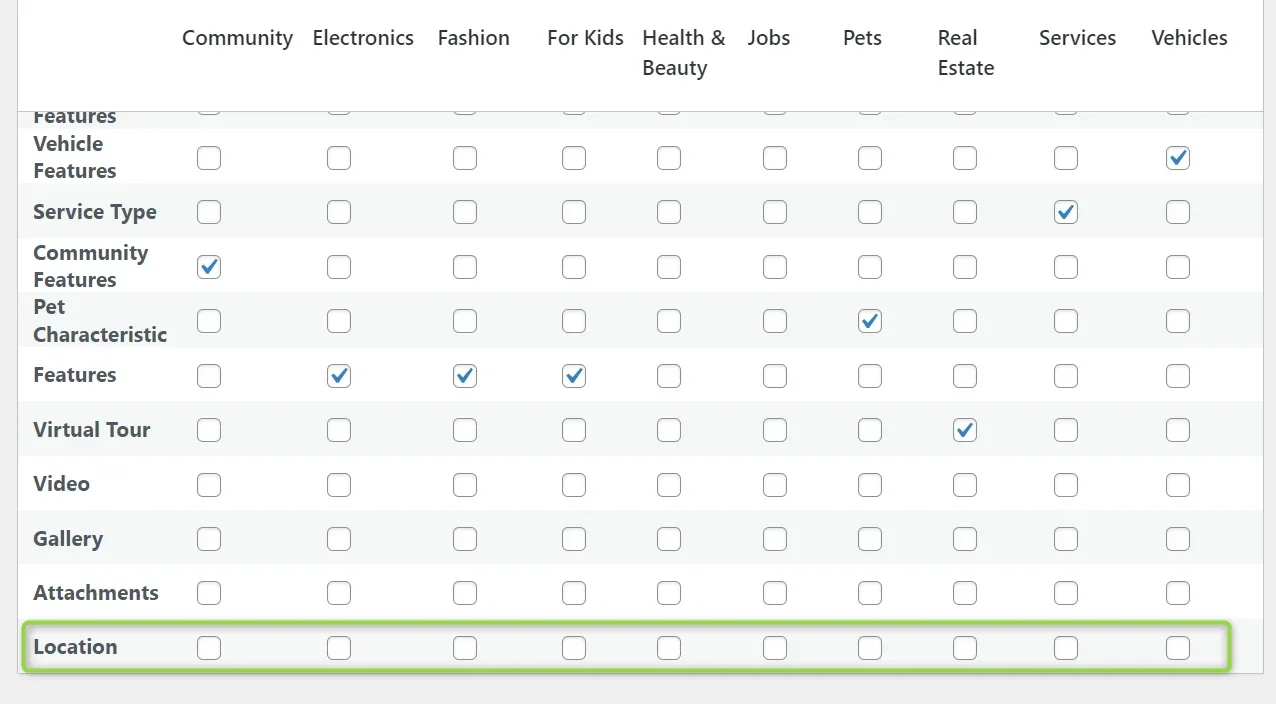
If you select at least one checkbox, the field will be hidden until someone selects the matching category. If the field is not displayed, it is likely because the Field Dependency row is not empty. Make sure that the row is empty if you want the field to be visible by default.

Verifying Subcategory Settings: Ensuring Location Field is Displayed for All
In order to verify this, it is important to ensure that the "Location" field is consistently deselected for all subcategories. You can begin by confirming that the option labelled "Display Field Dependency on Term Pages" has been checked, as shown in the screenshot below. This option can be found directly below the table.
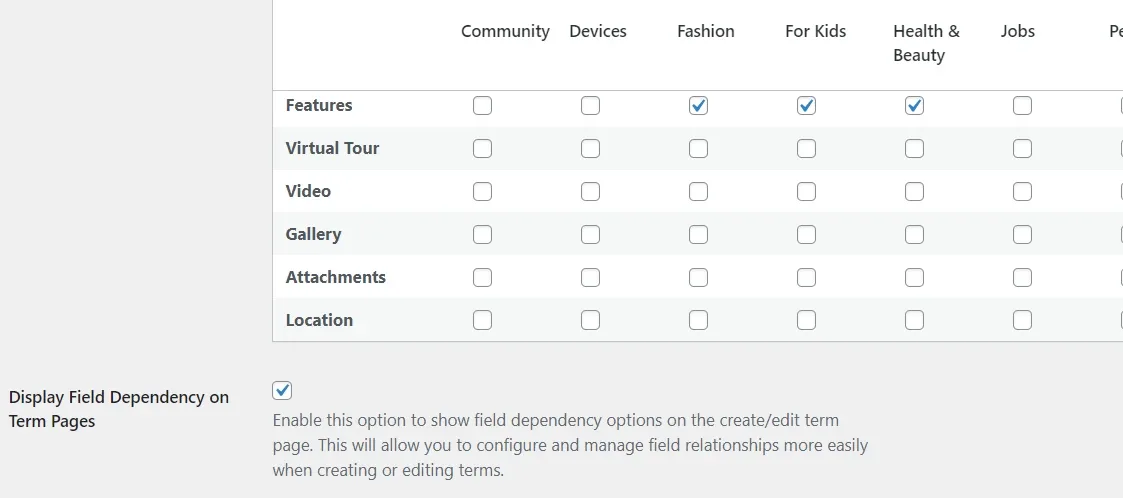
Start with the first subcategory and check all the others to ensure that the "Location" field is set to be displayed by default in all of them.
It should look like the screenshot below for all categories and subcategories:
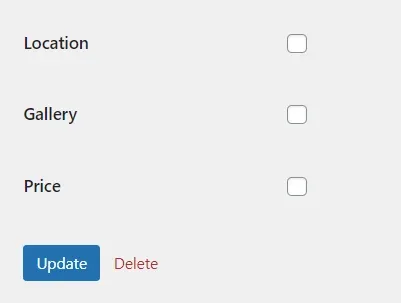
When none of the checkboxes are selected, you can test your search form and confirm that the Location field is visible from the beginning.
Ask the people who build Listivo
We answer by email from support@tangiblewp.com. With Premium Support, we also fix your site when something breaks.
We can also run your site for you, or build a new one.
Was this guide helpful?