Overview of Elementor Page Builder: editing pages, layouts, and templates
Find your way around Elementor in Listivo: which link opens the editor for a page, how a layout combines header, content and footer, and where the listing, search, user and blog templates live.
1 minute read
Elementor is the core plugin for the Listivo theme, and it lets you modify any page on your website. If you haven't used Elementor before, we recommend watching this two-minute getting started video, then trying the editor yourself by dragging and dropping elements to create or modify your first page.
Editing the homepage and any other page
This covers the homepage as well as pages such as Contact us and About us. Visit the page and click this link:
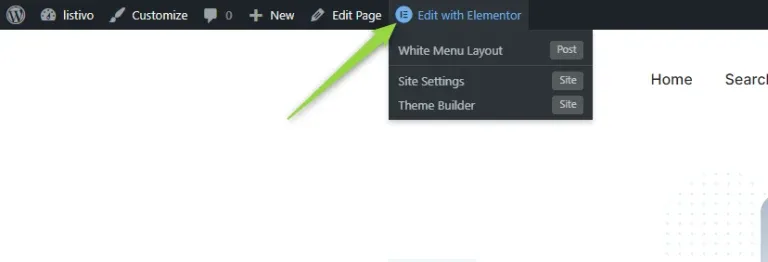
If you cannot see the link in the top admin bar, you can also reach the editor this way:
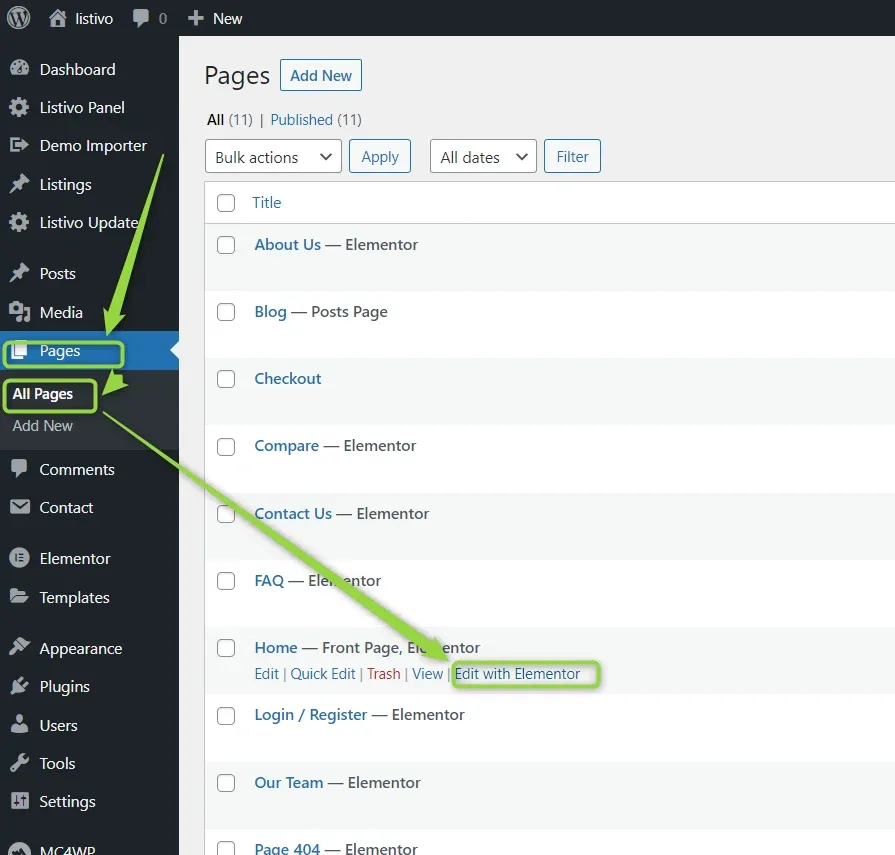
You will be redirected to Elementor Page Builder, where you can edit every element on the page — the search form, for instance.
The layout system
Listivo has a layout system. A layout wraps every page:
Layout = header + <page-content> + footer
You can edit layouts this way:
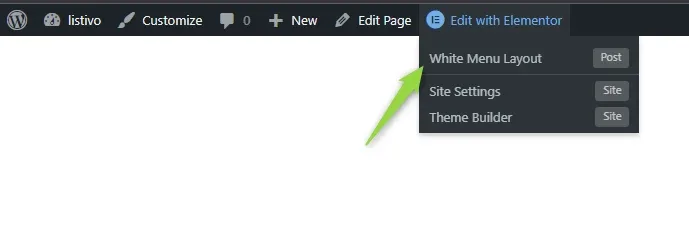
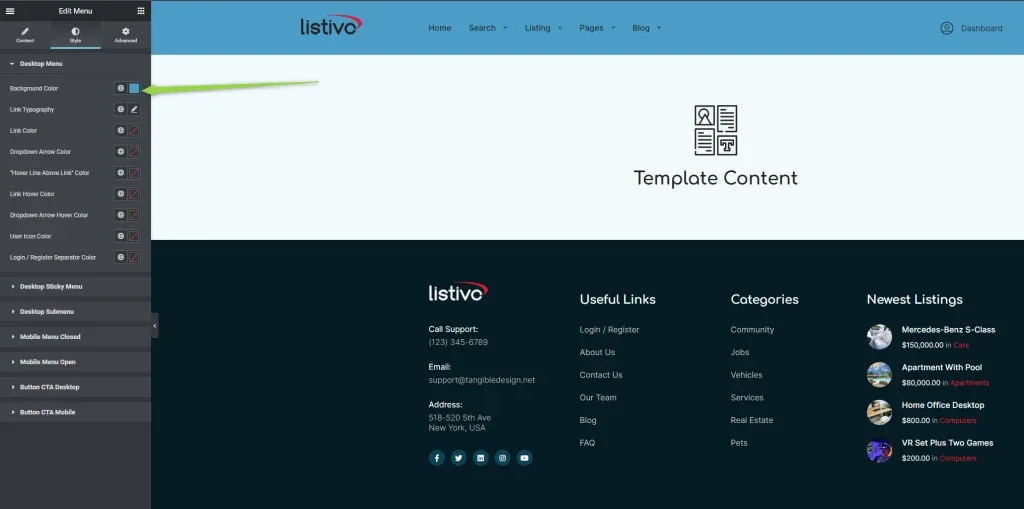
You can also select a layout from the WordPress admin panel:
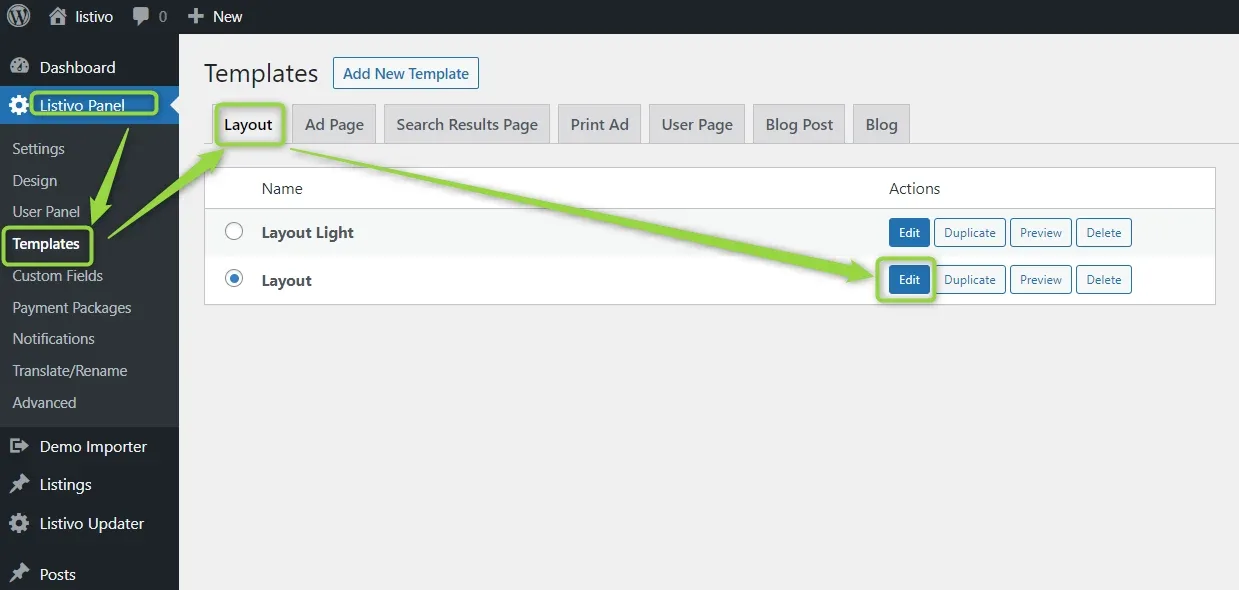
Editing the theme templates
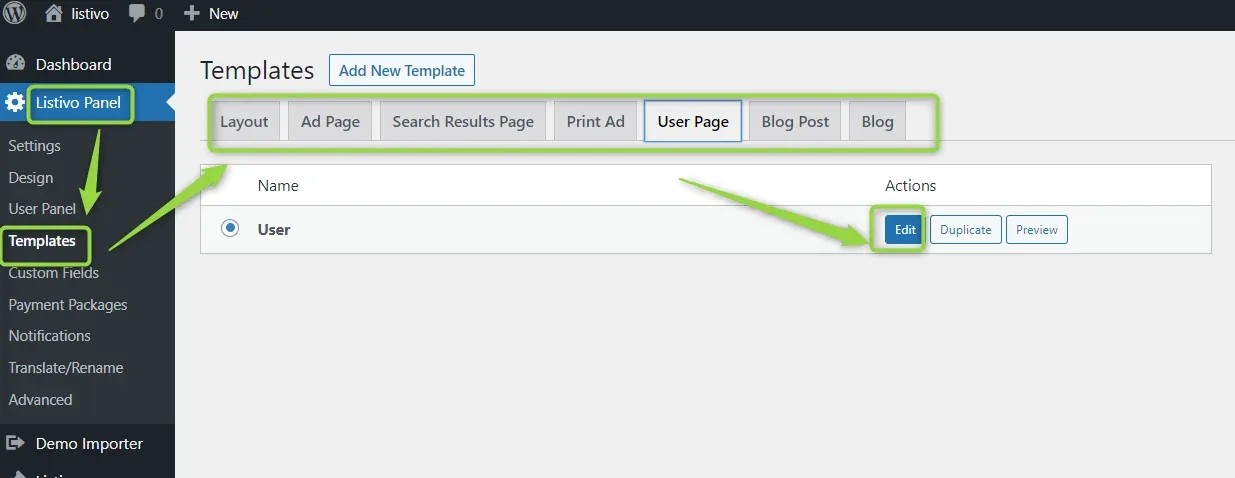
These templates can also be edited in Elementor:
- Listing Page Template
- Search Results Page (Listings)
- User Page Template
- Blog Single Page
- Blog Page Template
You can do it this way:
Ask the people who build Listivo
We answer by email from support@tangiblewp.com. With Premium Support, we also fix your site when something breaks.
We can also run your site for you, or build a new one.
Was this guide helpful?