Editing single ad templates using Elementor Page Builder
Reshape the single ad page in Elementor: restyle a widget, move or delete elements, add custom fields, and preview the template against a real ad while you work.
2 minute read
Flexibility to personalize your templates
The Listivo WordPress theme lets you customize a range of templates — individual ad templates, search page templates, user profile templates, single blog post templates, blog archive templates and print templates — to shape your website's functionality and appearance.
Editing an individual ad page with Elementor Page Builder
To modify an individual ad page using Elementor Page Builder, navigate to Listivo Panel > Templates > Ad Pages and select the active template for editing.
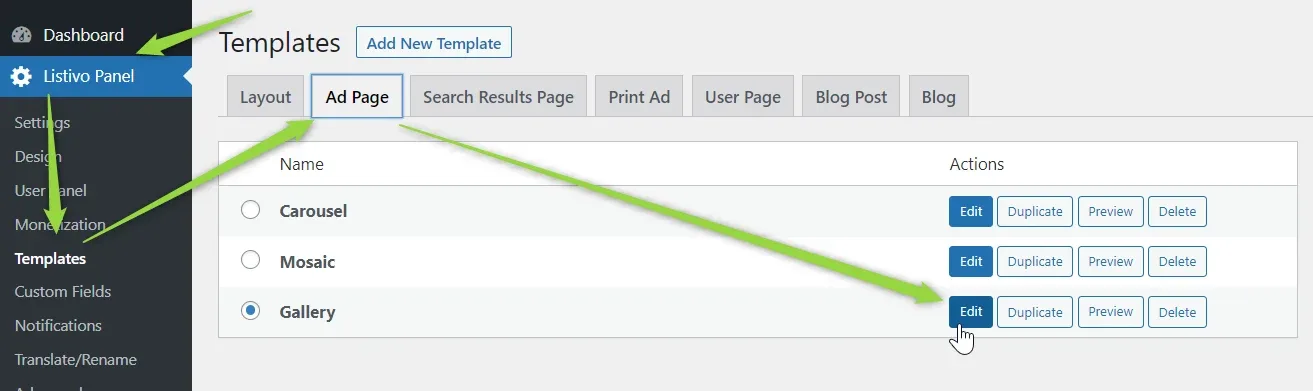
Using the Elementor Page Builder interface
Elementor Page Builder launches, and you can change the content with a drag-and-drop interface. You can, for instance, select the Ad Owner V2 widget and adjust its settings and appearance. Watch the left column as you work — it updates with each element you select.
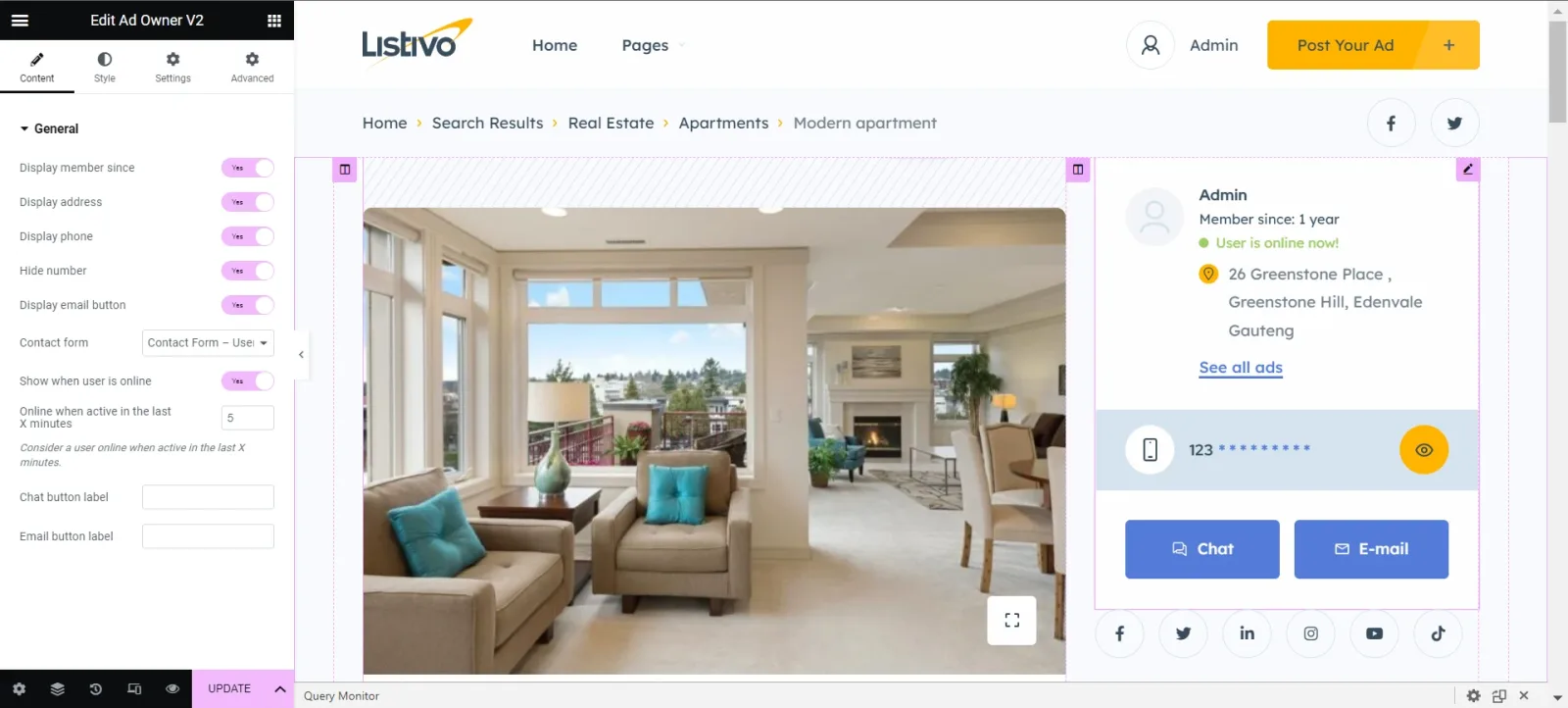
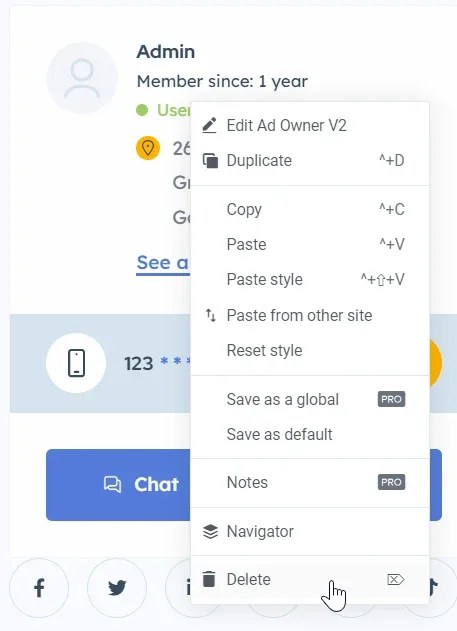
Rearranging elements and deleting widgets
You can rearrange any element by dragging it to a new position on the page. To remove a widget, right-click it and choose Delete from the context menu.
Adding and modifying custom fields
You can add or rearrange custom fields by editing an existing widget. For example:
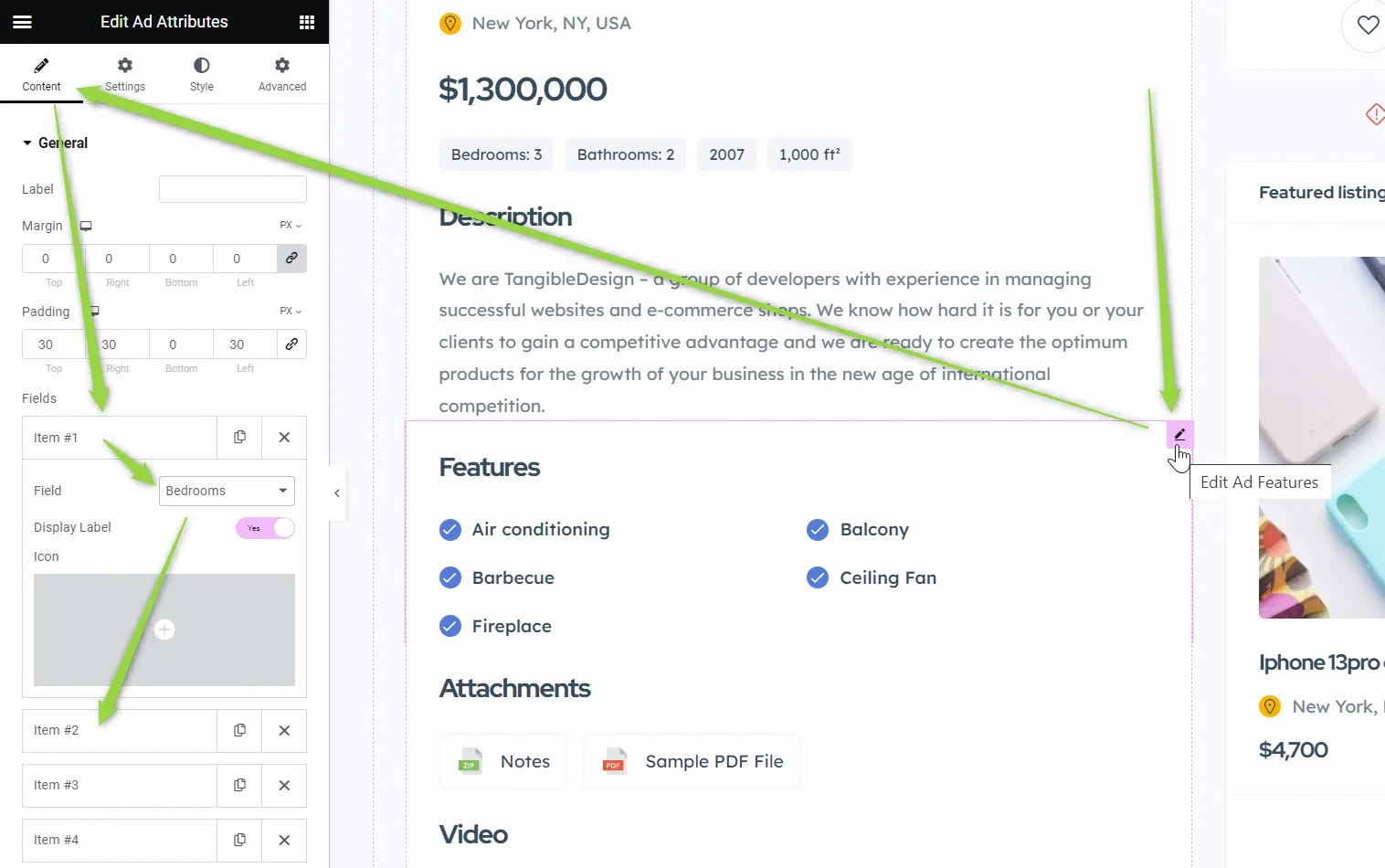
To add a field in a new location, search for a widget that supports the type of field you need.
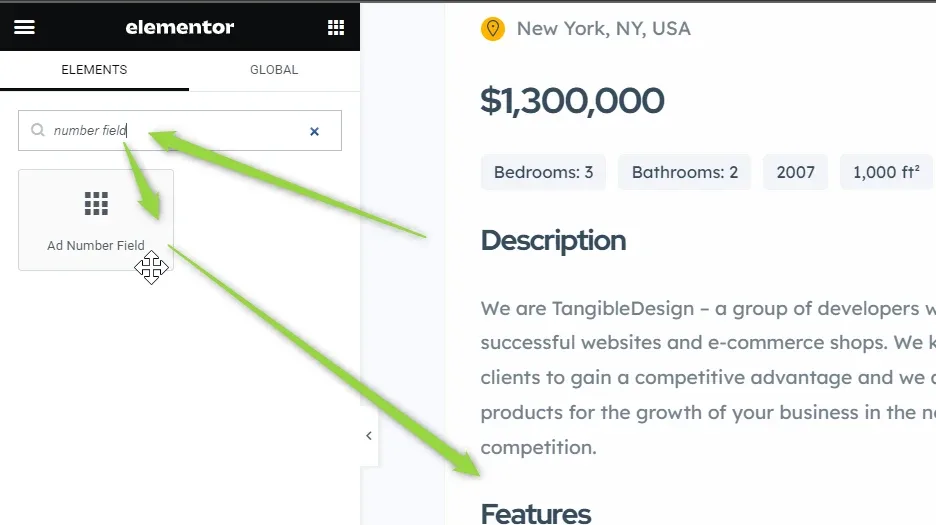
Previewing your ad while editing the template
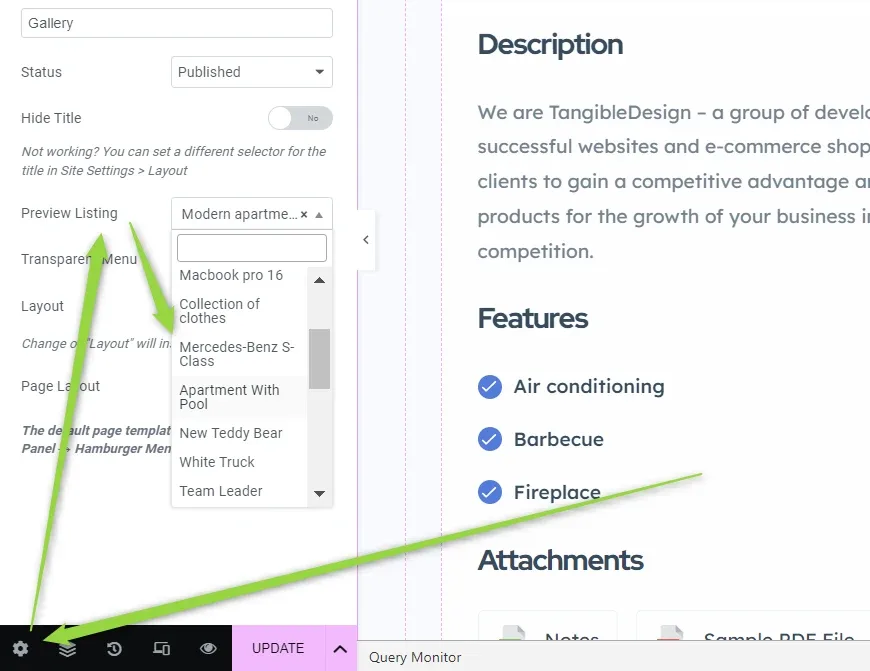
You can choose which ad to preview while editing the template: select the cog icon and pick a listing from the Preview Listing dropdown.
Ask the people who build Listivo
We answer by email from support@tangiblewp.com. With Premium Support, we also fix your site when something breaks.
We can also run your site for you, or build a new one.
Was this guide helpful?