How to import any demo page from offical demo to your WordPress
Copy any page from the official Listivo demo into your own site: save it as an Elementor template on the demo, export the file, then import it onto any page of your WordPress.
2 minute read
Export the page from the official demo
-
1
Find the demo page you want
Browse listivotheme.com and pick the page you wish to import — for example www.demo14.listivotheme.com.
-
2
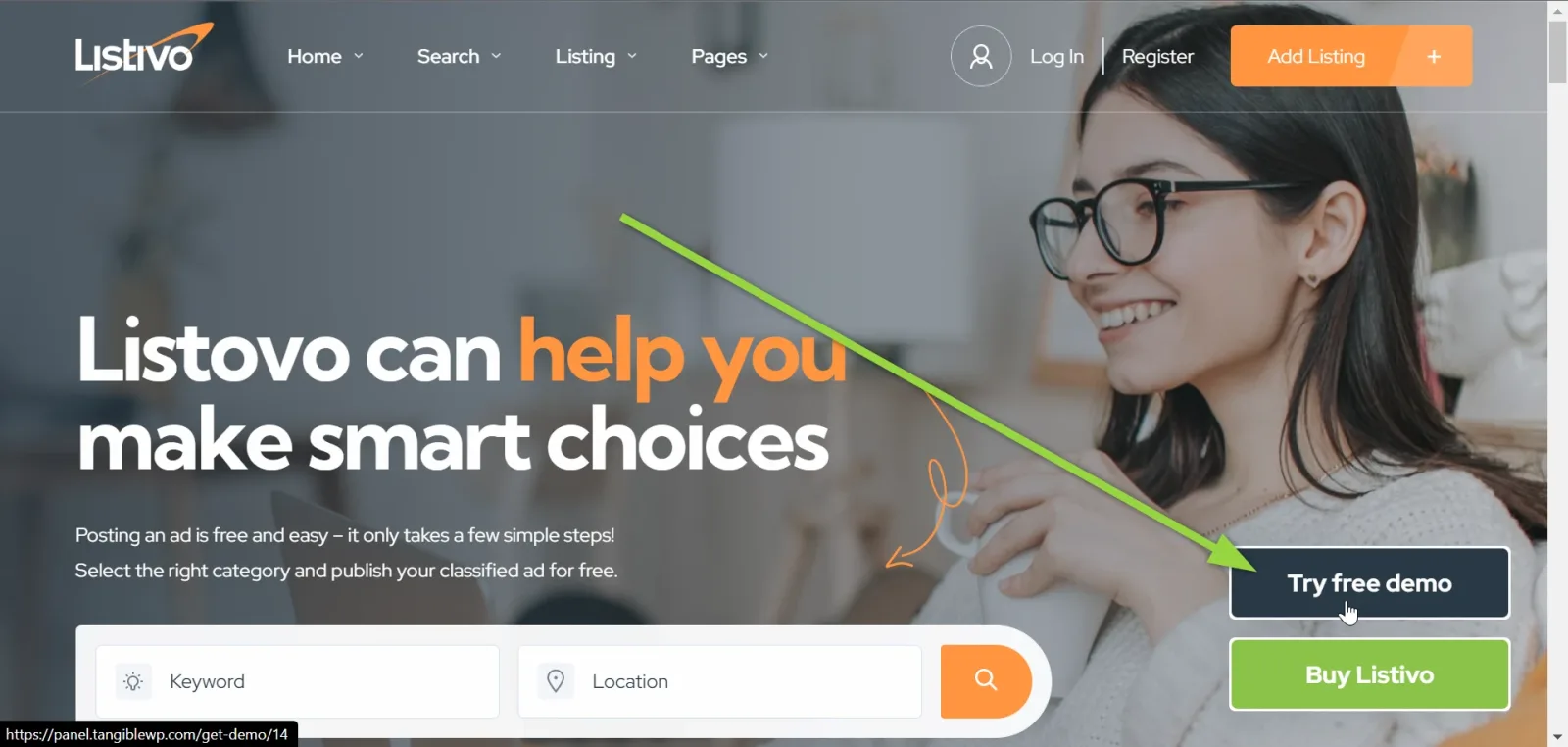
Click "Try it Free"
Start a free private copy of that demo.
-
3
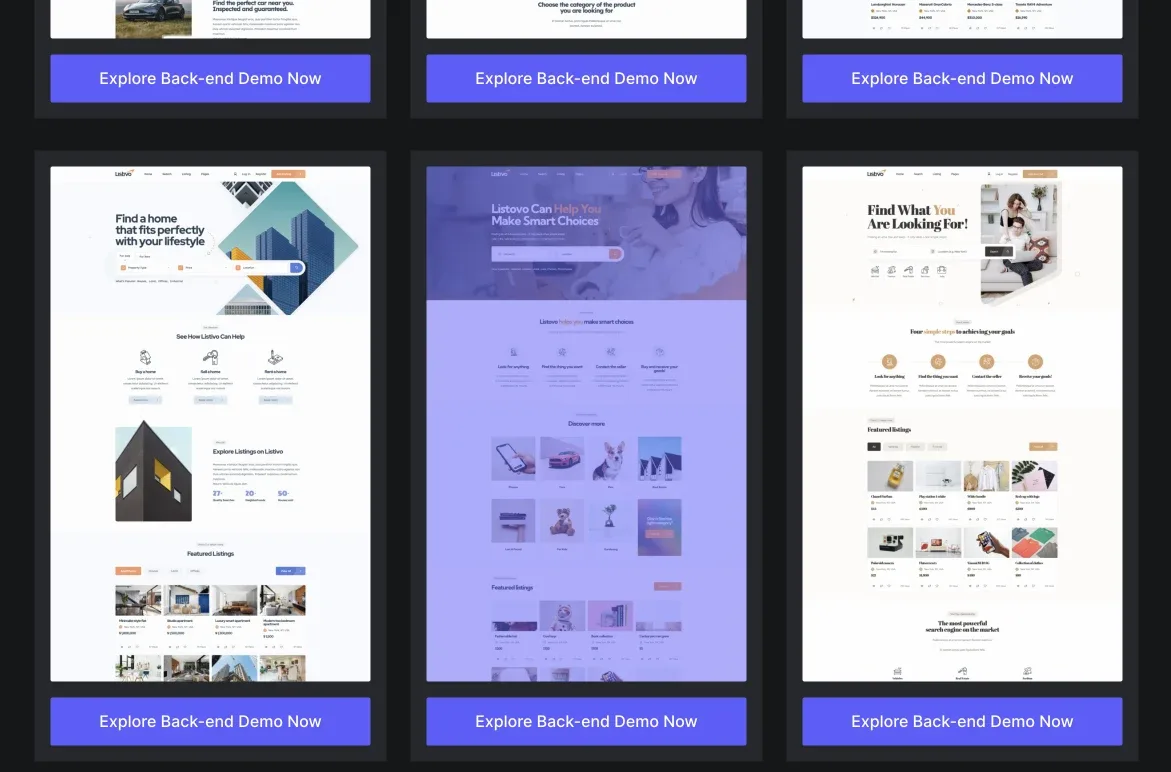
Choose the demo again
You will be redirected to a page with all demos: https://tangiblewp.com/listivo/try-for-free where you can choose it again to get a private WordPress.
-
4
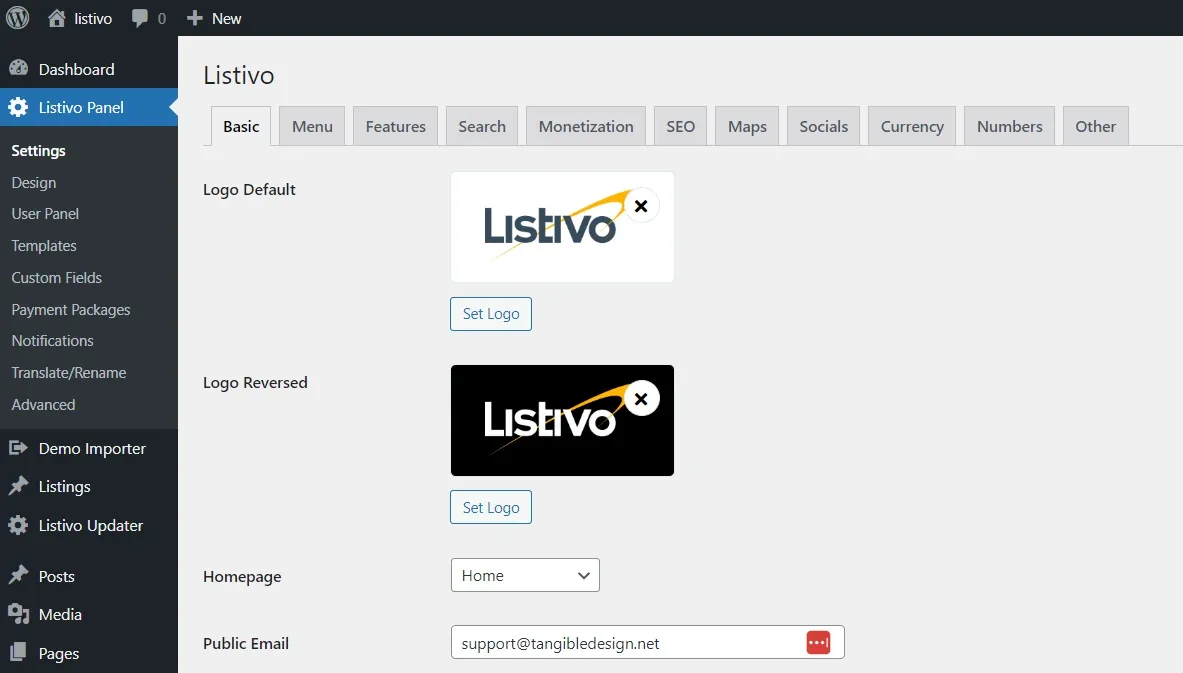
You become the administrator
After clicking the button you become the administrator of the chosen demo.
-
5
Open the page you wish to import
For example the homepage. Click "Visit Site" in the top left corner.

-
6
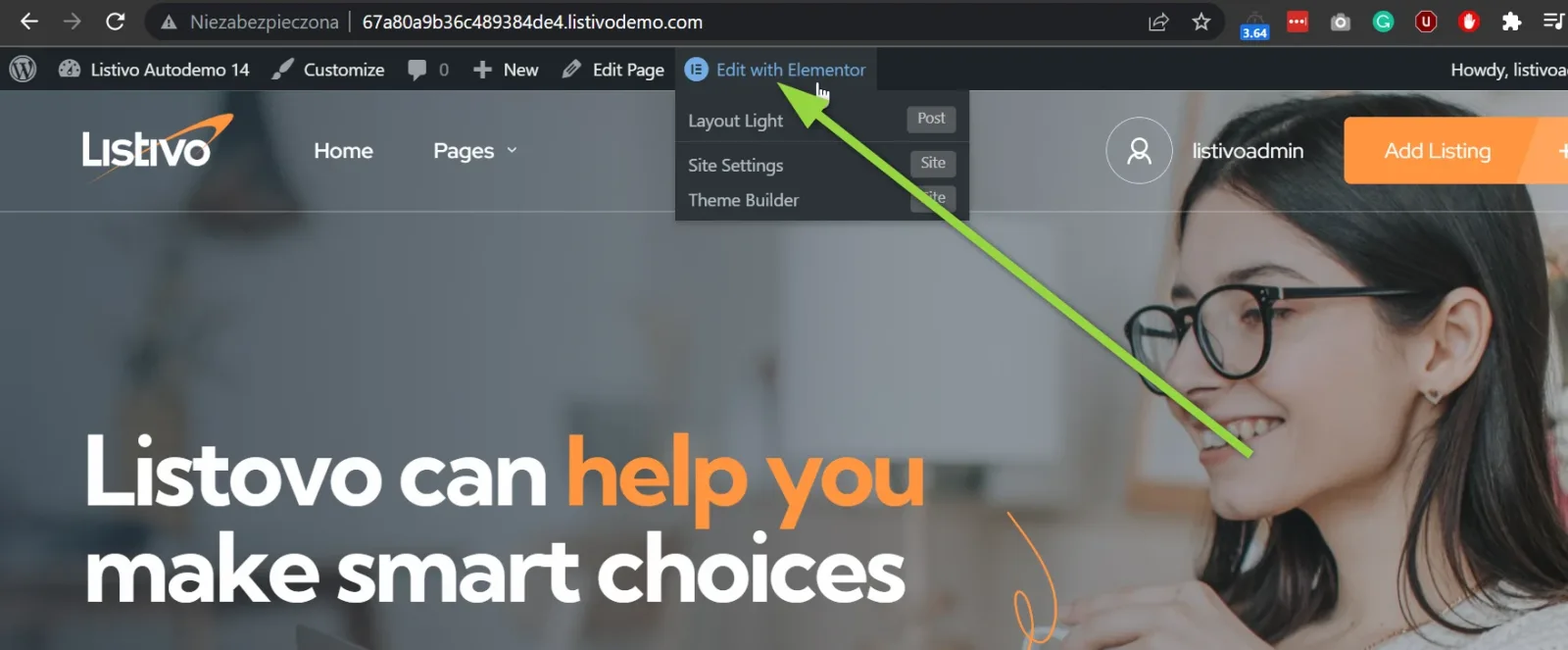
Edit it with Elementor
Use the "Edit with Elementor" button in the admin bar.
-
7
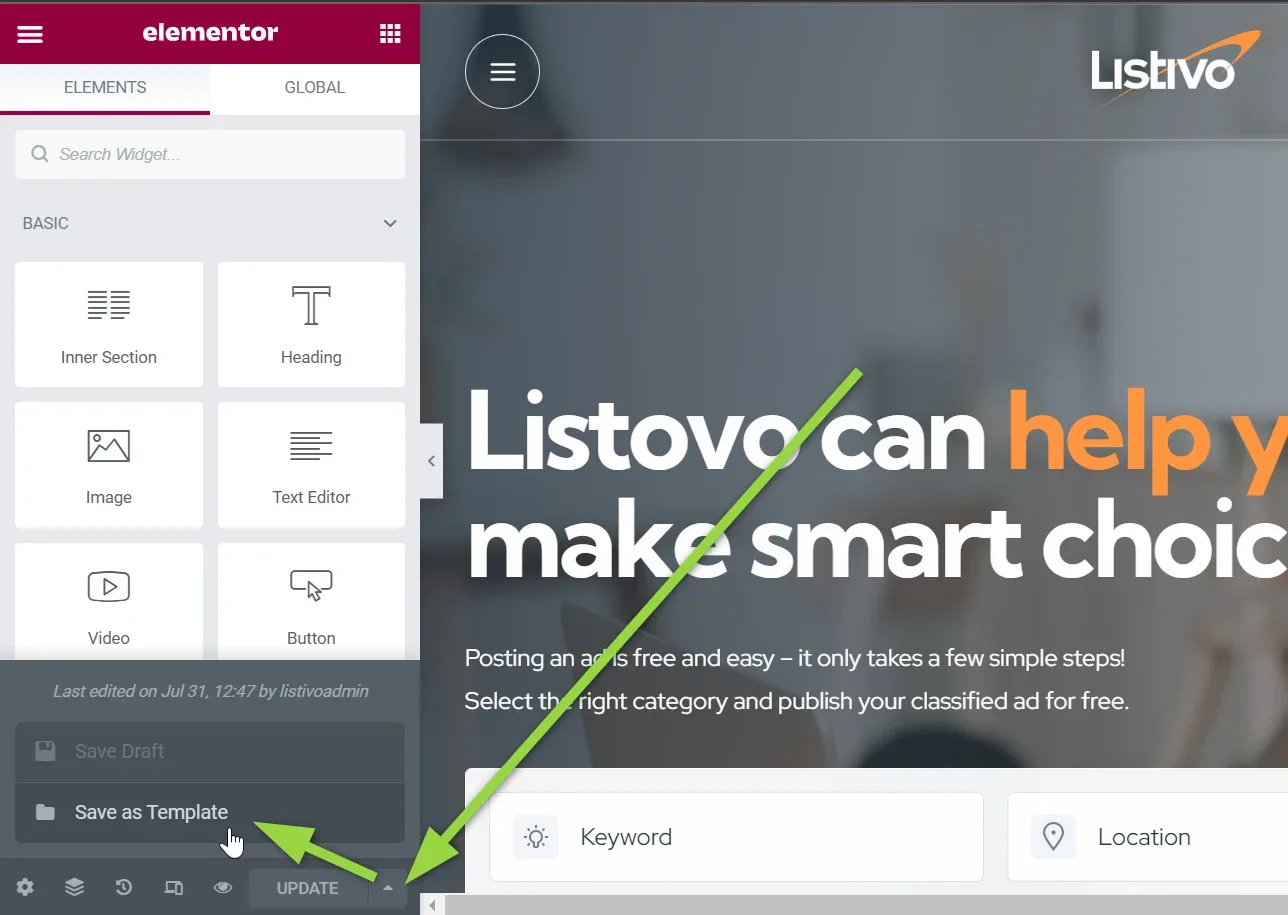
Save the page as a template
Open the arrow next to the Update button and choose "Save as Template".
-
8
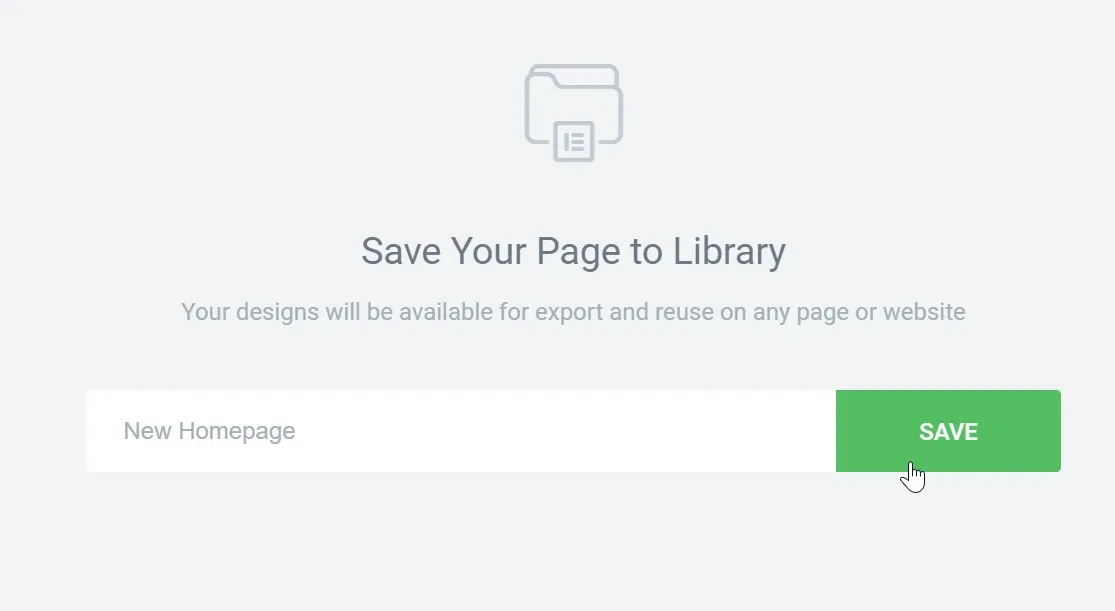
Name the template
For example "New Homepage".
-
9
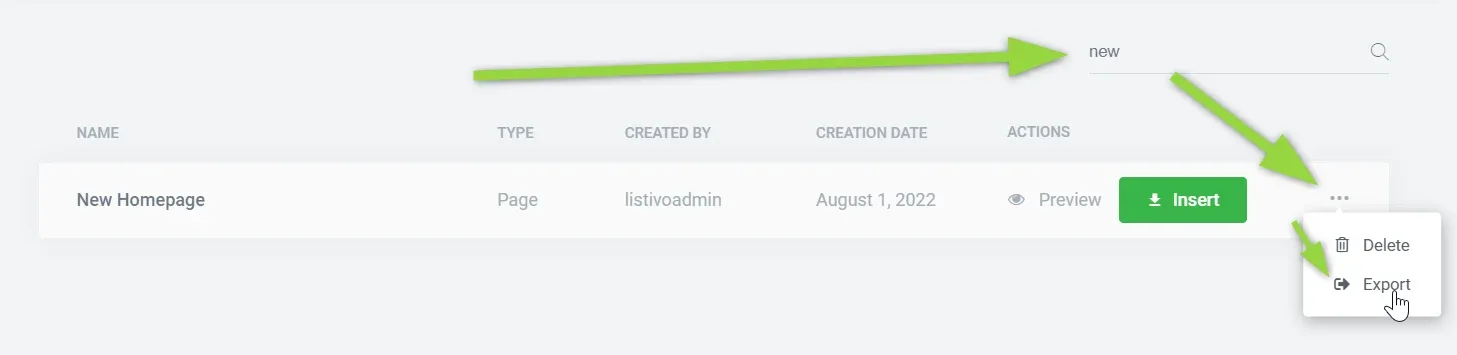
Search for it and export
Find the template in the library and use Export from its actions menu.
-
10
The file downloads to your computer
Elementor saves the template as a JSON file.

Import the template into your website
You can import the file onto any empty page, or add it to an existing page.
-
1
Open a page with Elementor
Edit any page of your site with Elementor.
-
2
Click the Add Template icon
It sits just above your footer, next to the plus button.

-
3
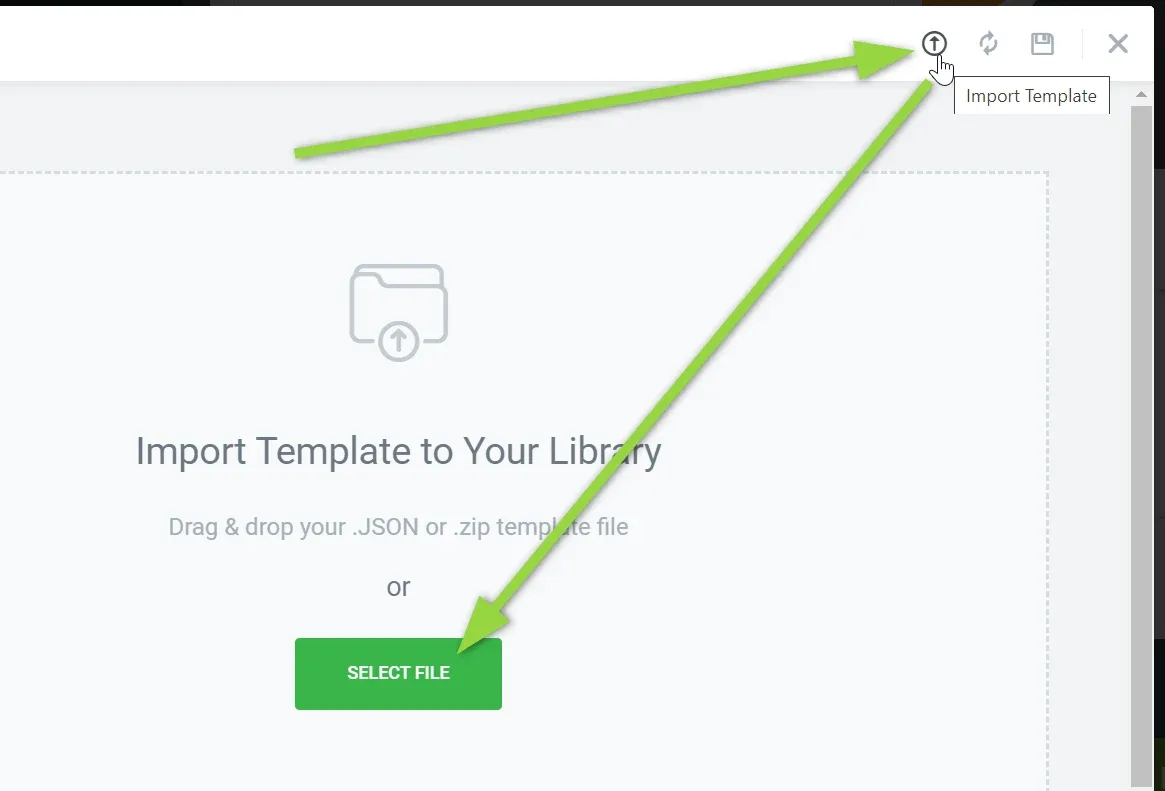
Import the file you downloaded
Click the import icon and upload the JSON file.
-
4
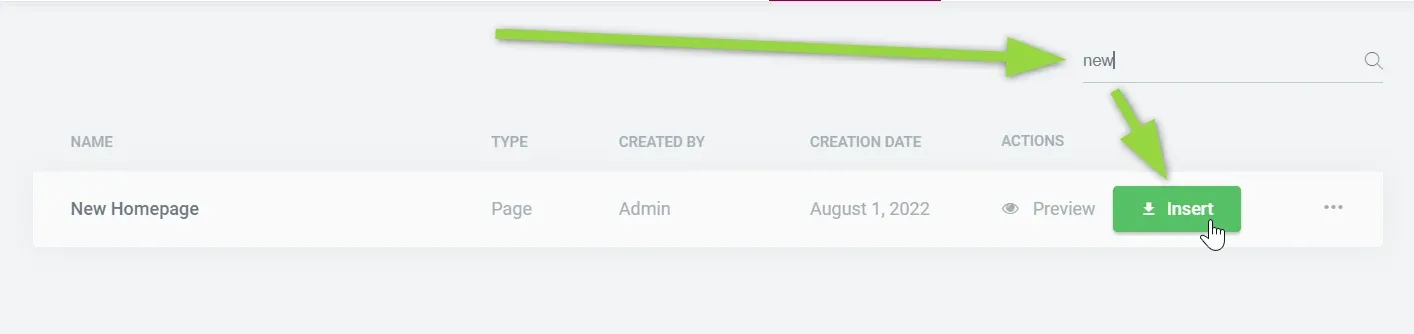
Search for it and add it
Find the template in the list and insert it.
-
5
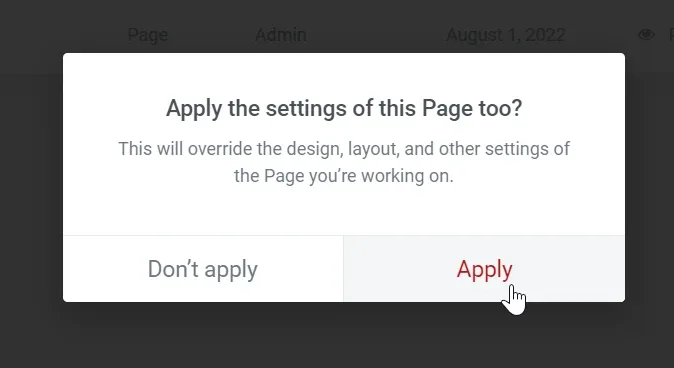
Apply the page settings if asked
If this kind of window shows, click Apply.
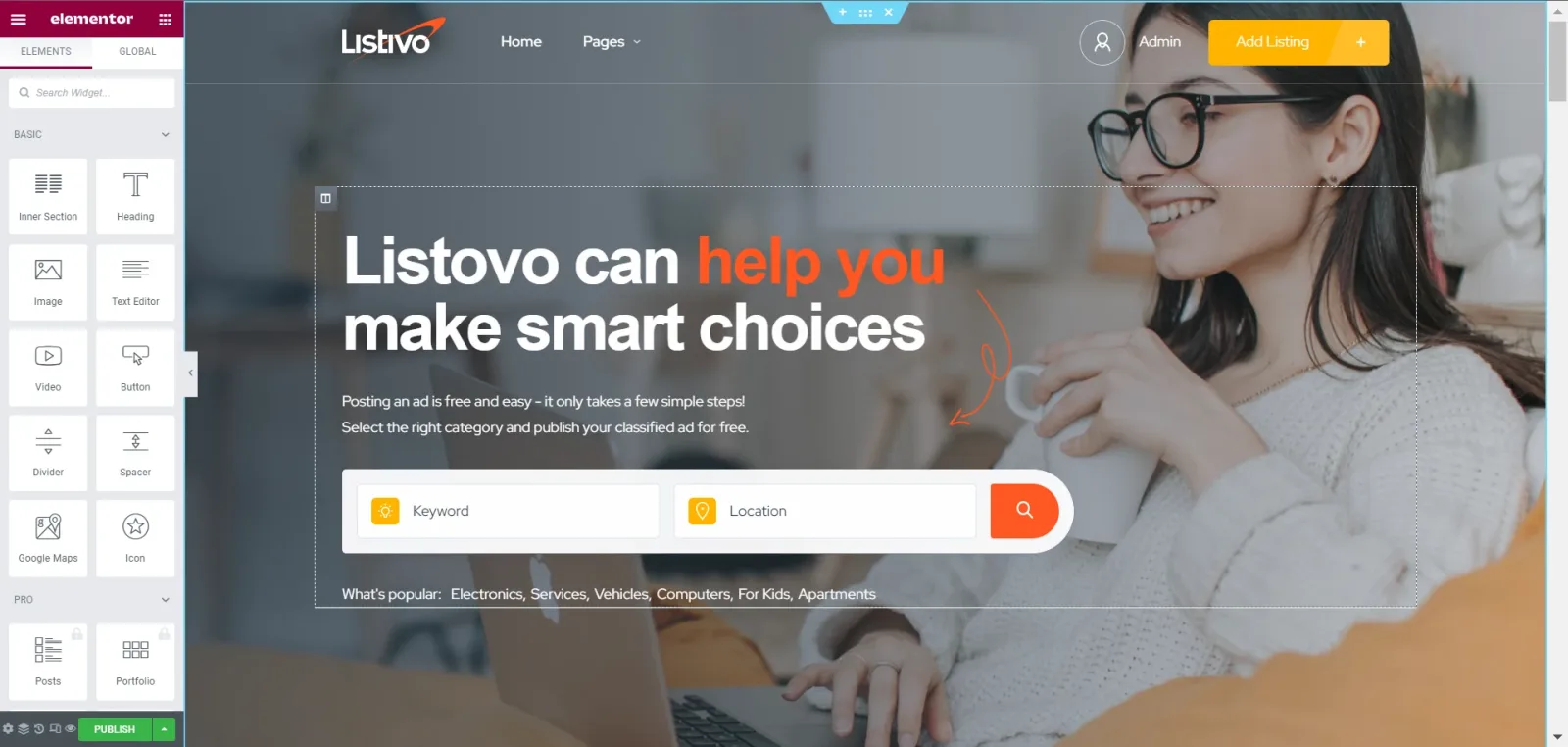
Your page is imported. Bear in mind that it will use your Global Design colors — in the example below we imported it into the orange "Modern" demo, so it automatically adapted its fonts and colors to match that style.
Ask the people who build Listivo
We answer by email from support@tangiblewp.com. With Premium Support, we also fix your site when something breaks.
We can also run your site for you, or build a new one.
Was this guide helpful?