Skip to content

Category order and taxonomy terms order

Categories and taxonomy terms come out in whatever order WordPress picks. With the free Custom Taxonomy Order plugin you can drag them into the order you want and have your Listivo search fields follow it.

2 minute read

This article will teach you how to order categories.

The best way to order categories and taxonomy terms is to use Custom Taxonomy Order by Marcel Pol. Listivo has integration with a free version of this plugin.

Use this link to download the plugin — https://wordpress.org/plugins/custom-taxonomy-order-ne/
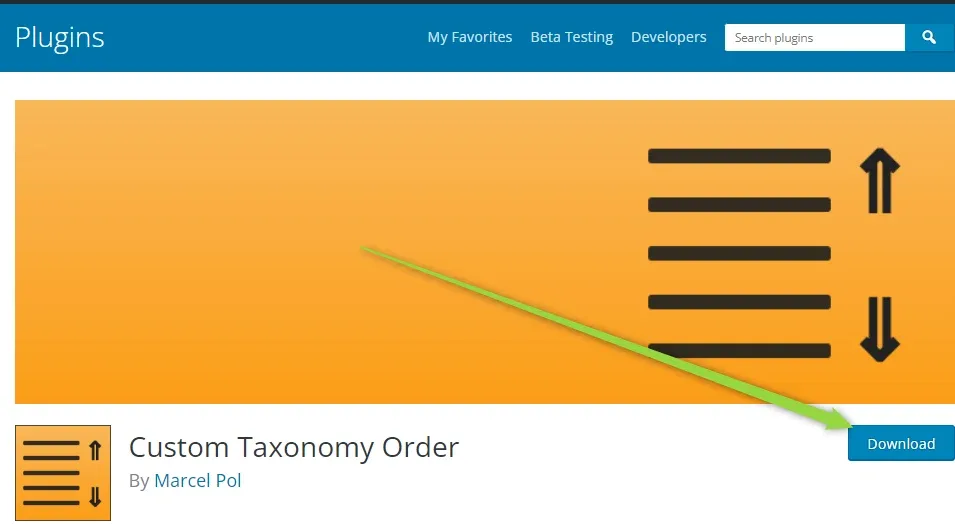
The WordPress.org plugin page for Custom Taxonomy Order by Marcel Pol, with an arrow pointing at the blue Download button.

Install the plugin and reorder your terms

  1. 1 Upload and install the plugin

    Go to wp-admin -> Plugins -> Add New -> Upload Plugin -> Choose file (find the previously downloaded file) and Install Now.
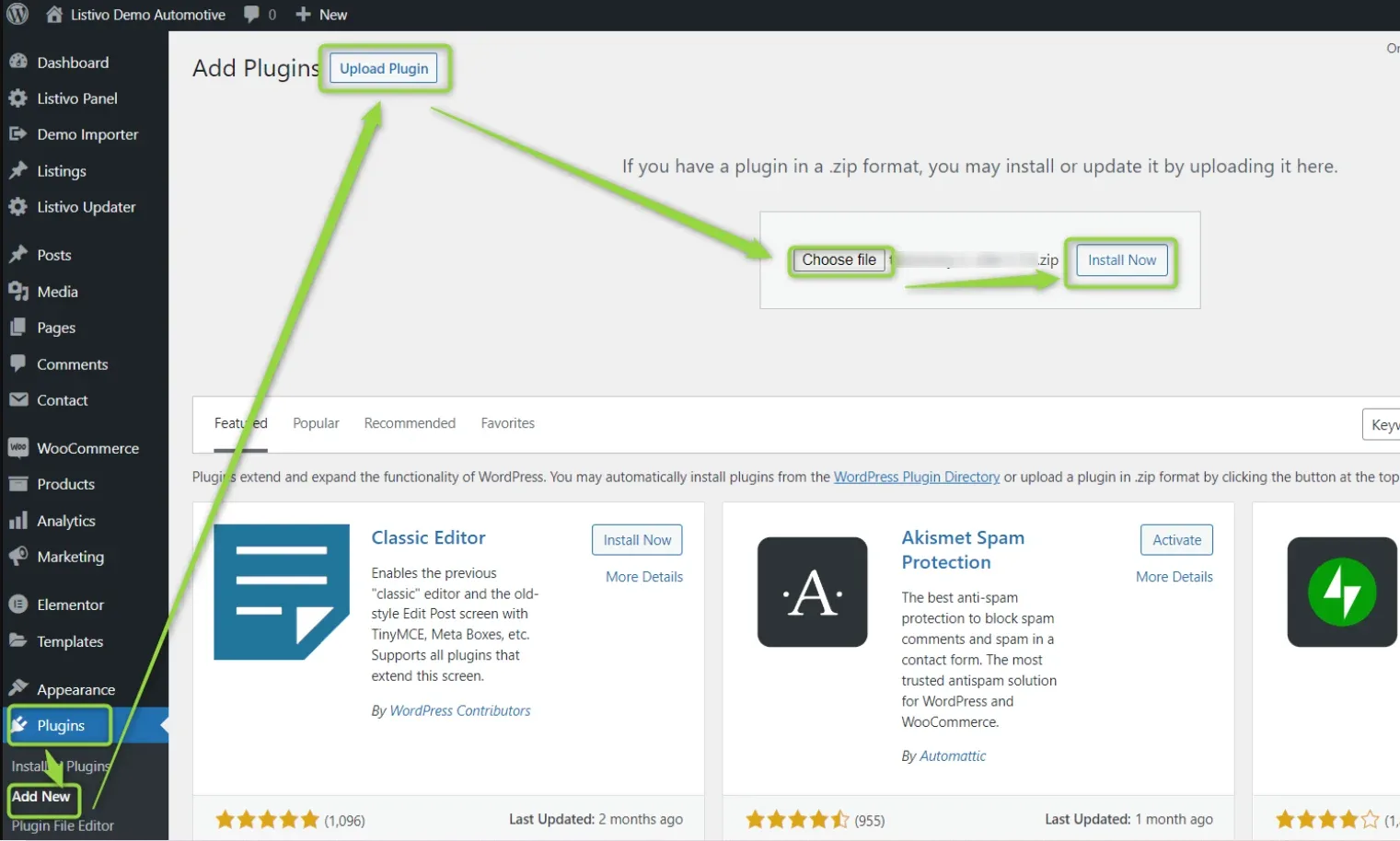
    The WordPress Add Plugins screen with the upload panel open and arrows pointing at the Upload Plugin button, the Choose file box and Install Now.
  2. 2 Activate it and open its settings

    Activate the plugin and visit its settings.
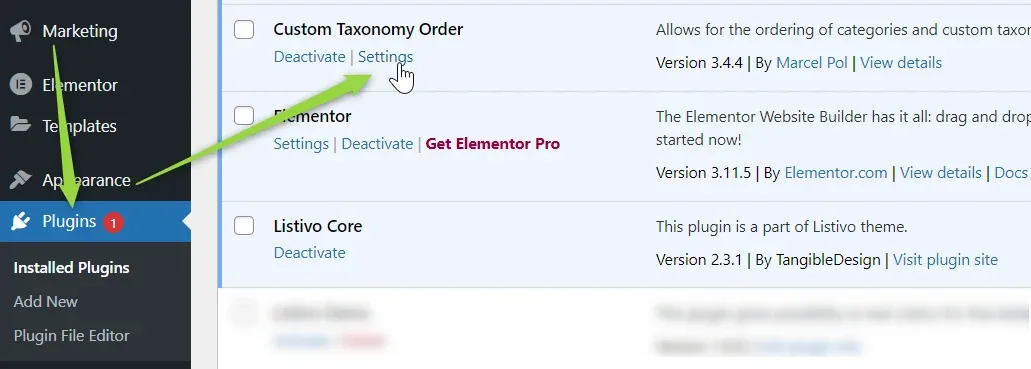
    The Plugins list showing Custom Taxonomy Order by Marcel Pol, version 3.4.4, with the cursor on its Settings link, above Elementor and Listivo Core.
  3. 3 Pick the taxonomy to rearrange

    You will see a list of all taxonomies. Open the one whose terms you want to order.
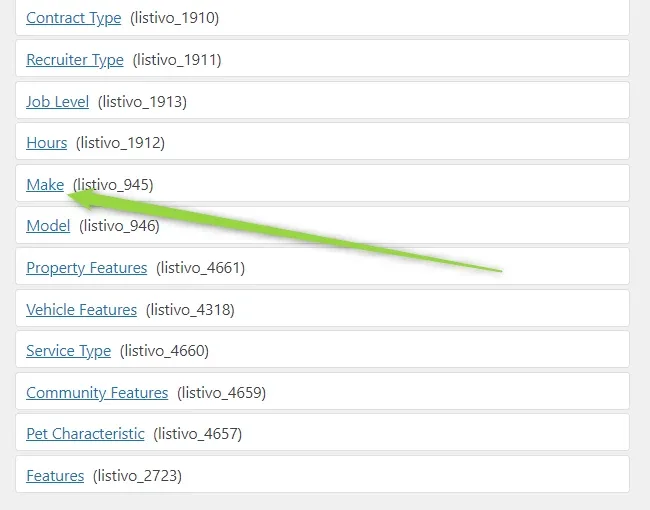
    The plugin's taxonomy list — Contract Type, Recruiter Type, Job Level, Hours, Make, Model, Property Features, Vehicle Features, Service Type, Community Features, Pet Characteristic and Features — with an arrow pointing at Make.
  4. 4 Drag the terms into order

    You can drag and drop the terms. In this example, Ferrari was moved to the top.
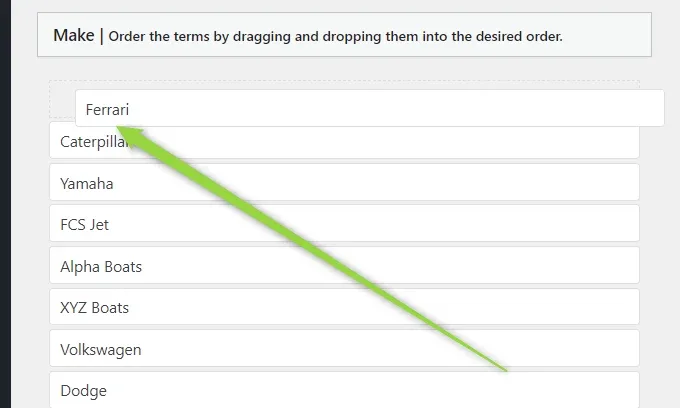
    The Make term list under the note 'Order the terms by dragging and dropping them into the desired order', with Ferrari at the top above Caterpillar, Yamaha, FCS Jet, Alpha Boats, XYZ Boats, Volkswagen and Dodge.
  5. 5 Save the order

    Click the Update Order button to save your changes.
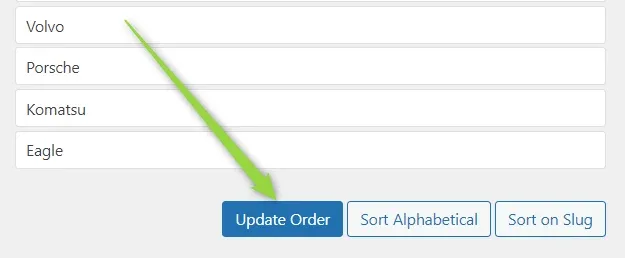
    The end of the term list — Volvo, Porsche, Komatsu, Eagle — with an arrow pointing at the Update Order button beside Sort Alphabetical and Sort on Slug.

Tell the field to use that order

The field will not pick up the order on its own
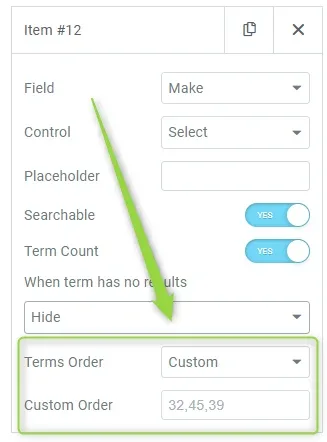
To use this custom order, you need to edit the page via Elementor Page Builder, find the field (e.g. on the search form), find "Taxonomy order" and select "Custom". The field "Custom Order" must be empty, so that it uses the order of terms from the plugin above.
Elementor settings for search item #12: Field set to Make, Terms Order set to Custom, and an empty Custom Order box showing only the greyed hint 32,45,39.

And as you can see, Ferrari will be on top.
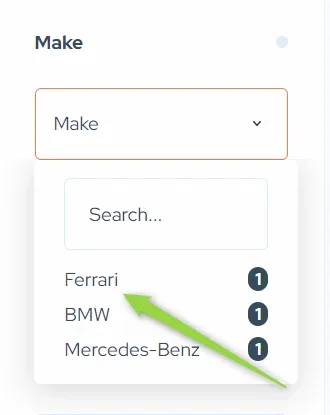
The Make dropdown on the front end, open with a search box and listing Ferrari first, then BMW and Mercedes-Benz, each with a count of 1.

Ask the people who build Listivo

We answer by email from support@tangiblewp.com. With Premium Support, we also fix your site when something breaks.

Was this guide helpful?