Listivo Panel Advanced Tools
Learn what each button under Listivo Panel > Advanced > Tools does, so you can fix expired ads, missing term relations, leftover files, broken sorting and outdated ad titles with a single click.
3 minute read
This article provides a detailed guide on the tools available under Listivo Panel > Advanced > Tools. All of these tools are useful in very specific scenarios. We created them to help troubleshoot problems or execute functions that would normally require custom coding, but are now available with a single click.
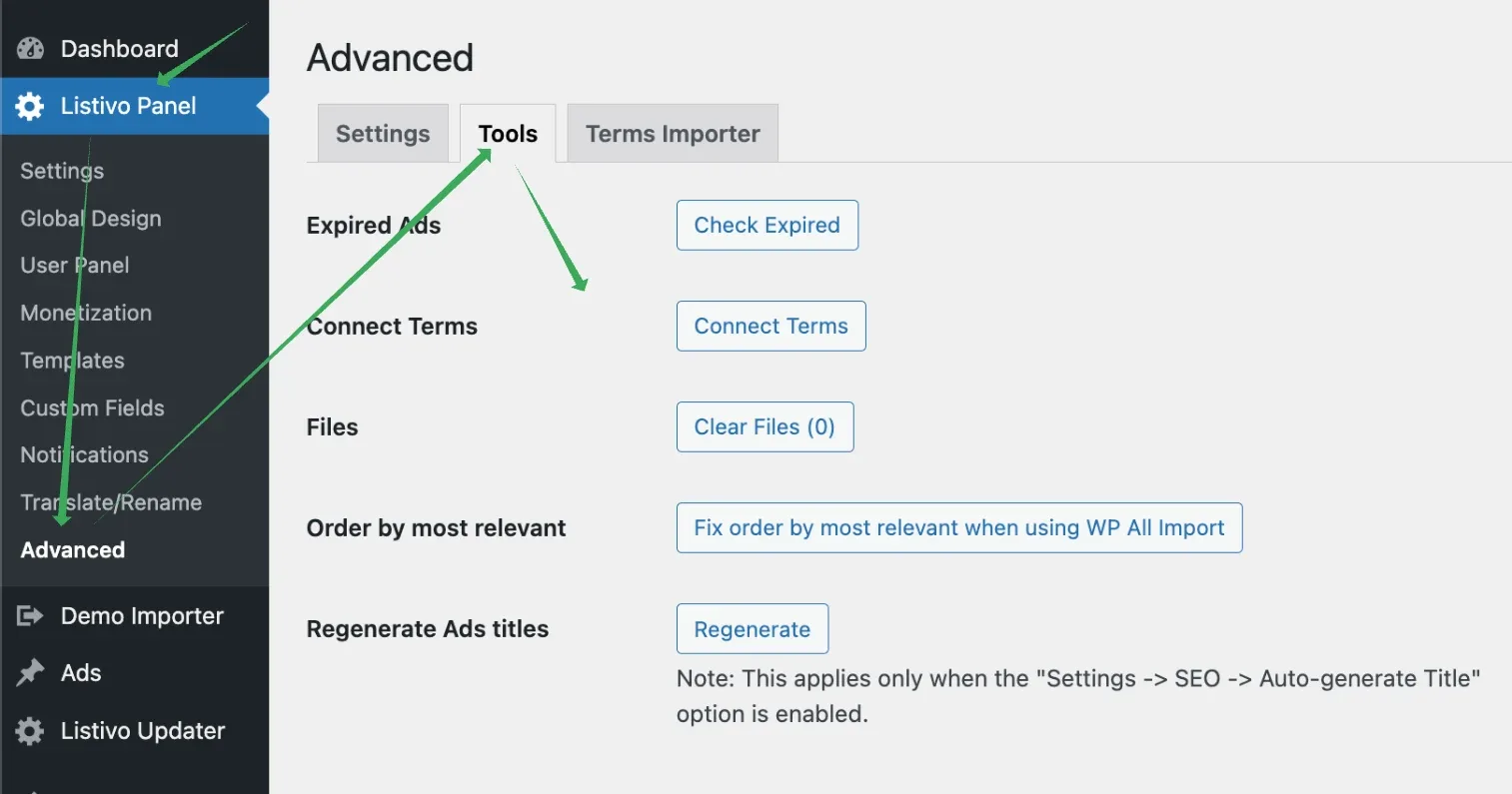
Expired Ads: Check Expired
Clicking Check Expired does the same thing as the cron job configured to run every 60 seconds. You can find more information in WP-Cron system.
It checks all expired and featured ads and changes their status if needed.
Connect Terms
If you have an ad (e.g., imported ads via WP All Import) with two taxonomy fields that are related via the Parent Option, such as:
- City
- Boroughs
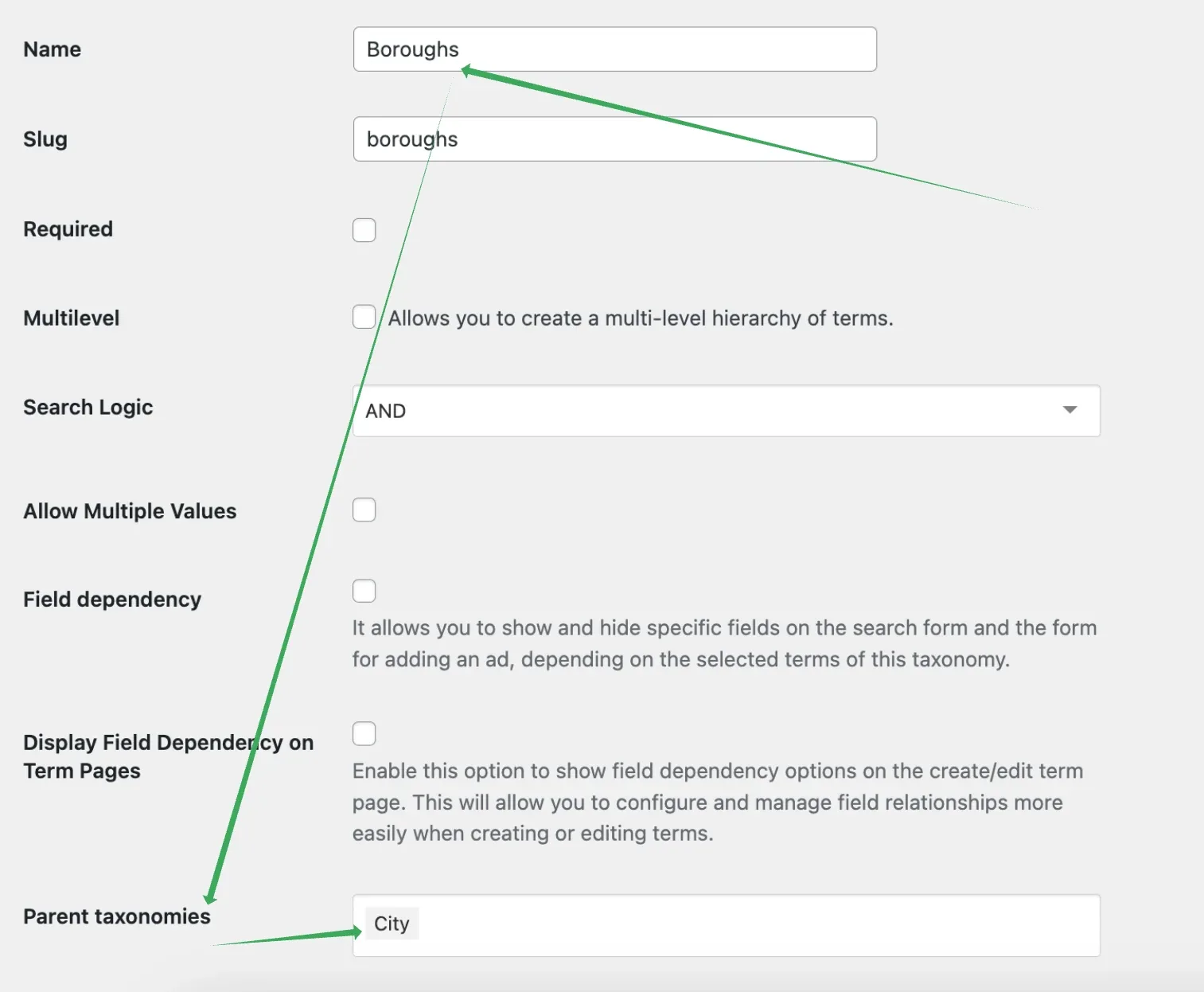
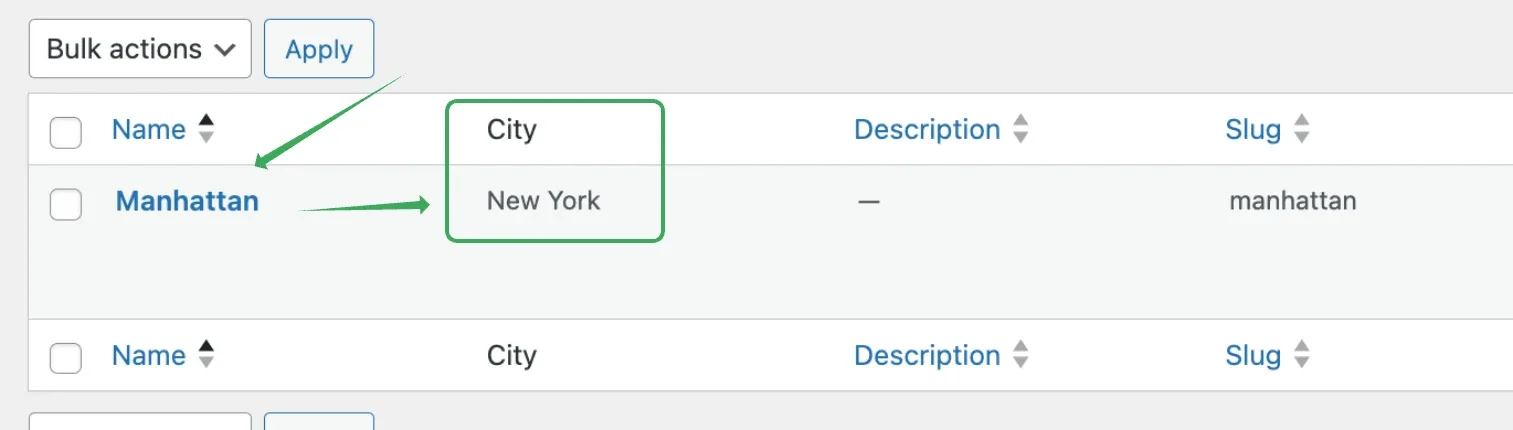
and for some reason the ad uses these fields but Manhattan is not yet assigned to the City New York (this can happen when you import ads via WP All Import and the system does not know yet that Manhattan has the parent New York),
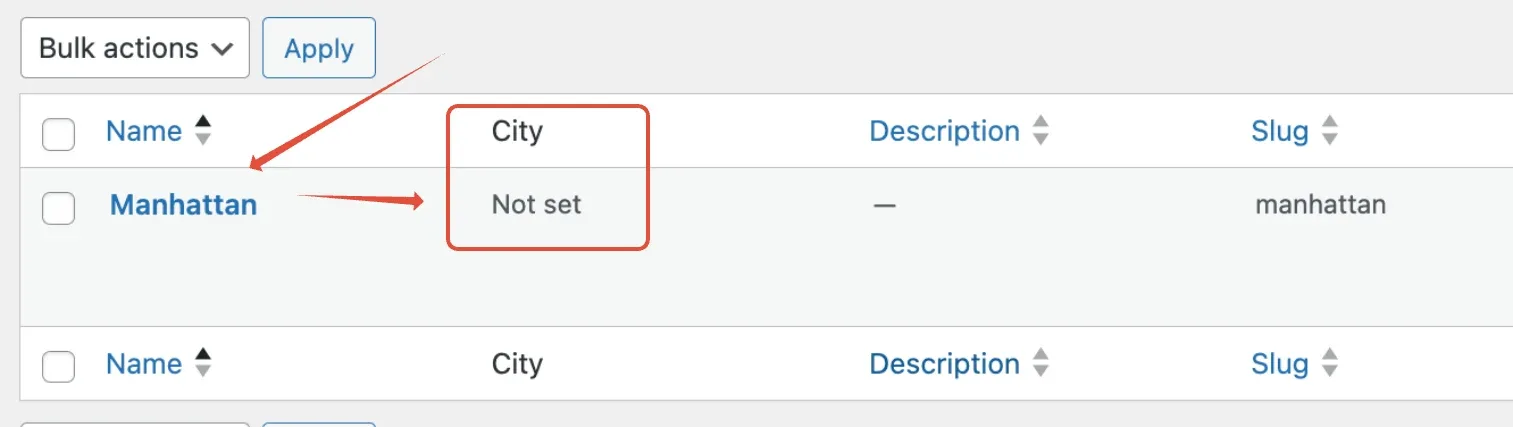
clicking this button will automatically set it for you. If it spots an ad in your database that has both Boroughs: Manhattan and City: New York, it will assign this connection for you.
Files: Clear Files
The Clear Files button helps you manage your hosting space by removing files that are no longer in use. The number of files that will be removed is shown in brackets on the button. This feature is designed to periodically free up space by eliminating unnecessary assets. Below is a list of the types of files that will be removed if they are not currently used on the website:
- Ad Images: uploaded through the frontend panel for ads.
- Ad Attachments: uploaded through the frontend panel for ads.
- User Profile Pictures: uploaded through the frontend panel.
- Review Photos: submitted through the review form that are not assigned to any listing, user, or review.
Order by most relevant
When importing listings via WP All Import, you need to specify if an ad is Featured or not by writing 1 for Featured and 0 for not Featured. This creates two options: true (1) or false (0). If you don't specify this, all imported ads will have a status of "null", which is neither "0" nor "1". This can cause problems with the Sort by Most Relevant feature, which displays featured ads first and then regular ads from newest to oldest. Clicking this button changes all "null" statuses to "0", making those ads regular and ensuring the Sort by Most Relevant feature works correctly.
Regenerate Ads Titles
This button is related to another option for auto-generating titles - see How to Auto-Generate Ad Titles.
If you use fields for auto-generating titles, the result shows on Listivo modules (ad cards, my ads, etc.) but does not affect how the ad is named in the backend. This button lets you regenerate all old ad titles based on your newly selected fields. For example, if you select Make + Model + Year for a car website, this button will update the titles in the backend to follow that structure.
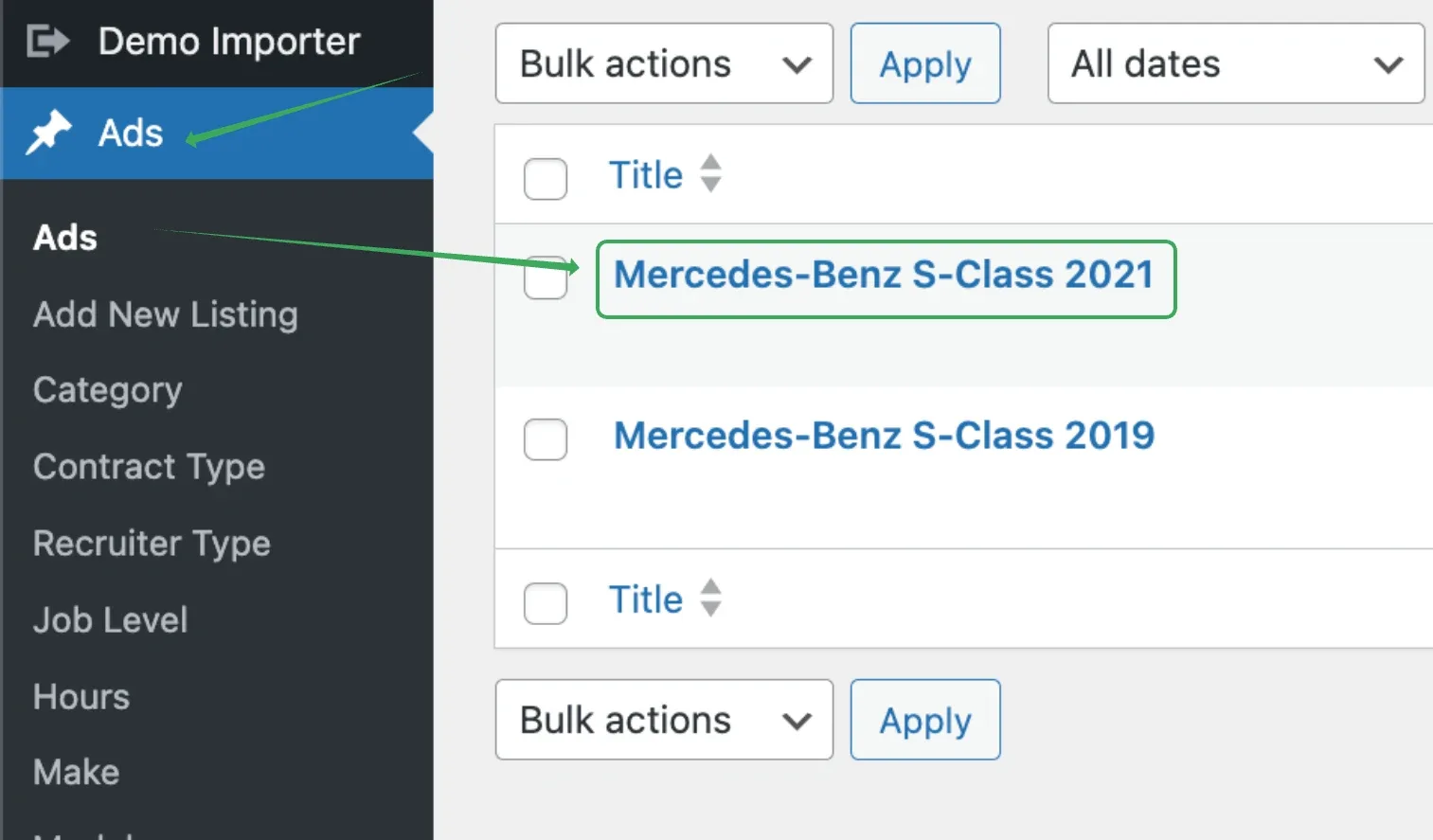
This is useful because some third-party plugins (e.g., SEO plugins like Yoast) may use this built-in WordPress ad title field as a variable. Simply selecting new fields does not automatically update titles created in the past.
Keep reading
Ask the people who build Listivo
We answer by email from support@tangiblewp.com. With Premium Support, we also fix your site when something breaks.
We can also run your site for you, or build a new one.
Was this guide helpful?