WP-Cron system
Make WordPress run its scheduled tasks every minute with an external cron service, so Listivo's email and SMS notifications go out promptly instead of waiting for the next visitor.
2 minute read
WordPress crons are an important part of any WordPress site: they carry out tasks such as scheduling posts and running automated backups. Configuring them is a simple process and is essential for keeping your site running smoothly. In this article we’ll discuss how to configure WordPress crons so you can keep your site up to date and running smoothly.
How does WP-Cron work?
Listivo uses the WP-Cron system to send emails and SMS. WP-Cron does not run constantly; it is only triggered on page load, so someone has to visit your website before the email or SMS is sent. WordPress works the same way for scheduled posts (learn more here about the WP-Cron system).
Make sure notifications are sent within one minute
-
1
Create a free account
Sign up at cron-job.org.
- 2 Click the CREATE CRON JOB button
- 3 Add a title
-
4
Fill in the URL field
Change the example
http://domain.com/wp-cron.phpto your own link — make sure you enter your own domain with the right protocol (http or https), and that the URL ends with /wp-cron.php as in the screenshot.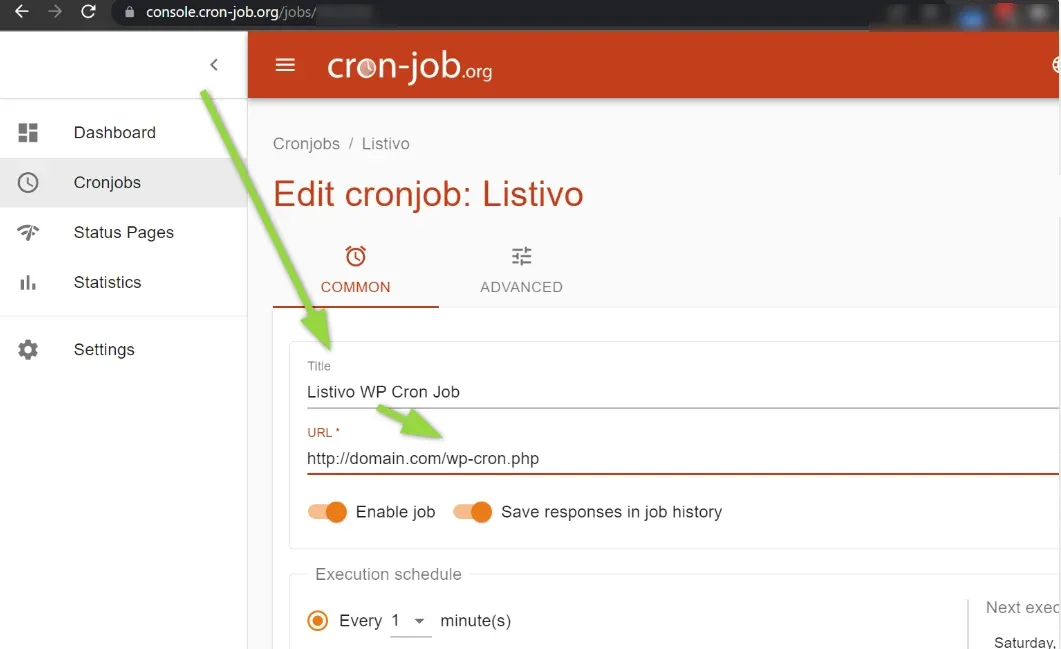
-
5
Set the execution schedule
Choose Every 1 Minute.
- 6 Click Create
Done. Cron-job.org will now force WordPress to check your website’s “Cron Events” every minute, and all email and SMS notifications will be sent in up to 1 minute.
Disable the built-in WordPress cron
Next, you’ll need to edit the wp-config.php file. To do this, you’ll need to add the following line of code to it:
define('DISABLE_WP_CRON', 'true');This code will tell WordPress to disable the default cron and use a real cron. This is important, as the default cron can cause issues with scheduling tasks and backups.
By following these steps, you’ll be able to configure WordPress crons and ensure that your site runs smoothly and efficiently. Be sure to test the cron job regularly to ensure that it’s running correctly.
If a notification still does not arrive
Ask the people who build Listivo
We answer by email from support@tangiblewp.com. With Premium Support, we also fix your site when something breaks.
We can also run your site for you, or build a new one.
Was this guide helpful?