Enable Reviews on Your Single Ad Page with Listivo 2.3.39
Switch on the Listivo reviews module, decide who may review and how reviews are moderated, and place the Ad Reviews widget on your single ad template so visitors can rate and comment on listings.
2 minute read
We are thrilled to introduce the ability to enable reviews for your single ad page in Listivo 2.3.39. This new feature offers more interaction with your audience.
How to unlock this module
To activate this module, simply:
- Enable it in the Listivo Panel under Settings > Reviews.
- Add the "Ad Reviews" widget to your single listing page.
Configuring review options
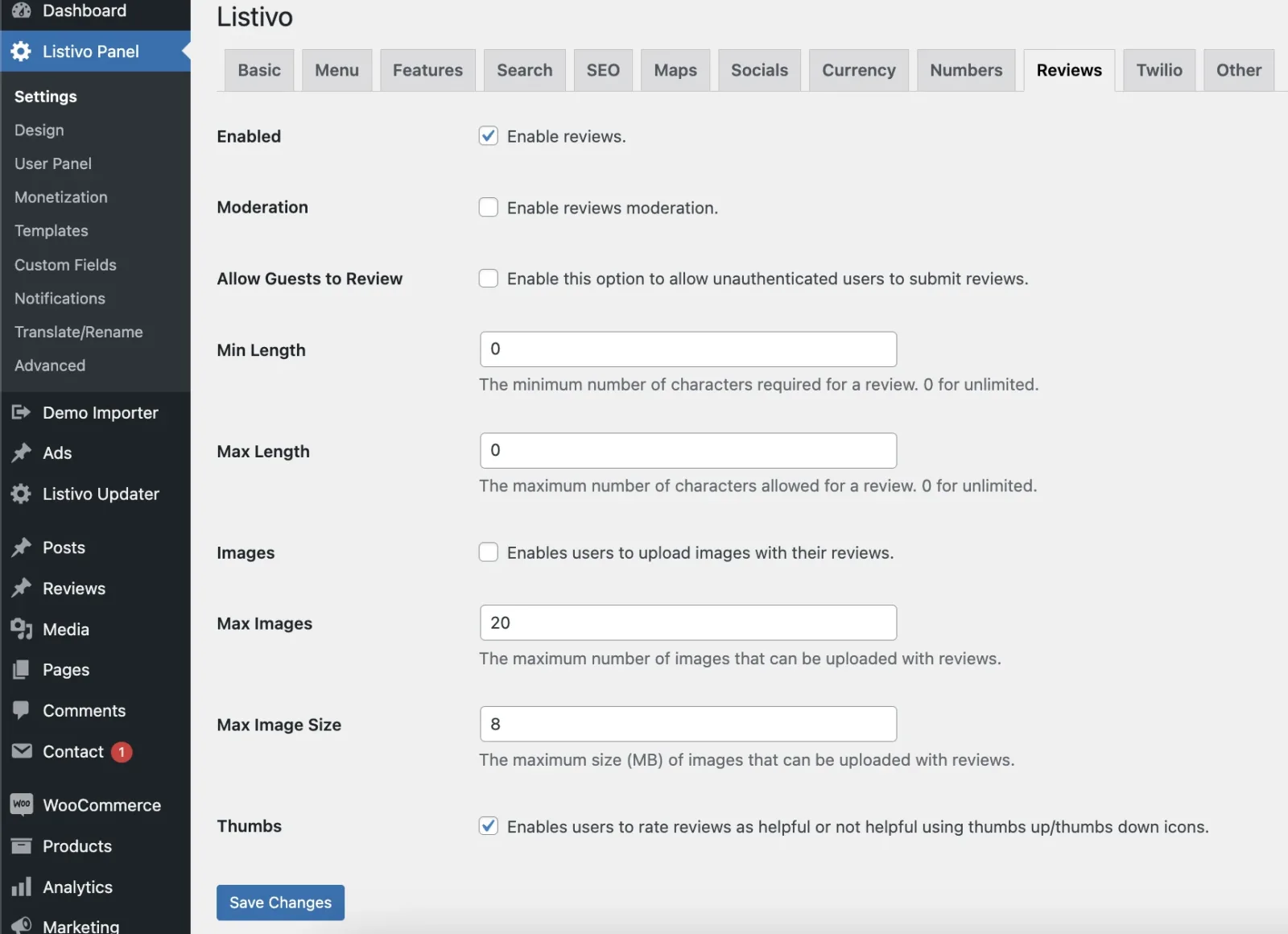
Let's start by exploring the panel options. Navigate to Listivo Panel > Settings > Reviews, where you will see all available options. Allow Guests to Review lets anyone add a review to your website. In the following options you can set the minimum and maximum length for reviews, enable image uploads for each review, and enable voting on reviews (this adds an extra sorting option, "Most Helpful"). Once all settings are configured, save your options.
Moderation
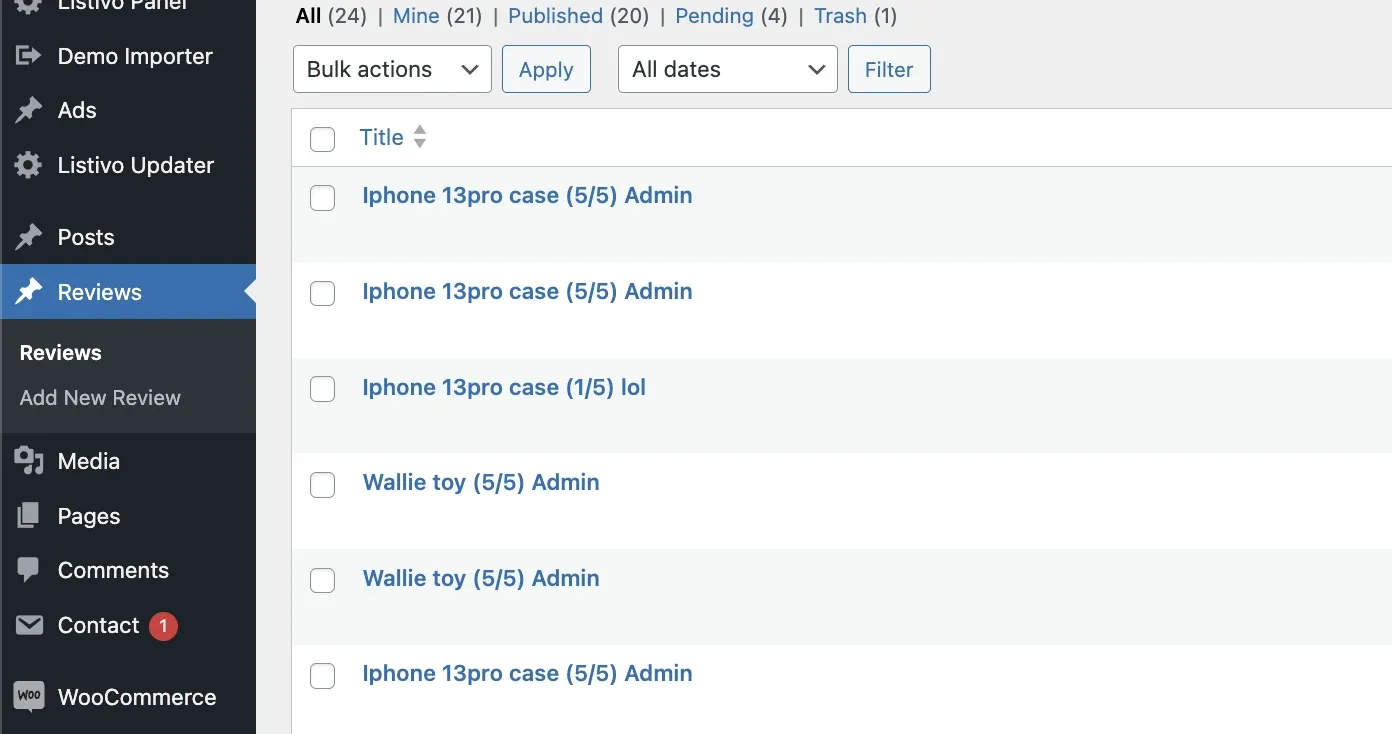
If you enable moderation, all reviews will appear in your backend with a 'Pending' status. You can then choose to Publish or Trash them.
Inserting the Ad Reviews widget into your single ad template
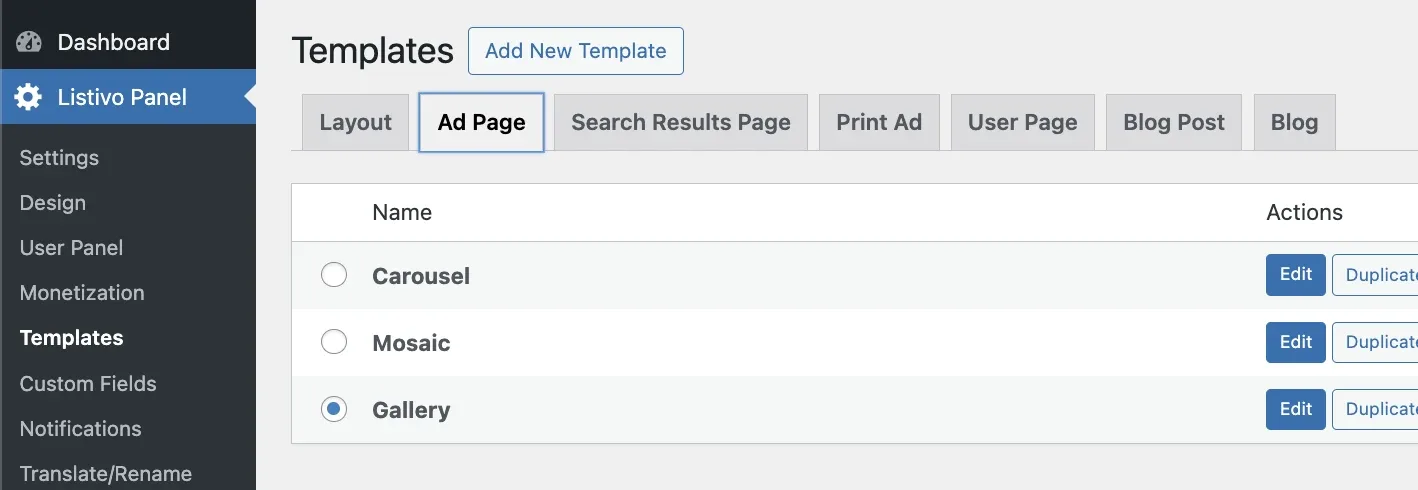
You can finally add the "Ad Reviews" widget to your Single Ad Template. Visit Listivo Panel > Templates > Ad Page to edit your current ad template.
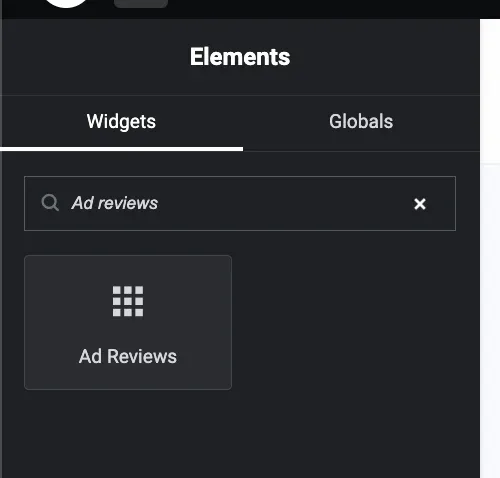
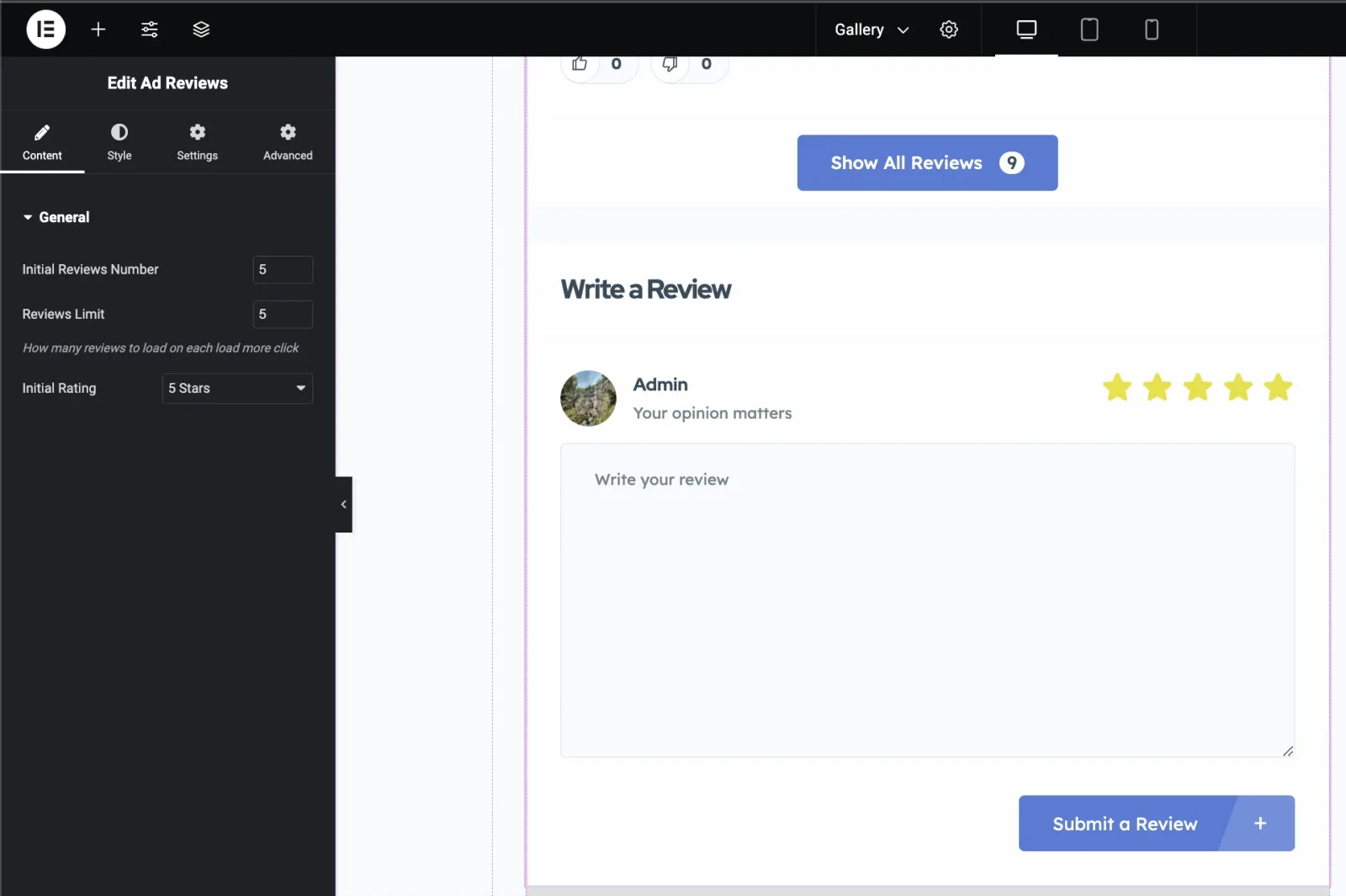
The template will open in Elementor. Search for the Ad Reviews widget and place it where you want.
Once added to your page, it will look as shown.
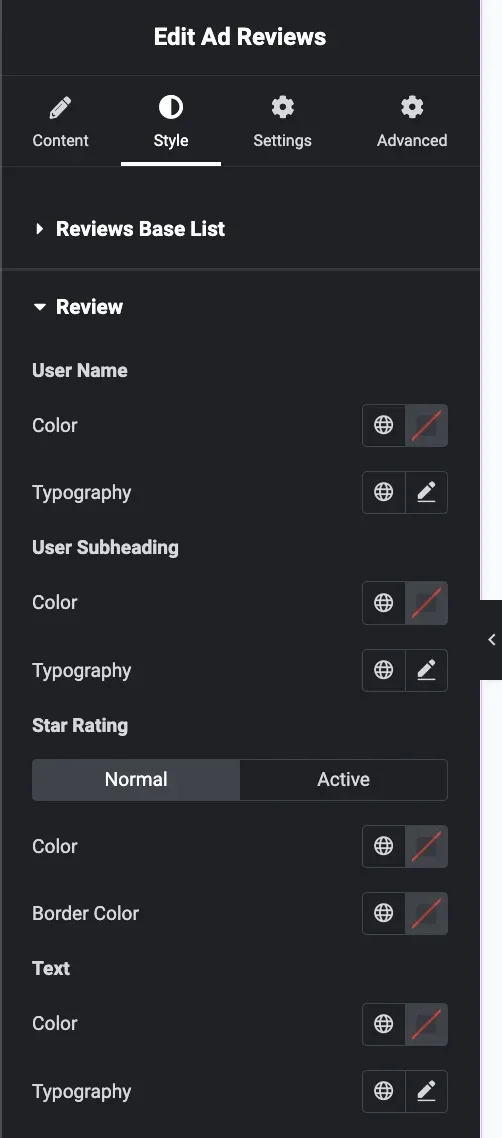
In the Style tab, you will find many options to customize its appearance.
Notification management
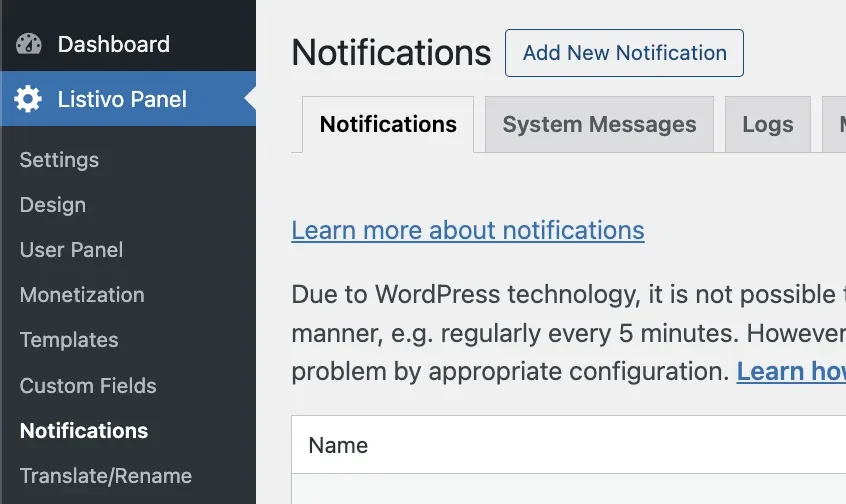
If you enabled moderation and want to receive or send emails or SMS to users, navigate to Listivo Panel > Notifications > Add New Notification.
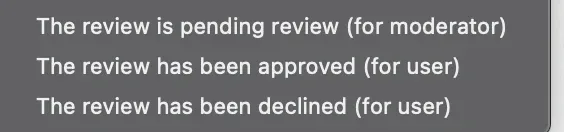
You will find three triggers to configure emails sent to you or to users.
Help us improve
This module is a fresh addition, and we're excited to expand it with more options. If you have any suggestions, please send them to support@tangibledesign.net
If you're enjoying Listivo, consider rating us 5 stars at https://themeforest.net/downloads. It will help us develop a better product with more options and demos. Thank you!
Ask the people who build Listivo
We answer by email from support@tangiblewp.com. With Premium Support, we also fix your site when something breaks.
We can also run your site for you, or build a new one.
Was this guide helpful?