Skip to content

Editing single listing page

Open one of Listivo's single listing templates in the Elementor editor, and pick which listing the editor shows while you work on it.

1 minute read

  1. 1 Open the listing template

    You can edit a single listing template this way:
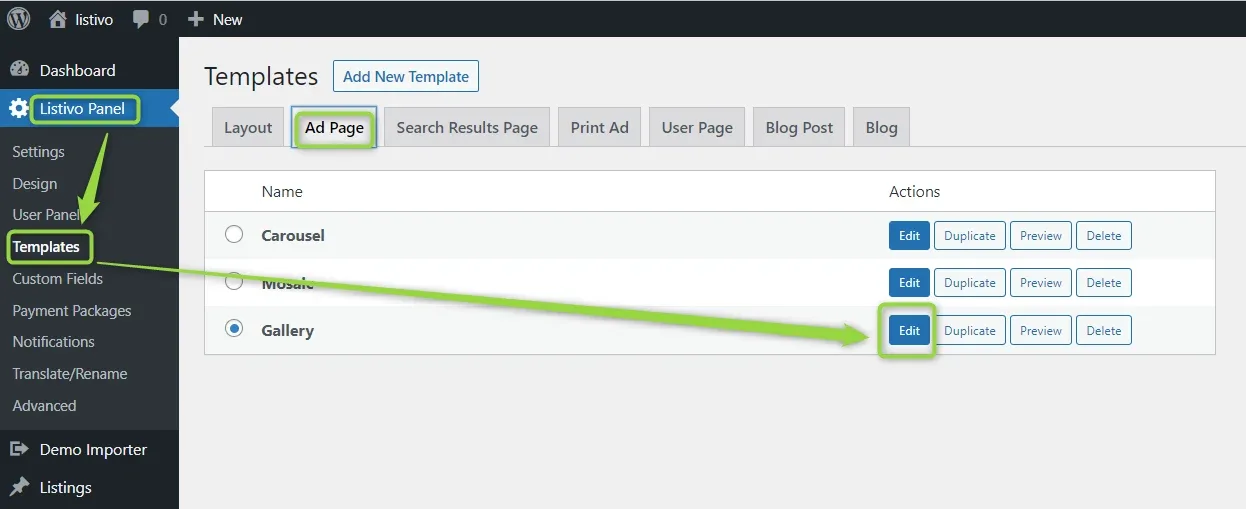
    Listivo Panel > Templates in WordPress admin, Ad Page tab. The list shows Carousel, Mosaic and Gallery, with Gallery selected; green arrows point to Templates in the sidebar and to the Edit button on the Gallery row.
  2. 2 Work in the template editor

    You will see the editor of a template like this:
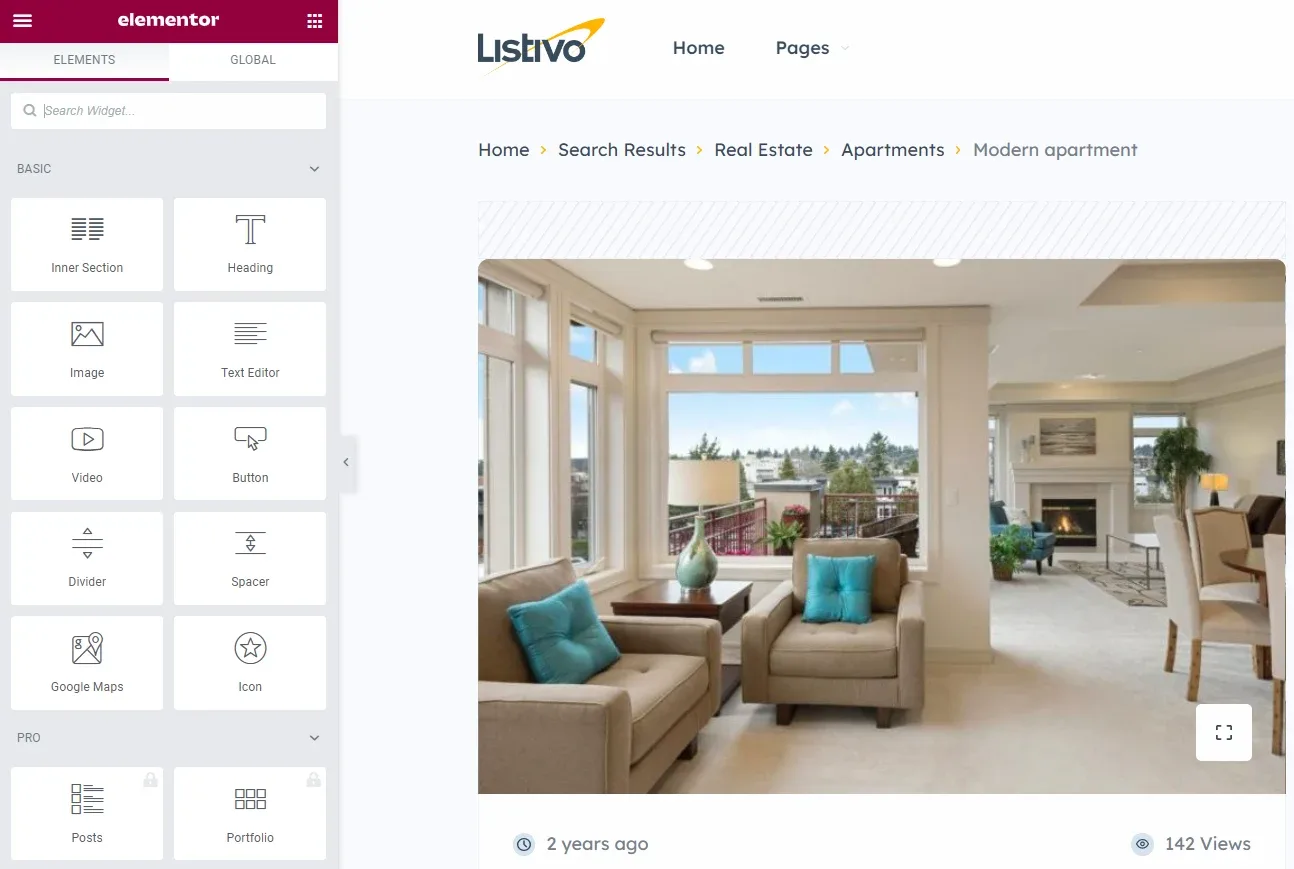
    The Elementor editor: a widget panel on the left listing Inner Section, Heading, Image, Text Editor, Video and Button, and on the right a preview of the Listivo listing page for "Modern apartment" with breadcrumbs, a living-room photo and 142 views.
  3. 3 Choose the listing used for the preview

    You can choose which listing to use to preview the template here:
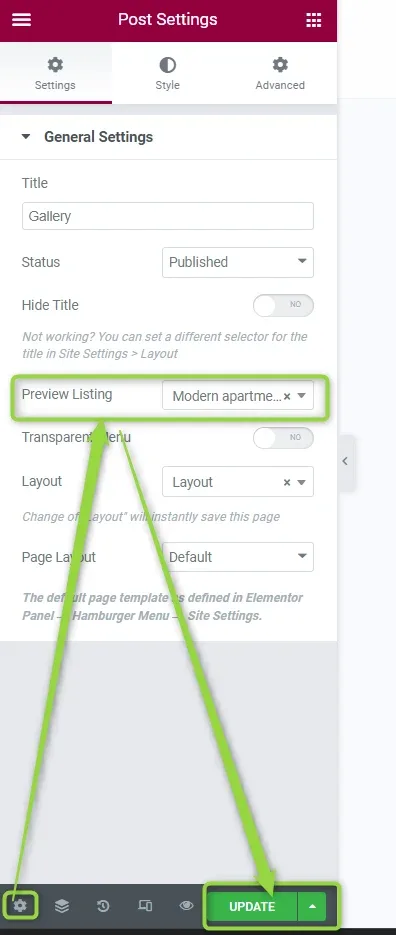
    The Elementor Post Settings panel with Title "Gallery" and Status Published; the Preview Listing dropdown set to "Modern apartme…" is highlighted, with arrows pointing to the cog icon and the green UPDATE button below.

Ask the people who build Listivo

We answer by email from support@tangiblewp.com. With Premium Support, we also fix your site when something breaks.

Was this guide helpful?