Configuring Transparent Menus: Guidelines and Tips
Switch the Listivo menu to transparent on a single page in Elementor, and pair it with the Light layout so the links stay readable over a dark hero section.
1 minute read
Listivo enables you to set the menu transparency to enhance your site's visual appeal. You can easily toggle this feature on or off as needed. For instance, to modify the transparency settings on the Home page:
-
1
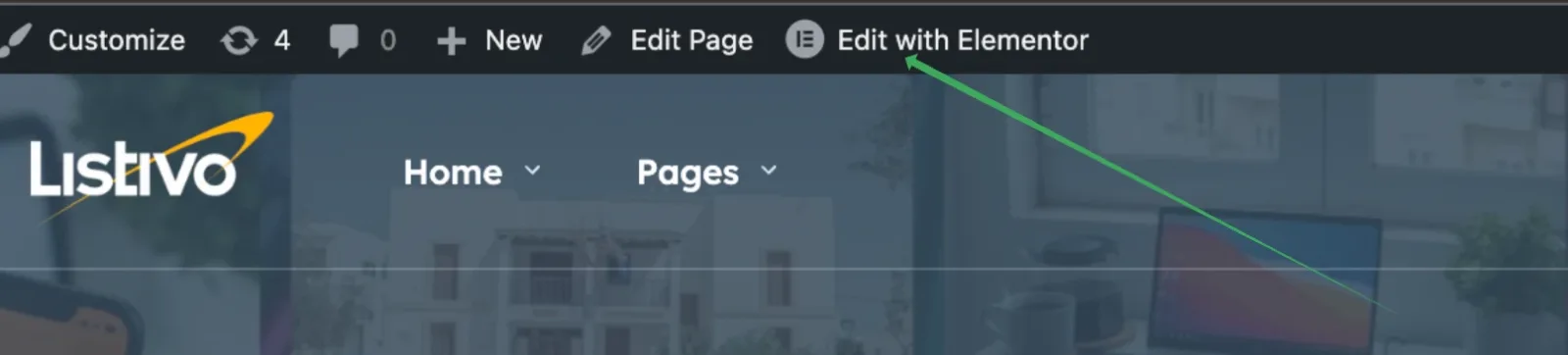
Open the page in Elementor
-
2
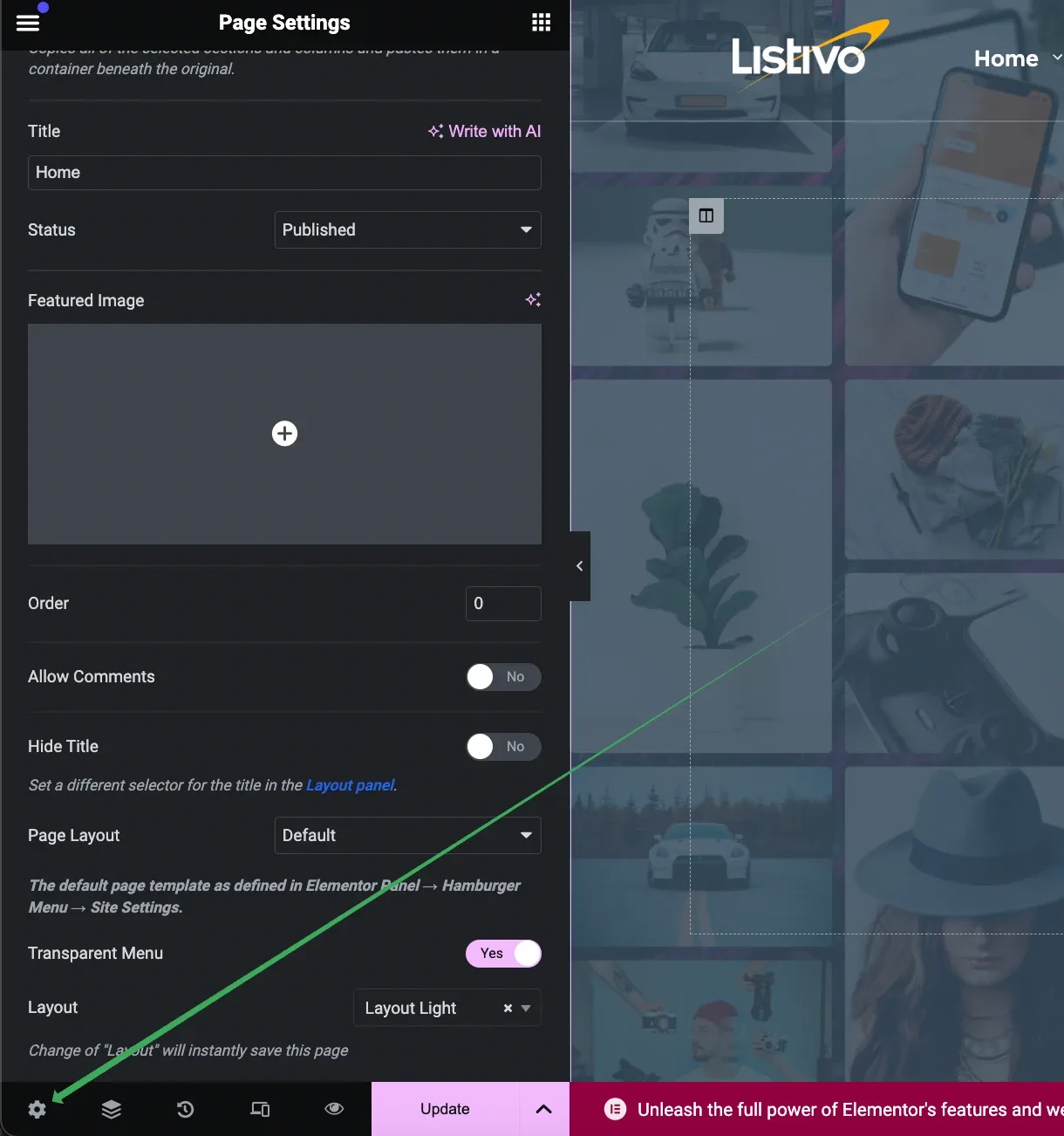
Open the page settings
Click the cog icon in the bottom-left corner of the Elementor panel.
-
3
Set the Transparent Menu option
Scroll to find the "Transparent Menu" option, where you can select Yes or No.
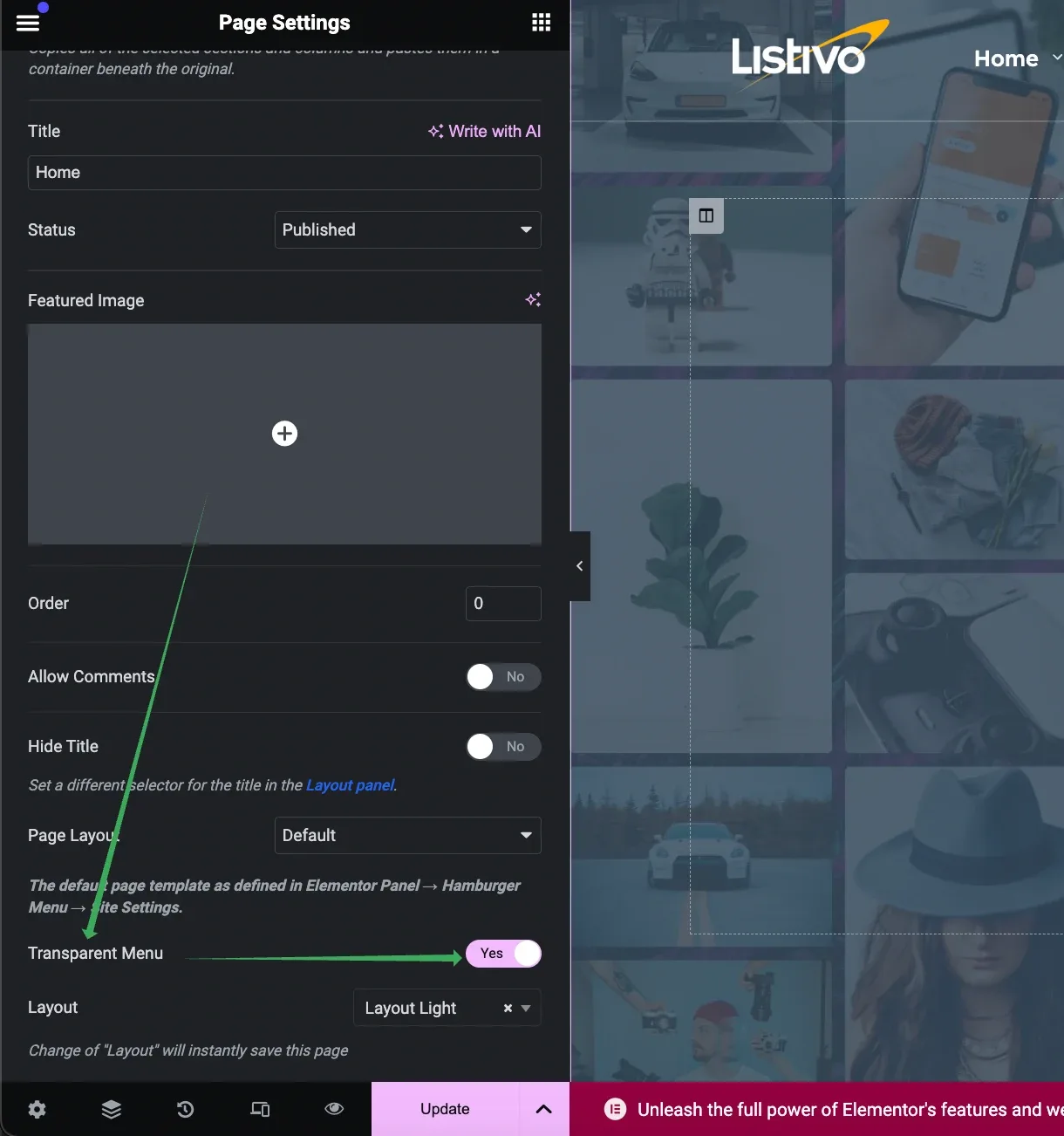
After you enable it, the menu will be displayed on top of your first section, creating a transparent menu effect.
Pairing transparency with the Light layout
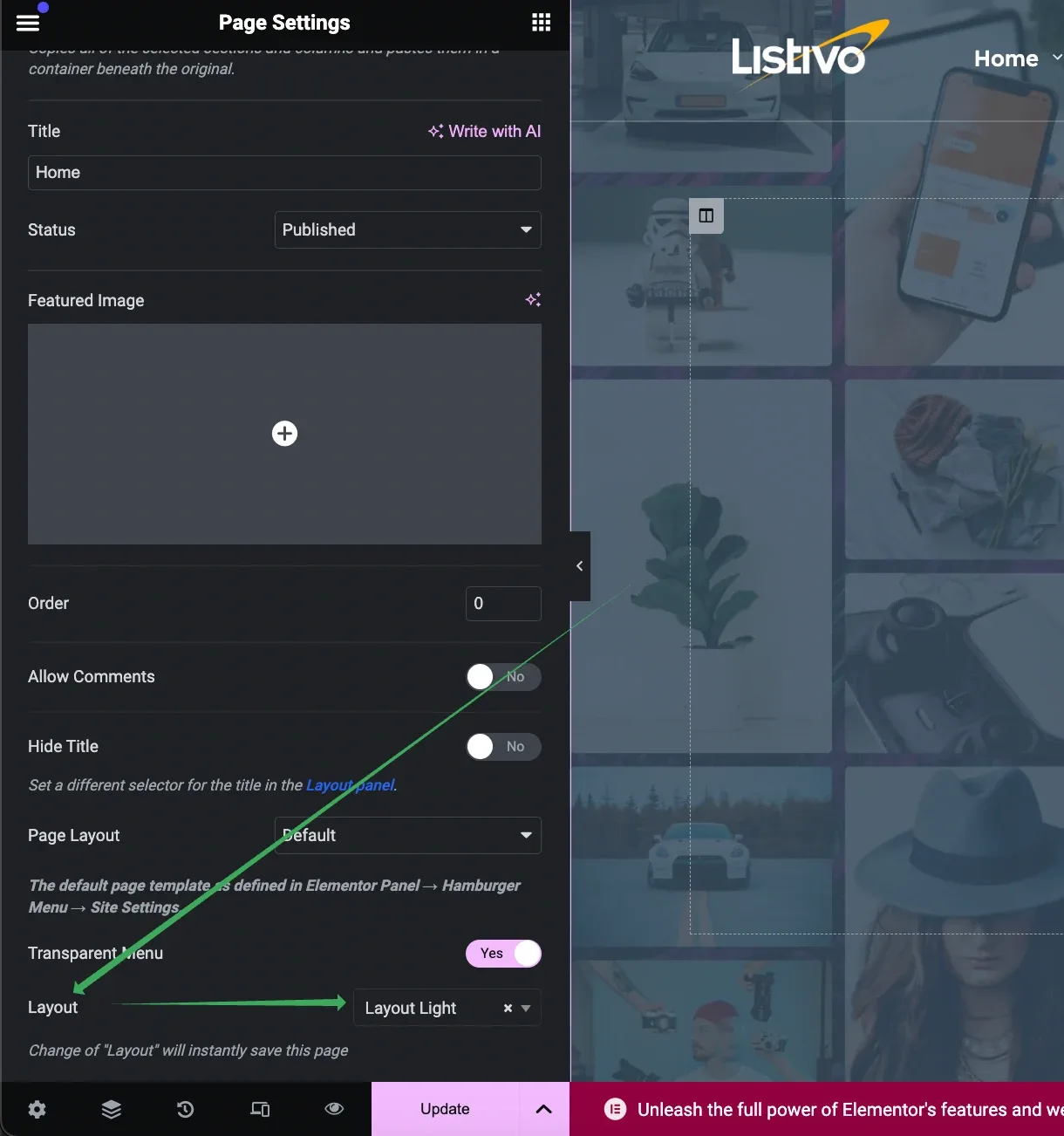
It's important to consider certain scenarios when using a transparent menu. Typically, if your website features a white menu with dark font, and the top of your homepage includes a dark image or background, switching to a light layout is advisable. This layout adjusts the menu to display white fonts, making it visually effective against darker backgrounds. This is a common setup in our demo examples where transparent menus are used. When the transparent menu is enabled, the 'Light' layout is activated, and it reverts to the normal layout when transparency is turned off. The control to switch between these layouts is located just below the "Transparent Menu" setting.
Ask the people who build Listivo
We answer by email from support@tangiblewp.com. With Premium Support, we also fix your site when something breaks.
We can also run your site for you, or build a new one.
Was this guide helpful?