How to change logo image and its size
Upload your logo and its reversed version in the Listivo Panel, then set the logo height for desktop, tablet and mobile in every layout your site uses.
1 minute read
You can add logo files in the Basic setup. You can also upload a Logo Reversed version, which is used on pages with a dark or transparent menu for better readability.
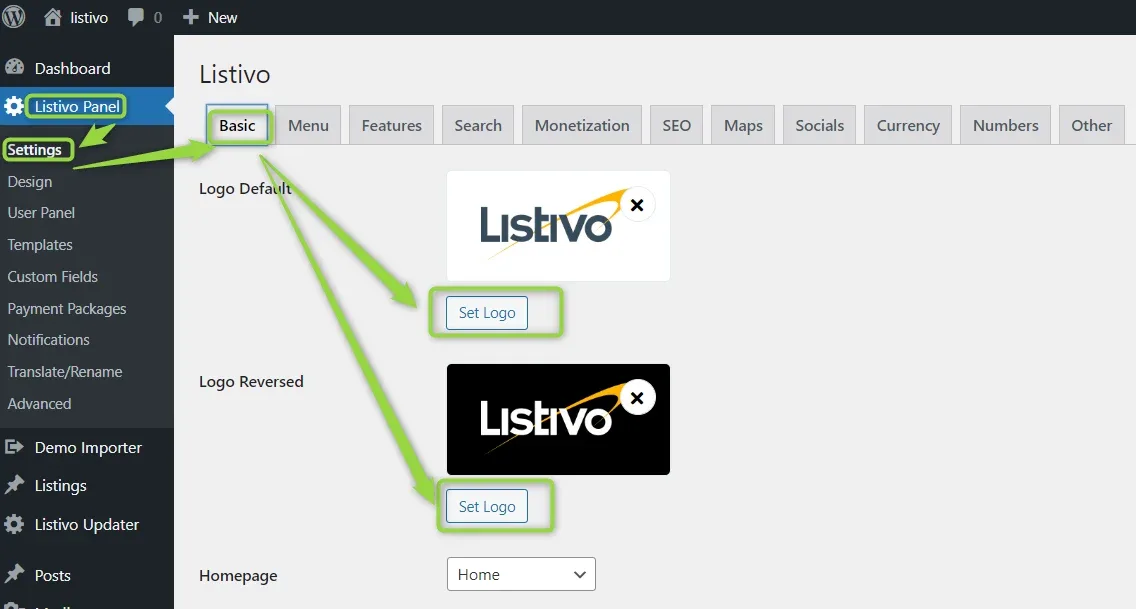
To change the logo size in the menu you will need to edit each Layout you use.
Change the logo size
-
1
Open the layout
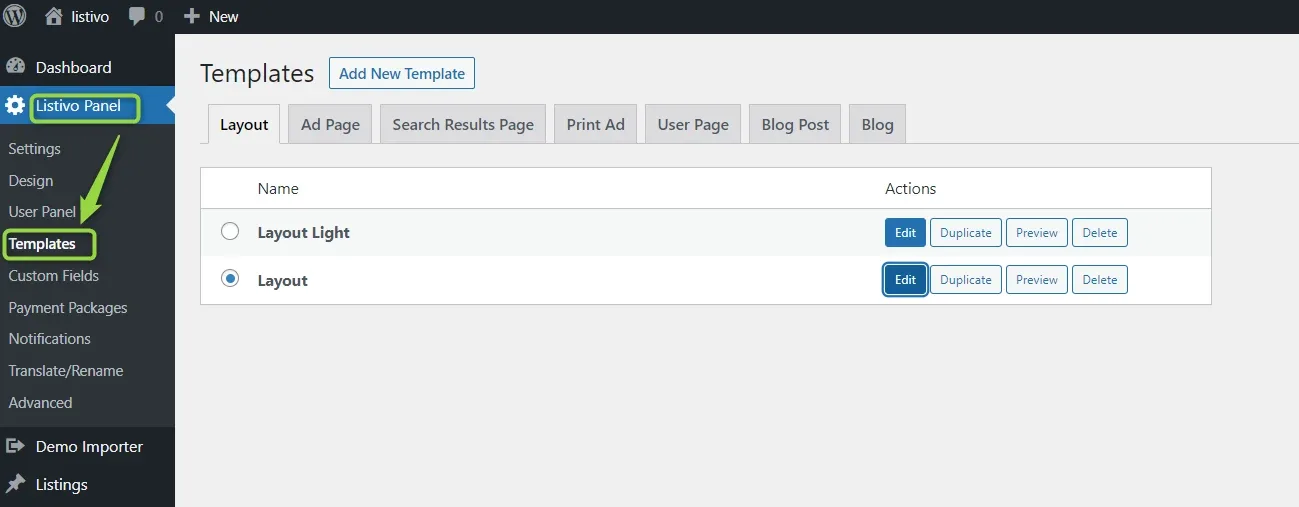
Select it in the
/wp-admin/panel under Listivo Panel > Templates > Layout, then click Edit.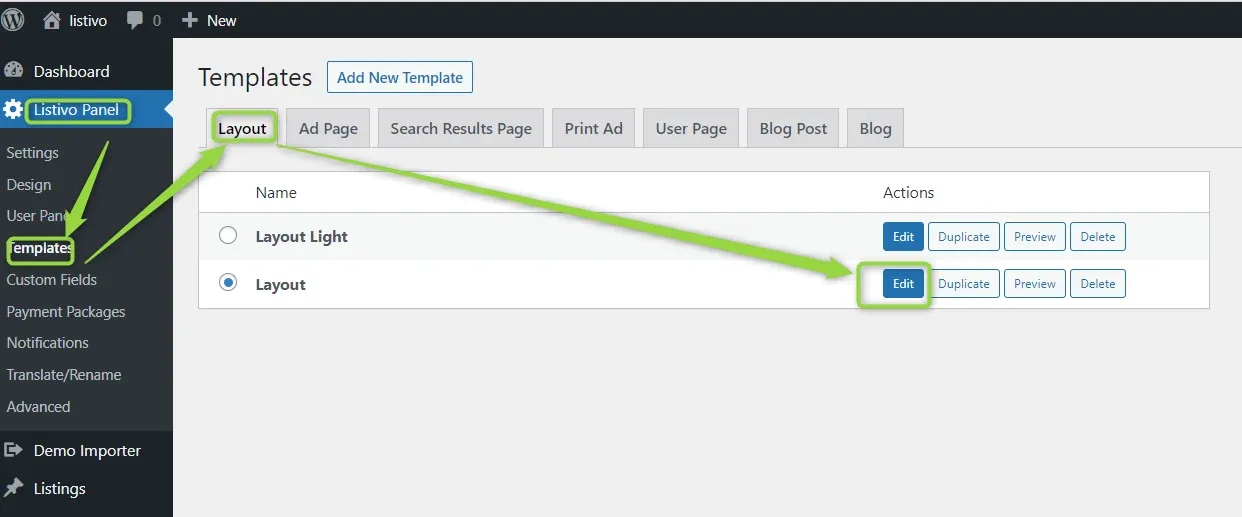
-
2
Edit the menu widget
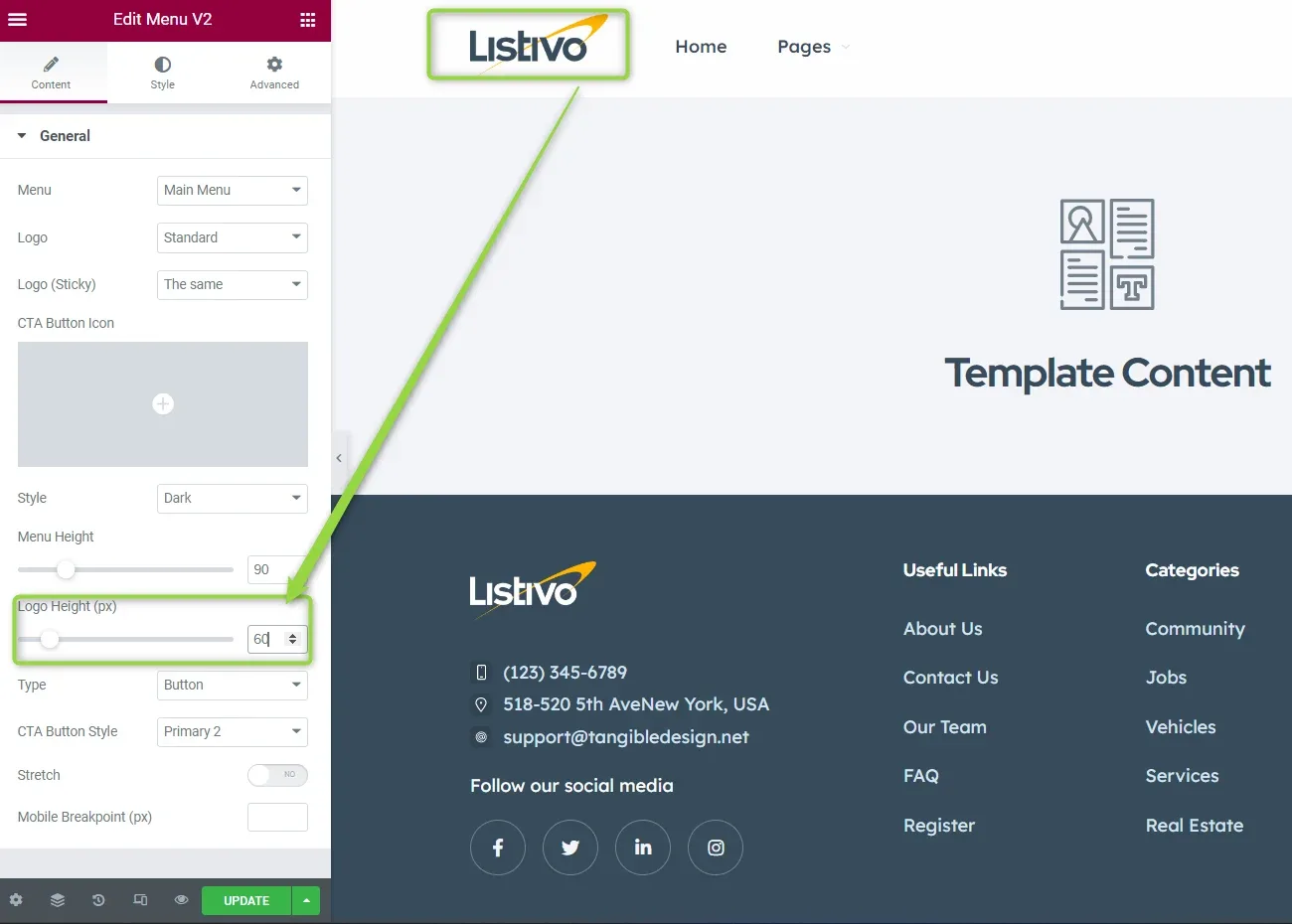
Open the menu widget and change the logo size.
-
3
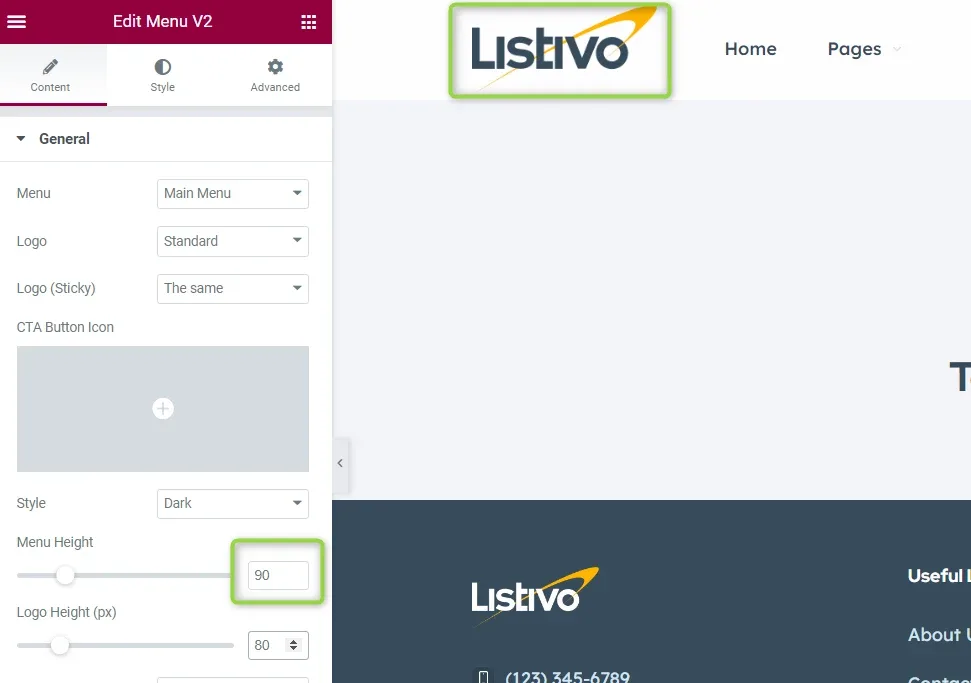
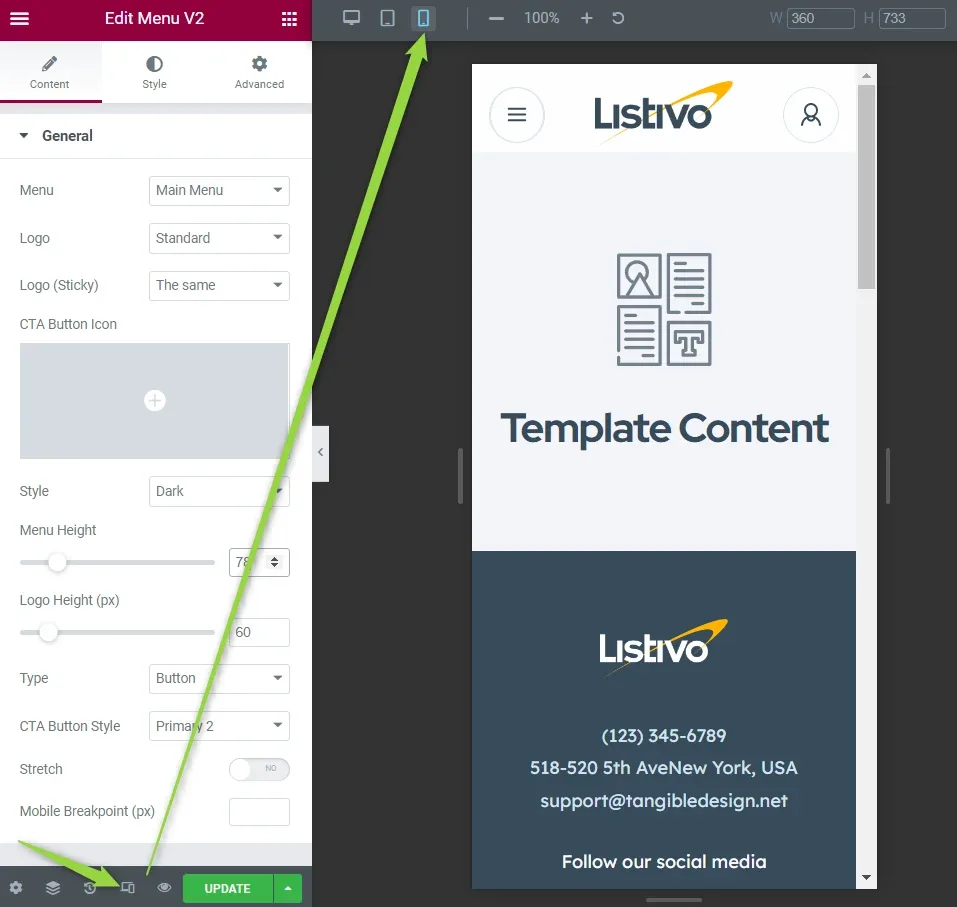
Set the height
For example, to 90.
-
4
Adjust the tablet and mobile size
Switch Elementor to the tablet or mobile view and set the value for that device.
-
5
Save the layout
Click Update to save changes.
If your website uses more than one layout and you wish to migrate the menu (e.g. some homepages and blog pages use the transparent menu layout by default) please edit the other layouts and change them the same way again.
Ask the people who build Listivo
We answer by email from support@tangiblewp.com. With Premium Support, we also fix your site when something breaks.
We can also run your site for you, or build a new one.
Was this guide helpful?