How to turn on Google Maps? How to obtain a Google Maps key
Google Maps in Vehica runs on a key from your own Google Cloud account. This guide walks through creating that key, enabling the three APIs Vehica needs, and pasting it into the Vehica Panel.
2 minute read
To run Google Maps on your website you need to generate a Google Maps API key and add it to your Vehica Panel. Three APIs have to be enabled for it to work correctly:
- JavaScript API
- Geocoding API
- Places API
Create the key in the Google Cloud console
The steps below explain how to create this kind of key.
-
1
Open the Google Maps Platform documentation
Go to https://developers.google.com/maps/documentation/javascript/.
- 2 Sign in with your Google account
-
3
Open the console
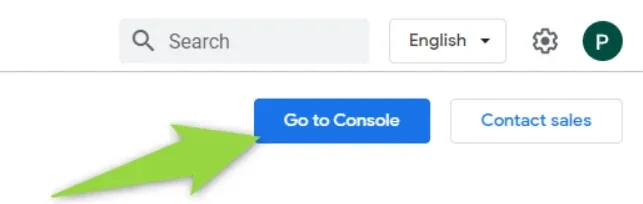
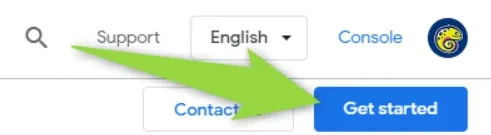
Click Go to Console or Get started.
-
1
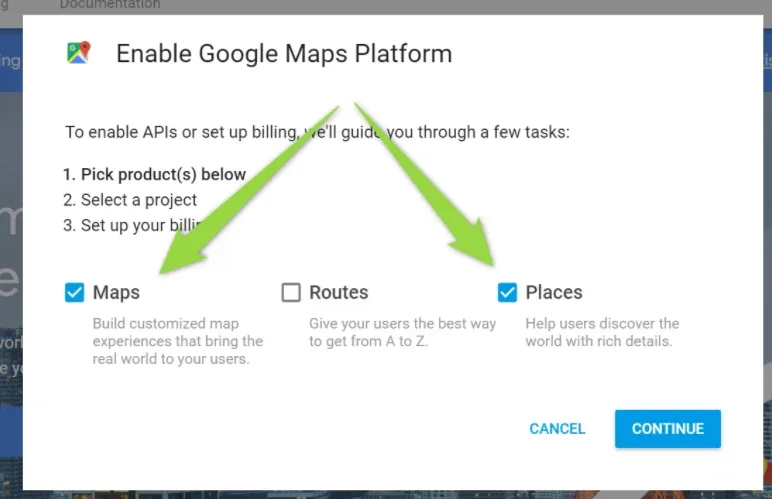
Pick the products
Tick Maps and Places, then continue.
-
2
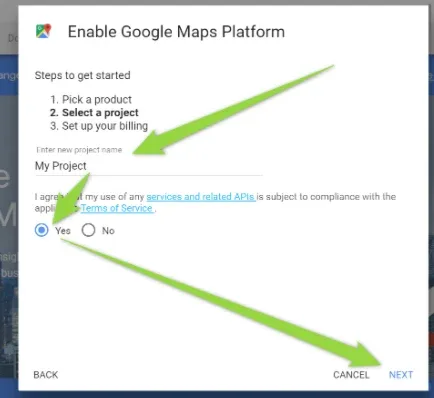
Enter a new project name
Type a name for the project and accept the terms of service.
-
3
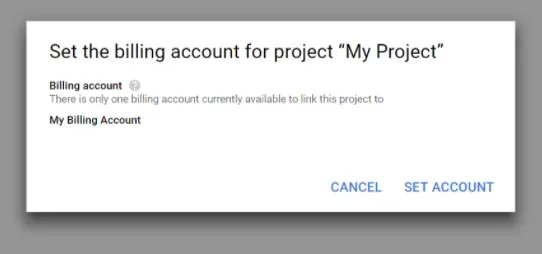
Choose a billing account
Pick an existing billing account or create a new one. Google charges only very popular websites — you can read more about it on the Google Maps Platform pricing page.
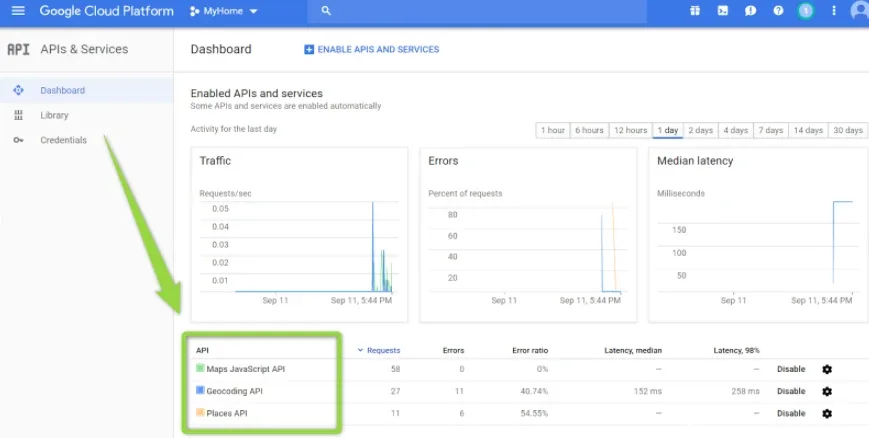
Check that the required APIs are enabled
Please make sure the following APIs are enabled:
- Maps JavaScript API
- Geocoding API
- Places API
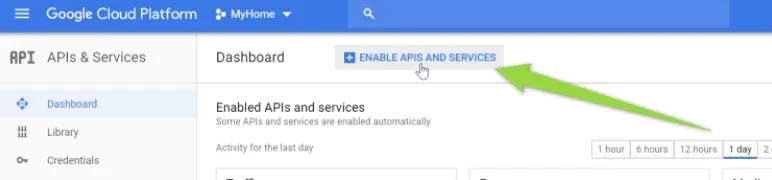
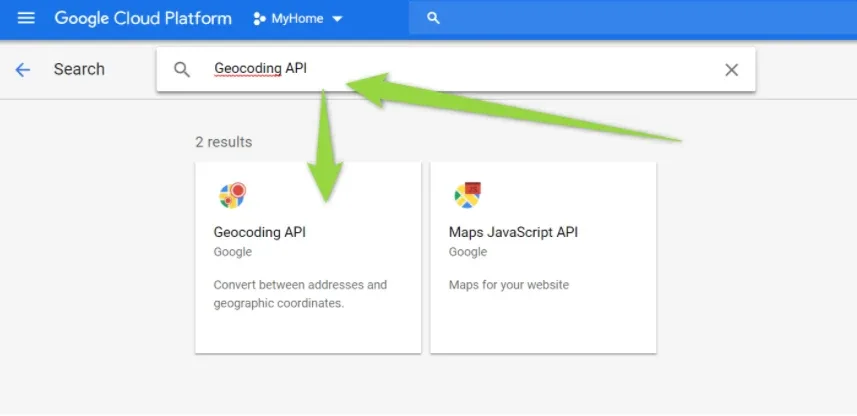
If one is missing, click ENABLE APIS AND SERVICES, search for it — e.g. “Geocoding API” — and click Enable.
Add the key to the Vehica Panel
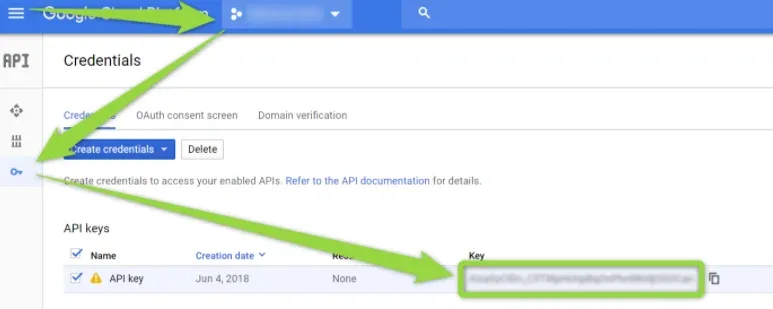
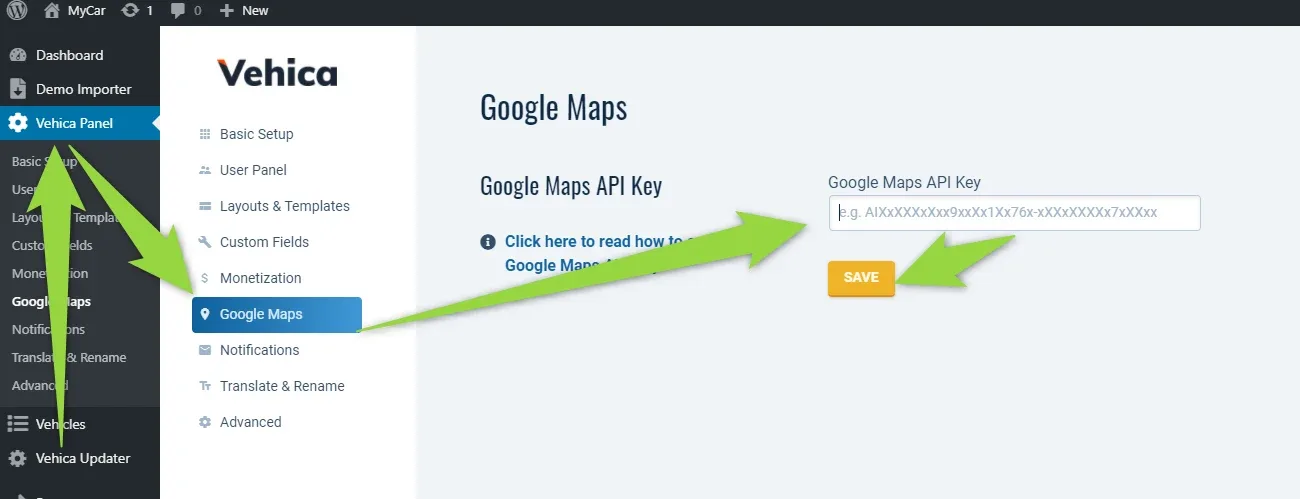
Copy the Google Maps API key from the Credentials page and paste it into Vehica Panel > Google Maps > Google Maps API Key, then save.
Ask the people who build Vehica
We answer by email from support@tangiblewp.com. With Premium Support, we also fix your site when something breaks.
We can also run your site for you, or build a new one.
Was this guide helpful?