Skip to content

How to add new location field to the search form / inventory?

Vehica ships a Location field that turns any search field into an address lookup with Google suggestions. This article shows how to swap a field on your homepage search form — and on the inventory — for Location, and where to adjust its options.

1 minute read

Vehica has a “Location” field. It turns a search field into an address box that suggests places as the visitor types.
A Google Maps API key is required
The Location field only works once you have added a Google Maps API key to the Vehica Panel — see How to turn on Google Maps? How to obtain Google Maps API key.
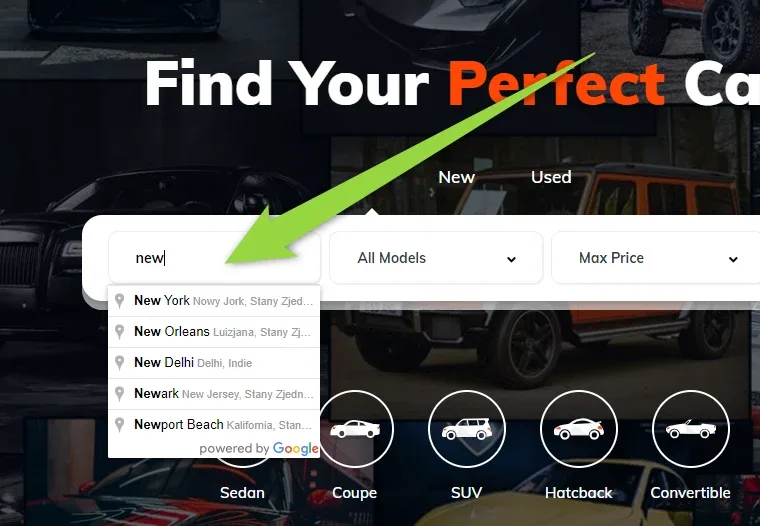
Vehica homepage search bar with "new" typed into the first field and a suggestion list below it — New York, New Orleans, New Delhi, Newark, Newport Beach — marked "powered by Google"

Add the Location field to your search form

  1. 1 Edit the page in Elementor

    Open the page that holds the search form — your homepage, for example — and click Edit with Elementor.
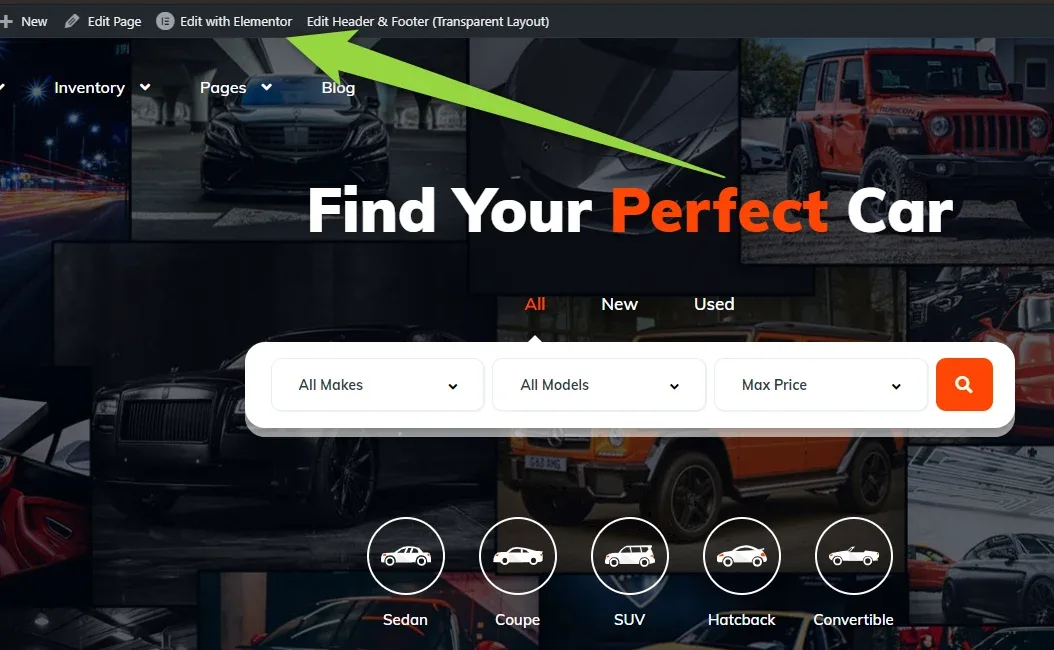
    Vehica homepage with the WordPress admin toolbar at the top and an arrow pointing at "Edit with Elementor", above the "Find Your Perfect Car" hero and its search form
  2. 2 Change a field to Location

    Select the search form, then set any of its fields to Location.
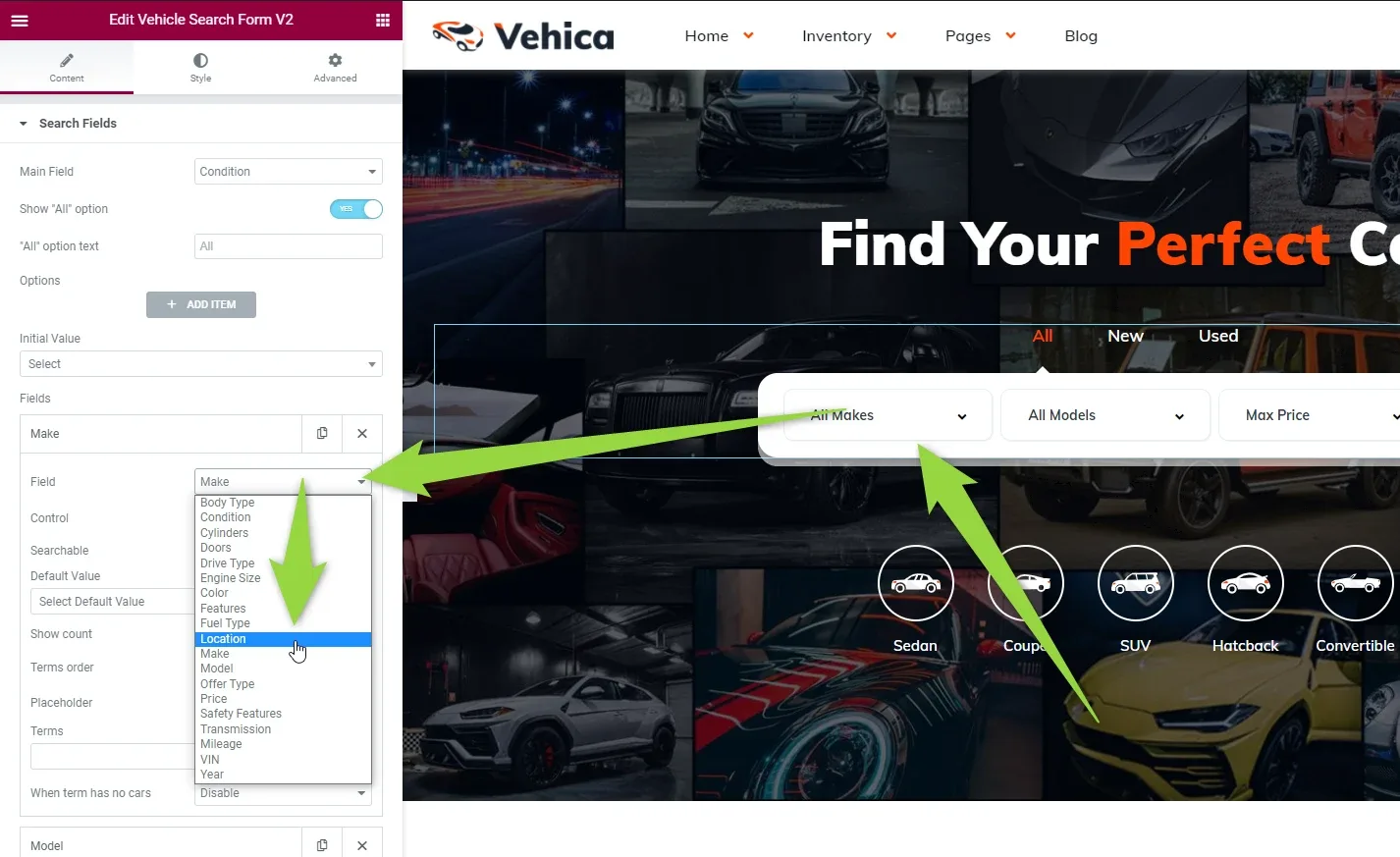
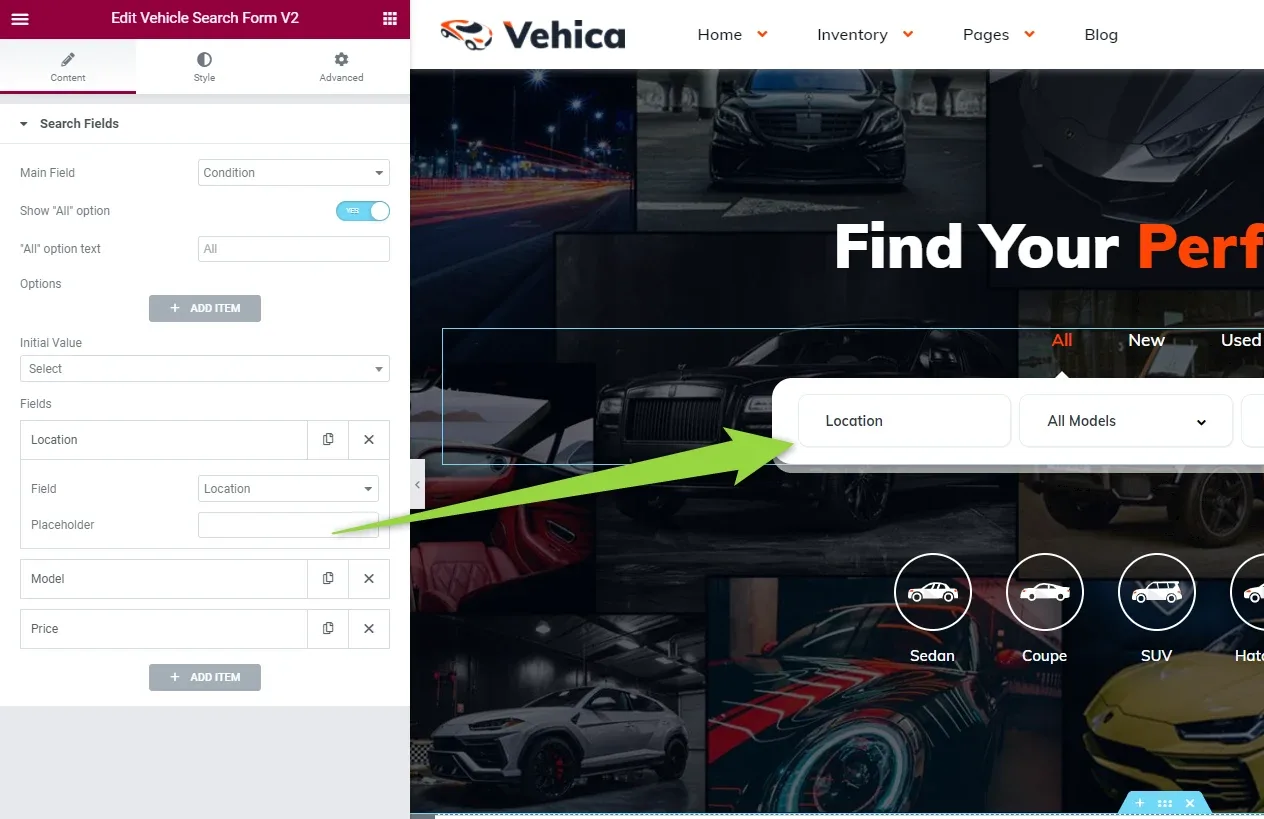
    Elementor "Edit Vehicle Search Form V2" panel with the Field dropdown open and "Location" highlighted in the list of field types; arrows point from the dropdown across to the first field of the form in the preview

and it will be replaced

The search form after the change: its first field now reads "Location", and the Elementor panel on the left lists a Location field with a Placeholder setting

It will work like this:

The finished Location field on the homepage: typing "new" opens a list of matching places — New York, New Orleans, New Delhi, Newark, Newport Beach

Location field options

You can find more “Location” field options in the Vehica Panel > Custom Fields:
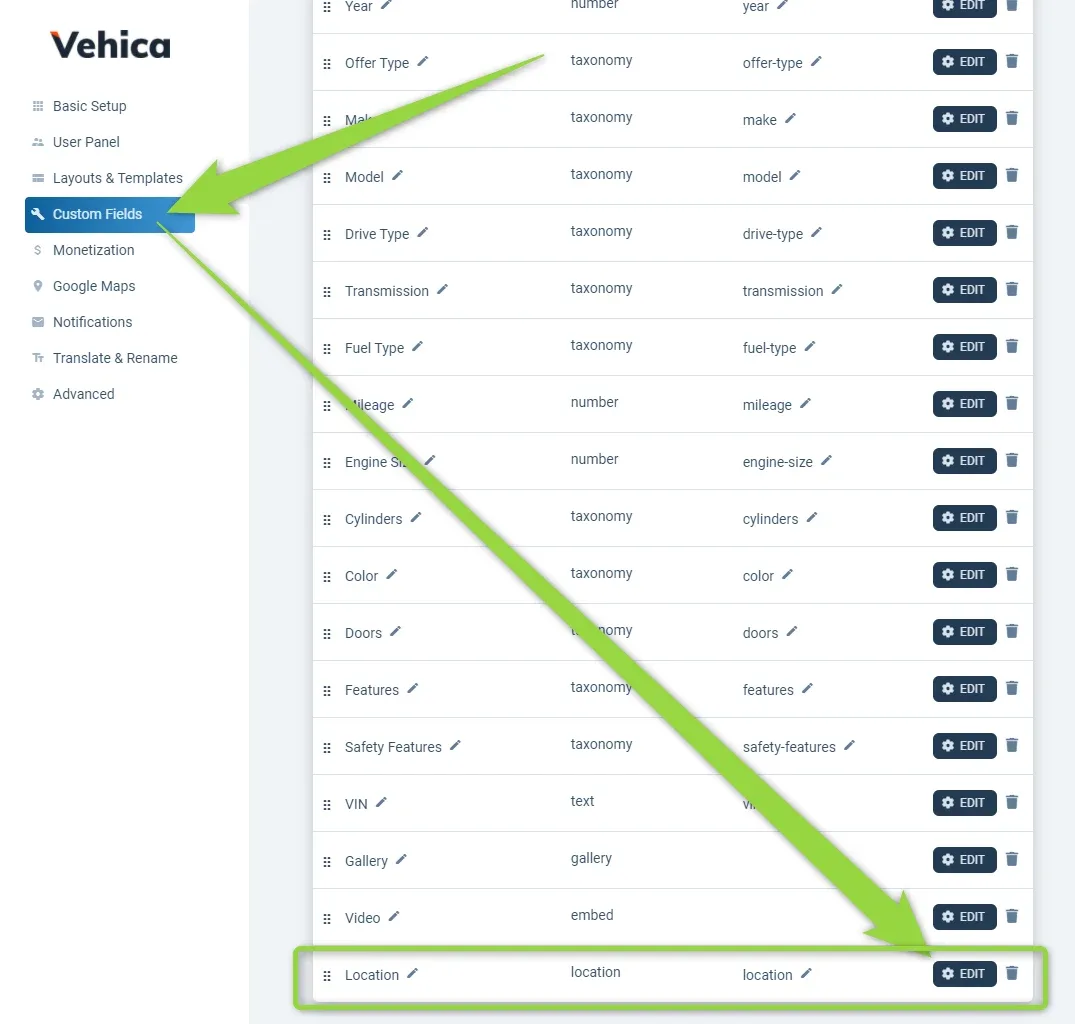
Vehica Panel > Custom Fields list with arrows pointing at the Custom Fields menu item and at the Edit button on the "Location" row at the bottom of the field list

You can limit it to one country, choose the map type and much more:
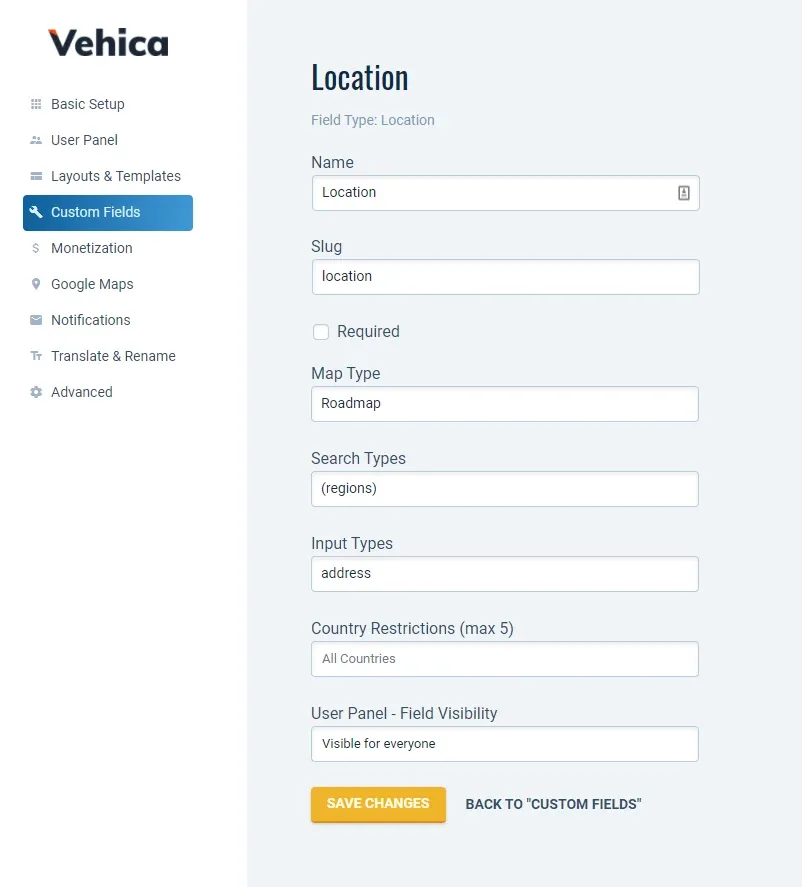
The Location custom field settings screen: Name "Location", slug "location", Map Type Roadmap, Search Types (regions), Input Types address, Country Restrictions (max 5) set to All Countries, and User Panel field visibility

Add the Location field to the inventory

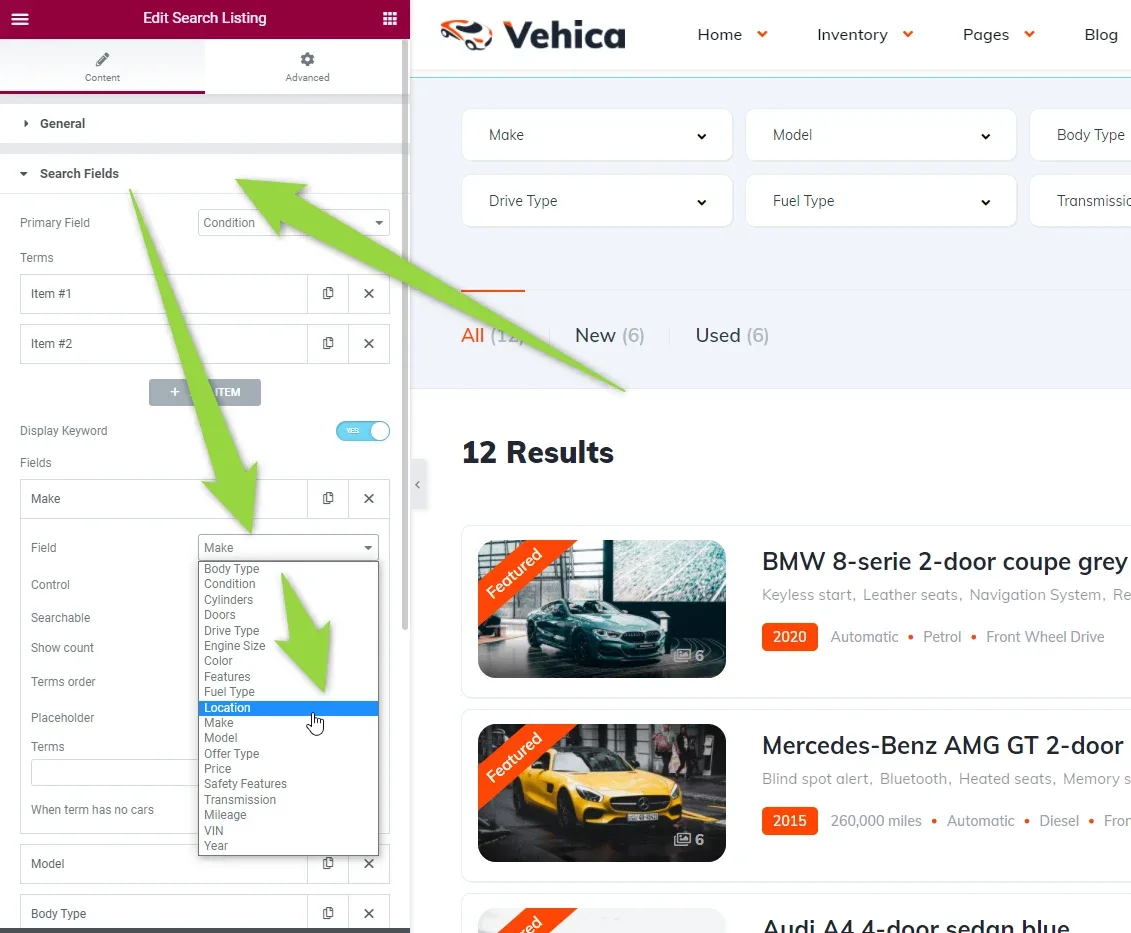
You can also add the Location field to your Inventory, the same way as on your homepage.
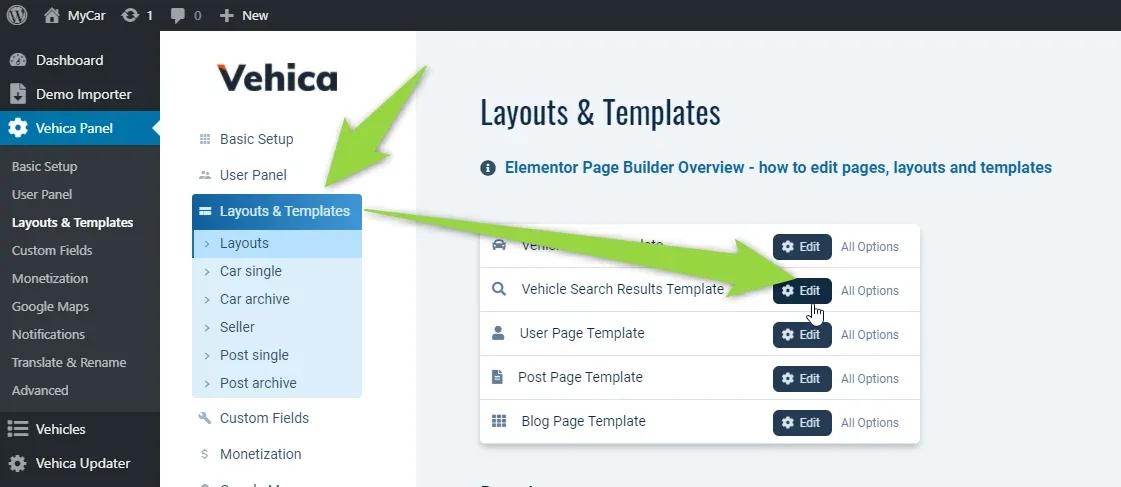
Vehica Panel > Layouts & Templates with arrows pointing at the Layouts & Templates menu item and at the Edit button next to "Vehicle Search Results Template"
Elementor "Edit Search Listing" panel on the inventory template with the Field dropdown open and "Location" highlighted; the preview on the right shows the filter row above 12 results

Ask the people who build Vehica

We answer by email from support@tangiblewp.com. With Premium Support, we also fix your site when something breaks.

Was this guide helpful?