How to customize Loan Calculator?
Change the wording, the starting values and the currency sign of the loan calculator without writing any code — part of it lives in the Elementor widget, the rest in the Vehica Panel.
1 minute read
The loan calculator is an Elementor widget, so most of it is edited on the page itself. The field labels and the currency sign come from the Vehica Panel.
-
1
Open the page in Elementor
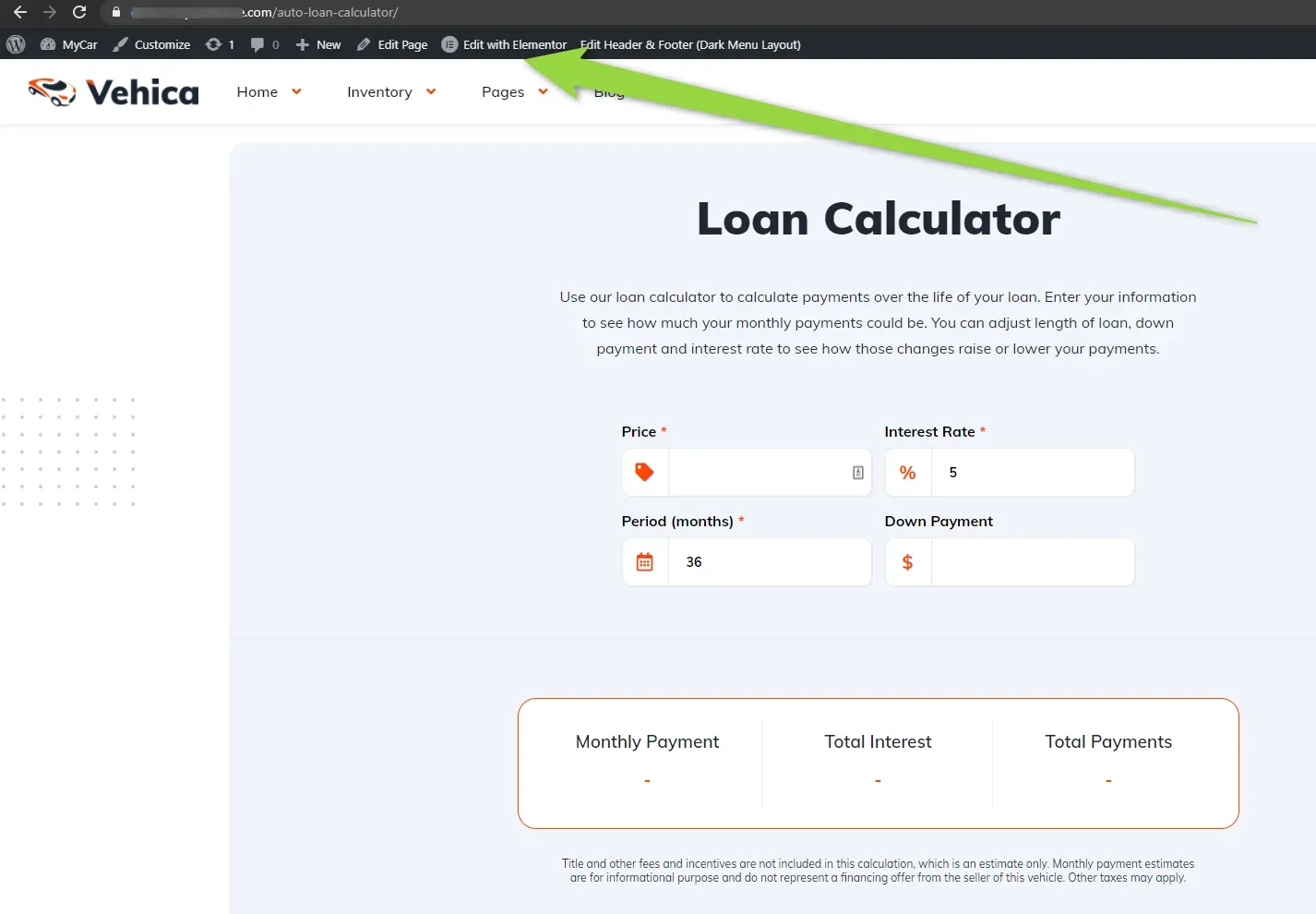
Visit your Loan Calculator page and click Edit with Elementor.
-
2
Set the texts and starting values
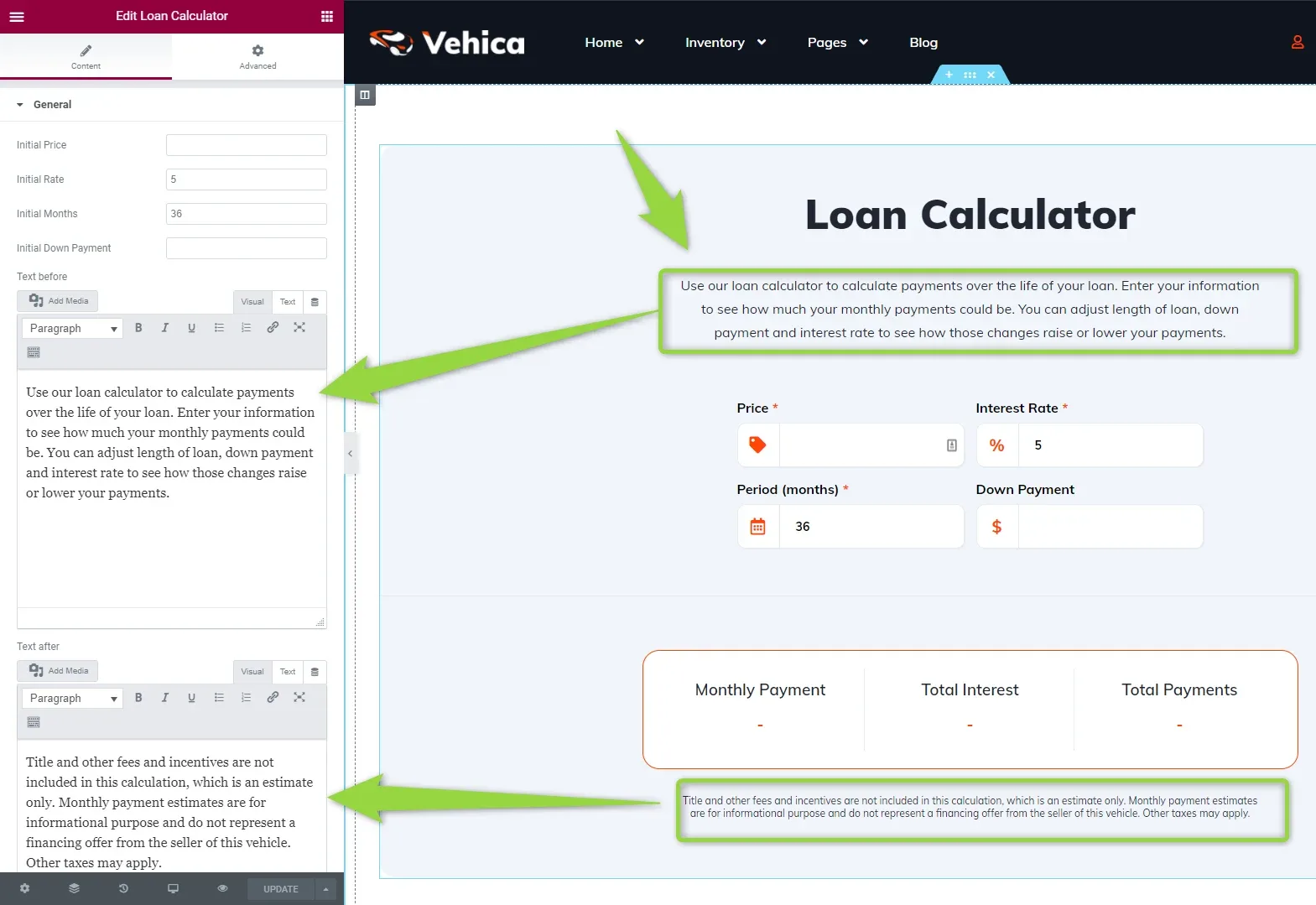
Customize Text before and Text after — the paragraph above the form and the fine print below it. In the same panel you can set the initial price, interest rate, number of months and down payment.
-
3
Rename the field labels
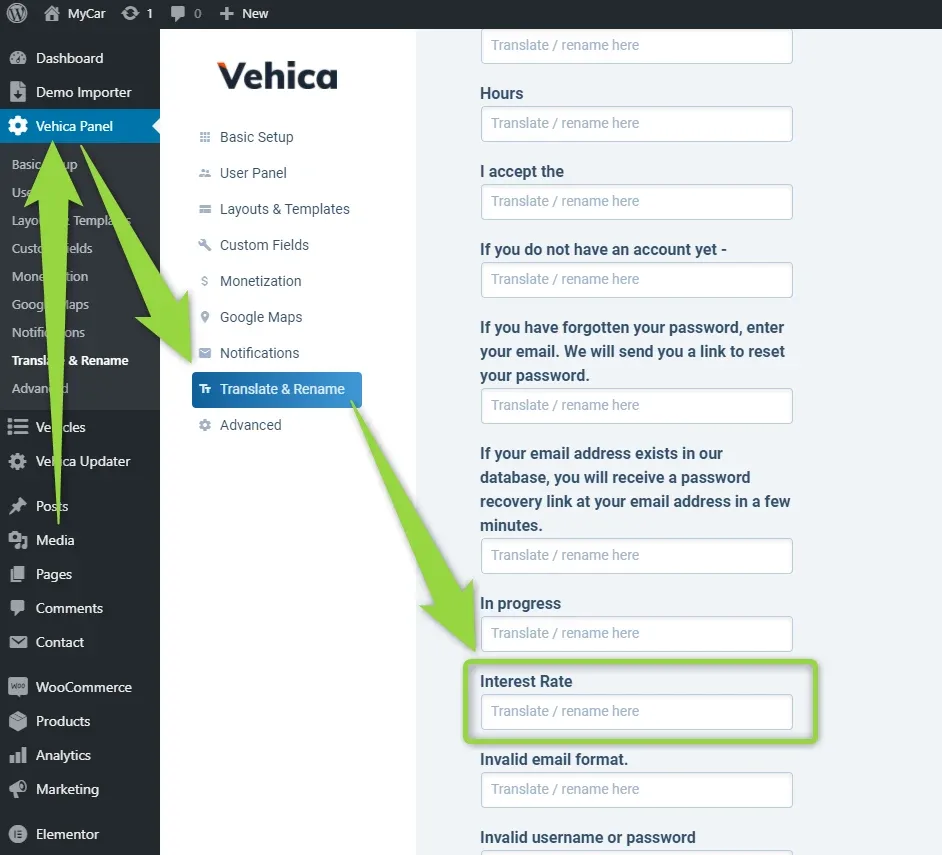
All the other texts — Price, Interest Rate, Monthly Payment, Total Interest and the rest — are in Vehica Panel > Translate & Rename.
-
4
Change the currency sign
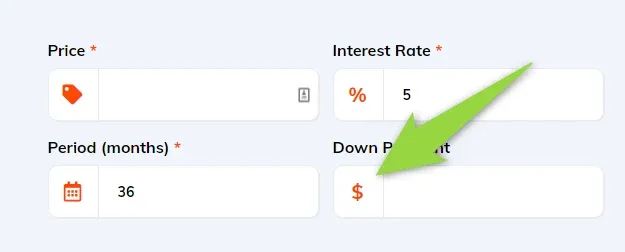
The currency sign is taken from your global currency — read how to change the currency and price format.
Ask the people who build Vehica
We answer by email from support@tangiblewp.com. With Premium Support, we also fix your site when something breaks.
We can also run your site for you, or build a new one.
Was this guide helpful?