How to customize “I accept the privacy policy” text and link
Change the wording of the consent checkbox on the Vehica registration form and point it at your own privacy policy page, using the Elementor widget settings.
1 minute read
This article explains how to customize or translate this part of the registration form:
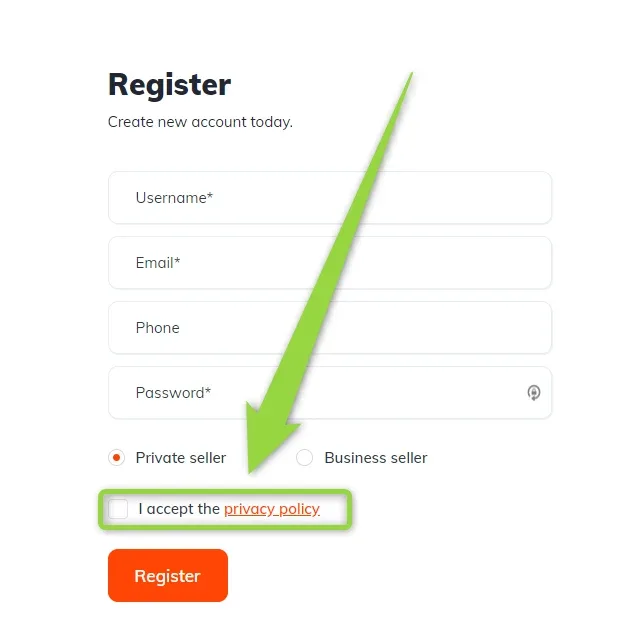
<a href="..."> tag and point it at your own page.-
1
Open your Login / Register page
By default it is
www.yourdomain.com/login-register/. -
2
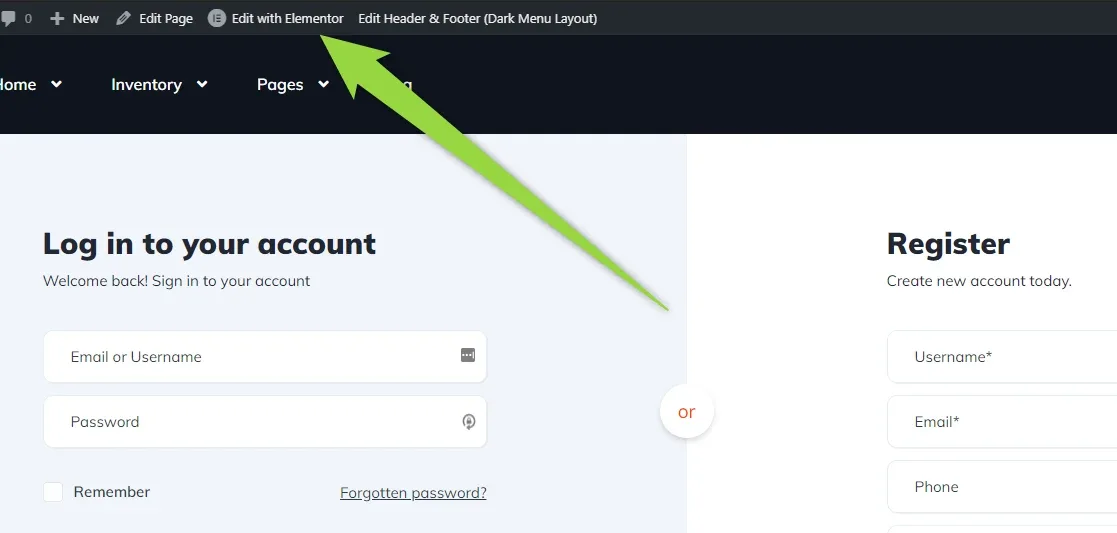
Click “Edit with Elementor”
-
3
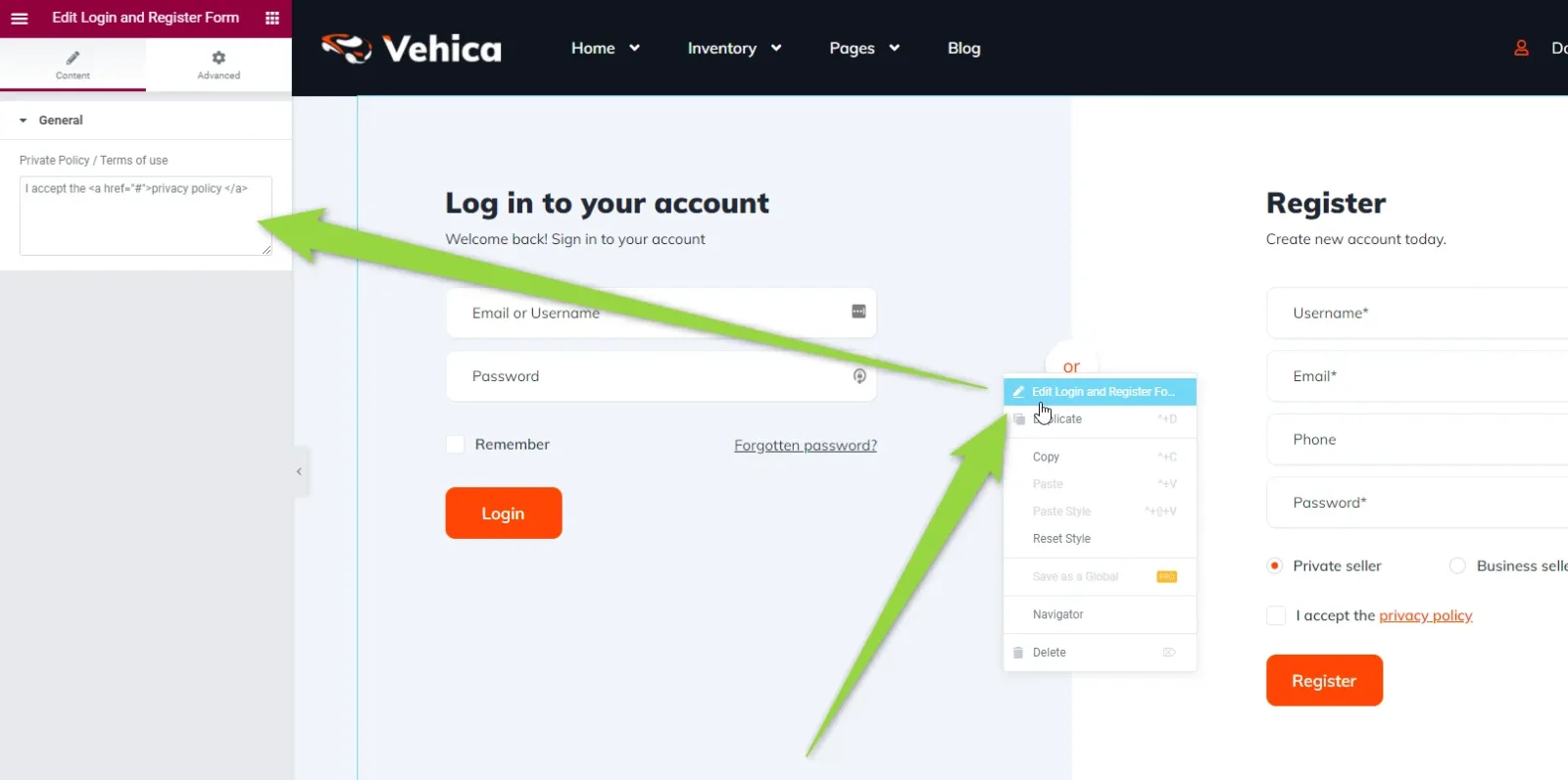
Edit the “Login and Register Form” element
Arrows point to the widget in the canvas and to the setting in the panel on the left.
-
4
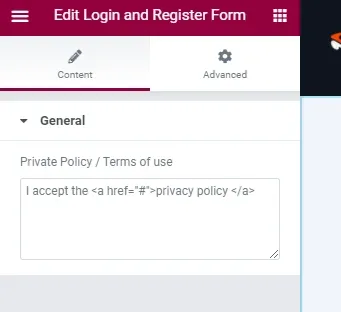
Check the default value
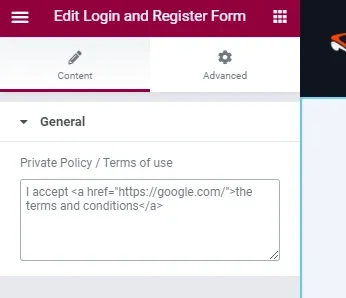
The setting sits in the General section, under the label Private Policy / Terms of use. Out of the box it holds the phrase “I accept the privacy policy” with the last two words wrapped in a link that points nowhere.
-
5
Enter your own text and link
Here the phrase is changed to “the terms and conditions” and linked to https://google.com/ as an example — use the address of your own policy page instead.
-
6
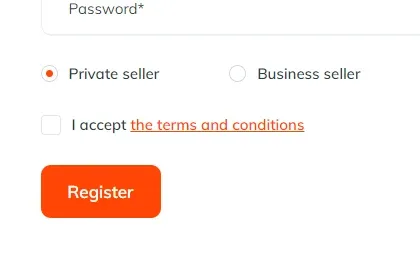
Save the page
The registration form now shows your new text and link.
Ask the people who build Vehica
We answer by email from support@tangiblewp.com. With Premium Support, we also fix your site when something breaks.
We can also run your site for you, or build a new one.
Was this guide helpful?