How to change order of the fields on the front-end submit vehicle page
Reorder the fields your sellers fill in on the front-end Submit Vehicle page by dragging them in the Vehica Panel — and see which three parts of the form each field type is fixed to.
1 minute read
You can drag and drop fields in Vehica Panel > Custom Fields.
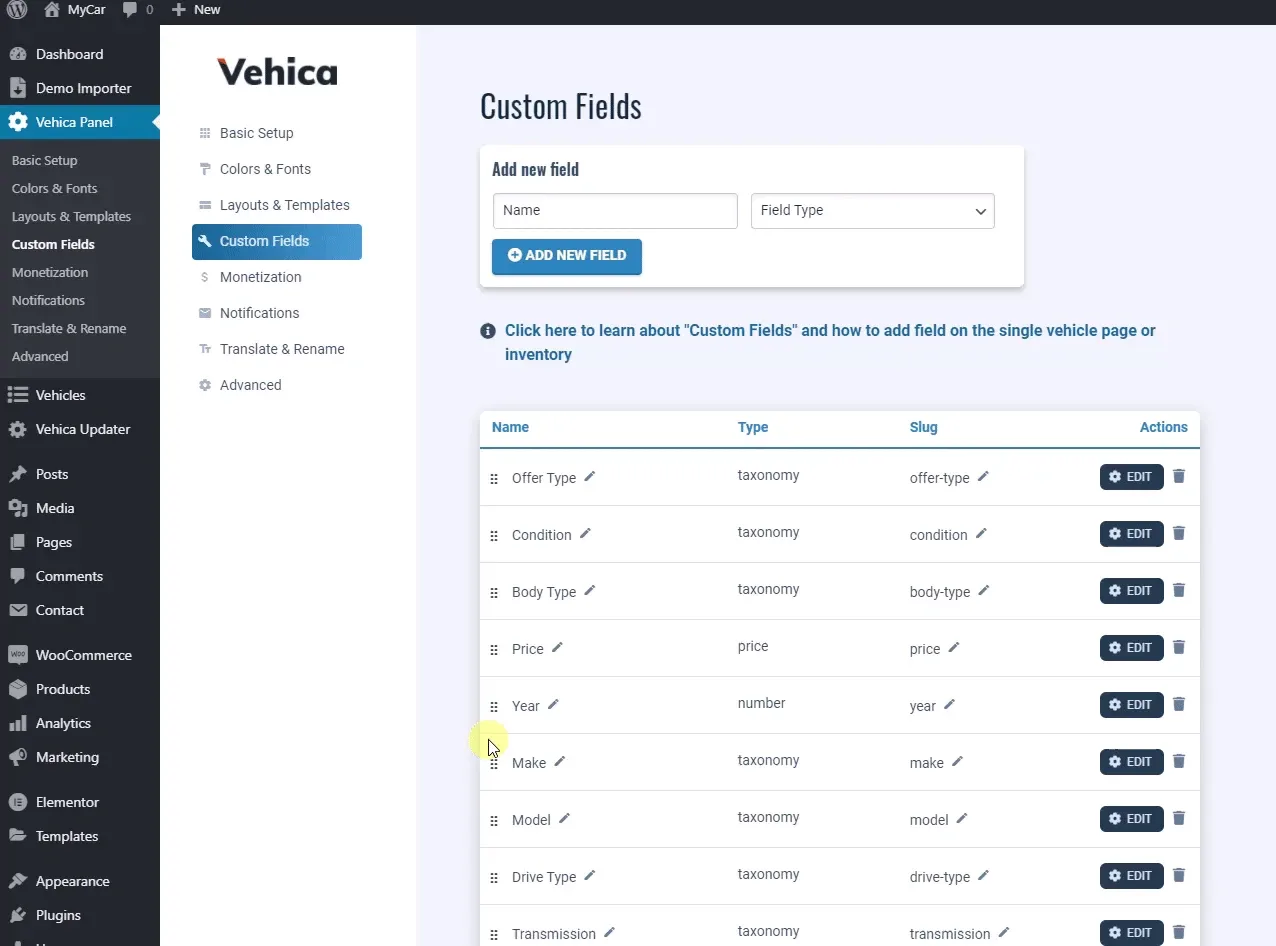
That order is used on your front-end Submit Vehicle page. Please consider that the page is laid out in three parts, and each field type belongs to one of them:
I. Top of the form displays:
- number fields
- text fields
- price fields
- data fields
- taxonomy (single choice)
II. Middle displays:
- Description field
- Embed (Video) fields
III. End displays:
- taxonomy (multiselect)
- video
- gallery
- location
Ask the people who build Vehica
We answer by email from support@tangiblewp.com. With Premium Support, we also fix your site when something breaks.
We can also run your site for you, or build a new one.
Was this guide helpful?