How to add CSS code to admin dashboard via Child Theme
Style the WordPress admin dashboard itself — not the front end — by printing your own CSS into the admin head from the Vehica child theme, so the change survives theme updates.
1 minute read
Custom CSS added for your site's front end does not reach the WordPress admin dashboard. To restyle something in the admin — the H1 page title marked below, for example — the CSS has to be printed into the admin head instead.
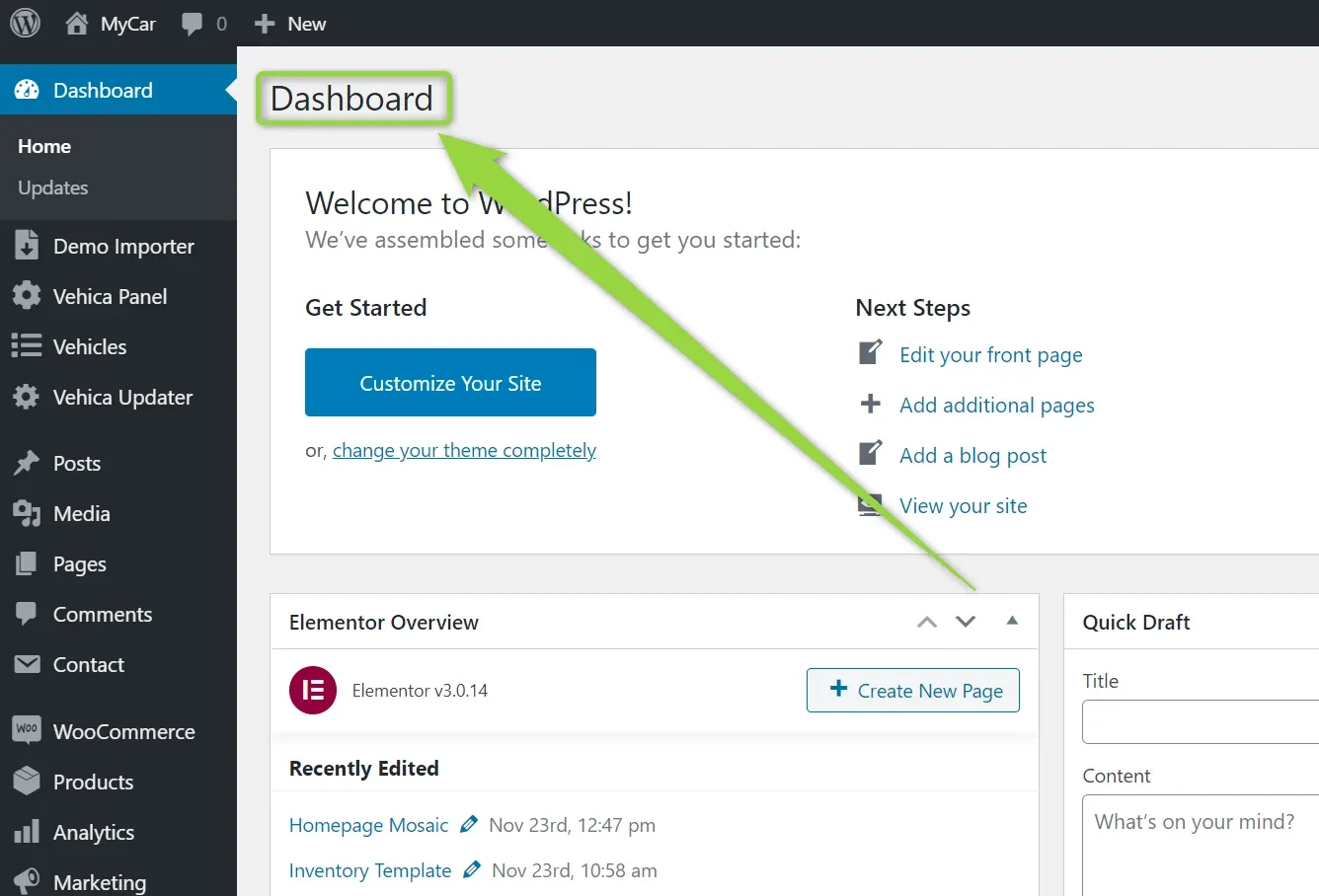
Add the function below to the functions.php file of your Vehica Child Theme. You can put your own custom CSS inside it — the example changes the h1 main heading to a font size of 100px:
functions.php, not in the parent Vehica theme. Only then does the change stay in place after a theme update.function admin_style() {echo '
<style>
h1 {
font-size:100px!important;
}
</style>
';
}
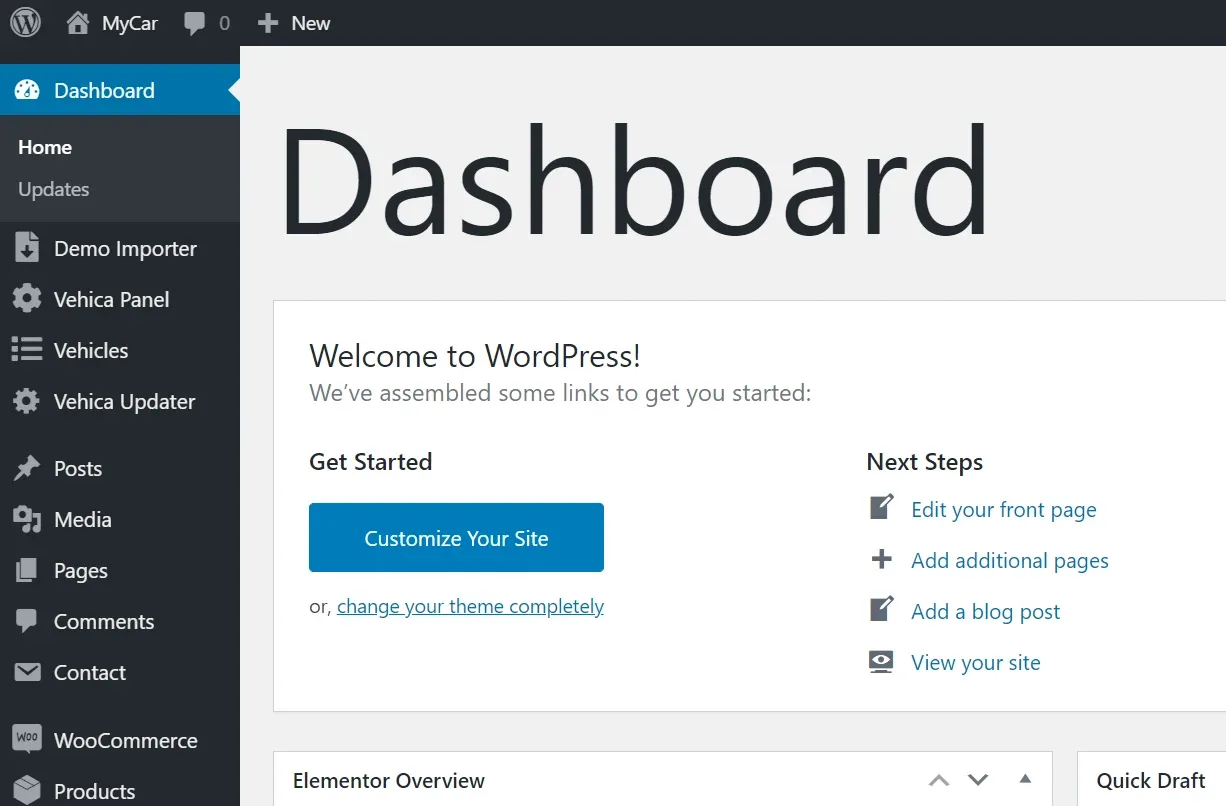
add_action( 'admin_head', 'admin_style' );The final effect:
Ask the people who build Vehica
We answer by email from support@tangiblewp.com. With Premium Support, we also fix your site when something breaks.
We can also run your site for you, or build a new one.
Was this guide helpful?