Skip to content

Compare Module – how to turn on this module if you have old Vehica demo content < 1.0.36

If your site runs on Vehica demo content from before 1.0.36, the vehicle comparison feature is not wired up. This walks you through turning the module on, importing the Compare page template and assigning it in the Vehica Panel.

2 minute read

Who needs this
Only sites built on Vehica demo content from versions 1.0.0 to 1.0.36. To unlock the feature you create a “Compare Page” and change two settings in the Vehica Panel — it should take less than 5 minutes.

If you have any problem with it, please create a new ticket via New Ticket and one of our developers will help you.

Turn the module on

  1. 1 Enable the Compare Module

    In the WordPress admin open Vehica Panel > Basic Setup > Other, tick Compare Module and click Save all changes.
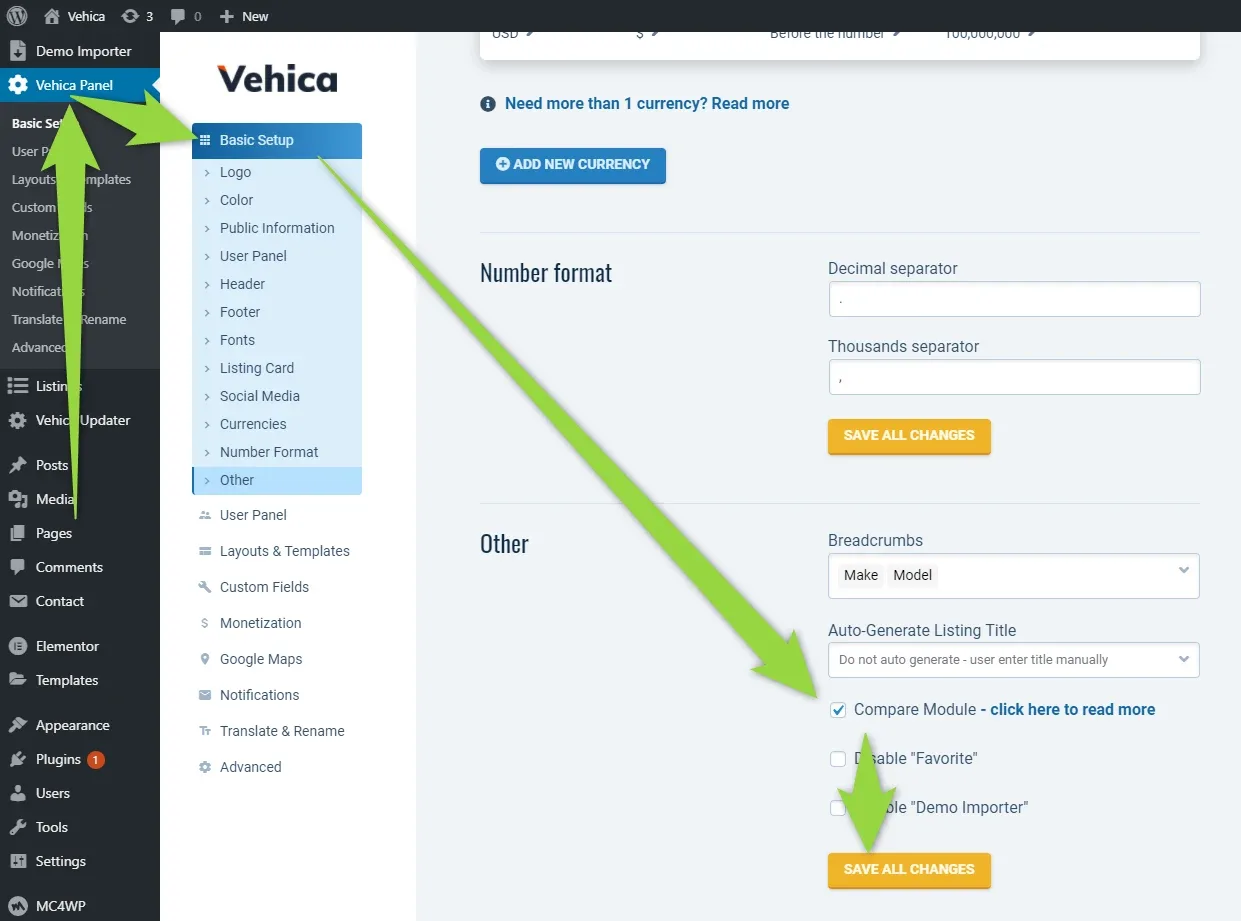
    Vehica Panel in the WordPress admin, Basic Setup > Other screen, with green arrows pointing to the ticked “Compare Module – click here to read more” checkbox and to the orange “Save all changes” button.

Import the Compare Page template

  1. 1 Download the Compare Page template

    The template lives at https://files.vehicatheme.com/compare/compare-page.json. Right-click the link and choose Save link as… to save the file on your computer.
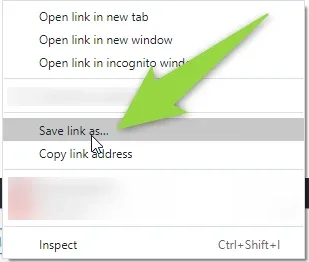
    Browser right-click menu over the template link, with “Save link as…” highlighted and a green arrow pointing at it.
  2. 2 Open the template importer

    In the WordPress admin go to Templates > Saved Templates and click Import Templates.
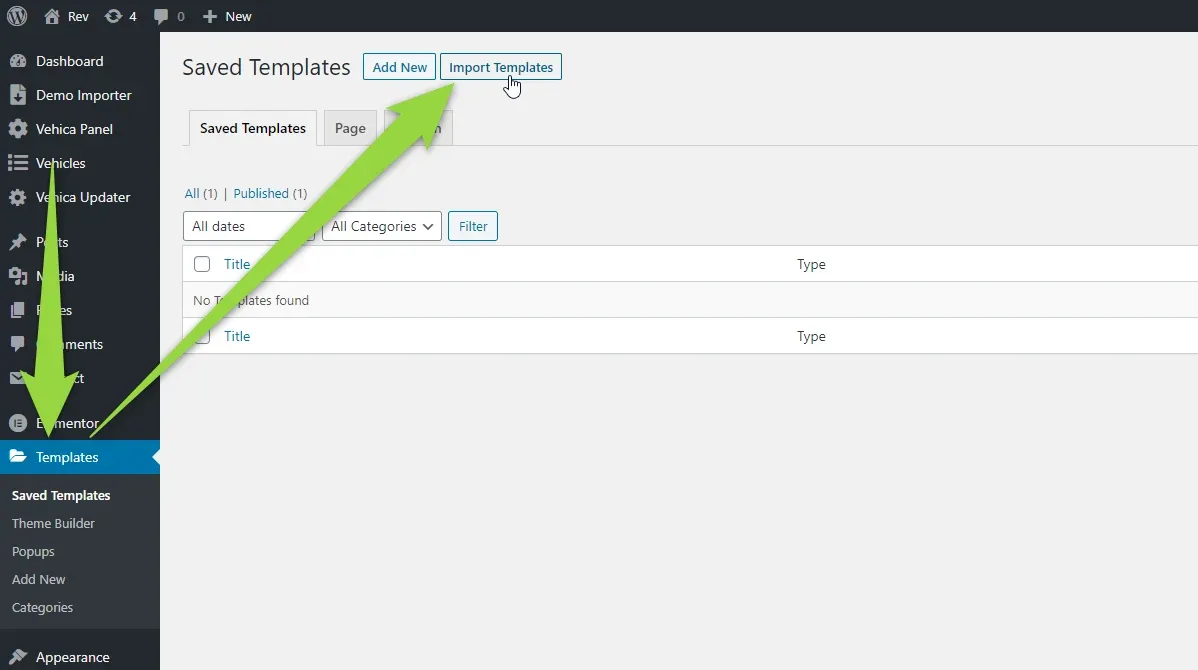
    WordPress admin “Saved Templates” screen with an empty template list, arrows pointing to “Templates” in the sidebar and to the “Import Templates” button next to “Add New”.
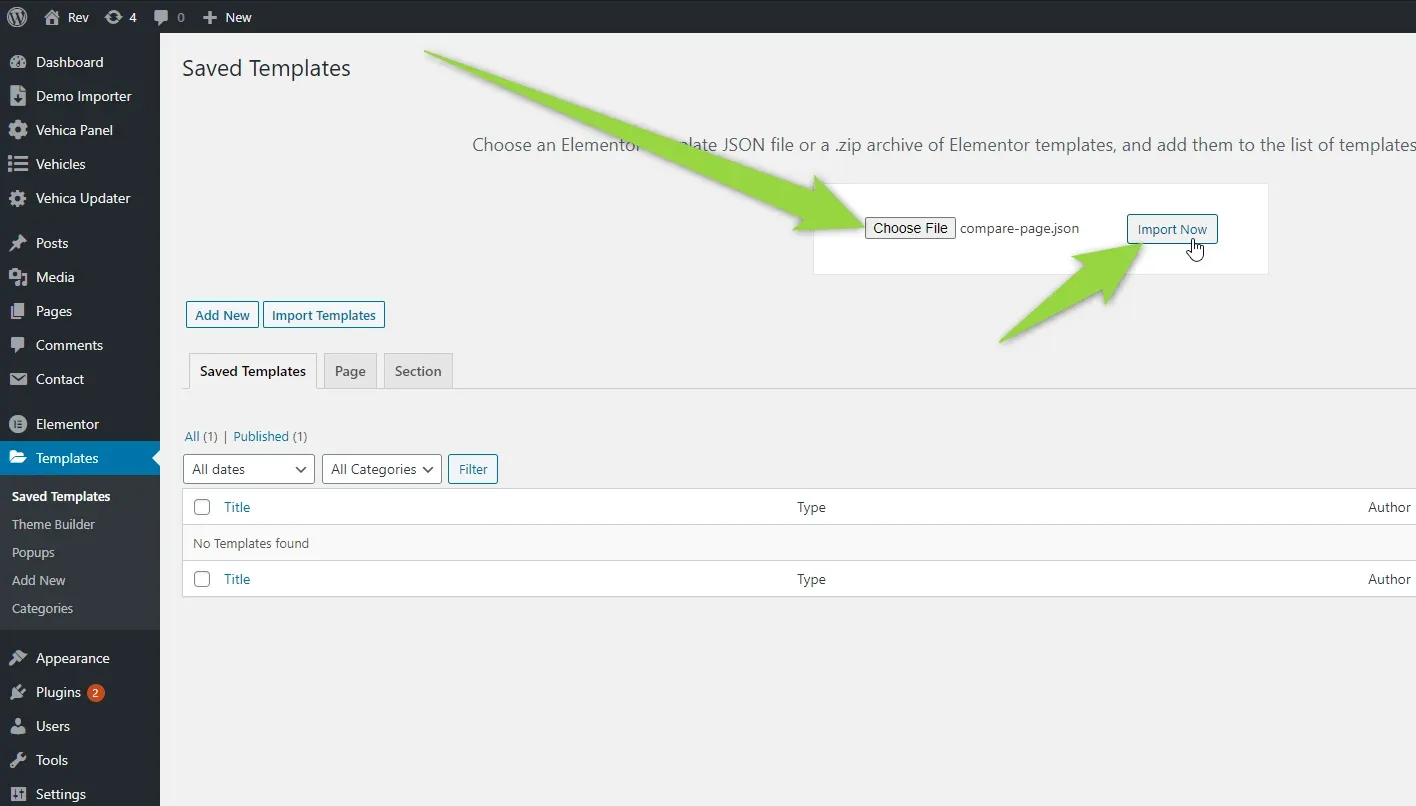
  3. 3 Upload the file and click Import Now

    Choose the compare-page.json file you just downloaded.

    The import panel open on the Saved Templates screen, showing the “Choose File” button with compare-page.json selected and a green arrow pointing at the “Import Now” button.

Build the Compare page

  1. 1 Create a new page

    In the WordPress admin go to Pages > Add New.
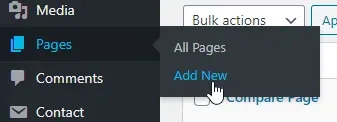
    WordPress admin sidebar with the Pages submenu open, showing “All Pages” and the “Add New” link under the cursor.
  2. 2 Name it and open Elementor

    Call it “Compare” (or any other name) and click Edit with Elementor.
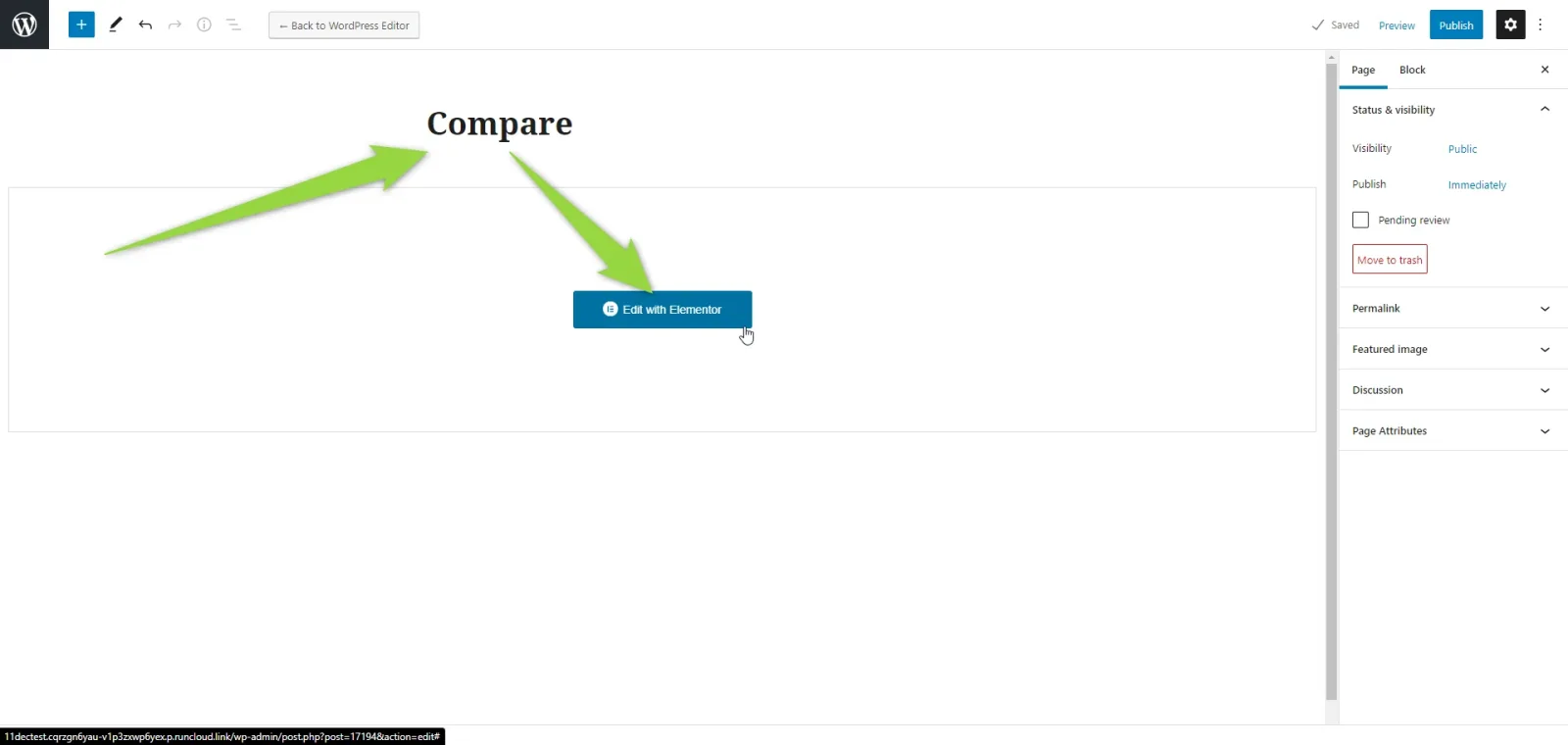
    WordPress block editor with a new page titled “Compare”, empty content, and green arrows pointing at the blue “Edit with Elementor” button.
  3. 3 Add a template to the empty page

    In the Elementor canvas, click the folder icon next to the plus button.
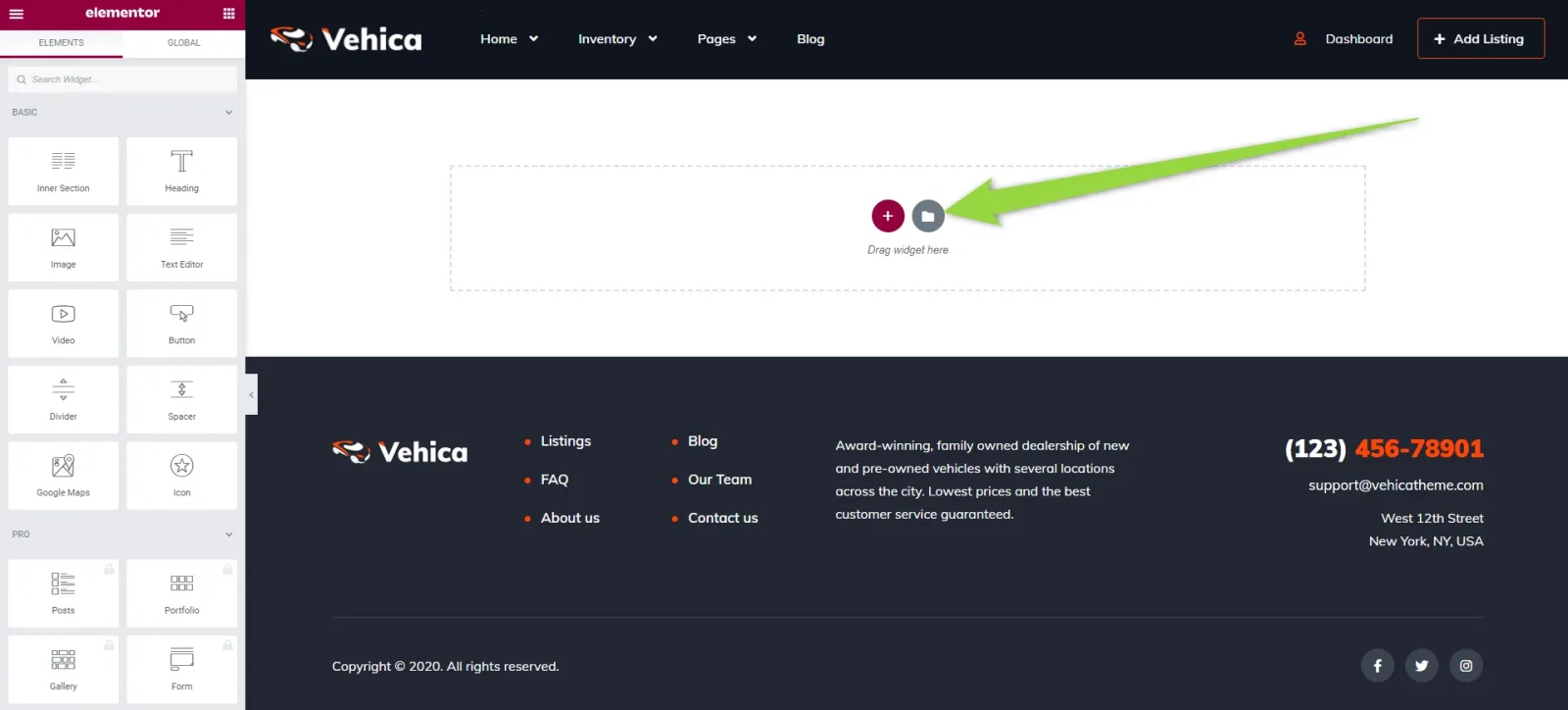
    Elementor editing an empty Vehica page, with a green arrow pointing at the add-template folder icon beside the plus button in the “Drag widget here” area.
  4. 4 Insert the Compare Page template

    In the library window open My Templates and click Insert next to “Compare Page”.
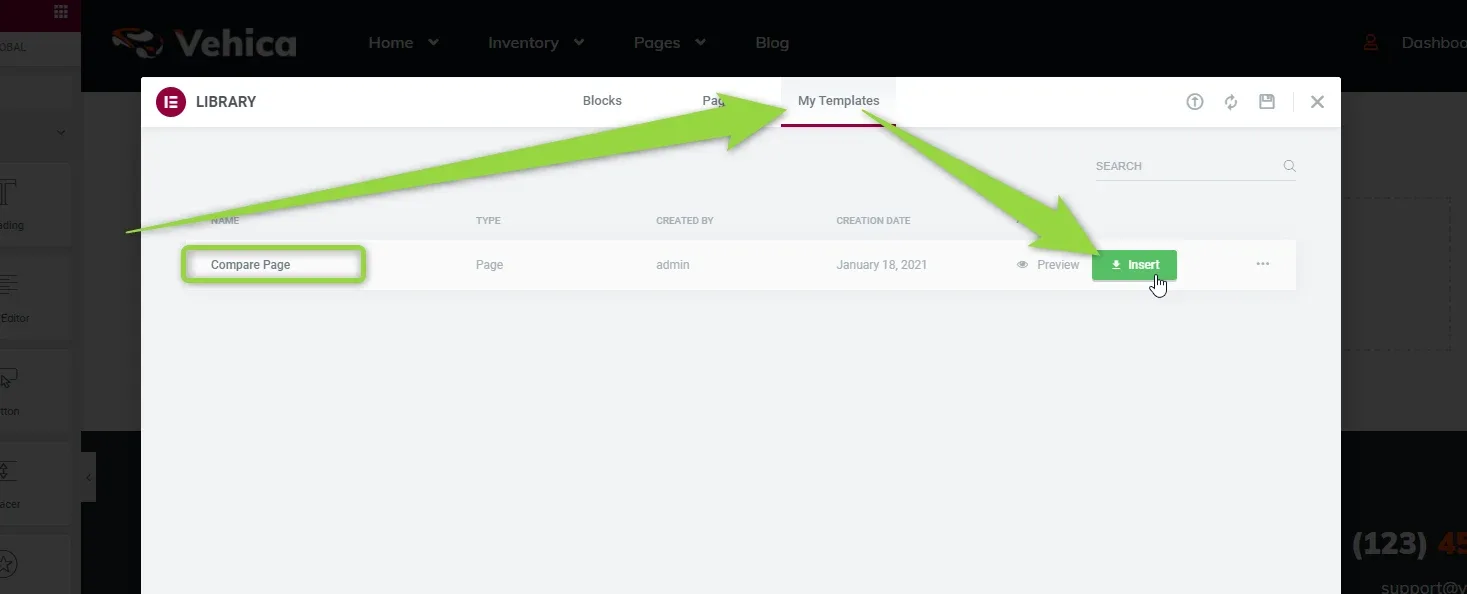
    The Elementor library window on the “My Templates” tab, listing a page template named “Compare Page”, with arrows pointing at the tab, at the template name and at the green Insert button.
  5. 5 Publish the page

    The compare section shows a preloader in the editor — that is expected. Click Publish.
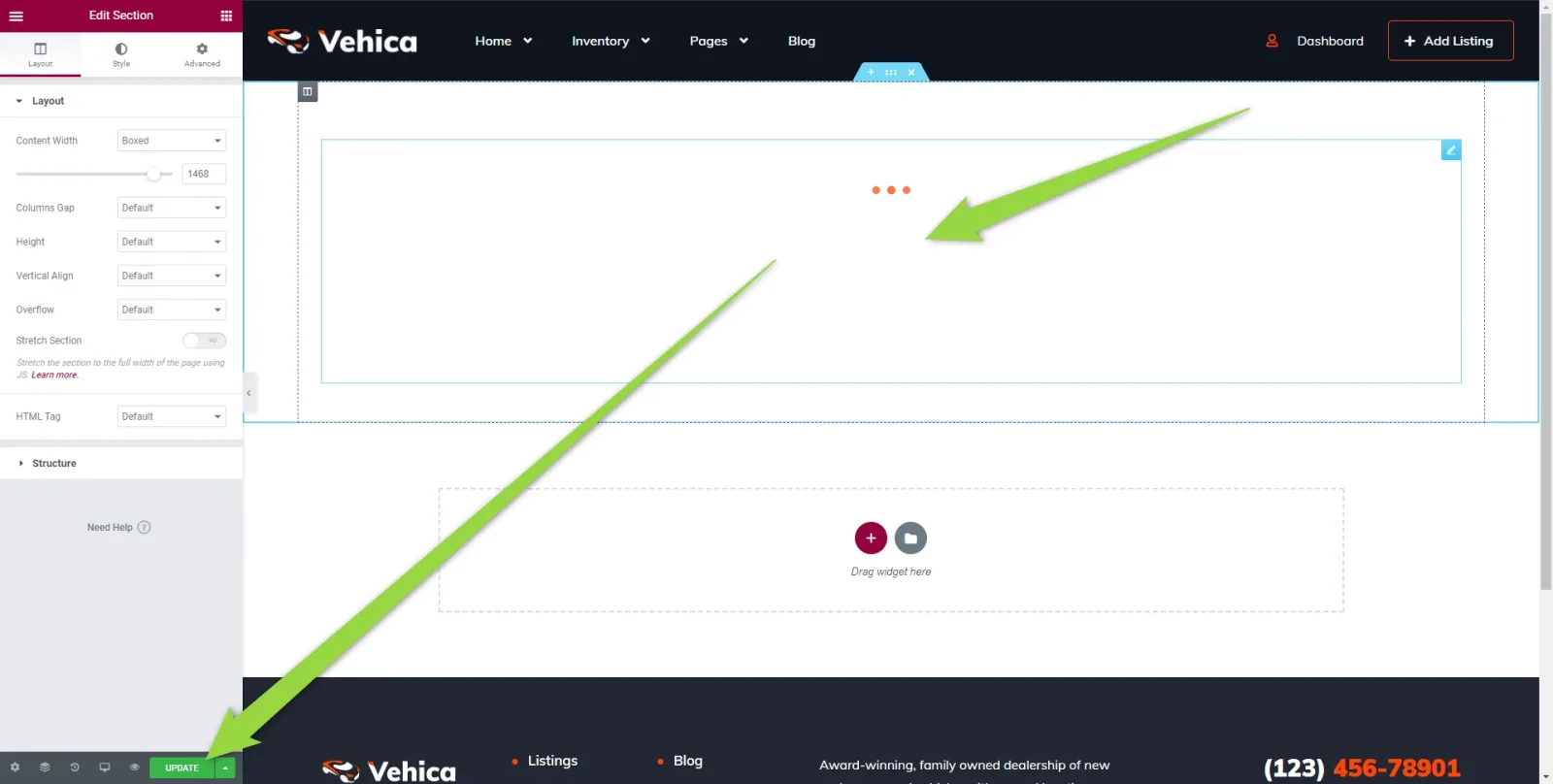
    Elementor with the imported section on the page showing a three-dot loading indicator, the Edit Section panel open on the left, and a green arrow pointing at the Publish button at the bottom.

Point Vehica at the page

  1. 1 Select the Compare page in the Vehica Panel

    Open Vehica Panel > Advanced, pick your new page in the Compare Page dropdown and click Save all changes.
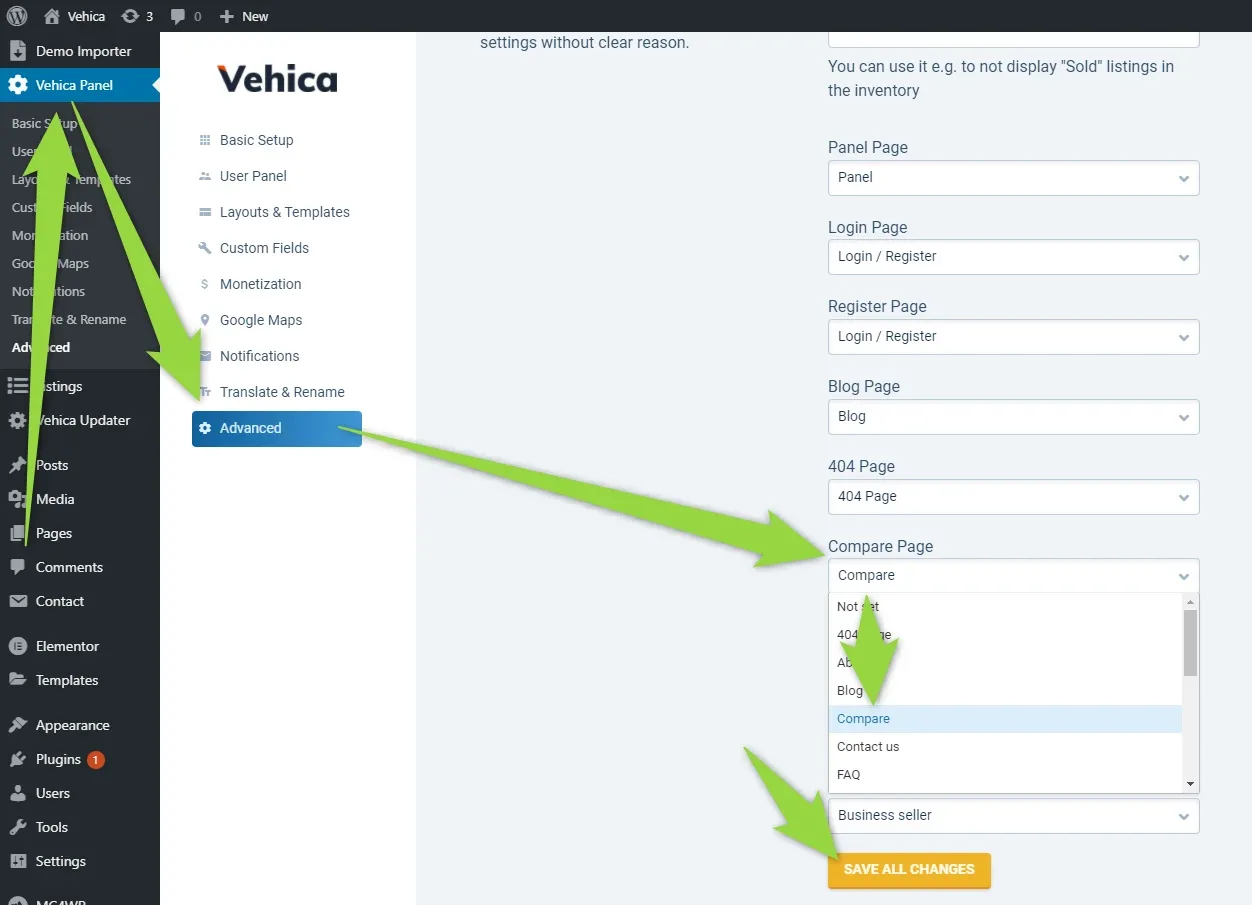
    Vehica Panel > Advanced screen with a list of page assignments (Panel, Login, Register, Blog, 404) and the “Compare Page” dropdown open with “Compare” highlighted; arrows point at the dropdown and at the “Save all changes” button.
  2. 2 Check the front end

    Listings now show a Compare button, and the compare bar appears with the vehicles you picked.
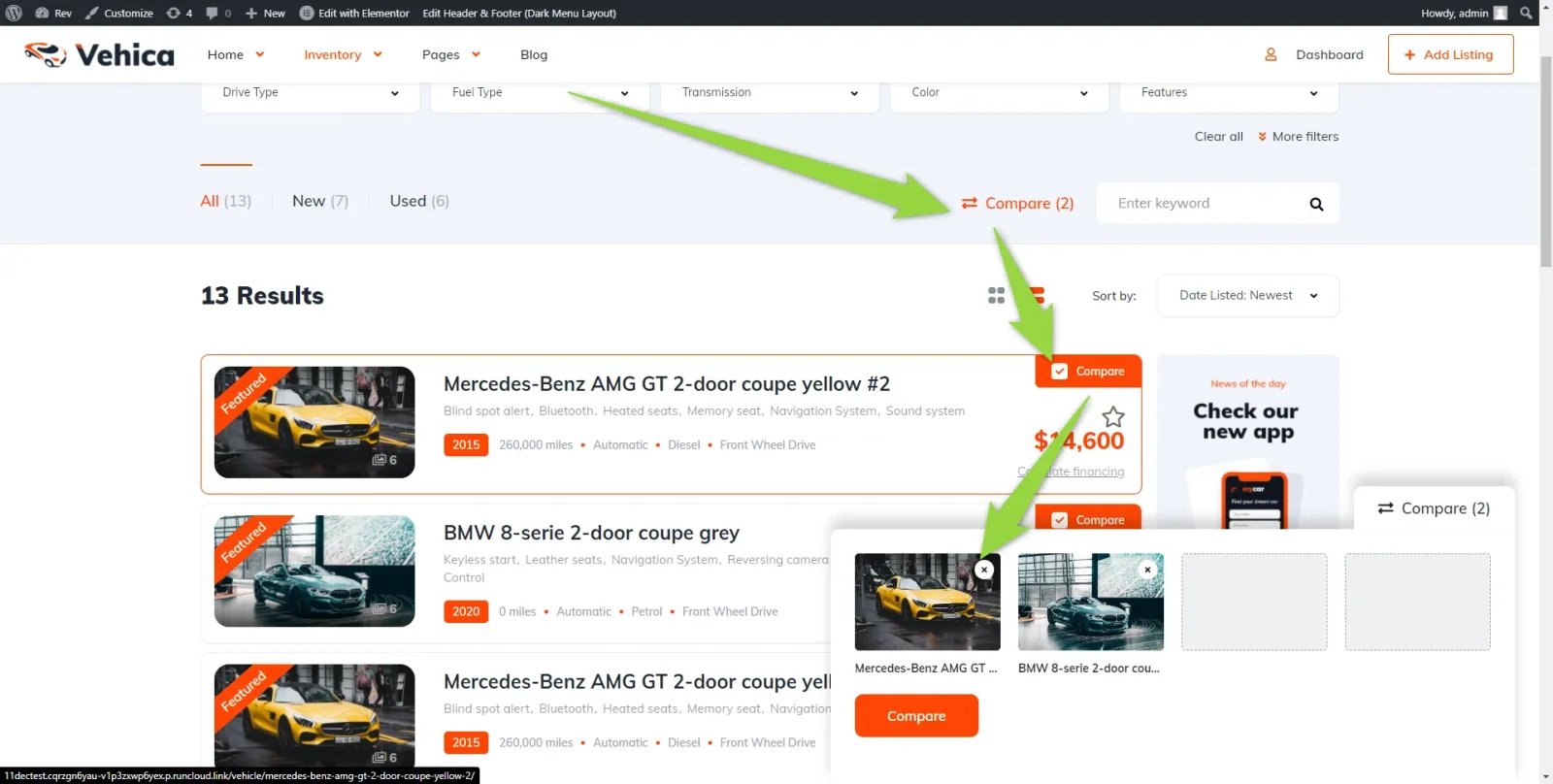
    Vehica inventory page with 13 results; each listing card has an orange Compare button, a “Compare (2)” counter sits above the results, and a compare tray at the bottom right shows two selected cars with a Compare button.

Ask the people who build Vehica

We answer by email from support@tangiblewp.com. With Premium Support, we also fix your site when something breaks.

Was this guide helpful?