Taxonomy - search logic
Choose whether a taxonomy filter returns only the listings that match every term a visitor selects, or every listing that matches at least one of them.
1 minute read
Set the search logic
-
1
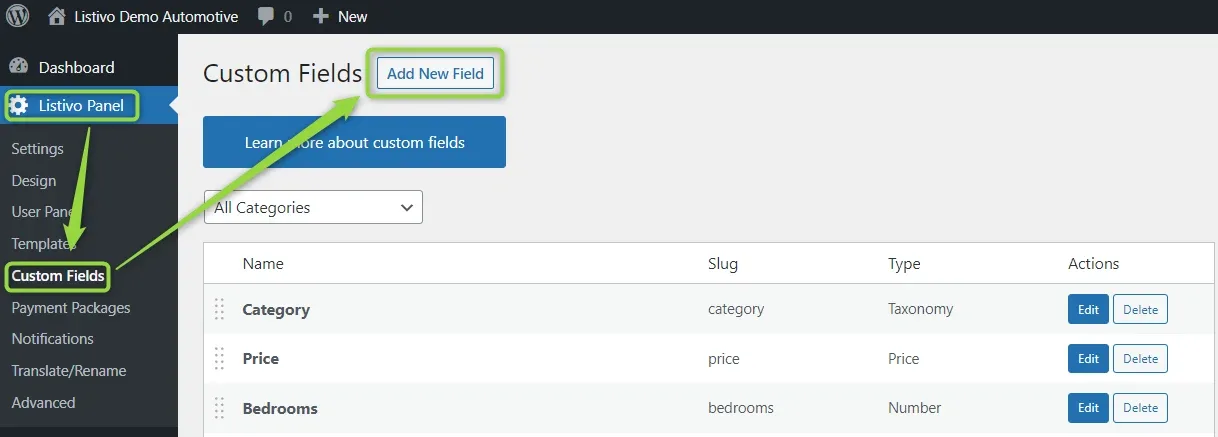
Open the custom fields list
Go to Listivo Panel → Custom Fields and click Add New Field. If the field already exists, skip ahead to editing it.
-
2
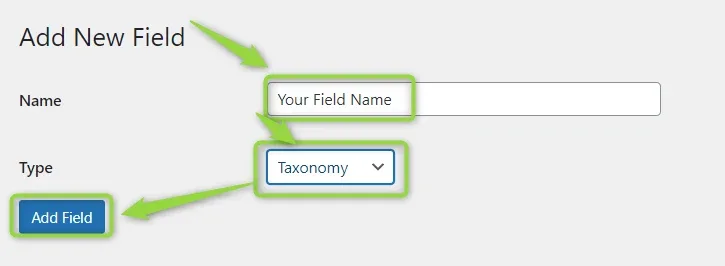
Name the field and set its type
Enter your field name and set Type to Taxonomy. Only this field type offers a search logic setting.
-
3
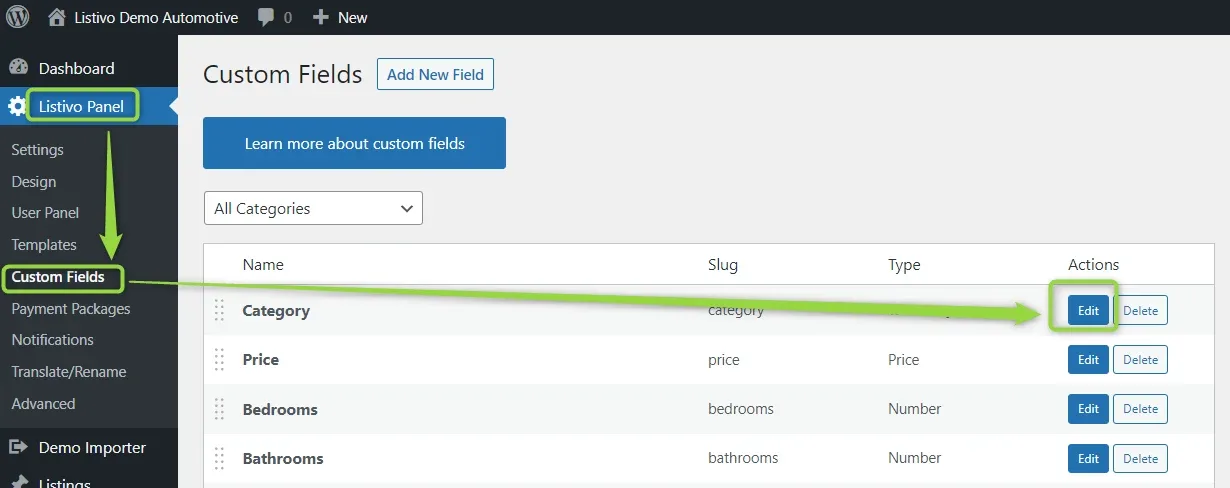
Edit the new field
Find your new field in the custom fields list and click Edit.
-
4
Pick and or or
Open the Search Logic dropdown and set the value to
andoror.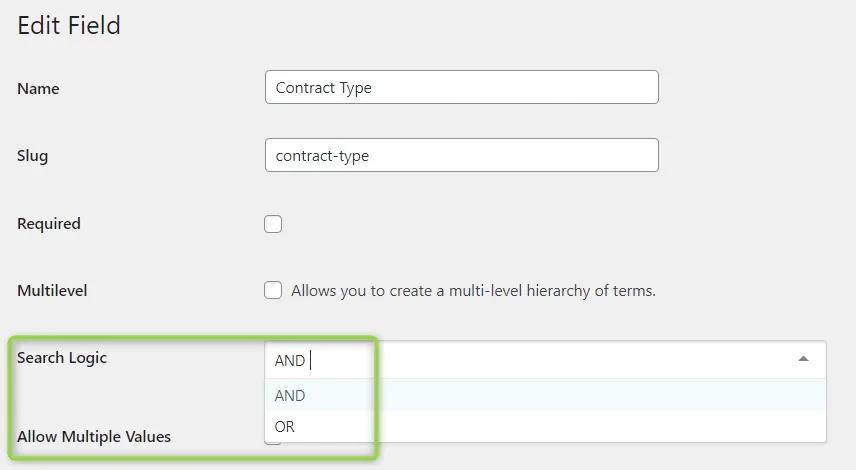
How 'and' behaves
With and, a listing has to meet all the specified criteria. In the example below the custom field Features has its search logic set to and, so the search results satisfy every selected criterion at the same time — only one car does.


How 'or' behaves
With or, a listing only has to match one of the selected terms. In the example below the custom field Transmission has its search logic set to or, so the results meet the selected criteria but not simultaneously: you get the cars with an automatic transmission (8) together with the manual ones (7).


Keep reading
Ask the people who build MyHome
We answer by email from support@tangiblewp.com. With Premium Support, we also fix your site when something breaks.
We can also run your site for you, or build a new one.
Was this guide helpful?