Customizing Texts in Contact Form 7
Change any wording on the MyHome contact forms — field placeholders, the send button, the email that lands in your inbox and the messages shown after submission — from the Contact Form 7 editor.
2 minute read
MyHome uses Contact Form 7, the most popular plugin for contact forms.
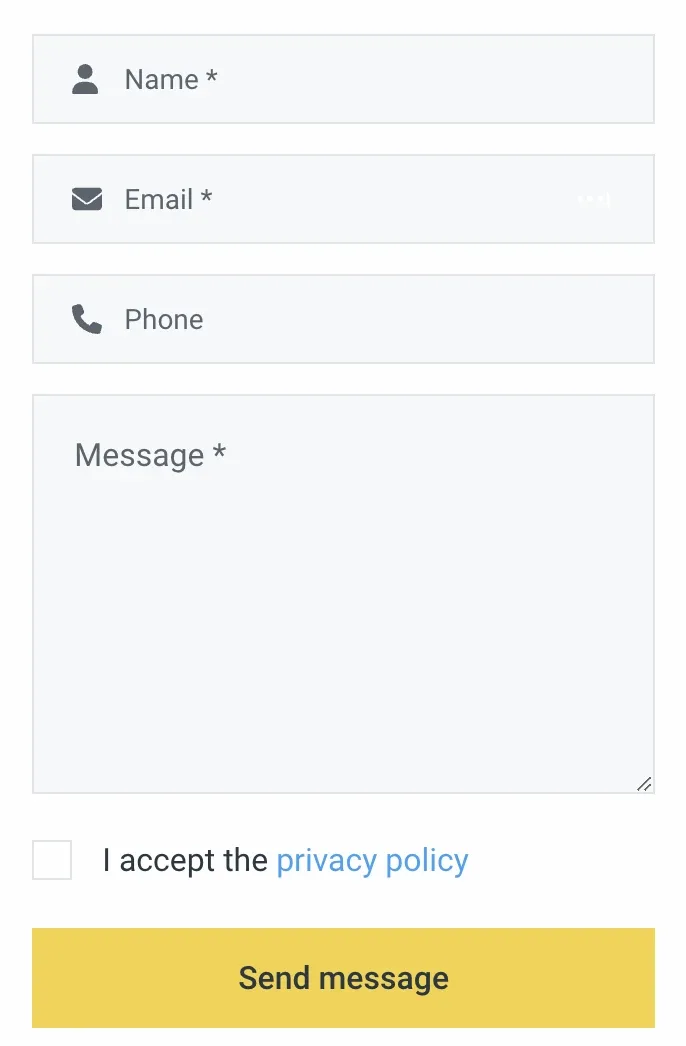
We chose this plugin because it is very stable and has many great add-ons that can be beneficial, such as plugins to save emails in WordPress or integrations with external systems. Because of this, all texts you see on the contact form and its notifications are managed by this plugin. You can access and edit these texts by following these steps:
-
1
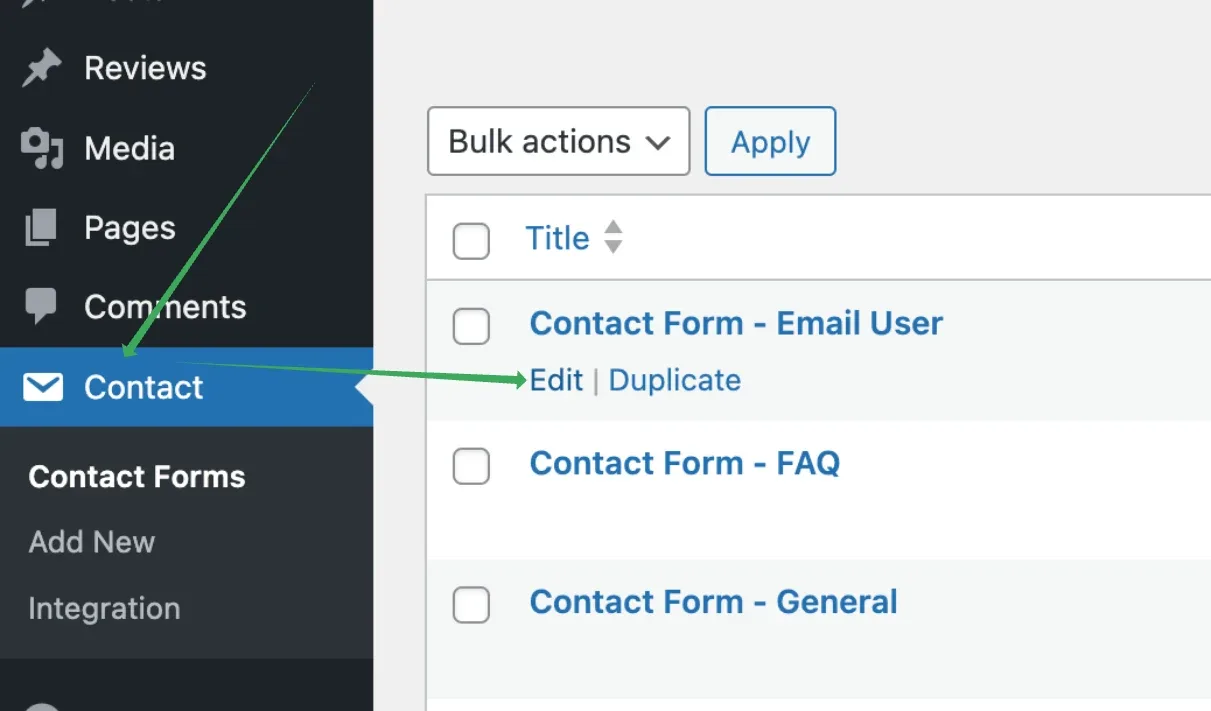
Open the contact form
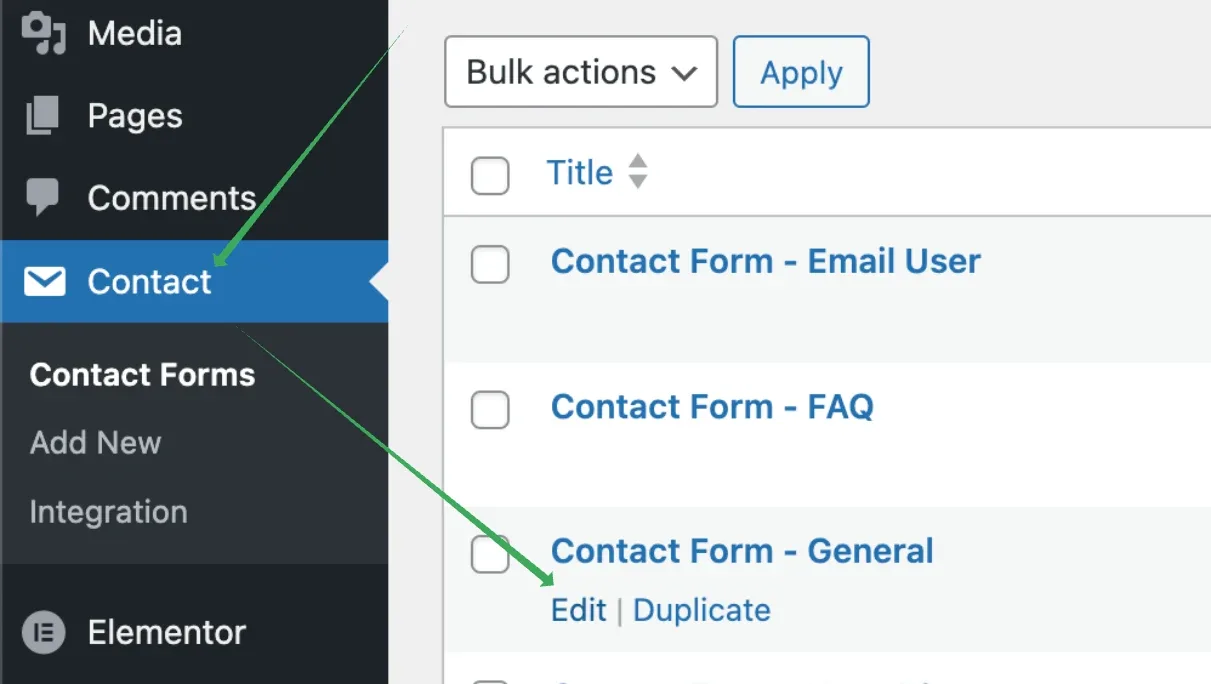
Go to wp-admin > Contact Forms and click Edit on the form you want to modify — for example "Contact Form - General", used on the contact page.
-
2
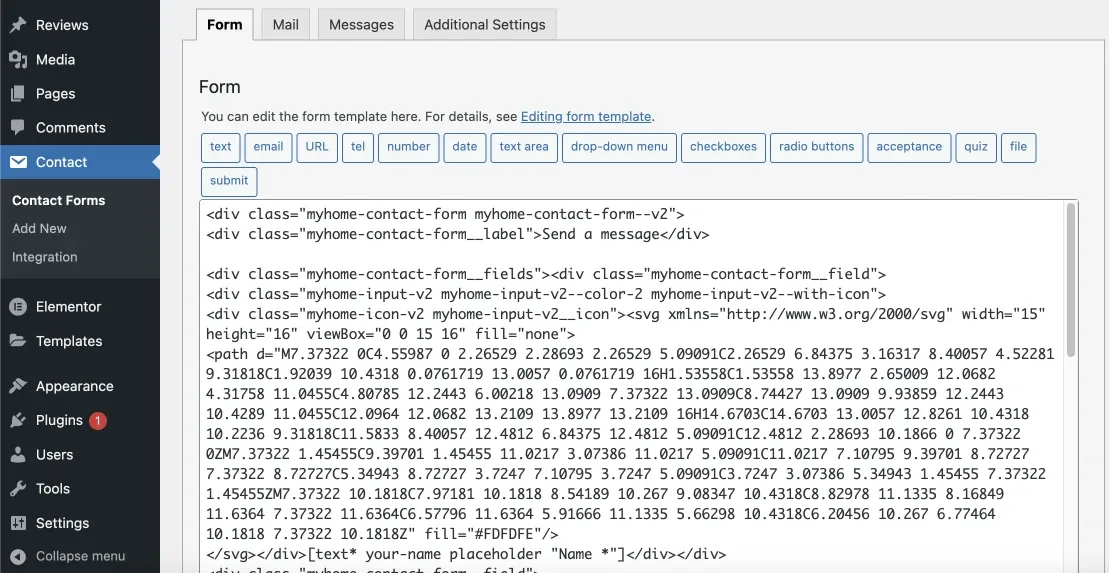
Look at the form template
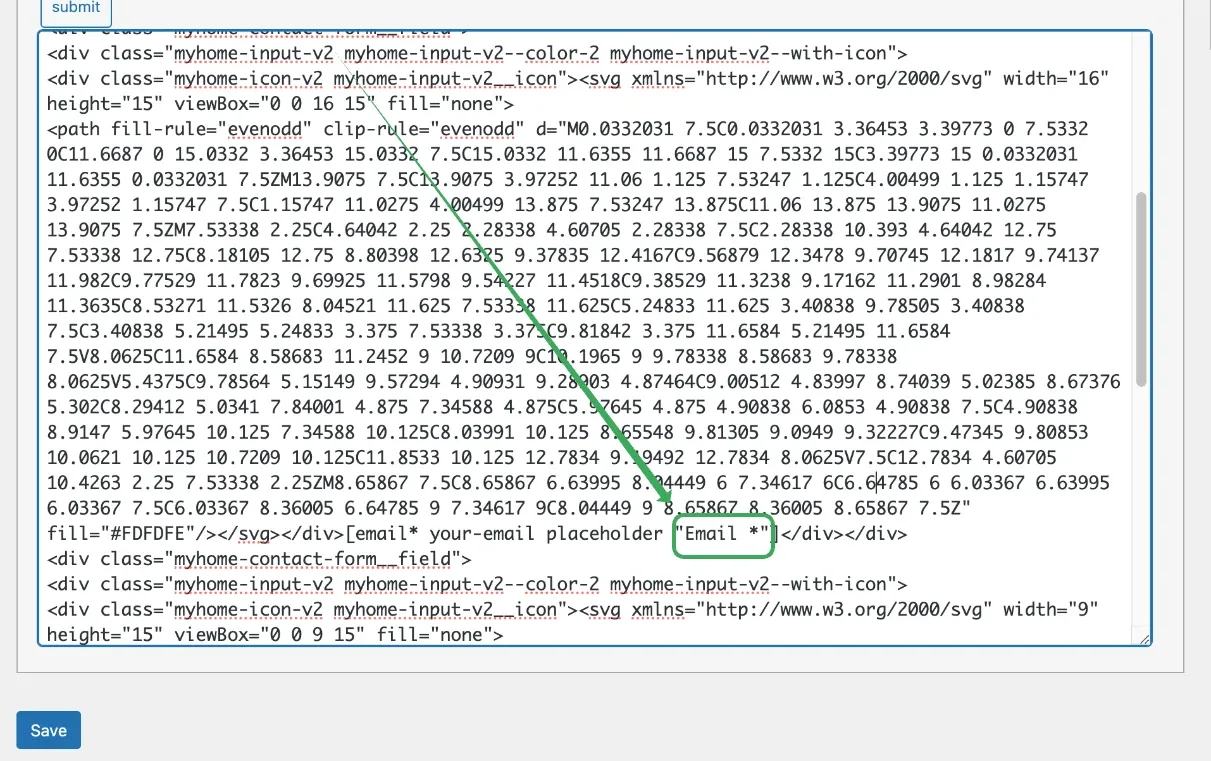
You will see an editor like this. The text area in the MyHome contact form may appear more complex than the standard Contact Form 7 in other themes, but don't worry. This complexity is due to the added styling, such as SVG icons that adapt their colors to your settings. The additional code around the fields helps create an appealing appearance, making it more than just a simple square input.
-
3
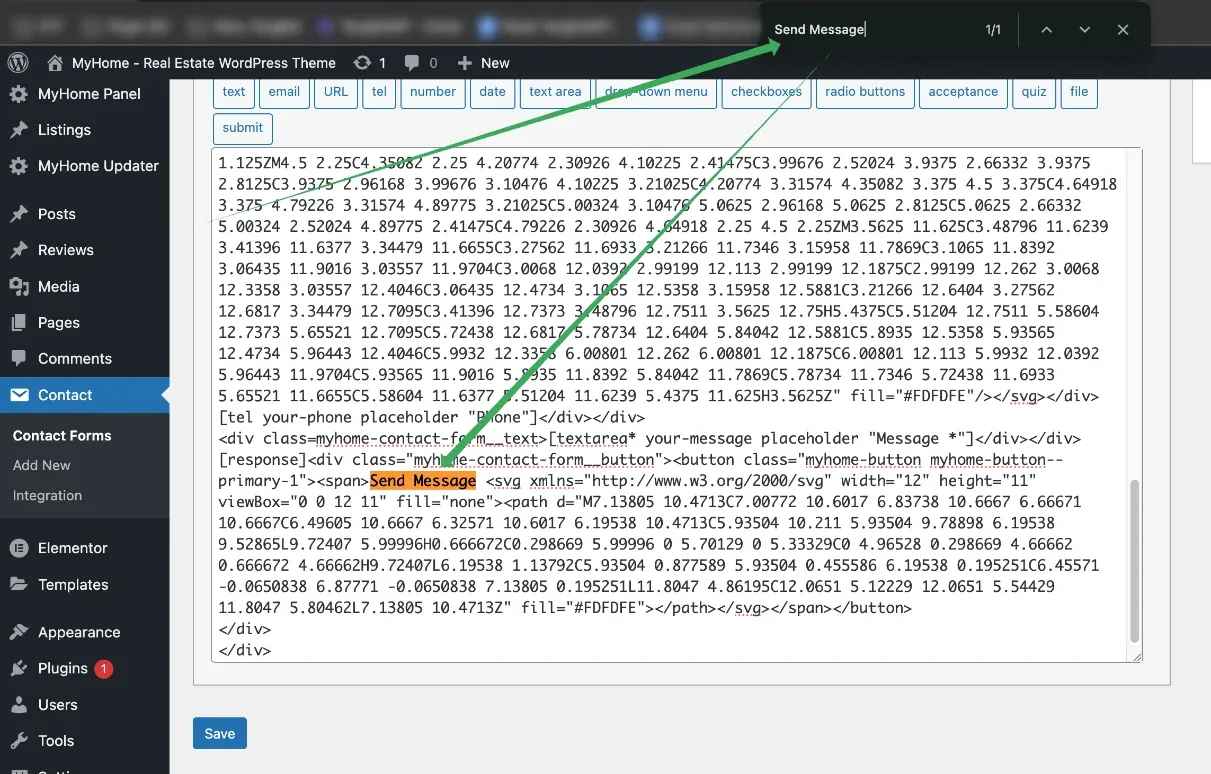
Locate the texts you want to edit
Search the template with Ctrl + F.
-
4
Or find them by scrolling
The same texts can be reached by scrolling through the template.
-
5
Modify the email structure
The Mail tab holds the message that is sent when somebody submits the form.
![The Mail tab of the Contact Form 7 editor, with arrows pointing at the To, From, Subject, Additional headers and Message body fields, which use mail tags such as [your-name] and [your-email].](https://assets.tangiblewp.com/media/129/conversions/01KZXBH7N1WH69PR03RG1R6FAY-display-1024.webp)
-
6
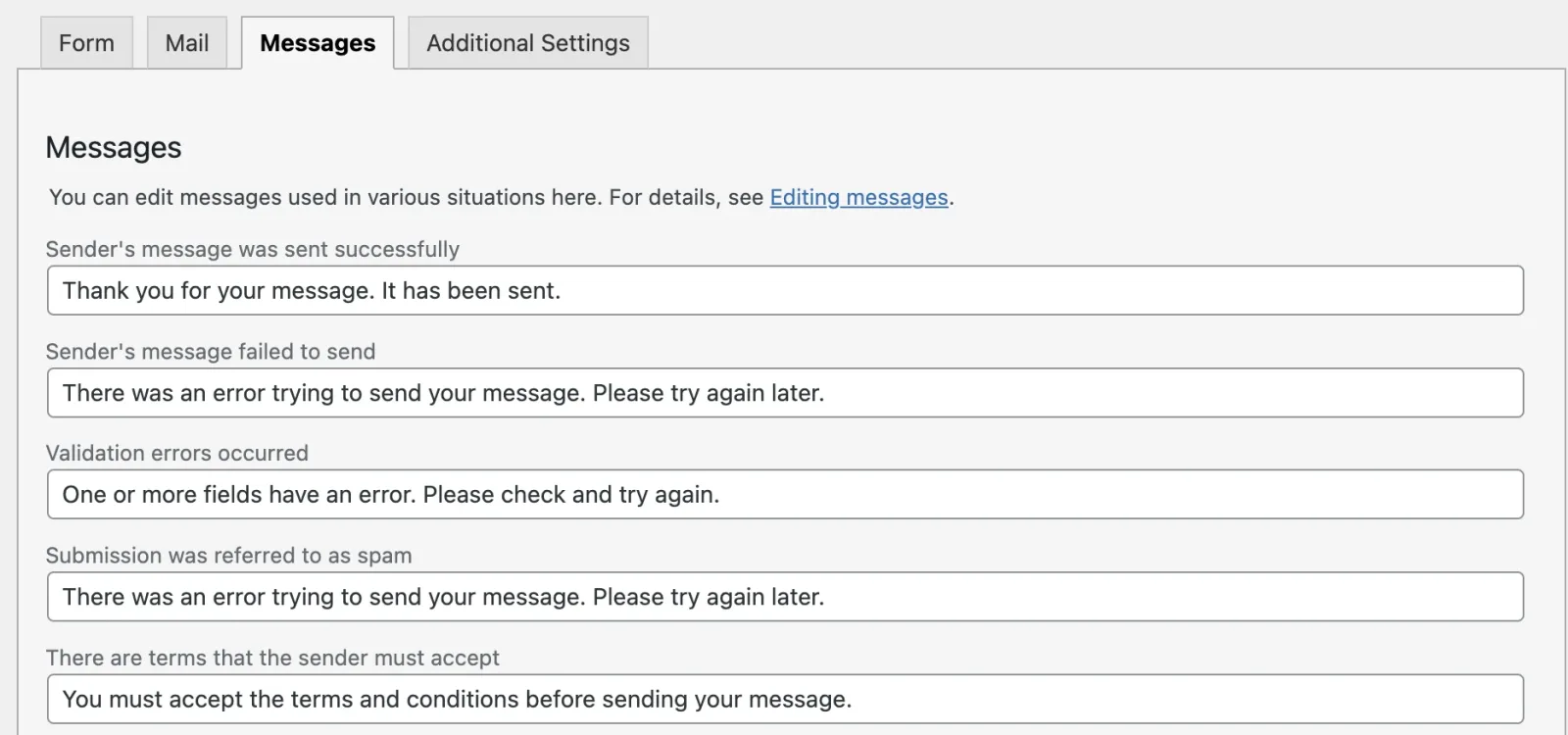
Edit the response messages
The Messages tab holds the texts shown to the sender after the form is submitted.
Ask the people who build MyHome
We answer by email from support@tangiblewp.com. With Premium Support, we also fix your site when something breaks.
We can also run your site for you, or build a new one.
Was this guide helpful?