"New direct message" notification email - configuring cron-jobs
Understand when Listivo sends its "New Direct Message" email, and add an external cron job so those emails go out within five minutes instead of waiting for the next visitor to trigger WP-Cron.
3 minute read
In this article, you will learn how Listivo's "New Direct Message" email notification works. It is a little different than other email notifications Listivo sends, because we developed some additional functions to make it more friendly for your visitors.
1. Two scenarios when the notification email is sent
- If the receiver is not active on your website, the "New Direct Message" notification email is sent just after sending him a private message.
- If the receiver is active, or was active in the last 5 minutes and hasn't seen the message, your website automatically uses the WP-Cron system to send the email. Listivo wants to send emails only when needed, so only when the user is not currently chatting. Imagine this notification being sent every time an active user receives a private message - it would be very annoying, and Listivo wants to avoid that.
2. How does it work by default?
By default Listivo uses the WP-Cron system to send this email. WP-Cron does not run constantly; it is only triggered on page load. Someone will need to visit your website to trigger the sending function. In WordPress it works the same way with, for example, scheduling posts (learn more here about the WP-Cron system).
3. How to be sure notifications are sent within 5 minutes
-
1
Create a free cron-job.org account
Sign up at https://cron-job.org.
-
2
Start a new cronjob
Click the CREATE CRONJOB button.
-
3
Add a title
Any name that tells you what the job does.
-
4
Fill in the URL field
Change the example
http://domain.com/wp-cron.phpto your own link - please make sure you enter your domain and that it has the right protocol (http or https). Make sure the link ends with/wp-cron.php, as in the screenshot.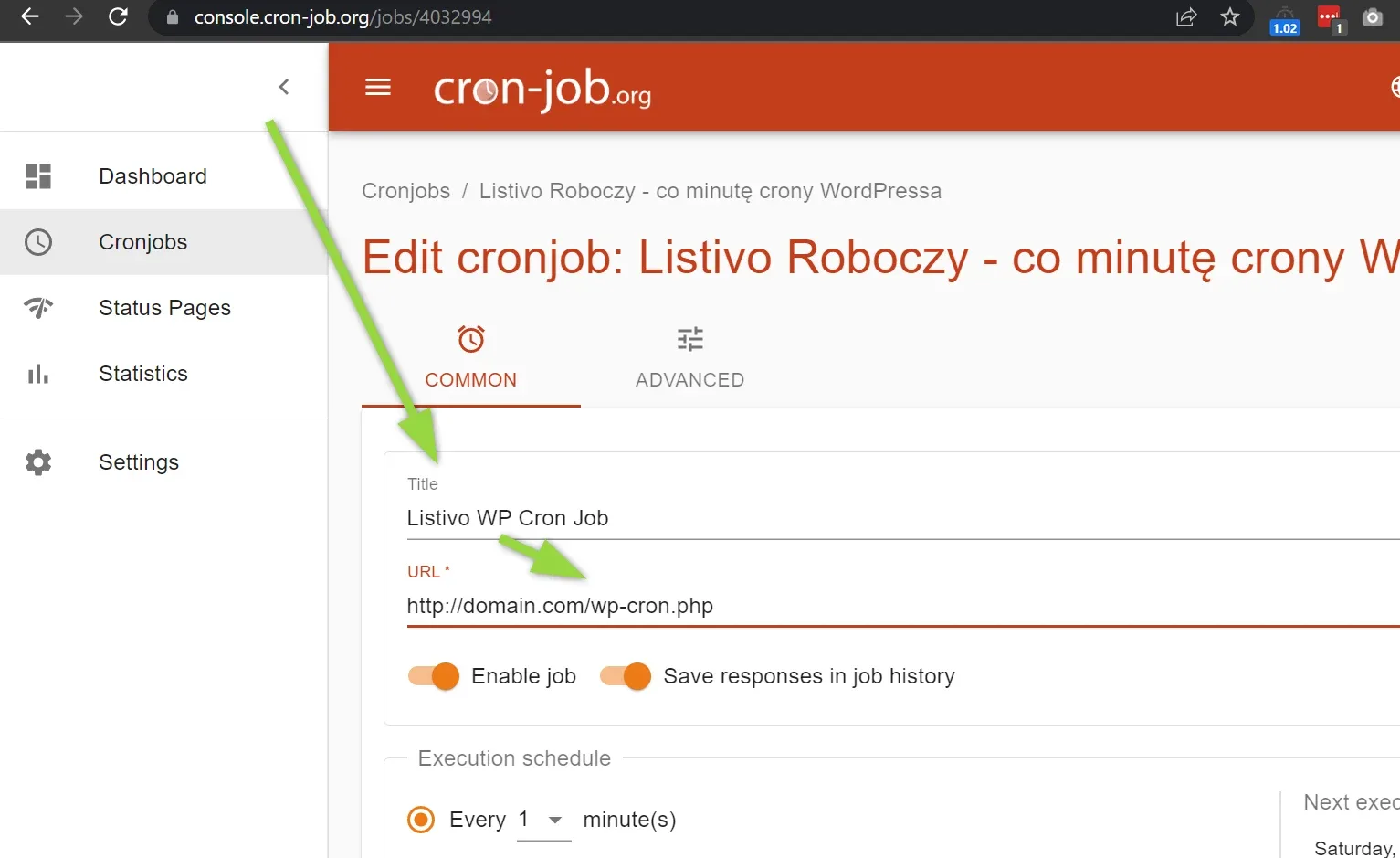
-
5
Set the execution schedule
Choose Every 1 Minute.
- 6 Click Create
Done. Cron-job.org will now, every one minute, force WordPress to check your website's "Cron Events". The "New Direct Message" notification email will be sent within 5 minutes to users who are active and are currently not chatting. Users who are offline get emails immediately.
4. Important information
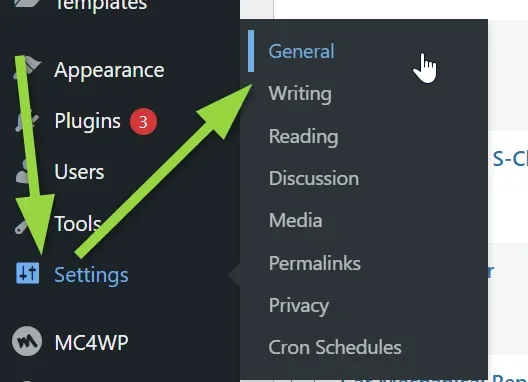
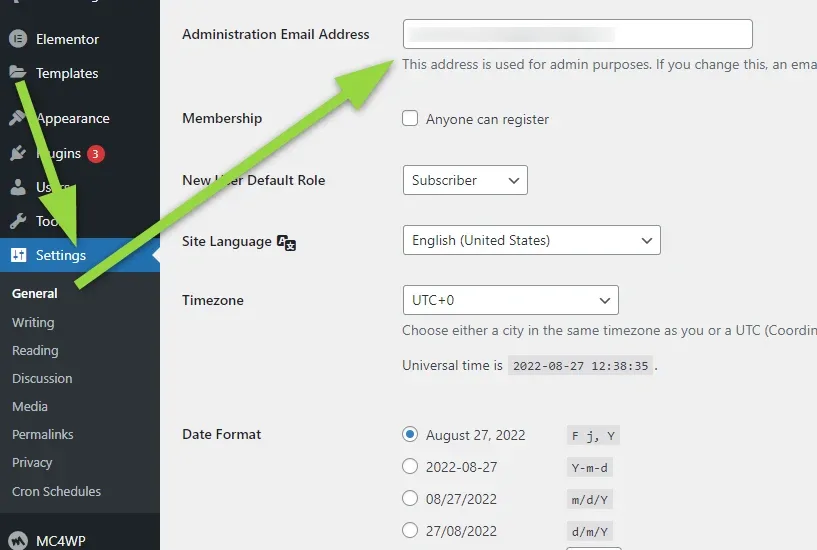
5. Optional: stop WP-Cron running on every page load
You may consider adding this line to your /wp-config.php:
define('DISABLE_WP_CRON', true);It will disable running wp-cron every time someone accesses the site. It will then be executed only via cron-job.org, which you set up in point 3.
Keep reading
Ask the people who build Listivo
We answer by email from support@tangiblewp.com. With Premium Support, we also fix your site when something breaks.
We can also run your site for you, or build a new one.
Was this guide helpful?