Updating Listivo 1.X to Listivo 2.0
Four things to take care of straight after upgrading a 1.X site to Listivo 2.0: regenerate thumbnails, give the phone and chat buttons room on the user page, review your translations, and re-import the Elementor kit if the fonts look wrong.
2 minute read
For the last few months we have been working hard to upgrade Listivo to the new 2.0 version. This big update added dozens of new widgets and design options to make Listivo more flexible. For the update to work correctly, the actions below are required.
1. Image sizes
The sizes of some images changed, so the thumbnails have to be regenerated before they display correctly.
2. Phone and chat buttons on the user page
The "Reveal Phone" and "Chat via WhatsApp" buttons are wider than they were in 1.X, which can leave them cramped like this — an easy thing to fix.
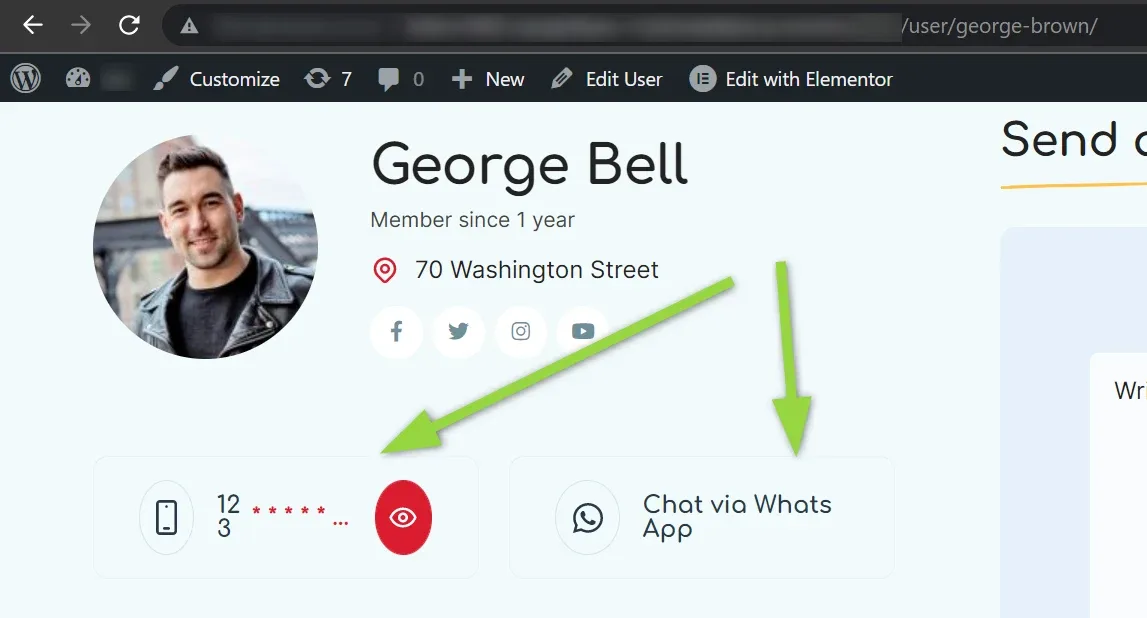
We recommend editing the User Template and moving the widget somewhere it has more space.
-
1
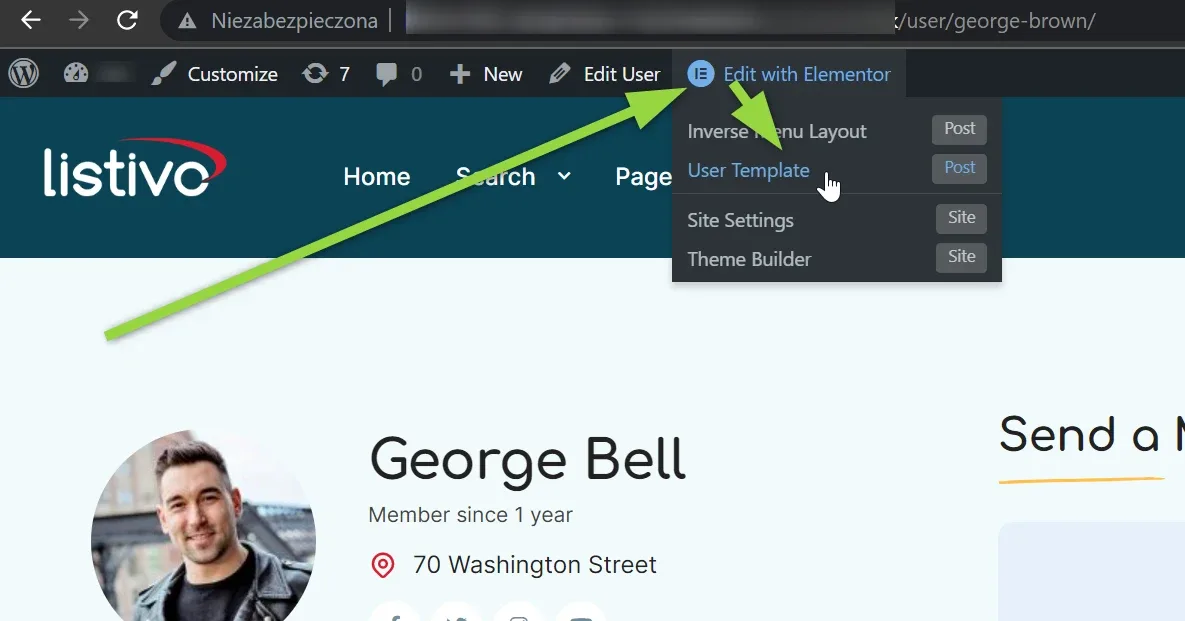
Open the User Template
On a user page, open Edit with Elementor in the admin bar and choose User Template.
-
2
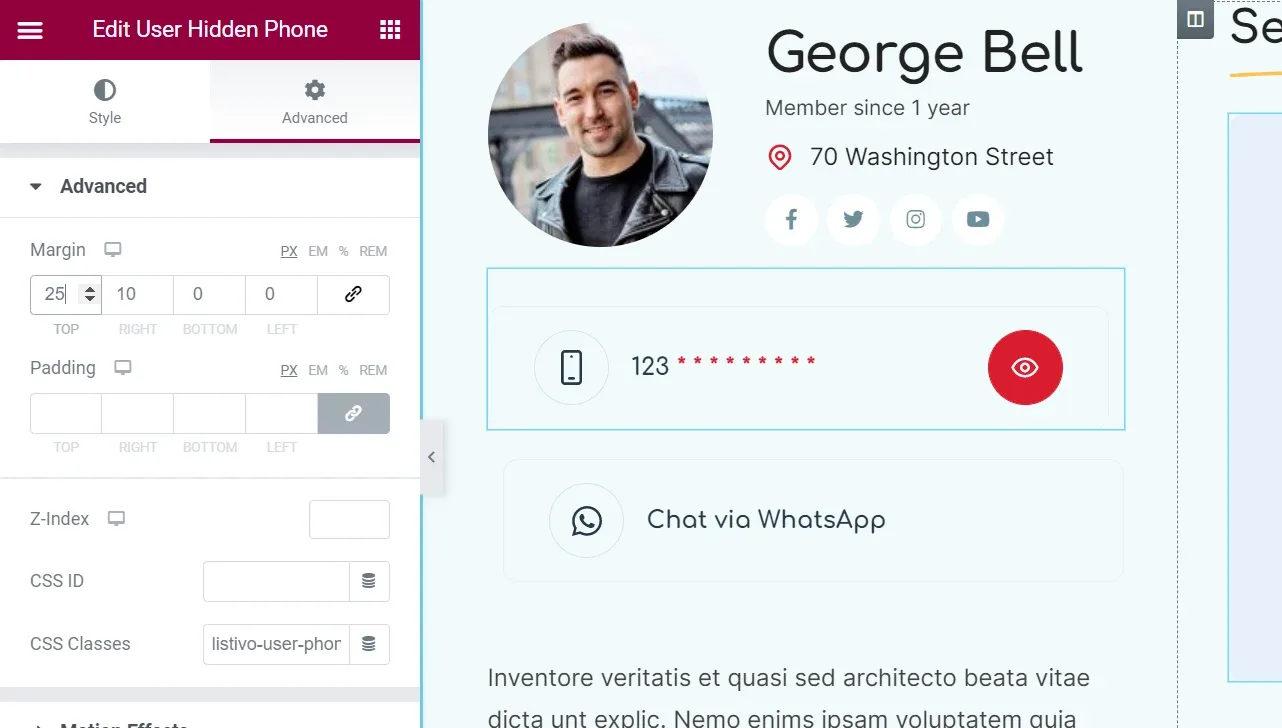
Move the widgets and adjust their spacing
Reposition the phone and chat widgets and change their margin and padding in the Advanced tab until the buttons fit.
3. Translating the theme and plugin
If you have already translated your website into another language, we recommend going through all your pages to see whether there are new texts to translate.
For more information about Listivo 2.0, visit the Listivo product page.
4. Problems with fonts after the update
Version 2.0 uses more fonts, and after an update they are sometimes not loaded properly on your website. Importing the Elementor kit fixes it.
-
1
Download the Elementor kit
Download Elementor Kit. Inside the archive you will find a file called
elementor-kit.zip. -
2
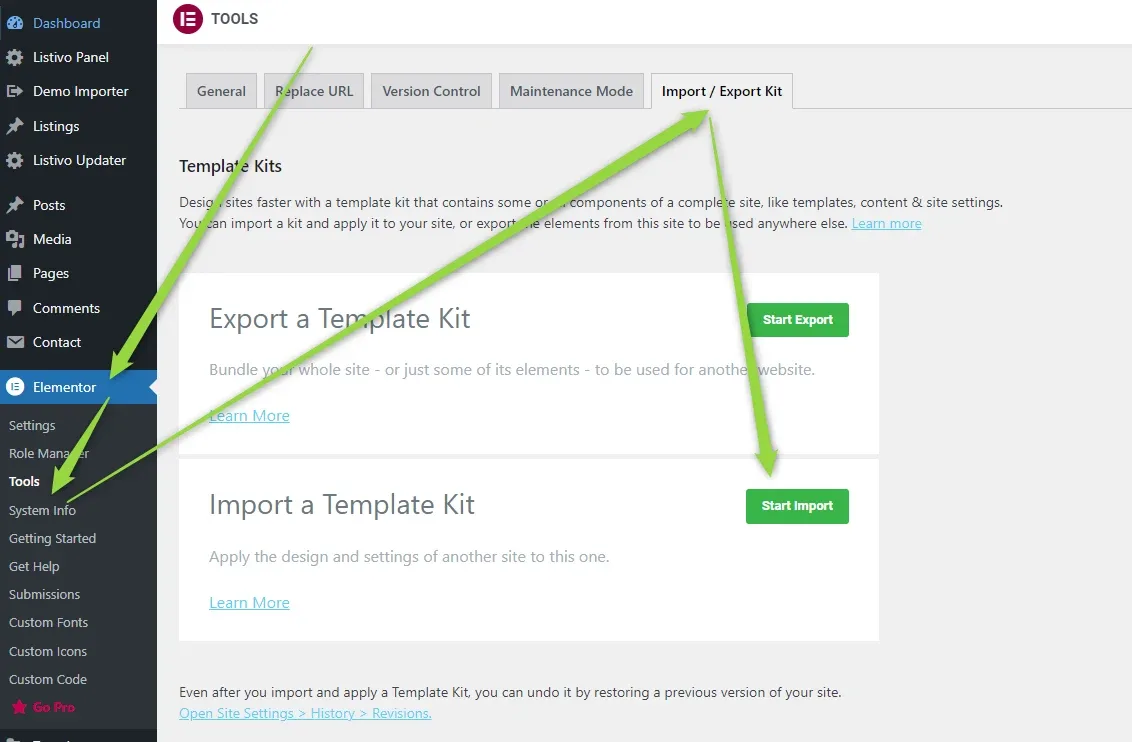
Open Elementor's import tool
Go to WP Admin > Elementor > Tools > Import / Export.
-
3
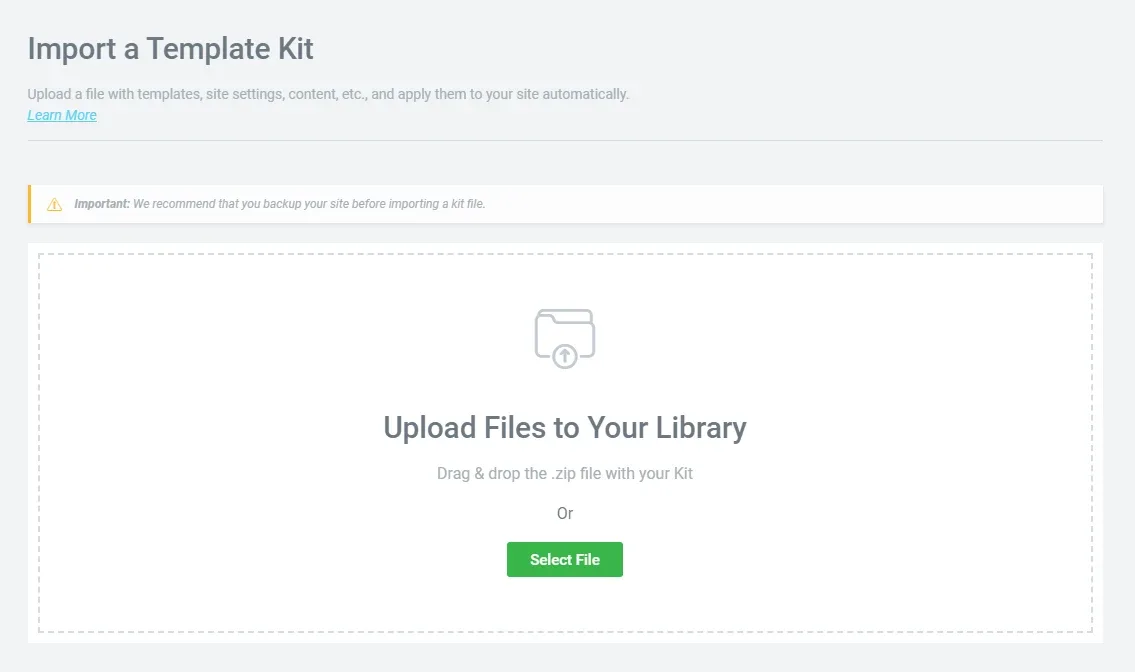
Upload the zip file
Select the zip file and follow the steps.
-
4
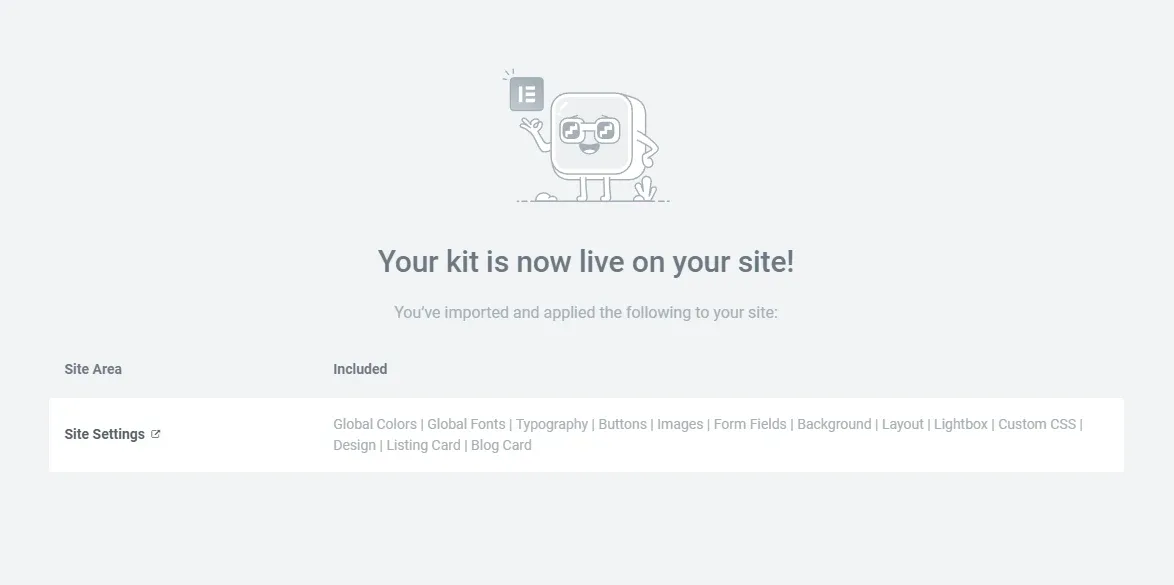
Check the confirmation
After the import you see this message. There is nothing more to do — the import fixes the font problem on your website.
Ask the people who build Listivo
We answer by email from support@tangiblewp.com. With Premium Support, we also fix your site when something breaks.
We can also run your site for you, or build a new one.
Was this guide helpful?