Switch old design to new
Move an existing Listivo website onto one of the three new demo designs: import the Elementor kit, then replace your templates and pages with the JSON files from the package.
2 minute read
We have prepared 3 packages that contain the files needed to import a new design into your existing website.
Before you start
- A fresh backup of your website
- The latest version of the Listivo theme and the Listivo Core plugin - at the time of writing that is 2.0.2, and you can download it directly from ThemeForest
- One of the three design packages below
Download links:
- Demo Classic - Download here
- Demo Modern - Download here
- Demo Real Estate - Download here
1. Import the Elementor kit
-
1
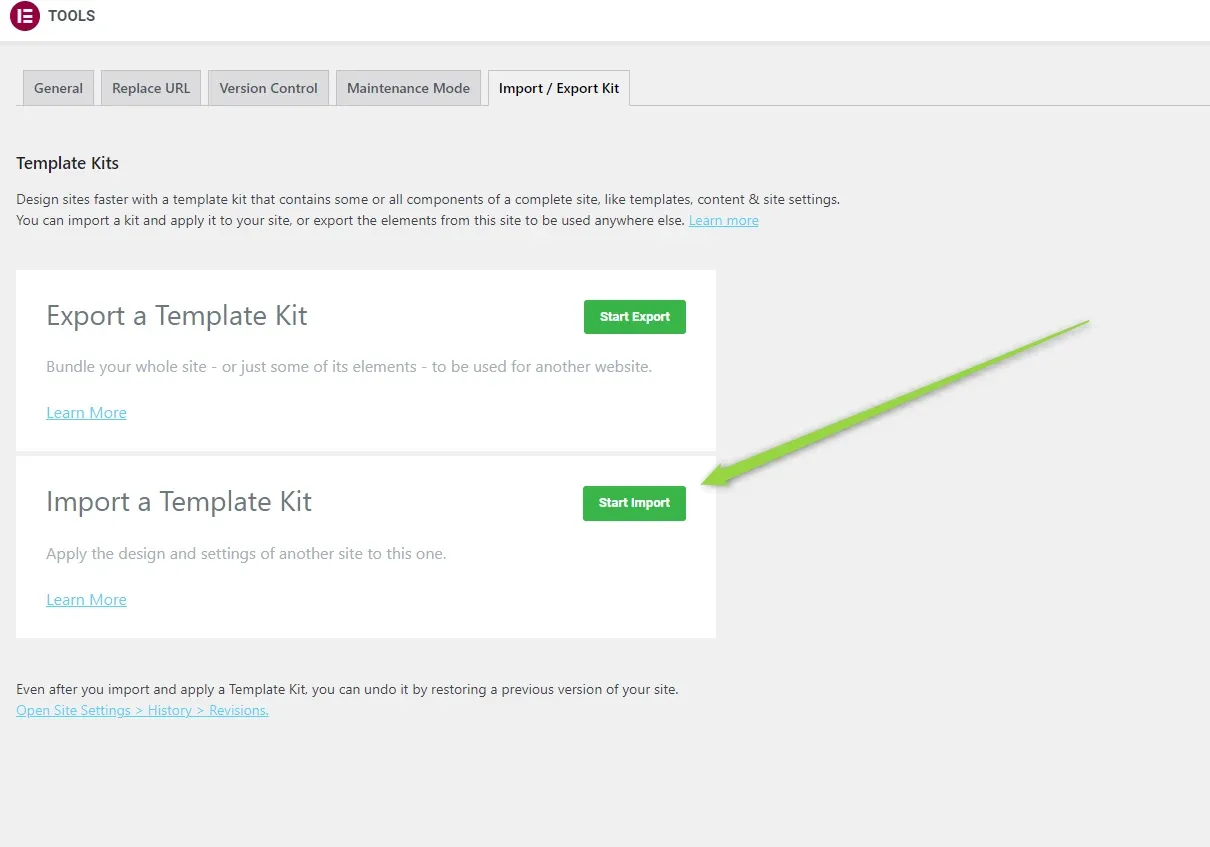
Open the kit importer
Go to WP Admin > Elementor > Tools > Import / Export Kit.
-
2
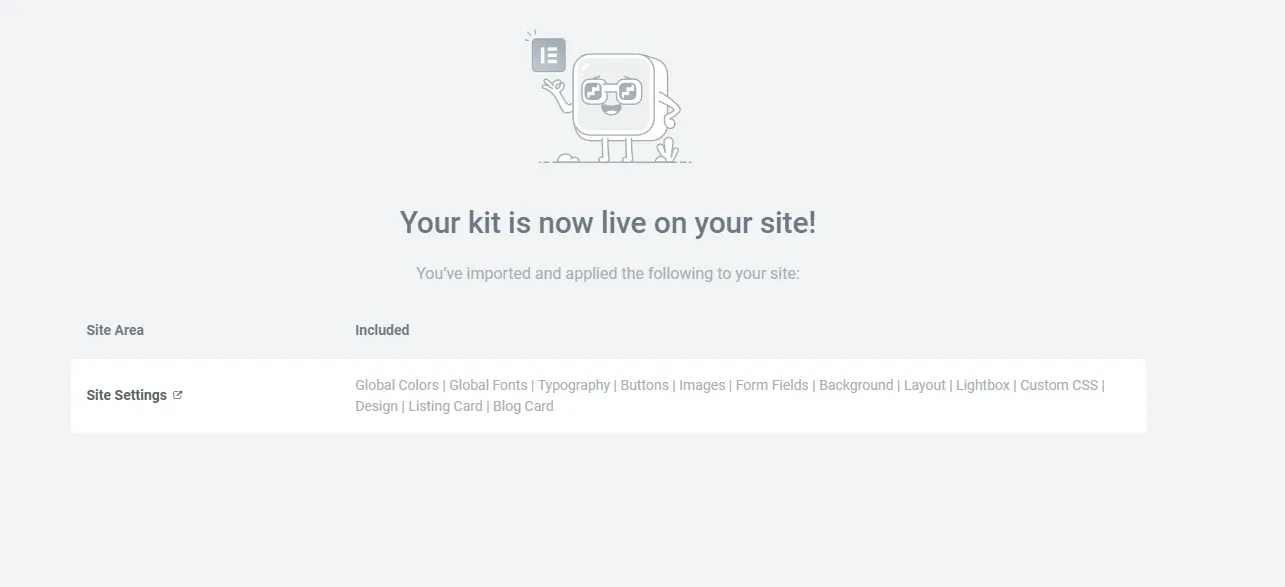
Run the import
You do not need to change any settings when you import the kit — just follow the steps until you see the confirmation.
2. Import the templates
Here we show you how to import a new template for the header, the footer, the single listing page and the rest. The procedure is the same every time, so we only show it for one element.
-
1
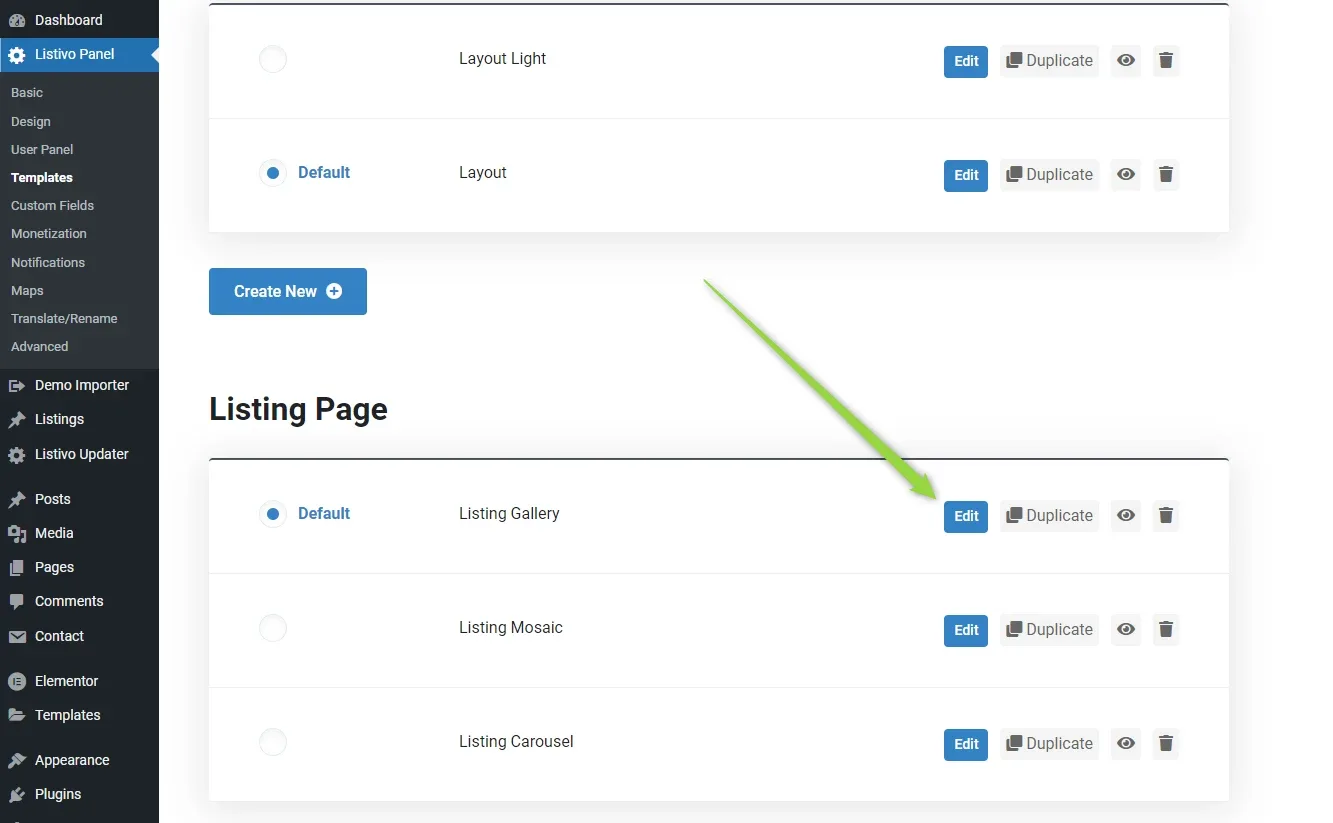
Open the template you want to replace
Go to WP Admin > Listivo Panel > Templates and click Edit on the template. In this example it is the Listing Gallery template.
-
2
Delete the existing sections
When Elementor loads the template, select each section and press Delete on the keyboard.
-
3
Open the template library
With the canvas empty, click the folder icon.

-
4
Import the JSON file
In the library, use Import Template and pick the JSON file from
\Global Templates\Listings— in this example, Listings Gallery.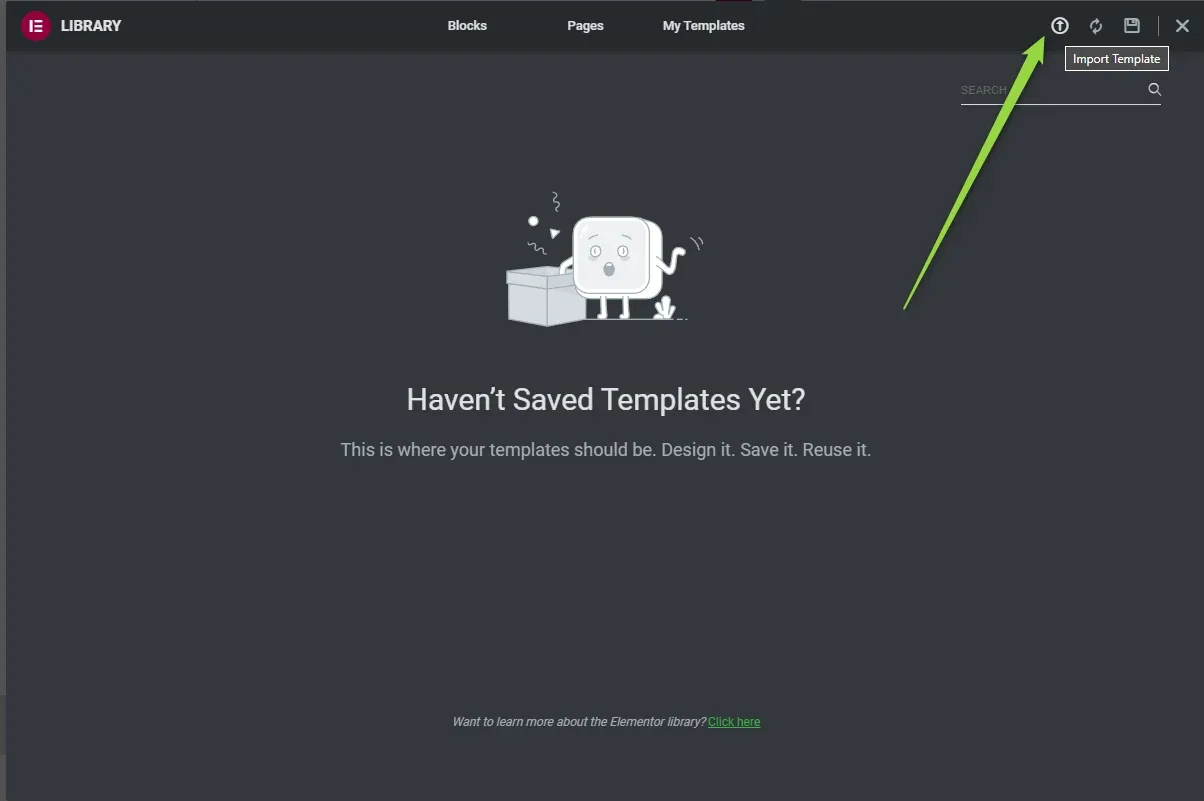
-
5
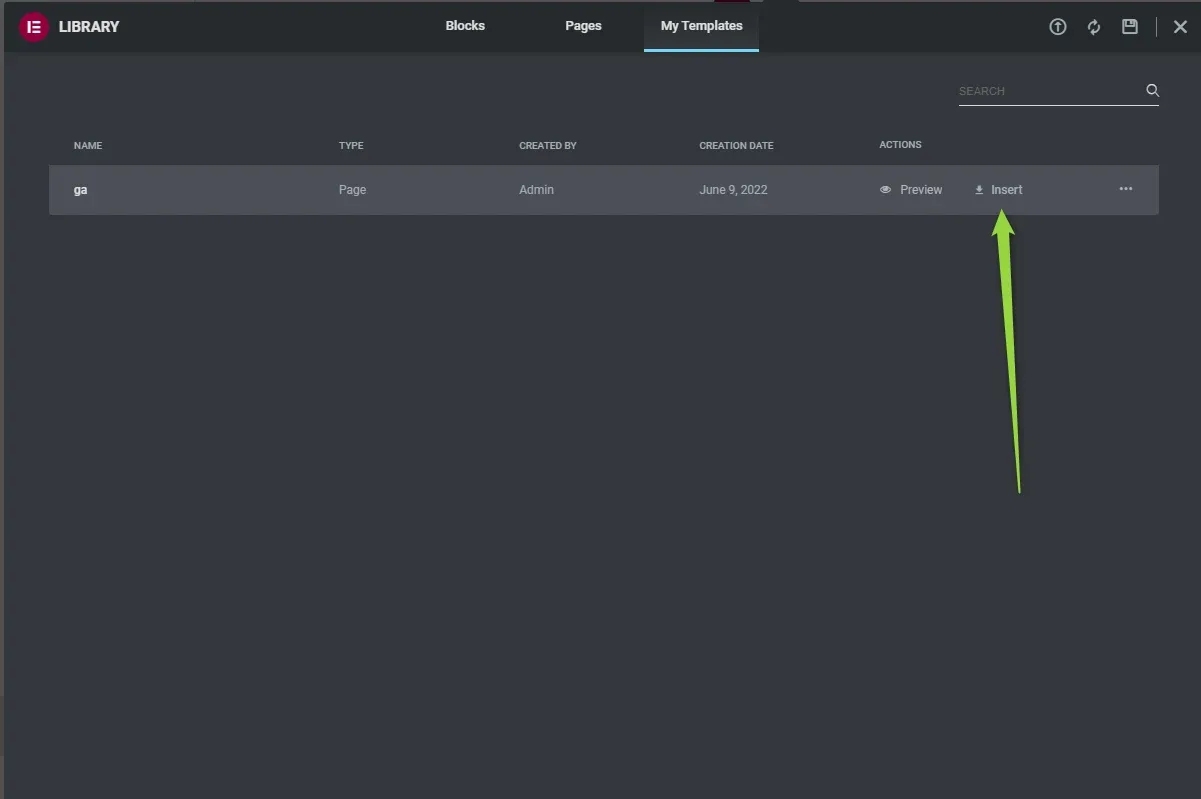
Insert the template
Then click Insert.
-
6
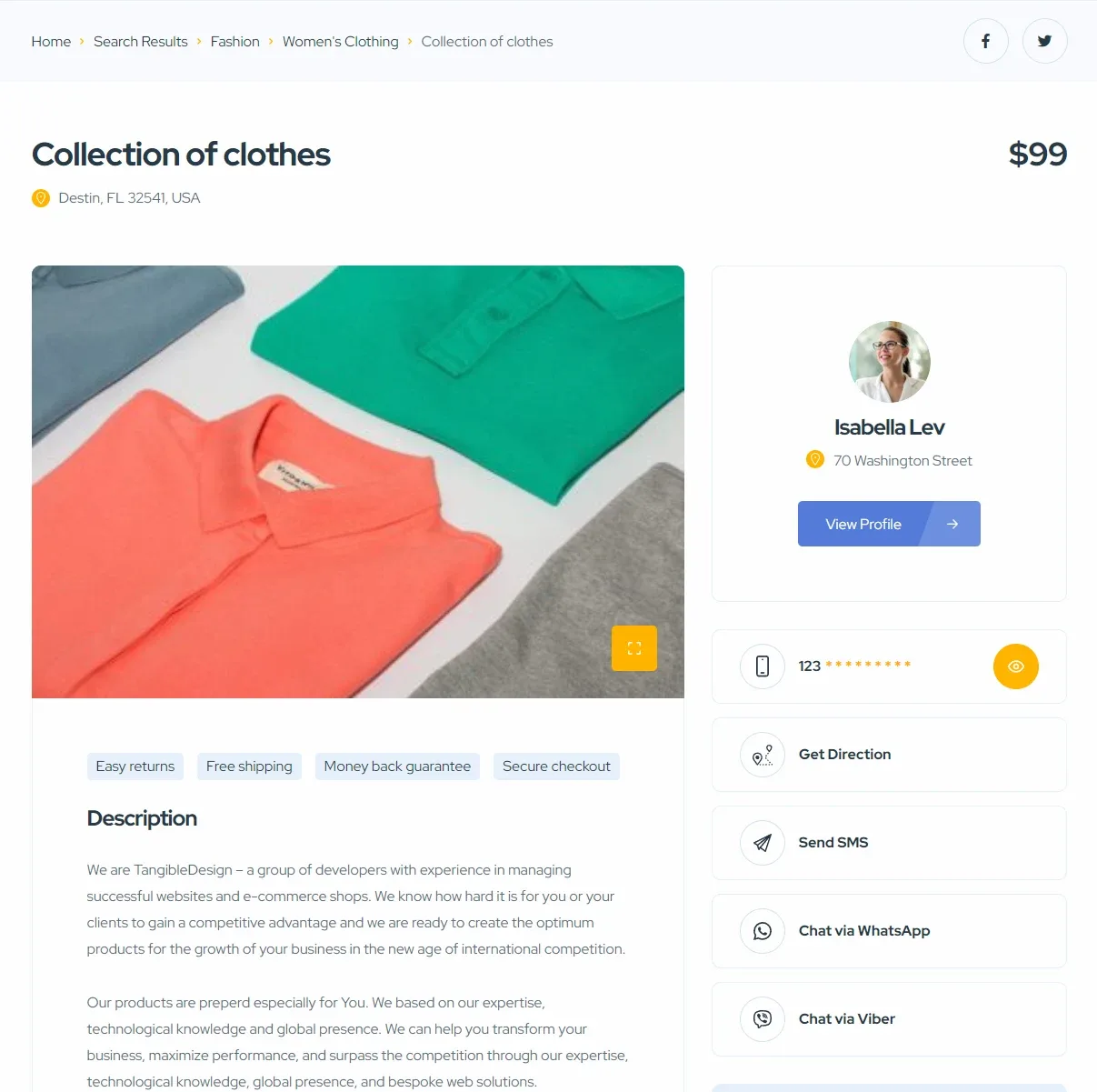
Check the result
That is it — you now have a new listing gallery template with the new demo design.
3. Import the pages
-
1
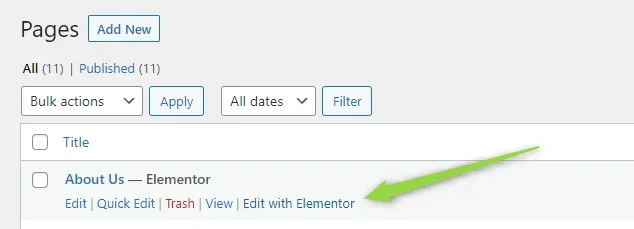
Open a page in Elementor
Go to WP Admin > Pages, pick a page and choose Edit with Elementor.
-
2
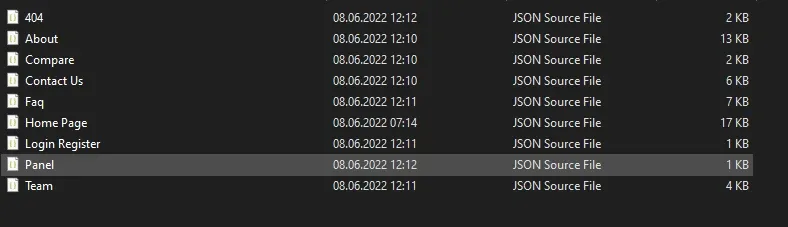
Import the page JSON
The steps are the same as for templates — delete all the content and upload the JSON file, this time from the pages folder.
Ask the people who build Listivo
We answer by email from support@tangiblewp.com. With Premium Support, we also fix your site when something breaks.
We can also run your site for you, or build a new one.
Was this guide helpful?