Understanding the Search Radius Feature in Listivo
Understand why a Google Autocomplete result is a single point rather than a whole city, and set the default search distance, the unit, and the radius options visitors can pick from.
2 minute read
Introduction to Search Radius in Listivo
Listivo includes a feature called "Search Radius" that enhances how users find ads on your website via Google Autocomplete.
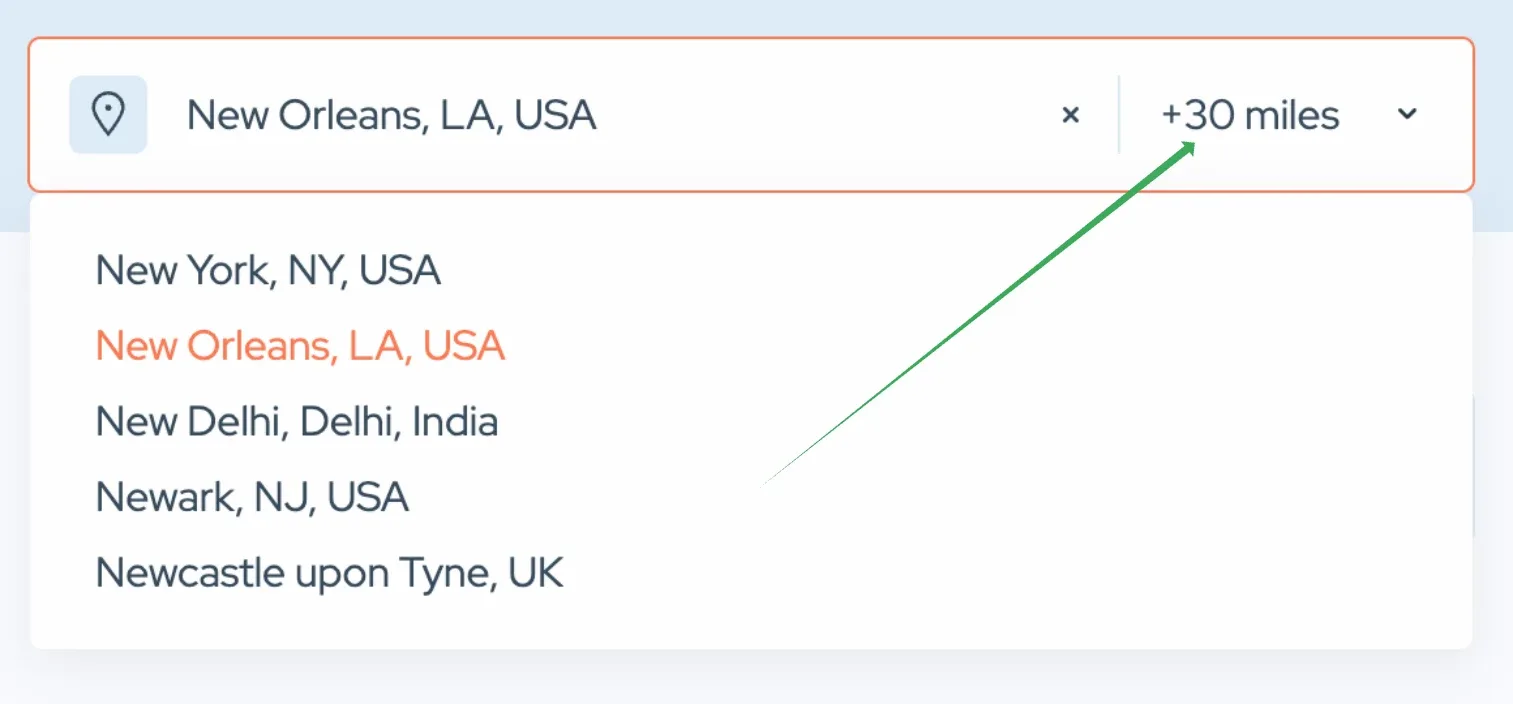
Understanding Google Autocomplete's role
When you use Google Autocomplete for places like "New York" or "New Orleans," Google Autocomplete suggests these names as points on the map (exact longitude/latitude), not as the exact area of these cities. Because these suggestions are single points, they might not be very helpful when you want to search for ads over a specific area. This is where the Search Radius feature becomes useful.
How Search Radius works
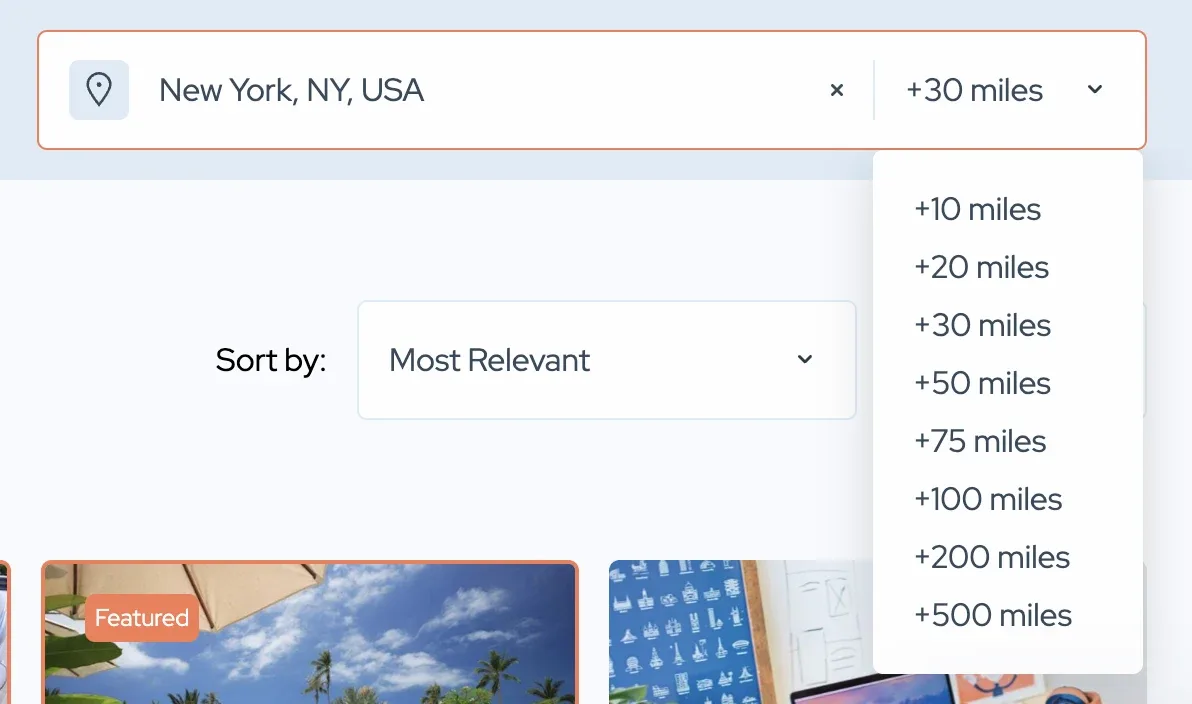
The Search Radius feature allows you to set a default distance around the point Google Autocomplete identifies. This could be in kilometers or miles, for example, 10 km or 10 miles. This setting determines how far from the point Listivo will search for ads. You will find it in Listivo Panel > Settings > Maps. You can set your preferred default search distance using these two controls.

Configuring Search Radius settings
The Search Results page allows you to configure values for it. You just need to visit Listivo Panel > Templates > Search Results Page and edit your active template.

Then, inside the widget, you choose values:
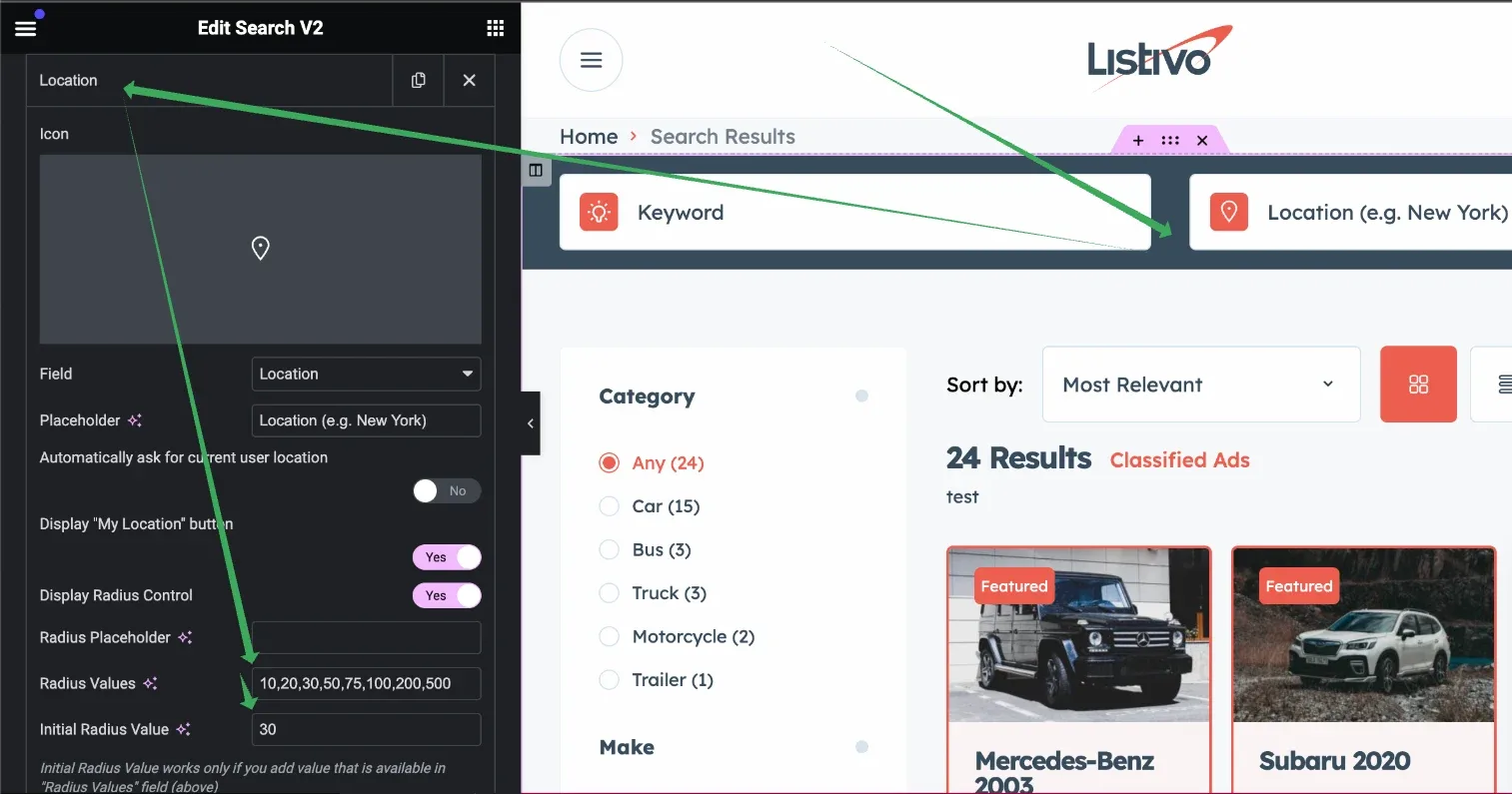
The importance of consistency in values
Ask the people who build Listivo
We answer by email from support@tangiblewp.com. With Premium Support, we also fix your site when something breaks.
We can also run your site for you, or build a new one.
Was this guide helpful?