Automatically Ask for the Current User Location
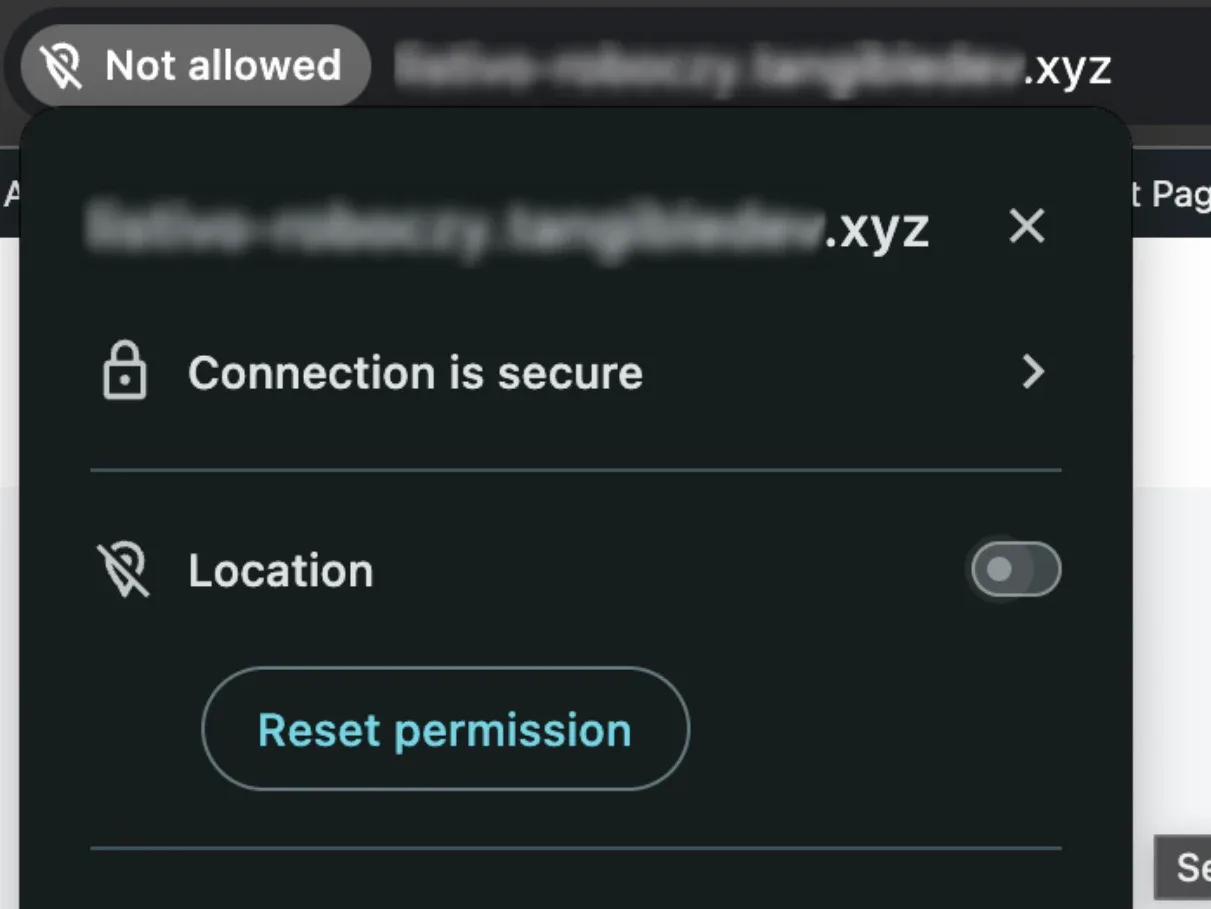
Have the Location field fill itself in from the visitor's browser, so people land on ads near them instead of typing an address first — and know what to do when someone blocks the prompt.
1 minute read
You can enable a feature that requests a user's location. If they consent, their address will be automatically filled in the Location field, enabling them to search for ads within a specified radius, such as 30 miles (this radius can be adjusted by the user).
To set this up, edit any page that includes the location field via Elementor; this could be on your homepage or the search results template.
-
1
Open the page in Elementor
Edit the page where the Location Field is present — your homepage or the search results template.
-
2
Turn on the location request
In the field's settings, enable Automatically ask for current user location.
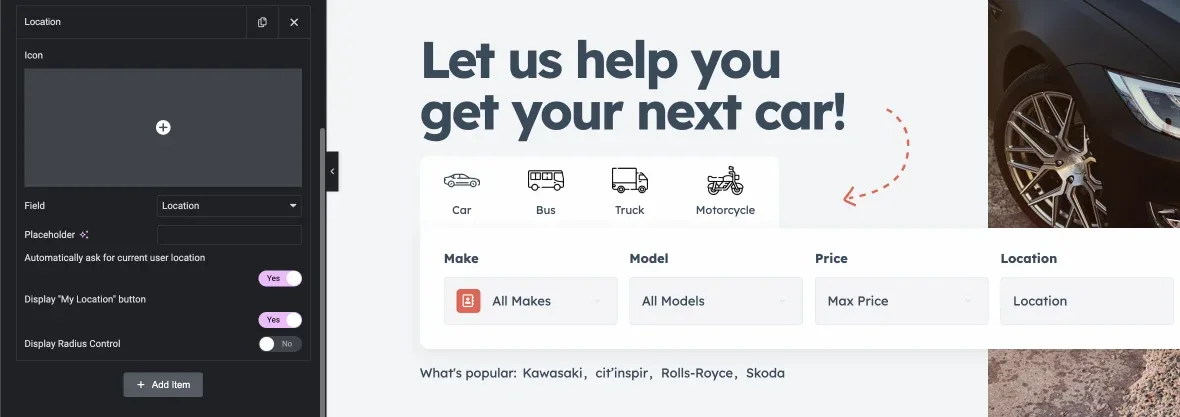
From then on, when a new user visits the page, their browser will prompt them to share their location.
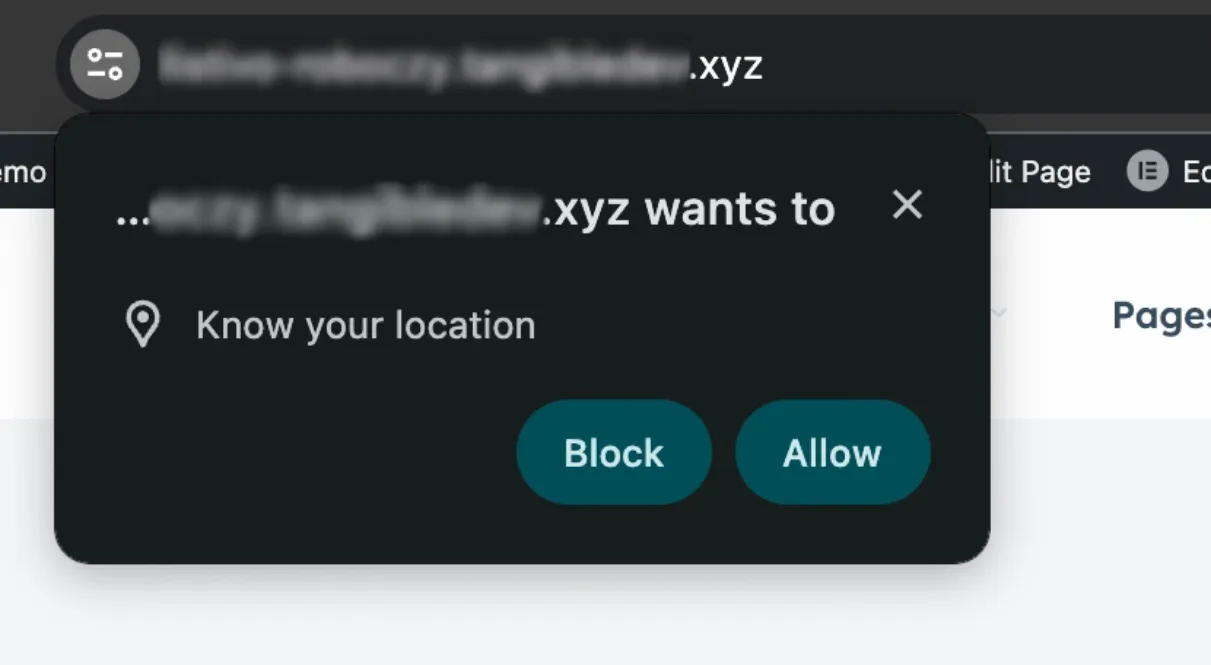
If the user agrees to share their location, the field will be automatically populated with their address, as estimated by Google Maps.

Ask the people who build Listivo
We answer by email from support@tangiblewp.com. With Premium Support, we also fix your site when something breaks.
We can also run your site for you, or build a new one.
Was this guide helpful?