Types of custom fields
Listivo ships ten types of custom field, each suited to a different kind of information. This overview shows what every type is for and how it behaves, so you can pick the right one before you build your listing form.
3 minute read
We have created a transparent system for adding custom fields that you can quickly adapt to your needs. Below you can find descriptions and detailed information about each type of field.
Types of custom fields
- Taxonomy
- Text
- Rich Text
- Number
- Price
- Location
- Embed
- Gallery
- Attachments
- Salary
1. Taxonomy
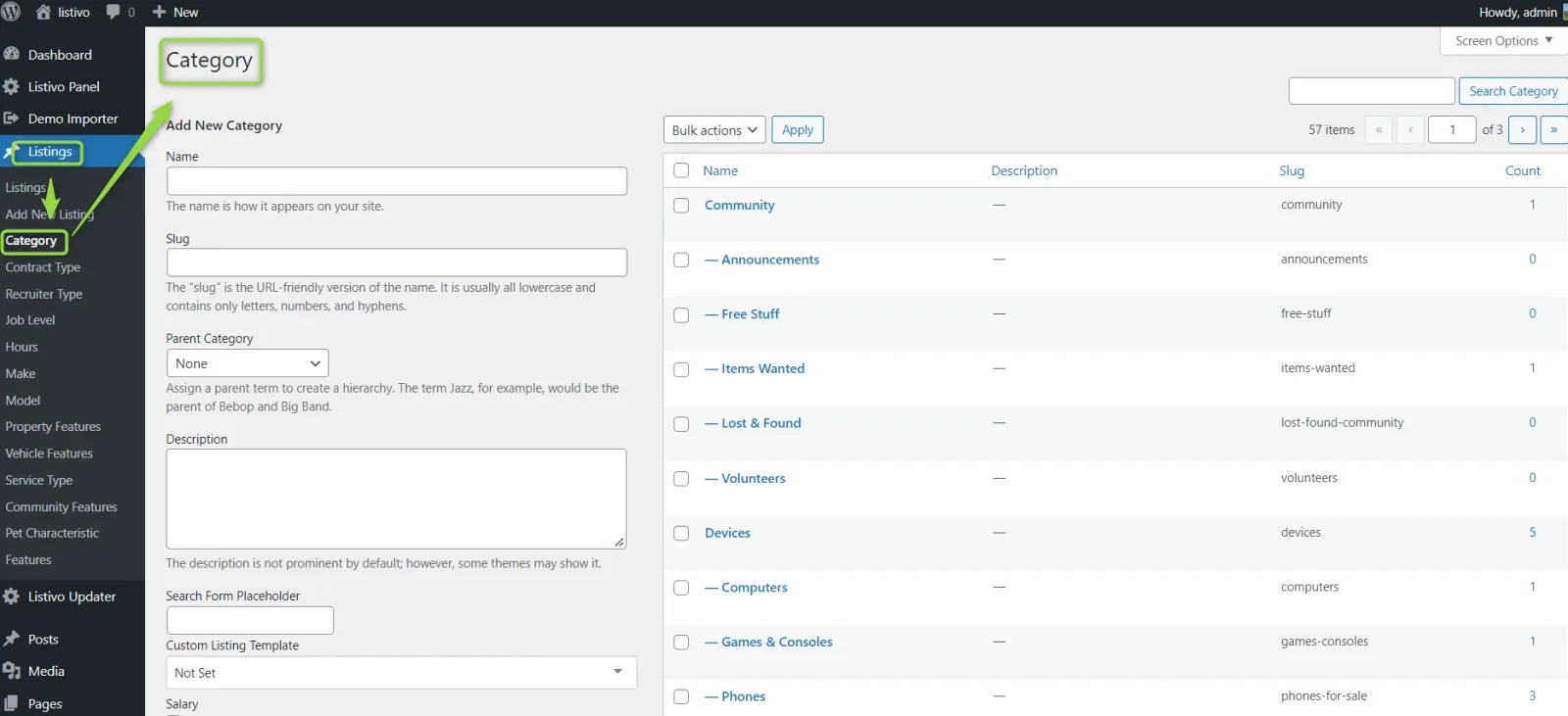
In Listivo, you can use a taxonomy to organize groups of your listings. For example, in one of the Listivo demos you can see how a taxonomy was used for the category field.
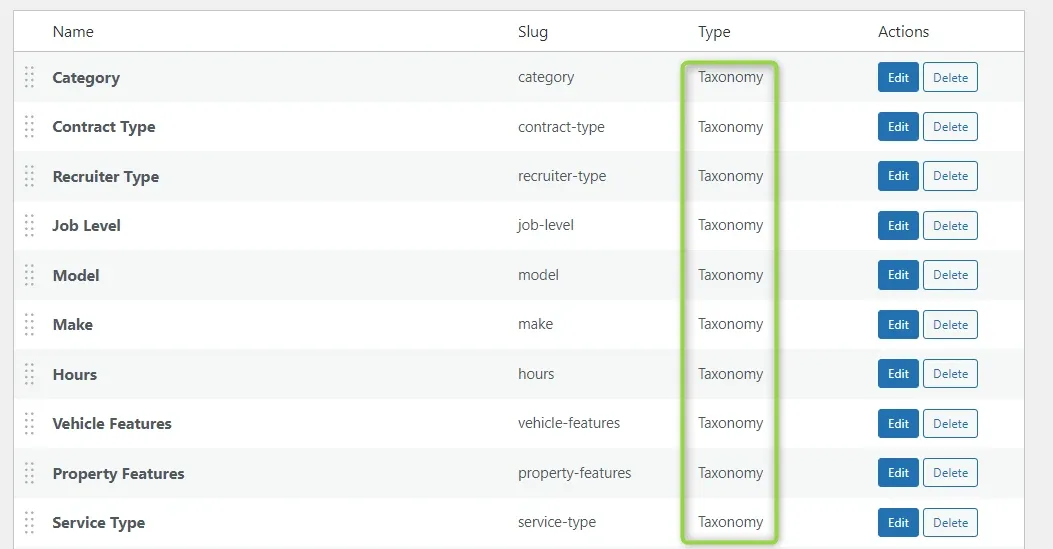
You can use as many taxonomy-type fields as you need on your website. For example, we used this type for the following fields in our demo.
2. Text
Text is intended for a simple, small field. You can use it for a VIN or your internal listing number.
3. Rich Text
You can use it to add additional text beyond the description to the listing — for example, other services or special offers.
4. Number
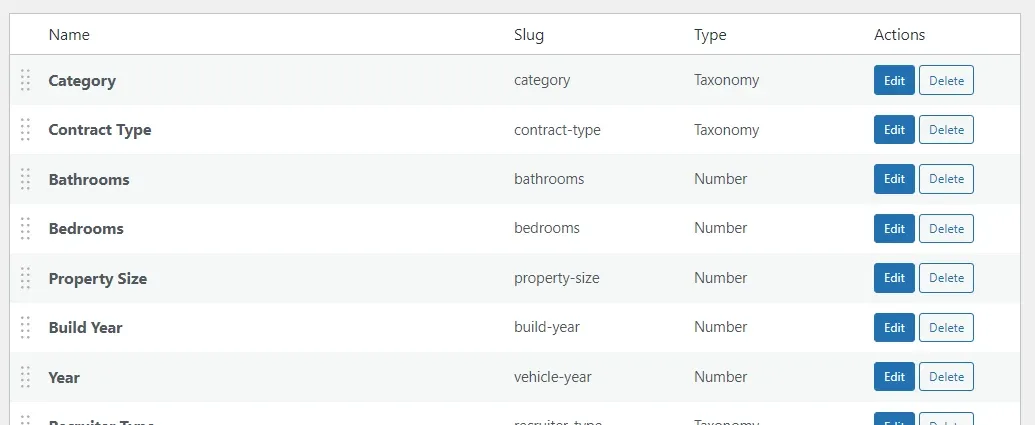
The Number field can be used for the year of construction, the size of a property or the mileage of a car. Depending on your needs, the field can also be configured to display a value after or before the number entered. You can put masks on the field. The values given in it will not appear in the loan calculator.
5. Price
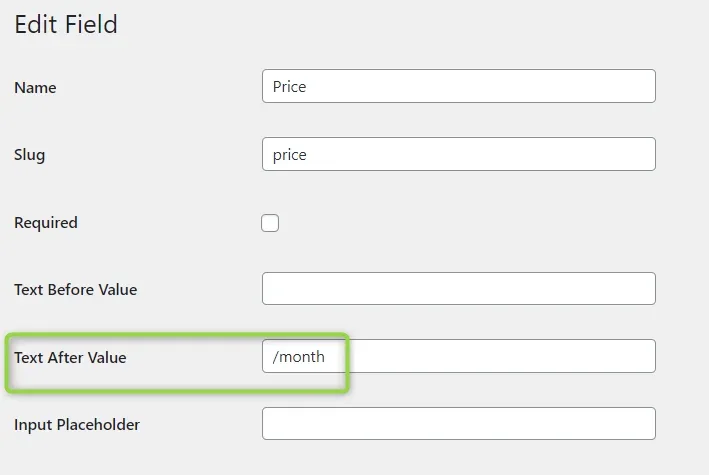
The field is used to provide the price of the added listing. Depending on your needs, the field can be configured to display a value after or before the price entered. The values given in it will appear in the loan calculator.
6. Location
Our product is integrated with Google Maps. After adding your API key, you can add a location to each listing.
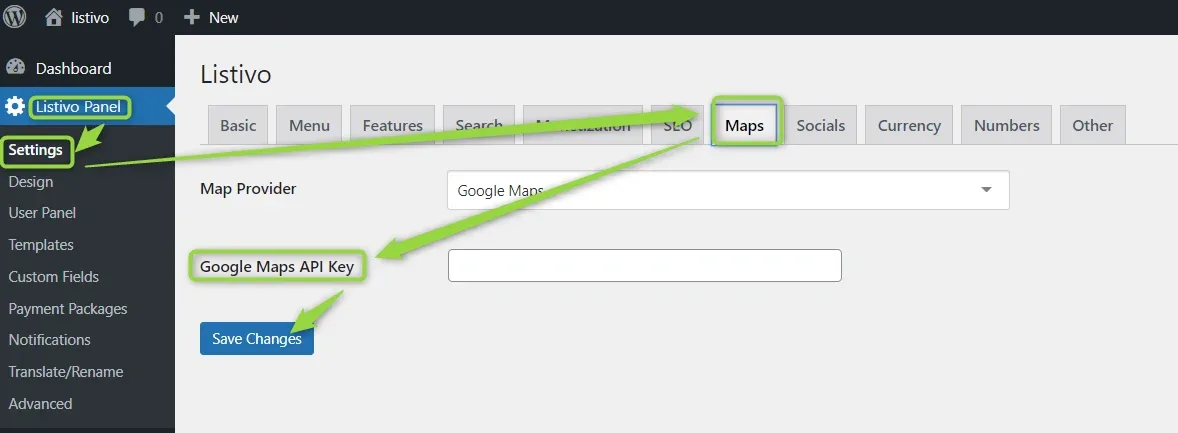
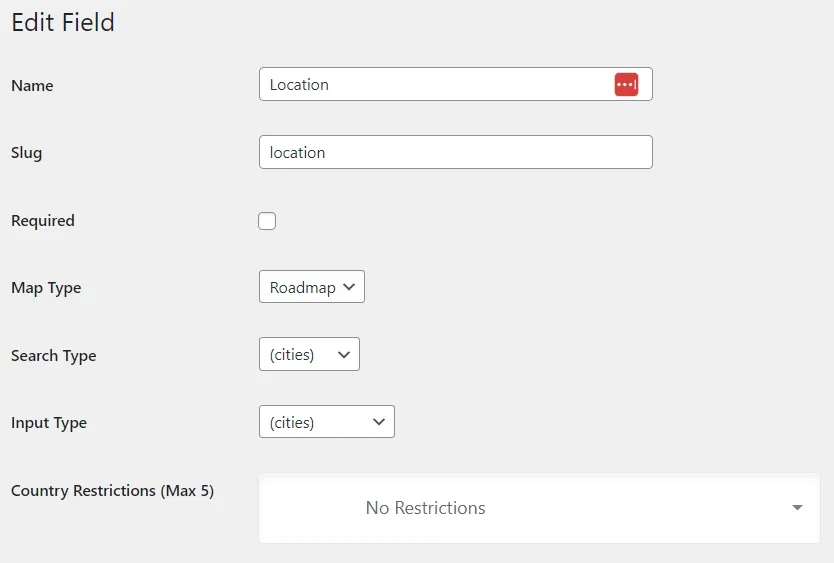
You can adjust the settings depending on your preferences. You can choose the Map Type (roadmap, satellite, hybrid, terrain), the Search Type (cities, regions, address) and the Input Type (geocode, establishment, cities, regions, address). You can also set the countries you want to restrict the location to on your website (max 5).
7. Embed
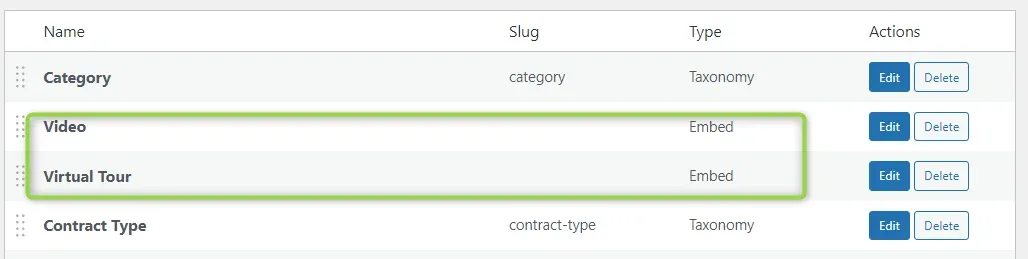
You can use this type of field more than once. It can be a link to a video (e.g. from YouTube), or for more advanced users you can allow raw HTML.
8. Gallery
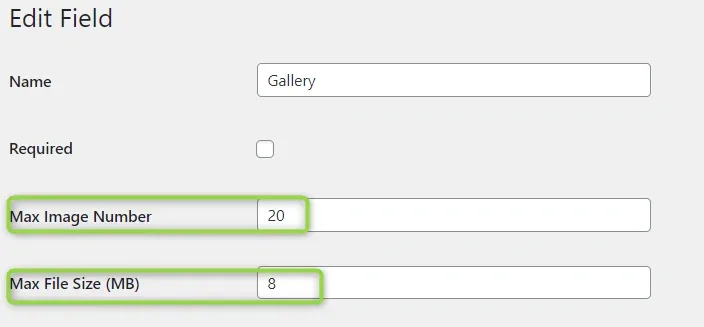
Thanks to this field type, you can add photos to your listing. If necessary, more than one gallery can be added to one listing. You can configure it and add restrictions on the size of photos and the number of photos.
9. Attachments
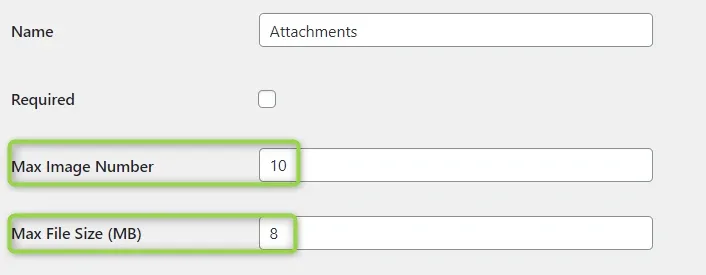
The field type is used to add the necessary attachments to the listing. It can be a technical specification, a leaflet, or a sample contract. The configuration allows you to limit the size and number of attachments.
10. Salary
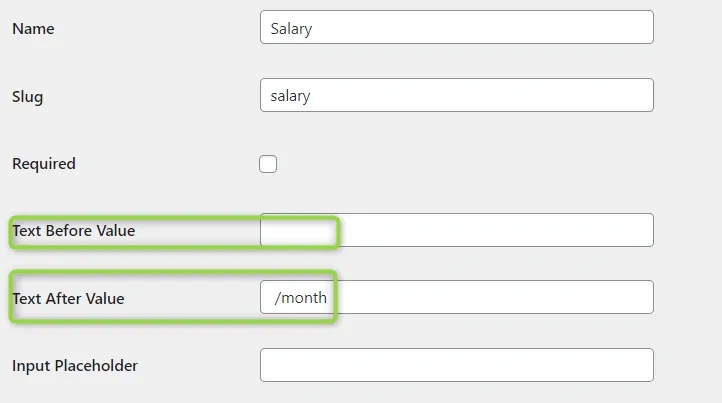
The field is used to specify the salary of an added listing, e.g. for a job advertisement. Depending on your needs, the field can be configured to display a value after or before the amount entered (for example, text after the value such as / month). The values given in it will not appear in the loan calculator.
Ask the people who build Listivo
We answer by email from support@tangiblewp.com. With Premium Support, we also fix your site when something breaks.
We can also run your site for you, or build a new one.
Was this guide helpful?