How to Enable Google Maps and Obtain a Google Maps Key
Create a Google Maps API key in the Google Cloud console, switch on the three APIs the theme needs, and paste the key into your Listivo Panel so maps load on your site.
2 minute read
To run Google Maps on your website you need to generate a Google Maps API Key and add it to your Listivo Panel. Three APIs have to be enabled for it to work correctly:
- JavaScript API
- Geocoding API
- Places API
Google's own documentation explains how to create this kind of key: https://developers.google.com/maps/documentation/javascript/
Create the API key
-
1
Open the Google Cloud console
Visit https://console.developers.google.com and sign in with your Google Account.
-
2
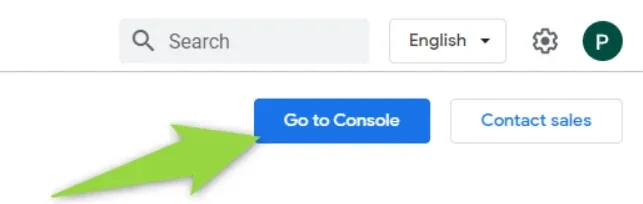
Click "Go to Console"
The button sits in the top-right corner of the page.
-
3
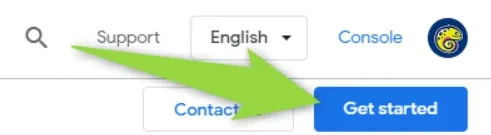
Or click "Get started"
On the Google Maps Platform page the same corner shows a Get started button instead.
-
4
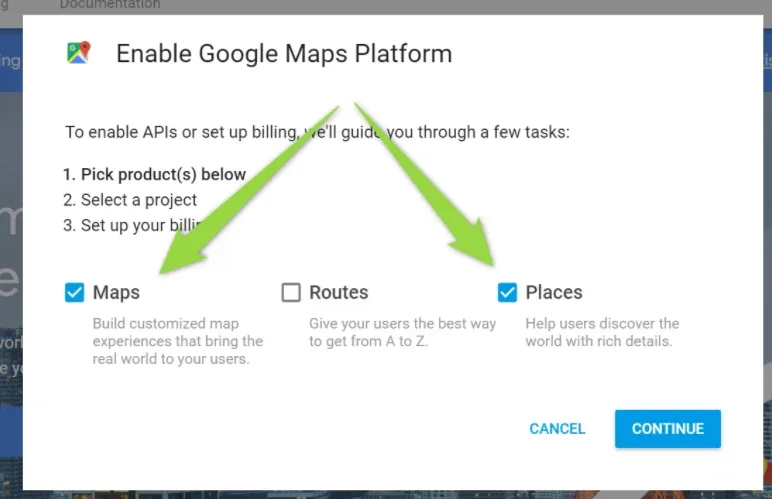
Check "Maps" and "Places"
The setup dialog asks which products you want; tick these two and continue.
-
5
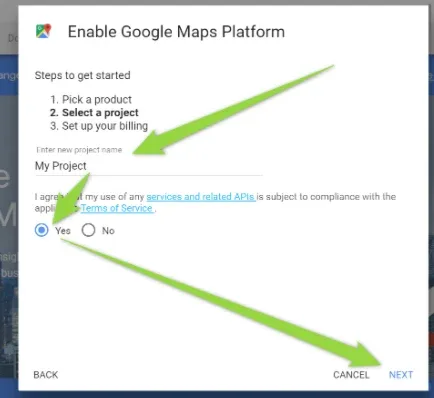
Enter a new project name
Type a name, accept the terms of service and go to the next screen.
-
6
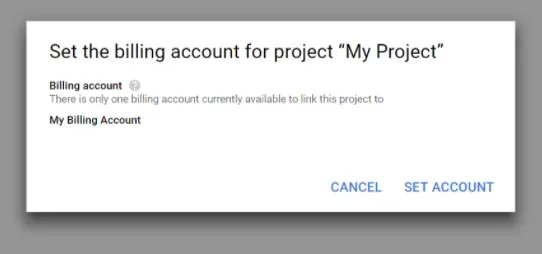
Choose a billing account
Pick an existing billing account or create a new one. Google charges only very popular websites — you can read more about it here.
Make sure the required APIs are enabled
Please make sure the following APIs are enabled:
- Maps JavaScript API
- Geocoding API
- Places API
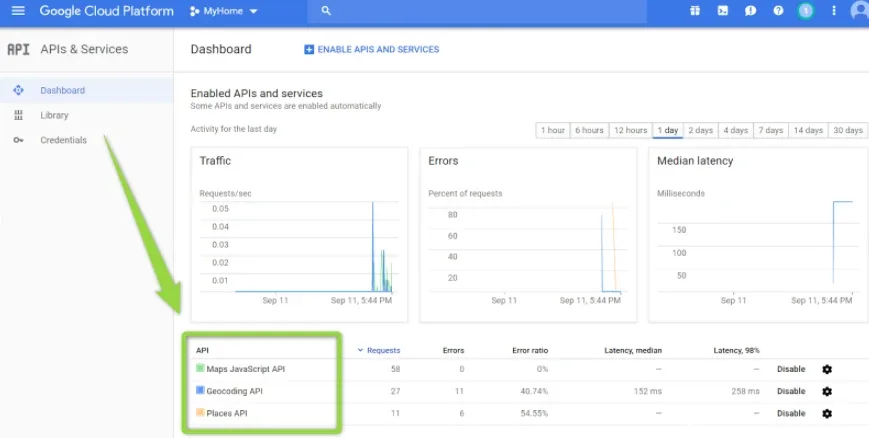
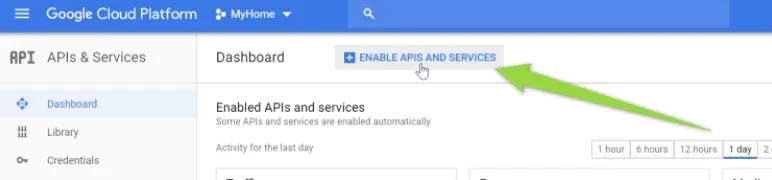
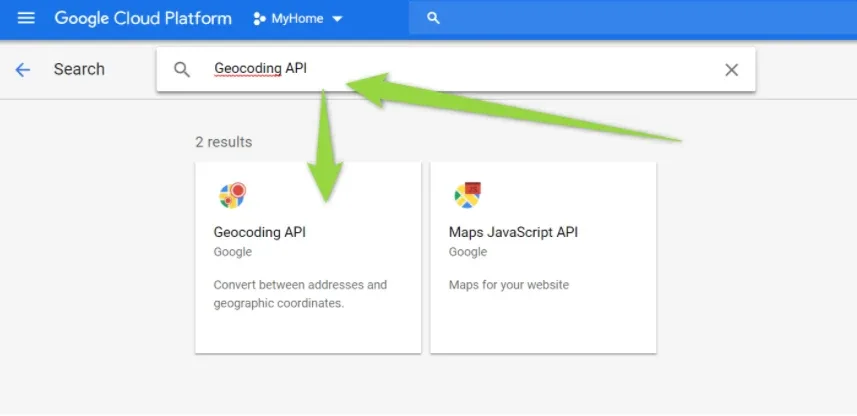
If one of them is missing, click ENABLE APIS AND SERVICES, search for it — for example "Geocoding API" — and click Enable.
Add the key to Listivo
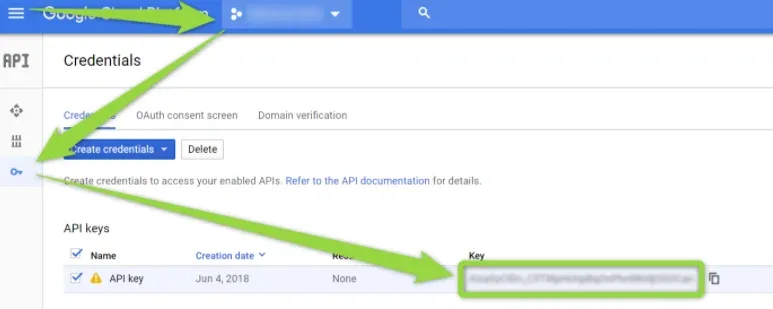
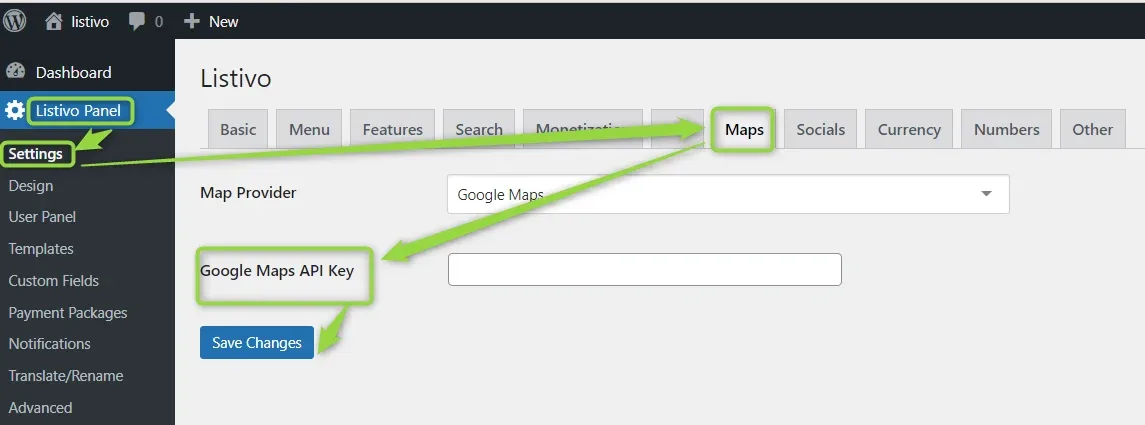
Copy the Google Maps API Key from the Credentials page and paste it into Listivo Panel > Settings > Maps > Google Maps API Key, then save the changes.
Ask the people who build Listivo
We answer by email from support@tangiblewp.com. With Premium Support, we also fix your site when something breaks.
We can also run your site for you, or build a new one.
Was this guide helpful?