How to add new field on single / inventory page?
Creating a custom field does not put it on your pages. This article shows how to place an existing field on the search results template and on the single ad template with Elementor.
1 minute read
This article will walk you through the inventory page. After reading it, you will know how to add new fields and remove the ones you do not need.
Add the field to the search results page
-
1
Open the search results template
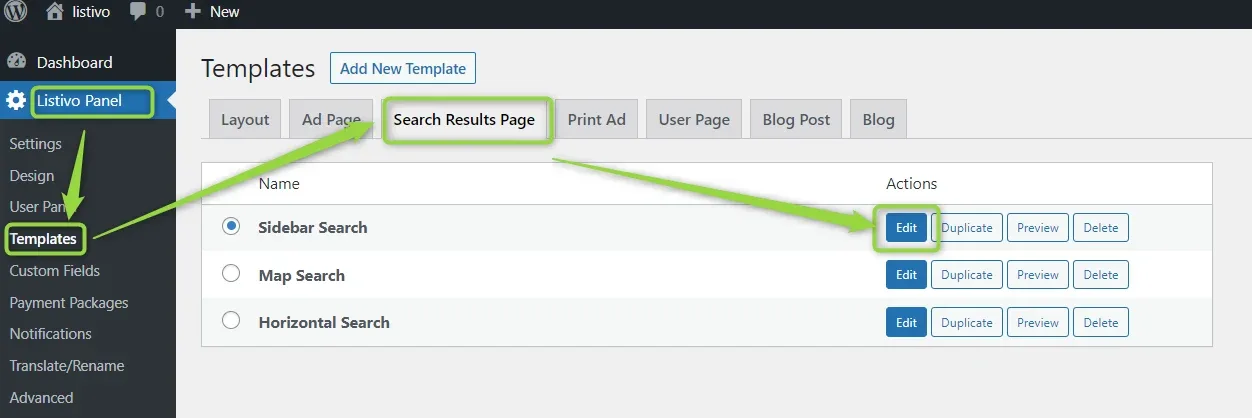
Go to Listivo Panel -> Templates and pick the template you want to edit. In the example below, we edit the search results page.
-
2
Open the search widget
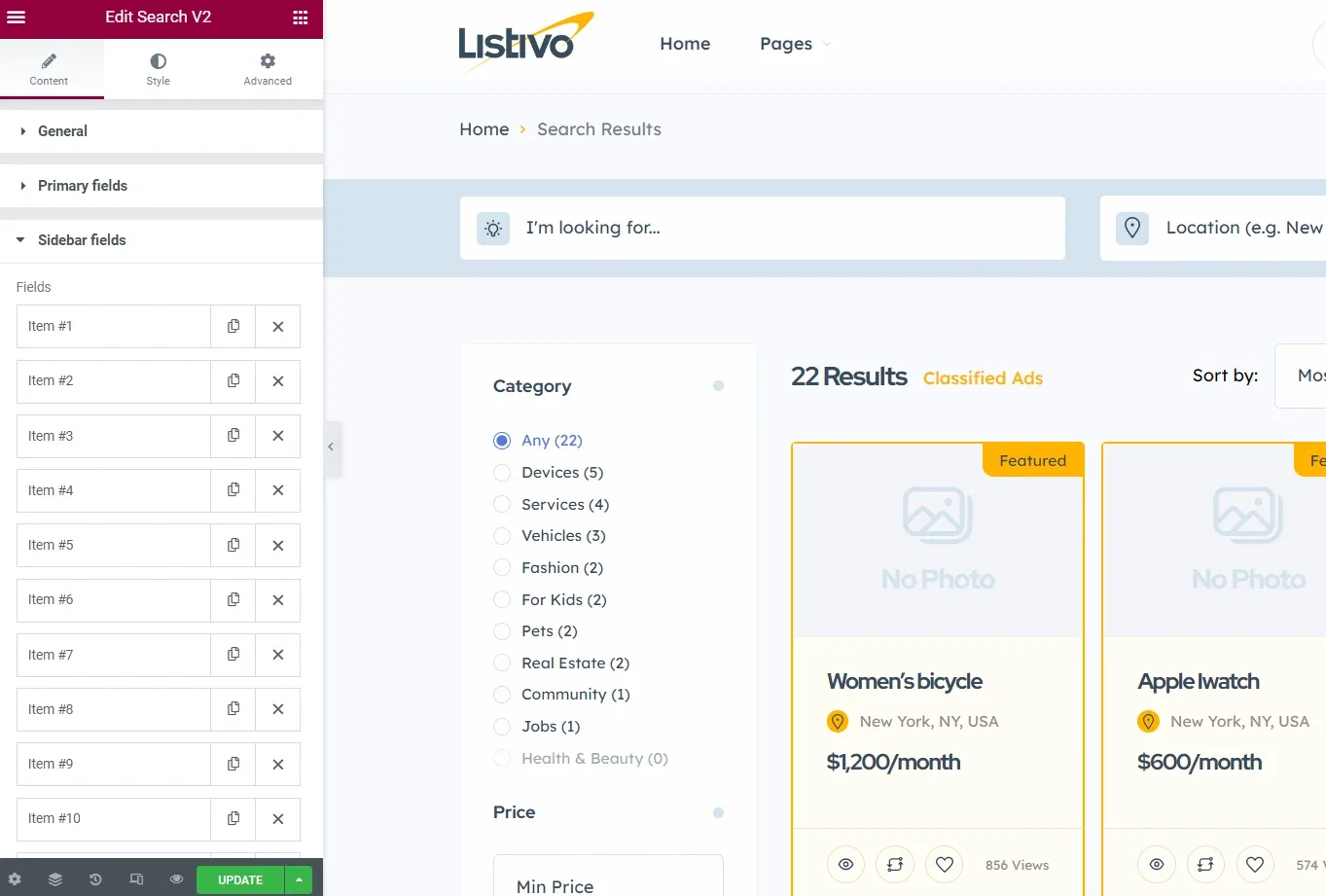
Using Elementor, you can add your new field to the search V2 widget.
-
3
Click Add Item
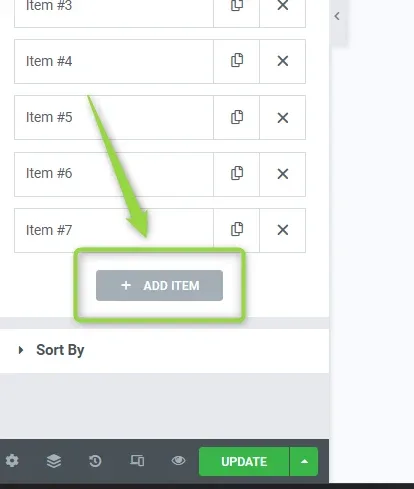
Click on the "add item" button.
-
4
Select the new field
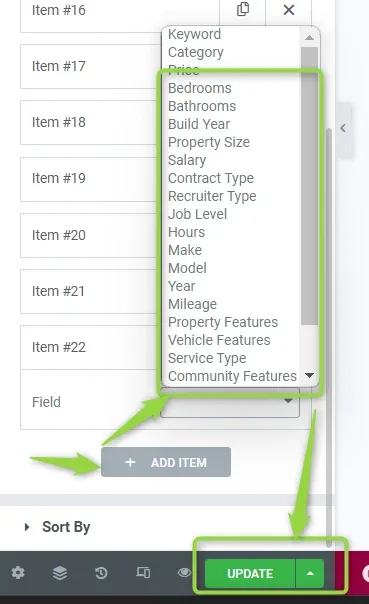
Select the new field from the list. Then configure how you would like to display it, and remember to update.
Add the field to the single ad page
-
1
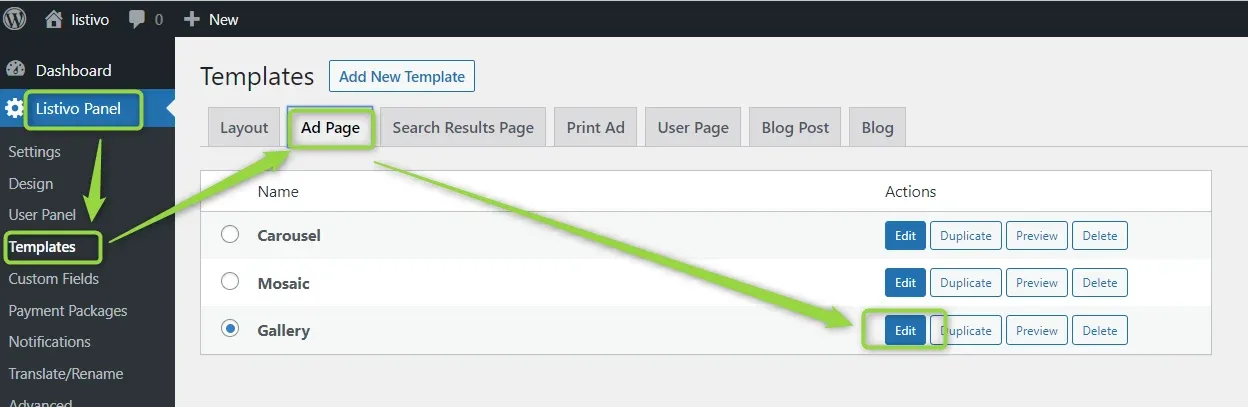
Open the ad page template
Go to Listivo Panel -> Templates and pick the template you want to edit. In the example below, we edit the Single Page.
-
2
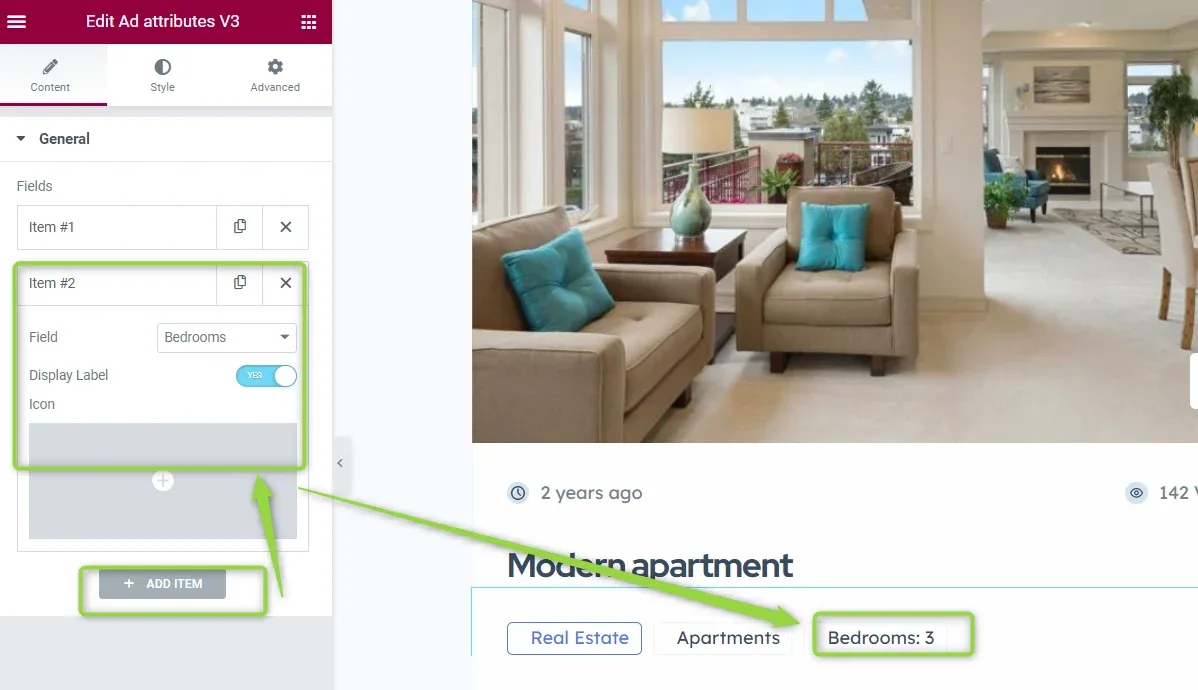
Add the field to the widget
Using Elementor, you can add your new field to the widget.
-
3
Select the new field
Select the new field from the list. Then configure how you would like to display it, and remember to update.
Ask the people who build Listivo
We answer by email from support@tangiblewp.com. With Premium Support, we also fix your site when something breaks.
We can also run your site for you, or build a new one.
Was this guide helpful?