Common settings for custom fields
Background on the settings every Listivo custom field shares, before you pick a field type: making a field required, its slug, multilevel, the input placeholder, who may see or fill it in, and hiding it from chosen categories.
1 minute read
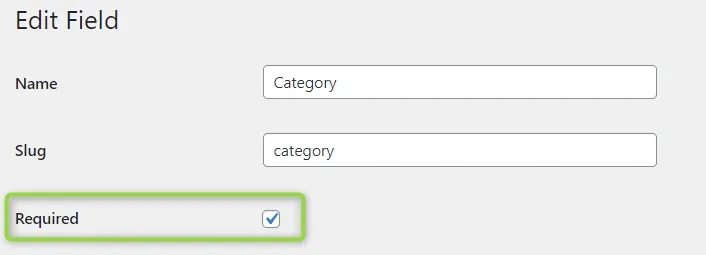
Required
All fields can be marked as Required. With this checked, a listing cannot be added without filling in this field.
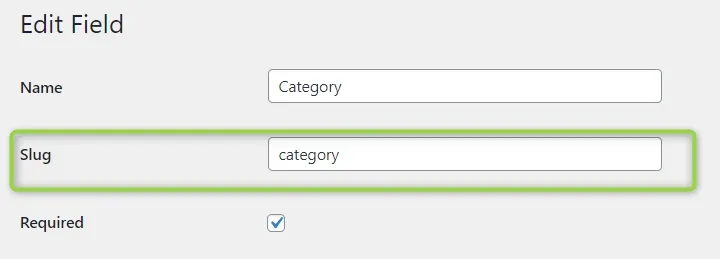
Slug
A Slug is added to each field automatically, and you can change it if you want. A slug is the URL part that explains the page's content.
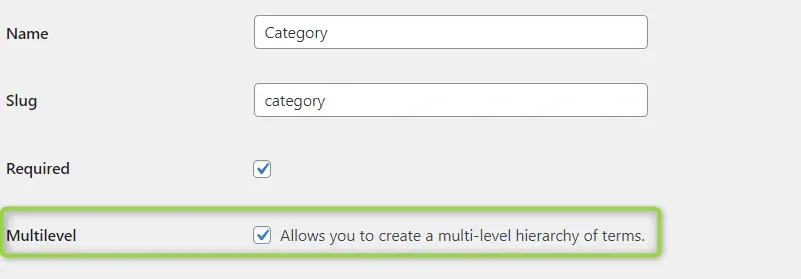
Multilevel
Multilevel is an option that allows you to select more than one category for the listing.
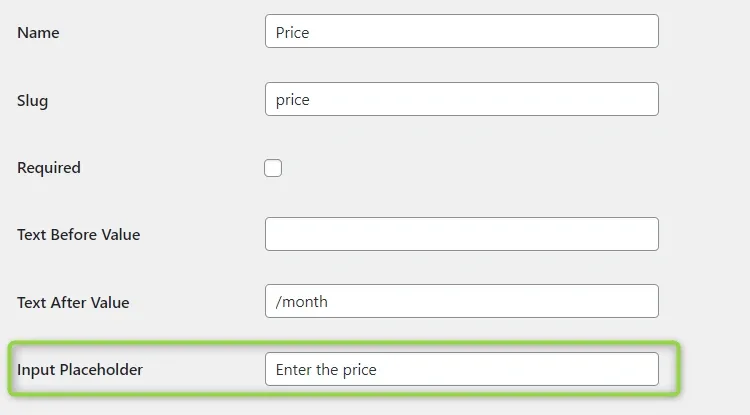
Input Placeholder
The field Input Placeholder gives a short hint that describes the expected value of an input field. The short hint is displayed before the user enters a value in the input field — for example, to tell the user what should be entered there.
Who can see and fill out the field
'Who can see this field on the single listing page?' and 'Who can fill out this field on the frontend panel?' allow you to control visibility depending on the type of user.
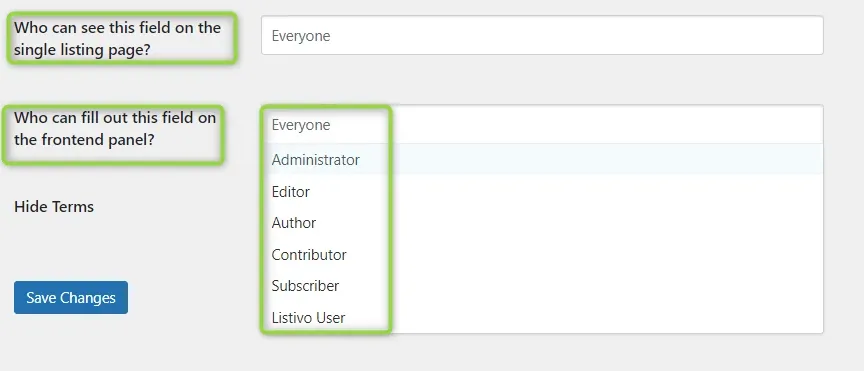
Hide Terms
You can also hide chosen fields depending on the categories. In 'Hide Terms', you simply select categories — for example, the salary field is not used in apartments, boats, or cars.

Ask the people who build Listivo
We answer by email from support@tangiblewp.com. With Premium Support, we also fix your site when something breaks.
We can also run your site for you, or build a new one.
Was this guide helpful?